
Build your first workflow
Outcome: understand how a request becomes a workflow you can inspect. Allow about five minutes. This tour uses fictional demo data and does not send messages anywhere outside your machine.
A workflow is a set of steps AgentX runs in order, such as "start, ask an agent for a report, finish". In the editor, each step is a box (a node) on a drawing area (the canvas), and lines connect the boxes in the order they run.
1. Get the demo ready
You need a source checkout of AgentX that has been built with pnpm build (see Install).
Terminal: from the checkout, start the demo and leave it running:
shpnpm docs:demoTerminal: in a second terminal window, add the demo data:
shpnpm docs:seedBrowser: open
http://127.0.0.1:18931/workflows.Select Draft the demo shop report in the list on the left.
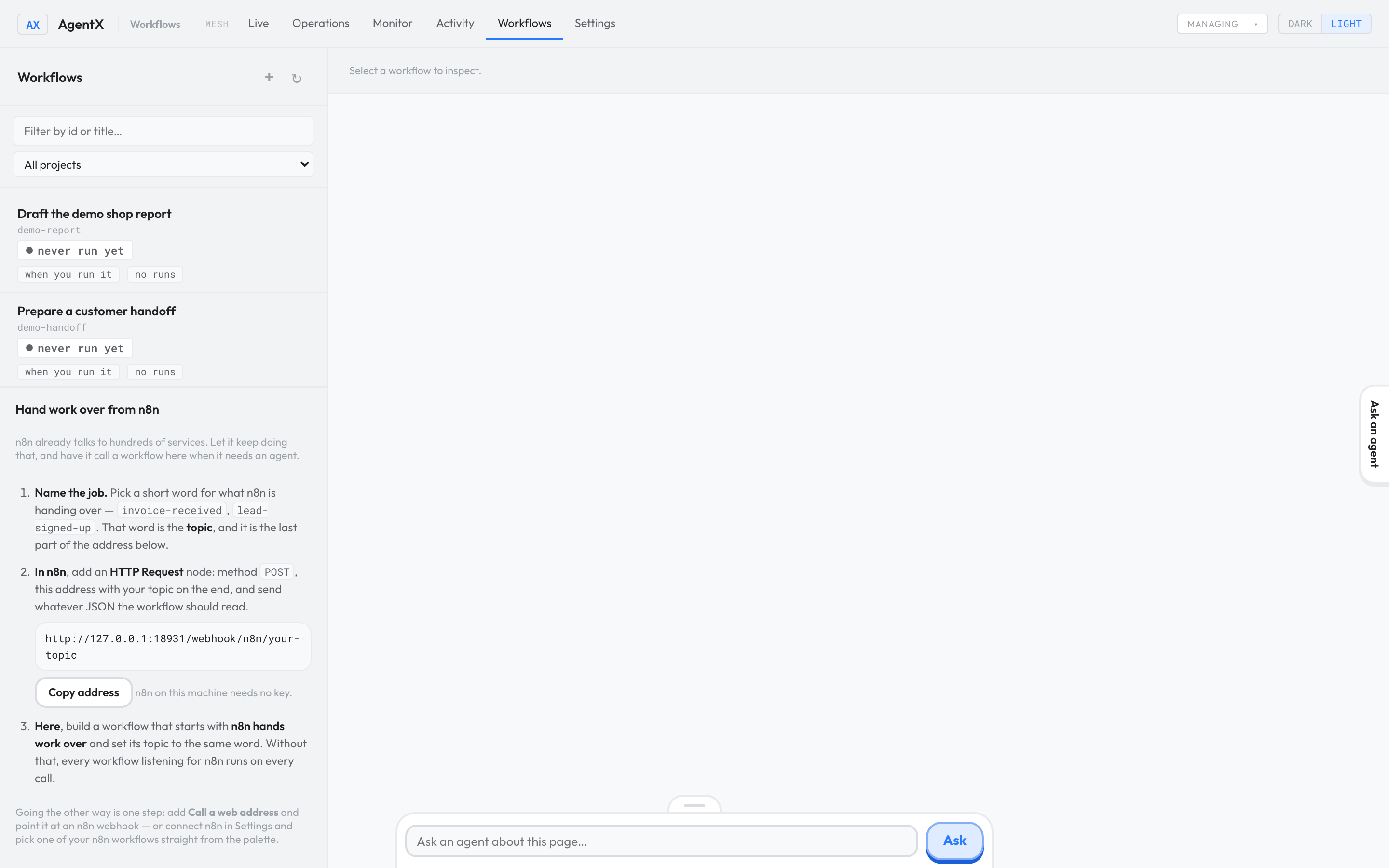
Select Edit on canvas. The workflow editor opens.
2. Follow the visual walkthrough
Use Next to read at your own pace, or Play tour to advance every few seconds. Playback starts only when you ask for it.
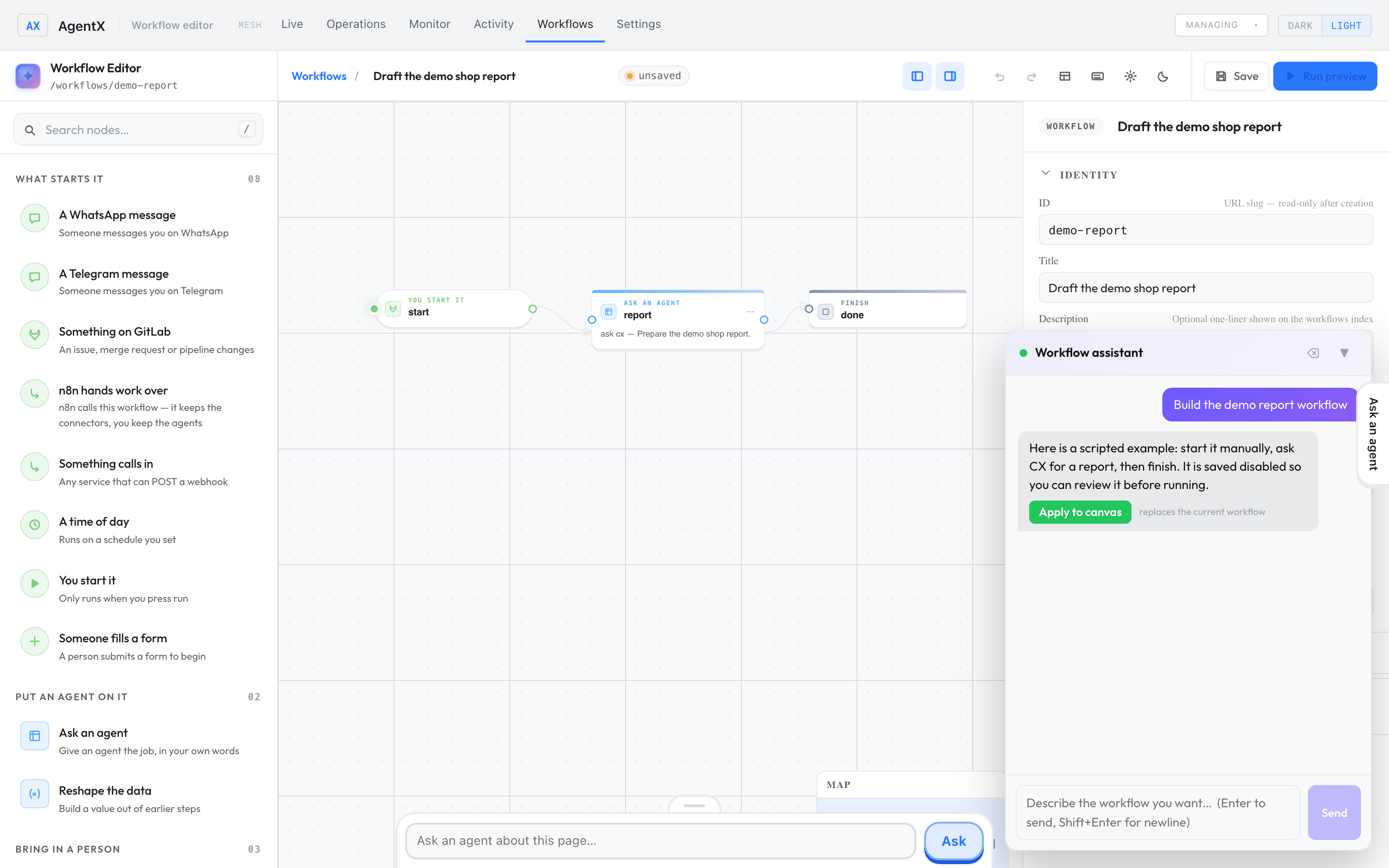
In the workflow assistant, send “Build the demo report workflow”. The demo uses a scripted reply; a live agent uses your configured model.
Real screenshots from the scripted AgentX demo. Highlights are annotations; the controls shown inside the images are not interactive.
3. Try it yourself
- Browser: in the editor, select Ask AI to build… at the bottom of the page.
- Type Build the demo report workflow and select Send.
- Read the assistant's proposal.
- Select Apply to canvas.
- Select the report box and check its agent and task in the panel on the right.
- Follow the lines from start to report to done.
- Select Save.
4. Go one level deeper
- Check a workflow run: inspect execution and output.
- How AgentX fits together: follow a request through the system.
- Workflow schema: understand the saved workflow file.
- Terminal reference: repeat operations from a shell.
Check it worked
- The canvas shows three connected boxes: start (you start it), report (ask an agent) and done (finish).
- The example stays switched off. Applying a proposal only draws the workflow; it doesn't run it. To see a real run, follow Check that it worked.
If something is wrong
http://127.0.0.1:18931doesn't open: the demo isn't running. Check the first terminal for errors and startpnpm docs:demoagain.pnpm docs:demofails at once: build the checkout first withpnpm build. If it says a port is in use, another demo is already running; stop it with Ctrl-C in its terminal.- There is no Draft the demo shop report workflow: run
pnpm docs:seedagain while the demo is running. - The assistant doesn't reply: in the demo it only knows the exact request Build the demo report workflow. Check the spelling.