
Phone app
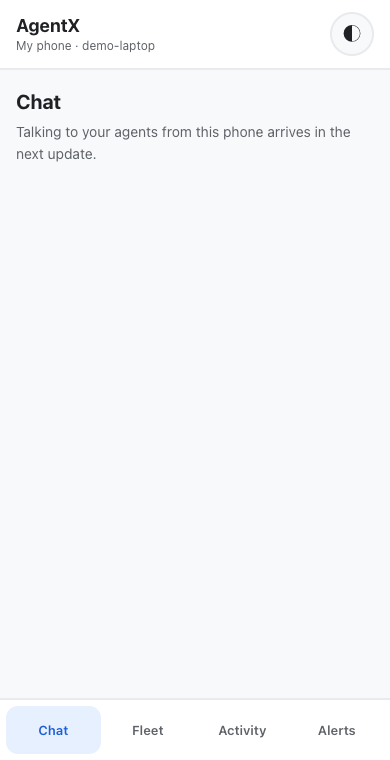
The phone app is a small version of the dashboard that you install on an Android phone or an iPhone straight from the browser. There is no app store. It has four tabs: Chat, Fleet, Activity and Alerts. This page installs the app and pairs your phone with a short pairing code. To talk to your agents from it, see Chat on your phone. To watch and manage your computers from it, see Fleet and Activity on your phone. To get notifications on it, see Notifications on your phone.
The phone reaches your computer over Tailscale, a free private network (a tailnet) that links your own devices. Nothing is opened to the public internet.
What you need
- The dashboard running on a computer that stays on.
- Tailscale installed and signed in to the same account on that computer and on the phone (install Tailscale).
- HTTPS certificates turned on for your tailnet (enable HTTPS). Phones only install apps from
https://addresses.
Install
- Terminal (computer): give the phone app, and only the phone app, a private HTTPS address on your tailnet.
4202is the dashboard's port (dashboard.portinagentx.json):shDon't runtailscale serve --bg --set-path /app http://127.0.0.1:4202/app tailscale serve --bg --set-path /api/app http://127.0.0.1:4202/api/apptailscale serve --bg 4202. That shares the whole dashboard with every device on your tailnet, and most of the dashboard trusts anything that arrives through the computer. If you ran it before, runtailscale serve resetfirst.agentx app pairrefuses to run while the whole dashboard is shared. See Tailscale Serve for details. - Terminal (computer): open a terminal in the folder that holds
agentx.json(the same folder the dashboard runs from). The phone is only accepted by the dashboard of that folder. - Terminal (computer): pair the phone and give it a name you'll recognise:shA QR code appears, with a pairing code such as
agentx app pair --name "My phone"7KQ4-M2XHunder it. The code works once, for 10 minutes. The QR code uses this computer's Tailscale name. To use another address, add--url https://<address>. - Phone: open the camera, point it at the QR code, and tap the link it shows. The app opens in the browser.
- Phone: add the app to the home screen:
- iPhone (Safari): tap Share, then Add to Home Screen, then Add.
- Android (Chrome): tap the ⋮ menu, then Install app (or Add to Home screen), then Install.
- Phone: open AgentX from the home screen.
- Phone: if the app says This phone isn't paired, pair it from inside the app. On iPhone this step is always needed, because an app on the home screen doesn't share the browser's pairing. Either:
- tap Scan QR code, allow the camera if the phone asks, and point it at the QR code from step 3. The app pairs by itself; or
- tap the Pairing code field, type the code from step 3, and tap Pair. You don't need capitals or the dash: the field adds them as you type, so
abcdefghshows asABCD-EFGH.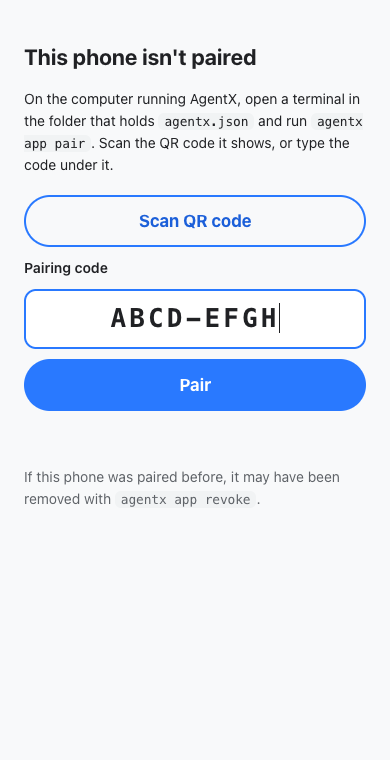
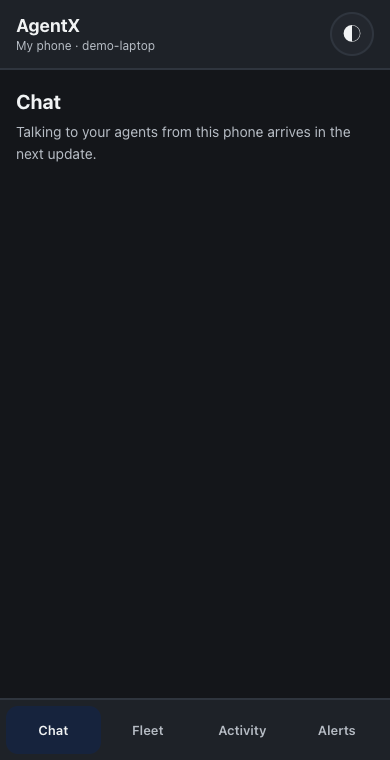
- Phone: wait for the app to open. You'll see AgentX at the top with your phone's name under it.
- Terminal (computer): clear the terminal so nobody else can scan or read the codes:sh
clear
Anyone who scans the QR code can use the app until you remove it, so treat it like a password. The pairing code stops working after one use or after 10 minutes, whichever comes first.
Pair without the QR code
You don't need the camera. On the phone, type the app's address (https://<computer's Tailscale name>/app) into the browser, add the app to the home screen as in step 5, open it, and type the pairing code.
Pair again after reinstalling the app
Removing the app from the home screen also removes its pairing.
- Terminal (computer): from the folder that holds
agentx.json, runagentx app pair --name "My phone"again. - Phone: add the app to the home screen again, as in steps 4 and 5 of Install.
- Phone: open the app from the home screen, tap Scan QR code and point the camera at the new QR code (or type the new code).
- Terminal (computer): remove the old entry for this phone, as in Manage paired phones.
Use it
- Tap a tab at the bottom to switch sections. With a keyboard, use the Left and Right arrow keys.
- Tap ◐ in the top-right corner to switch between light and dark themes.
- The app still opens without a connection. A yellow bar says it's offline, and live information returns when the phone reconnects.
Manage paired phones
Each phone gets its own key, so you can remove one without affecting the others.
- Terminal (computer): from the folder that holds
agentx.json, list paired phones:shagentx app devices - Terminal (computer): remove a phone using the id from that list (it starts with
tok_):shagentx app revoke tok_1a2b3c4d
The phone is locked out as soon as it next connects.
How access works
The app and its data (/app and /api/app/…) always need the phone's key, even from the computer itself. That matters because tailscale serve passes every phone request through the computer, so the dashboard can't tell a phone from a local browser by address alone. The key only opens the phone app. The rest of the dashboard isn't shared on the tailnet at all: step 1 passes on only /app and /api/app/…, and every other address answers "404 page not found".
The QR code carries the key after a # in the link, which browsers never send to the server, so it doesn't end up in logs. The phone then keeps it in a cookie that page scripts can't read.
The pairing code gives the phone the same key. The computer keeps only a scrambled form of the code, so the file it sits in (.agentx/pair-codes.json) can't be used without the code itself. To stop guessing, the app refuses all codes for 5 minutes after too many wrong ones, and it answers every wrong, expired or used code in exactly the same way. Each attempt is written to the dashboard's log.
Check it worked
- Terminal (computer): run
agentx app devices. Your phone is listed asactive. - Phone: open the app from the home screen. Your phone's name and the computer's name show under AgentX.
- Phone: close the app completely and open it again from the home screen. It opens without asking for a code.
- Phone: open
https://<computer's Tailscale name>/(the same address without/app). The page says404 page not found, so the rest of the dashboard isn't shared.
If something is wrong
- "Could not read this machine's Tailscale name" — Tailscale isn't running on the computer. Start it, or pass
--url https://<address>toagentx app pair. - The link doesn't open on the phone — the phone isn't connected to your tailnet. Open the Tailscale app on the phone and turn it on.
- The app asks to pair again after an update — the app now checks with the computer before it shows This phone isn't paired. If the phone is still paired, the page opens the app again by itself within a second or two. If the page stays:
- Phone: make sure Tailscale is on, then close the app completely and open it again from the home screen.
- Terminal (computer): run
agentx app devices. If your phone is listed asactive, look in the dashboard's log for a line starting with[app] unauthenticated.cookie=absentmeans the phone didn't send its pairing at all;cookie=revokedmeans it was removed. These lines never contain the key itself. - Phone: if your phone isn't listed as
active, pair it again: runagentx app pairand tap Scan QR code in the app.
- "This phone isn't paired" after pairing worked before — the phone was removed with
agentx app revoke, or the app was removed from the home screen and added again. Follow Pair again after reinstalling the app. - "That QR isn't an AgentX pairing code" — the camera found another QR code. Point it at the one
agentx app pairshows in the terminal, and keep other codes out of the frame.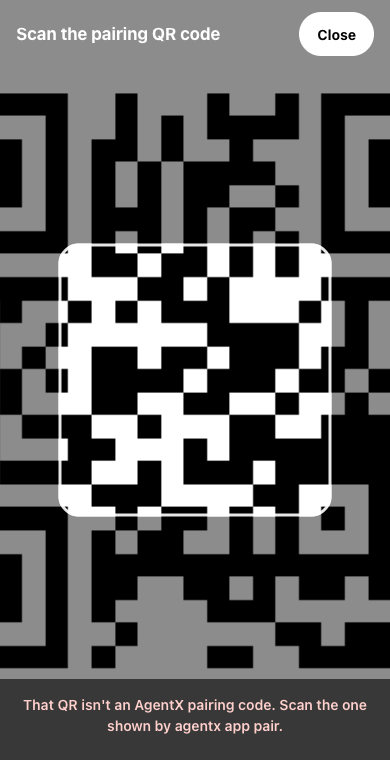
- "AgentX may not use the camera" — the camera permission was refused. On iPhone, open Settings, then Safari, then Camera, and choose Ask or Allow. On Android, long-press the app icon, tap App info, then Permissions, then Camera. Or tap Close and type the code instead.
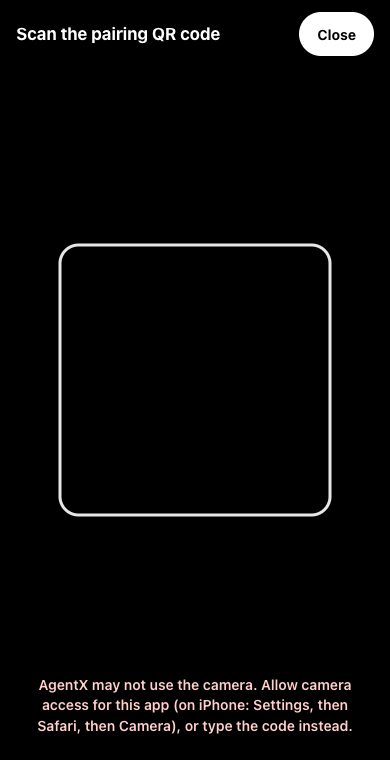
- No Scan QR code button — the app wasn't opened from an
https://address, so the browser offers no camera. Type the code instead, or use the address fromtailscale serve. - "That code didn't work" — the code was mistyped, is older than 10 minutes, or was already used. Check the code, or run
agentx app pairagain and type the new one. - "That code didn't work" with a fresh code —
agentx app pairran in a different folder from the dashboard. The terminal shows "No agentx.json here". Run it again from the folder that holdsagentx.json. - "Too many attempts. Wait 5 minutes, then try again." — too many wrong codes were typed, on this phone or any other. Wait the time shown, then type the code again. If the code has expired meanwhile, run
agentx app pairfor a new one.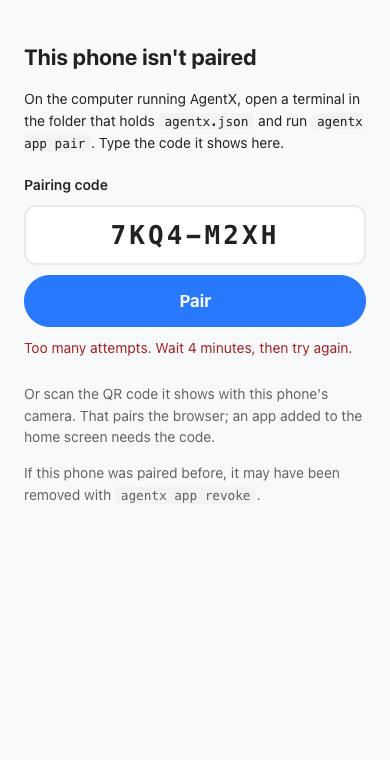
- "You're offline. Pairing needs a connection" — the phone has no connection to your tailnet. Turn on Wi-Fi or mobile data, and turn on Tailscale in its app, then tap Pair again.
- "This pairing link is not valid any more" — the phone was removed after the QR code was made. Run
agentx app pairagain and scan the new code. - "tailscale serve publishes the whole dashboard" —
agentx app pairfound an earliertailscale serve --bg 4202. Runtailscale serve reset, then repeat step 1 of Install. - The address without
/appopens the dashboard — the whole dashboard is shared on your tailnet. On the computer, runtailscale serve reset, then repeat step 1 of Install. - No "Install app" or "Add to Home Screen" option — the address isn't
https://. Use the address fromtailscale serve, nothttp://127.0.0.1:4202.