
Fleet and Activity on your phone
Two tabs of the phone app let you watch and manage every computer that runs AgentX from your phone:
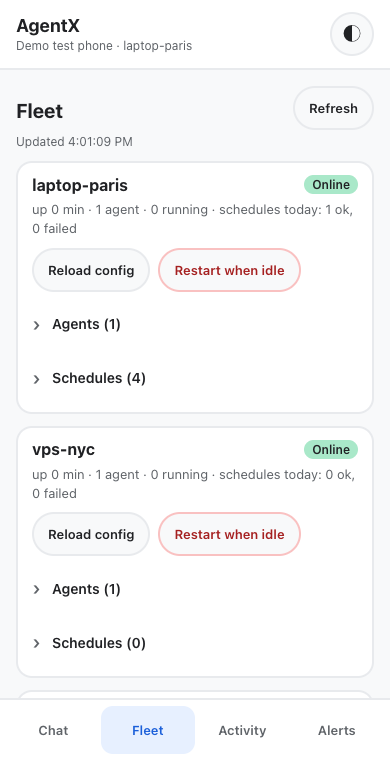
- Fleet shows each computer (a node): whether it is online, its agents, and its schedules (the jobs that run at set times, also called crons). You can reload a computer's settings, restart it, and turn schedules on or off.
- Activity shows the decisions waiting for you and the tasks agents are working on right now. You can answer a decision, stop a task, or send a follow-up message to it.
The app shows every computer the dashboard can see, including those it finds through your mesh (the private link between your AgentX computers). Both tabs refresh on their own every 15 seconds while they are open.
Before you start
- Install and pair the phone app.
- For computers other than the one running the dashboard, both computers must share the same mesh token. See Add a second machine.
Turn a schedule on or off
- Phone: open the app and tap Fleet.
- Phone: under the computer that owns the schedule, tap Schedules.
- Phone: tap the switch next to the schedule.
- Phone: read what will happen, then tap Turn on or Turn off. Tap Cancel to change nothing.
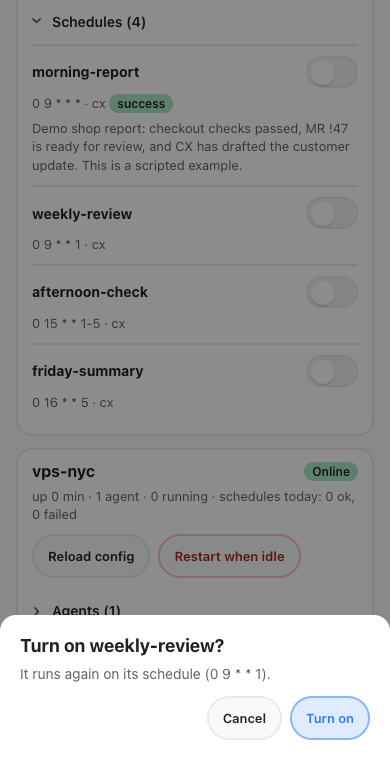
The change is saved in that computer's agentx.json and takes effect straight away. It is the same as agentx cron enable <id> or agentx cron disable <id> in a terminal. A schedule an agent proposed stays off until you approve it under Activity.
Each schedule shows the result of its last run today and a short excerpt of what it produced. The count at the top of each computer, "schedules today: … ok, … failed", comes from the saved run history, so it is still right after a restart.
Reload or restart a computer
- Phone: tap Fleet.
- Phone: under the computer, tap one of:
- Reload config re-reads
agentx.json. Running work continues. - Restart when idle restarts AgentX on that computer as soon as no agent is working. Its agents are unavailable for a moment.
- Reload config re-reads
- Phone: confirm in the sheet that opens.
While a restart is waiting, the computer shows Restart pending and a Cancel restart button.
Answer a decision
When an agent asks for your approval, it appears under Needs you.
- Phone: tap Activity.
- Phone: read the question and the suggested answer.
- Phone: tap Yes, No, or Later (ask again later), then confirm.
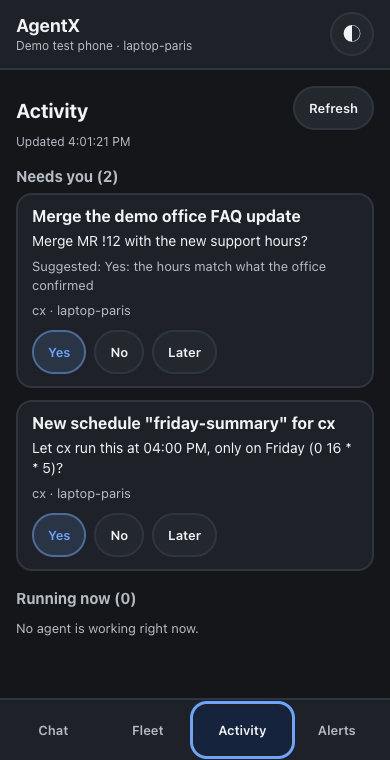
This is the same inbox as the Approvals page and agentx approvals.
Stop or steer a running task
Tasks agents are working on appear under Running now, newest first.
- Phone: tap Activity.
- Phone: on the task, tap one of:
- Stop ends the current task. The agent keeps the conversation.
- Follow up opens a box for a message. Type it and tap Send. The agent reads it when the current step finishes.
What the phone can see
The tabs show short excerpts only (at most 160 characters), never full prompts, replies or error logs. Every action goes through the dashboard to the computer it concerns, with that computer's mesh token, and the computer records who asked, for example operator (phone: My phone).
Check it worked
- Phone: tap Fleet. Every computer you expect is listed, and the ones that are running show Online.
- Phone: turn a schedule off, then check it in a terminal on that computer:shThe schedule shows as disabled. Turn it back on from the phone if you need it.
agentx cron list - Phone: tap Activity. The number next to Needs you matches
agentx approvals liston the computer running the dashboard.
If something is wrong
- A computer shows "Offline" — AgentX isn't running there, or the dashboard can't reach it. The rest of the fleet keeps working. Start AgentX on that computer, or check the mesh with
agentx mesh list. - "… failed: Unauthorized: mesh token required" — the two computers don't share a mesh token. Give them the same
MESH_TOKEN, as in Add a second machine. - "… failed: node not in dashboard allowlist" — the dashboard doesn't know that computer. Add it under
dashboard.daemonsinagentx.json, or pair it into the mesh. - "… is waiting for approval" when turning a schedule on — an agent proposed it. Approve it under Activity (or run
agentx schedule approve <id>), then turn it on. - Decisions from another computer are missing — the app reads them through that computer's dashboard. Set
dashboardUrlanddashboardTokenfor it underdashboard.daemons. - A tab stays on "Loading…" — the phone lost its connection. The yellow bar says so; the tab fills in when the phone reconnects.