
Chat on your phone
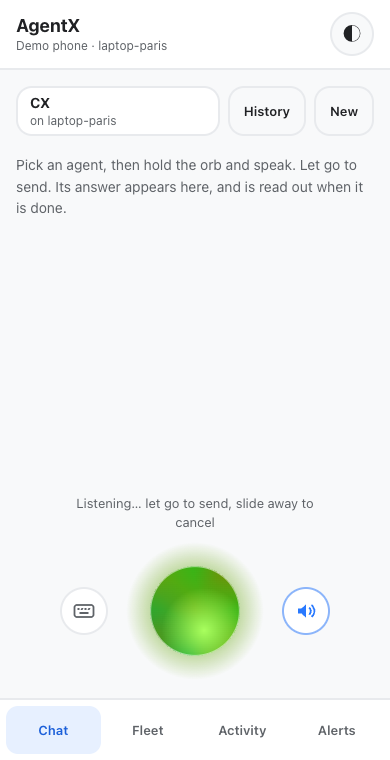
The Chat tab of the phone app lets you talk to any agent on this computer, or on another computer linked to it in your mesh (the private link between your AgentX computers, see Add a second machine). Chat is voice first: you hold the round button at the bottom, the orb, and speak. The agent's answer appears as it writes it and is then read out loud. You can always type instead. Each conversation stays with the agent you started it with, and the agent remembers the earlier messages in it.
Before you start
- Install and pair the phone app. Voice needs the installed app or a browser tab on its
https://address; phones only allow the microphone on secure pages. - AgentX is running on the computer the phone is paired with.
- For voice input, that computer needs a speech-to-text engine. See What the computer needs for voice. Typing works without one.
Pick an agent
- Phone: open the app and tap Chat.
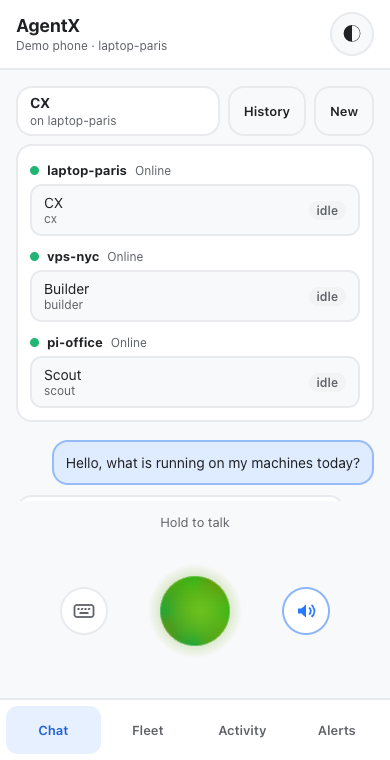
- Phone: tap Choose an agent. The list shows each computer with a green dot when it is online, and each agent as idle or busy. Agents on an offline computer can't be picked.
- Phone: tap an agent. The orb takes that agent's colour, the same colour as its orb on the Mac.
Talk to the agent
- Phone: press and hold the orb. The first time, the phone asks to use the microphone: tap Allow. The phone buzzes briefly when it starts listening, and the orb grows and glows with your voice.
- Phone: say your message while you keep holding.
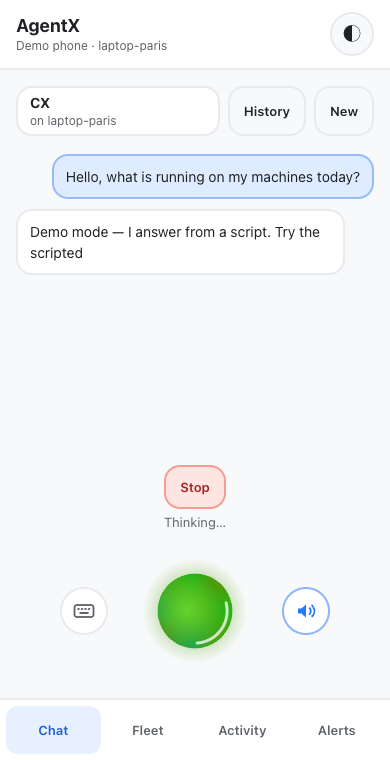
- Phone: let go to send it. A ring turns around the orb while your words are written down, and your message appears in the conversation.
- Phone: wait for the answer. The ring keeps turning while the agent works, and the answer appears as the agent writes it.
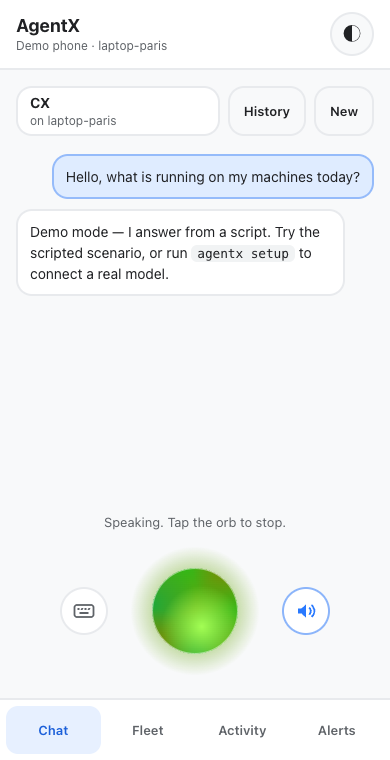
- Phone: listen. When the answer is complete, it is read out loud and the orb pulses with the voice.
- Cancel a recording: while holding, slide your finger off the orb. The text says Let go to cancel, and letting go there sends nothing.
- Stop the voice: tap the orb while it speaks.
- Turn spoken answers off: tap the speaker button to the right of the orb. The phone remembers the choice. Answers still appear as text.
- A recording can be up to 2 minutes long. At 2 minutes it is sent on its own.
- With Reduce Motion turned on in the phone's accessibility settings, the orb stays still and only changes its look between listening, thinking and speaking.
- On a keyboard, focus the orb, then hold Space to talk. Esc cancels.
The answer is read in the agent's own voice when the agent speaks with ElevenLabs on the computer (see Agent voices). Other agents are read by the phone's own voice.
Type instead
- Phone: tap the keyboard button to the left of the orb. The text box appears above a smaller orb.
- Phone: type your message and tap Send.
The phone remembers typing mode until you tap the keyboard button again. Answers to typed messages are read out loud too while the speaker is on.
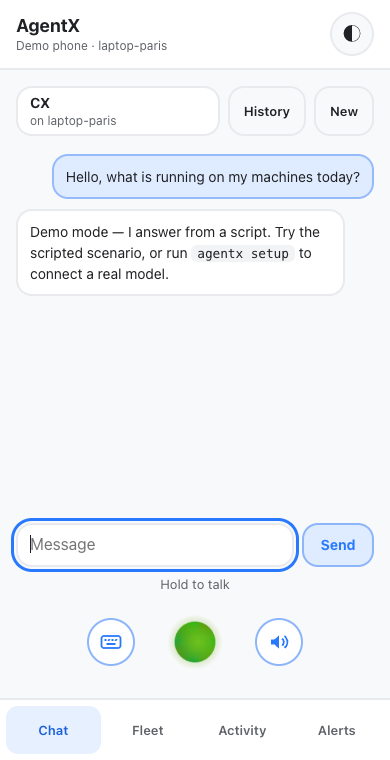
While the agent answers
- See the tools it used: tap the grey line above the answer, for example 2 tools · Bash (npm test). A tool that failed is marked in red.
- Stop it: tap Stop. The agent stops, and what it wrote so far is kept. Stop is the only thing that stops an answer. It can't cancel a message that is still waiting for a busy agent; that message runs once the agent is free.
- Add to your request: hold the orb and speak, or type and tap Send. It shows as Sent when the agent finishes and goes to the agent as soon as the current answer ends.
If the agent is busy with other work, your message waits until the agent is free, then runs. For an agent on another computer, this needs the same AgentX version on that computer; an older one answers that the agent is busy instead.
You can leave the app, lock the phone or lose the connection while the agent answers. The agent keeps going and the computer saves its answer. When you open the conversation again, the answer is there, or, if the agent is still writing, it carries on from where it is. An answer you come back to after closing the app is not read out loud. An answer that nobody comes back to for 30 minutes is stopped, and what was written so far is kept.
Talk to several agents at once
You don't have to wait for one agent before asking another. Each conversation runs on its own on the computer, and different agents work at the same time.
- Phone: ask the first agent something, as above.
- Phone: while it answers, tap Choose an agent and pick another agent (or tap New to start over with the same one). The first agent keeps working.
- Phone: ask the second agent your question.
A row of chips, small rounded buttons, appears at the top of Chat: one for each conversation that is still running or has an answer you haven't opened yet. Each chip has the agent's colour and name, and shows what it is doing:
| Chip | Meaning |
|---|---|
| Slowly blinking dot | The agent is thinking |
| Quickly blinking dot with a halo | The agent is writing its answer |
| New | The answer is ready and you haven't opened it |
| Hollow dot, highlighted chip | The conversation on screen |
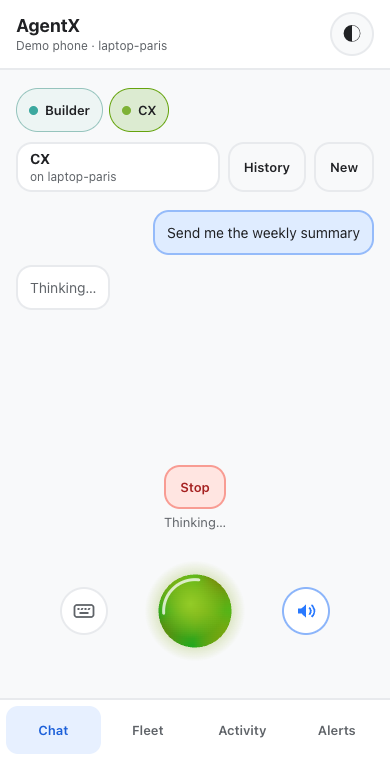
- Switch: tap a chip. A conversation that is still running picks up where the agent is; a finished one shows its answer, and its New mark goes away.
- More chips than fit: swipe the row sideways. It shows up to 12.
- Keyboard: Tab reaches the row; the arrow keys move between chips, and Enter opens one.
- Follow-ups: a message you add to a running conversation still waits for that agent (Sent when the agent finishes). If you switch away before the agent finishes, the phone keeps the message and sends it as soon as that answer is done.
- The row only shows when there is more than the conversation on screen.
When an answer finishes out of sight
This also covers an agent that asked another agent for help and comes back later with the result: its update is added to the conversation as a new answer. See When an agent asks another agent.
When an agent finishes in a conversation you are not looking at:
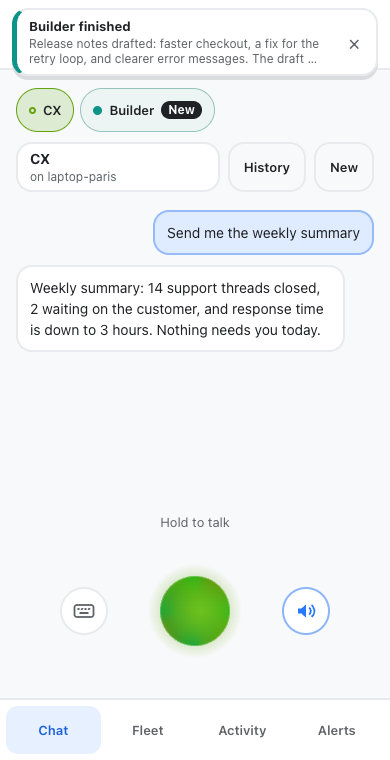
- App open: a banner slides in at the top with the agent's name and the first line of its answer. Tap it to open that conversation, or tap × to close it. It goes away by itself after about 6 seconds. When several answers finish together, their banners show one after another.
- App closed or in the background: the phone gets a notification, if notifications are on. Tapping it opens that conversation. You can turn these off for one phone; see Notifications when a chat answer finishes.
Answers read out one at a time
With the speaker on and the app open, every answer is read out loud, one at a time, in the order the answers finished. An answer from a conversation you are not looking at starts with the agent's name, for example "Builder: The release notes are ready…". The phone never speaks over another answer, or while you hold the orb to talk; the next answer waits its turn.
- Stop: tap the orb while it speaks. This stops the answer being read and drops the ones waiting.
- Too many waiting: at most 5 answers wait to be read. When a sixth finishes, the oldest waiting one is skipped, and the line under the orb says which.
- Speaker off: tap the speaker button. Nothing is read, and nothing waits.
Buttons, polls and pictures
Some answers come with extras: link buttons, quick replies, a small poll, or a picture, sound or video. Links open in the phone's browser. Tapping a poll answer sends it to the agent as your next message. Extras are never read out loud.
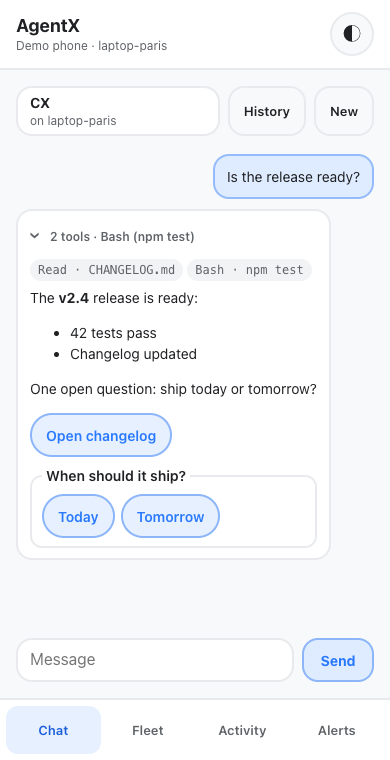
Agents add these on their own. To turn them off for one agent, set richMessages to false in its agent settings. The agent is then not told about them, and the phone shows none of them. This also turns off the pictures and files described below: pictures show as links and files as their names.
Quick replies
When the agent expects a short answer, it can offer up to 4 of them as quick replies, rounded buttons under its answer such as Yes and Not now. Some buttons carry a longer message than their label, for example Only unit tests sends Run only the unit tests. Such a button shows the message it sends in smaller text under its label, so you see what you are sending before you tap.
- Phone: tap a quick reply. It is sent as your next message, exactly as if you had typed it, and it shows in the conversation as your message.
- Phone: wait for the answer as usual.
After you tap one, the quick replies of that answer turn grey and can't be tapped again. They also turn grey as soon as a newer message is in the conversation, whether you typed it or tapped it. A tap never does anything more than sending that text: it runs no command of its own. Text you were typing in the box stays there.
A label longer than 40 characters is cut short on screen with …, but the full text is sent. More than 4 quick replies, or more than 4 reply buttons, are left out.
Pictures and files in an answer
An answer can show two more kinds of things:
- Pictures from the web. Agents write their answers in Markdown, a plain-text format where
means "show this picture here". The phone shows such pictures inside the answer, up to 8 per answer. Further pictures show as links. Only addresses that start withhttps://orhttp://are shown. - Files the agent made. A chart, a screenshot, a PDF or a recording that the agent saved on its computer. Pictures appear under the answer, sound and video get a player, and any other file gets an Open button that downloads it.
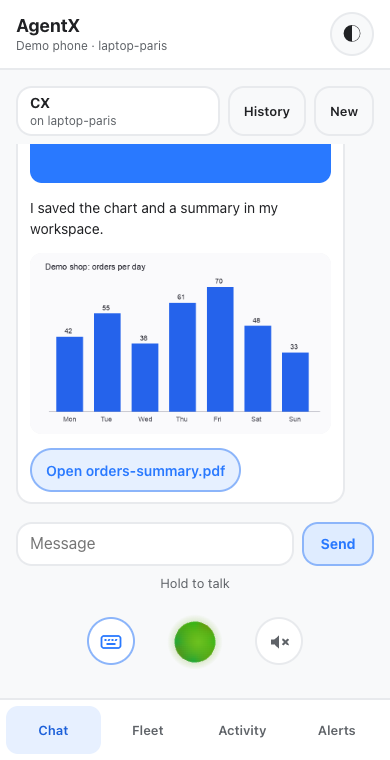
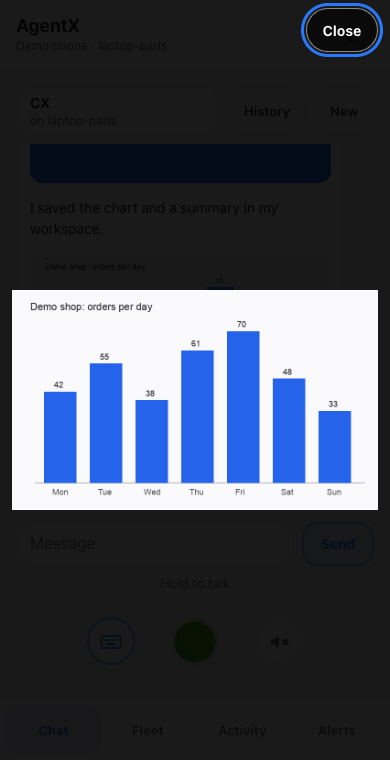
To see a picture full screen:
- Phone: tap the picture. It opens over the whole screen.
- Phone: tap Close to go back. On a keyboard, press Esc.
Pictures and files are never read out loud.
How an agent attaches a file
You don't need to set anything up. When a conversation starts, the agent is told how to attach files, once. If an agent writes about a file instead of showing it, ask it to attach the file. To attach a file, the agent:
Saves the file, or copies it, into the outbox: the folder
.agentx/outbox/inside its workspace, the folder on the computer it works in (workspacein its agent settings).Ends its answer with one line per file, giving the file's place inside the workspace and its type:
text<agentx-artifact>{"filename":".agentx/outbox/orders.png","mime":"image/png"}</agentx-artifact>
Any other place inside the workspace works too. A file outside it, such as one in /tmp, is refused: the phone gets nothing, and the daemon log names the file and says to copy it into .agentx/outbox/ first.
AgentX creates the outbox when a phone conversation starts. It deletes files that have been in the outbox for more than 7 days (counted from when a file arrived there, even if it was moved in with an older date), when a phone conversation starts and when the daemon starts, and never touches anything elsewhere in the workspace. An answer older than that shows a missing file. If the workspace is a git repository, add the outbox to its .gitignore so the copies are never committed:
.agentx/outbox/The line is taken out of the answer before you see or hear it. It is the same line the daemon's web chat (POST /chat) uses, so one habit works in both places.
Limits
| What | Limit |
|---|---|
| Pictures from the web in one answer | 8; the rest show as links |
| Files in one answer | 20 |
| Size of one file | 20 MB |
| File types | Pictures: png, jpg, gif, webp. Sound: mp3, m4a, wav. Video: mp4, webm. To open: pdf, txt, md, csv, json, svg |
| Where the file must be | Inside the agent's workspace, best in .agentx/outbox/. A path with .., or a link that leads out of the workspace, is refused |
| How long the outbox keeps a file | 7 days |
| Who can open it | Only the phone whose conversation it is in |
| How long | As long as the message is kept (see Go back to a conversation) |
The phone never sees where a file is on the computer: each file gets its own random address when the answer is saved. The file stays on the computer that ran the agent. For an agent on another computer in your mesh, this computer fetches the file from it with the mesh token. An svg file only downloads, because an svg can carry code.
Go back to a conversation
- Phone: tap History.
- Phone: tap the conversation. Its messages appear, and your next message continues it with the same agent.
To start over with the same agent, tap New.
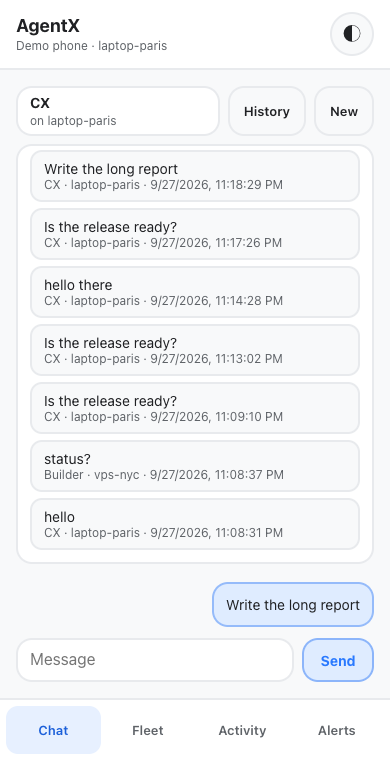
Conversations are saved on the computer (in .agentx/db.sqlite, next to agentx.json) and on the phone. Each phone sees only its own conversations. The computer keeps the 100 most recent conversations per phone and the last 200 messages of each, and shortens a very long answer (the full answer stays in the agent's task history). With no connection, History still opens the conversations saved on the phone, but you can't send messages.
What the computer needs for voice
Your voice is recorded on the phone and turned into text on the computer the phone is paired with. That computer needs ffmpeg, a free program that reads audio files: AgentX uses it to measure how long each recording really is, and refuses voice input from the phone on a computer where it can't find ffmpeg. Then it tries these speech-to-text engines (programs that write down what was said) in order, the same order as AgentX Voice on a Mac:
- ElevenLabs, a paid online service, when an ElevenLabs key is set on the computer.
- Whisper on the computer, when
mlx_whisper(Apple silicon Macs) orwhisperis installed, together withffmpegto read the phone's recording. Nothing leaves the computer.
To set up voice input:
Terminal (computer): install
ffmpeg. On a Mac:brew install ffmpeg. On Debian or Ubuntu:sudo apt install ffmpeg.Terminal (computer): for ElevenLabs, save your key in a file the AgentX service can read:
shmkdir -p ~/.elevenlabs && printf '%s' 'your-elevenlabs-key' > ~/.elevenlabs/keyTerminal (computer): or, for Whisper on a Mac with Apple silicon, install
mlx_whisper:shpipx install mlx-whisperThe first recording downloads the Whisper model, which takes a few minutes.
Terminal (computer): restart AgentX so it picks up the key:
agentx daemon restart.
voice.stt in agentx.json chooses between them: auto (default) and elevenlabs try ElevenLabs first and Whisper if that fails; local never sends your voice off the computer. Spoken answers in an agent's own voice need the ElevenLabs key too.
| Setting | What it does |
|---|---|
voice.stt | auto (default), elevenlabs or local, as above |
voice.allowUnmeasured | false (default) refuses phone recordings when the computer has no ffmpeg. true takes them anyway, with only the 2 MB limit (see below) |
ELEVENLABS_API_KEY | ElevenLabs key; read before ~/.elevenlabs/key and ~/.agentx/elevenlabs-key.txt |
AGENTX_STT_MODEL | ElevenLabs speech-to-text model, scribe_v1 by default |
AGENTX_MLX_WHISPER | Where mlx_whisper is, when it is not in ~/.local/bin, /opt/homebrew/bin, /usr/local/bin or the service's PATH |
AGENTX_MLX_MODEL | Model for mlx_whisper, mlx-community/whisper-large-v3-turbo by default |
AGENTX_WHISPER, AGENTX_WHISPER_MODEL | Where the whisper command is, and its model (base by default), for computers without mlx_whisper |
AGENTX_FFMPEG | Where ffmpeg is, when it is not in one of the folders above |
A recording is at most 2 minutes long. The phone records at a fixed quality so 2 minutes stay under 1 MB, and the computer refuses anything over 2 MB. The computer also measures every recording itself with ffmpeg by reading all of it, whatever the phone says about its length, and refuses one longer than 2 minutes or one it can't read.
Without ffmpeg the computer can't measure a recording, and 2 MB of audio recorded at a very low quality holds about 40 minutes. So by default it refuses voice input from the phone and answers "Install ffmpeg on … for voice input from the phone". If you use only ElevenLabs and choose not to install ffmpeg, set "voice": { "allowUnmeasured": true } in agentx.json and restart AgentX: recordings are then taken with only the 2 MB limit, so one phone can send up to about 40 minutes of audio to ElevenLabs at a time. A recording is kept in a private temporary folder only while it is written down, then deleted, and it is never written to a log. The computer writes down at most two recordings at a time.
Allow the microphone on an iPhone
The iPhone asks the first time you hold the orb. If you tapped Don't Allow:
- iPhone: open Settings, then Apps, then Safari.
- iPhone: tap Microphone and choose Ask or Allow.
- iPhone: close the AgentX app completely (swipe it away), then open it again and hold the orb.
An iPhone may ask again each time you open the app. Tap Allow. An answer read in the agent's voice usually stays quiet while the iPhone's ring switch is on silent; to be sure of no sound at all, turn the speaker off in the app.
Check it worked
- Terminal (computer): run
agentx doctor. Under Runtime it says Daemon finds ffmpeg to measure phone recordings. This checks the AgentX service itself, which can miss a program your terminal finds. - Phone: tap Chat, then Choose an agent. Your computers and their agents are listed.
- Phone: pick an agent, hold the orb, say
hello, and let go. Your words appear as your message, and the agent's answer appears under it. - Phone: listen. The answer is read out loud while the orb pulses.
- Phone: tap History. The conversation is listed with the agent's name.
- Phone: ask an agent:
make a small chart of three numbers, save it as a png and attach it. The chart appears under the answer. Tap it to see it full screen. - Phone: ask an agent:
ask me yes or no with quick replies. Yes and No appear under the answer. Tap Yes: it shows as your message, both turn grey, and the agent answers. - Phone: ask one agent something long, then pick a second agent and ask it something too. Two chips show at the top of Chat. When the first agent finishes, a banner with its name appears; tap it, and its answer opens.
- Browser (computer): open the dashboard, select Activity, then Map. Your chat comes in from Phone app, not from Mesh (A2A). See Activity.
If something is wrong
- "Install ffmpeg on … for voice input from the phone" — the AgentX service on that computer can't find
ffmpeg. Install it as in What the computer needs for voice. If it is already installed, the service'sPATHis shorter than your terminal's: setAGENTX_FFMPEGto its full path (fromwhich ffmpeg) in the service's environment, then runagentx daemon restart.agentx doctorsays when the service finds it. Until then the text box opens so you can type. - "Voice input isn't set up on this computer" — the computer has neither an ElevenLabs key nor Whisper with
ffmpeg. Set one up as in What the computer needs for voice. Until then the text box opens so you can type. - "The microphone is blocked" — the phone refused the microphone. Allow it as in Allow the microphone on an iPhone, or in the browser's site settings on Android. You can type meanwhile.
- "This browser can't record here" — the page is not on its
https://address, or the browser can't record. Open the app from the address in Install the phone app. - "No words were heard" — the recording was silent or too short. Hold the orb, speak, then let go.
- "This computer couldn't read the recording" —
ffmpegon the computer could not read what the phone sent. Record again. If it keeps happening, look for[voice]in the AgentX log. - "Speech to text failed on this computer" — every engine failed, for example an expired ElevenLabs key. On the computer, look for
[voice] phone transcriptionin the AgentX log. - "This computer is already writing down other recordings" — two recordings are being written down already, maybe from another phone. Wait a moment and try again.
- "The recording is longer than 2 minutes" or "larger than 2 MB" — say it in two shorter messages.
- "AgentX on this computer is too old for voice" — update AgentX on the computer the phone is paired with.
- The answer is not read out loud — check that the speaker button shows sound waves and that the phone's volume is up. On an iPhone, turn the ring switch off silent.
- The answer is read by the phone's voice, not the agent's — the agent speaks with a system voice, or the computer has no ElevenLabs key. See Agent voices.
- "No machines answered" — AgentX isn't running on the computer, or the dashboard can't reach it. On the computer, run
agentx daemon status. - A computer is listed as "Not linked to this computer’s mesh" — the dashboard can see it, but this computer can't pass messages to it. Link the two computers as in Add a second machine, then check with
agentx mesh list. - A computer is listed as offline — it is turned off, or its connection dropped. On this computer, check it with
agentx mesh list. - "The agent is still answering in this conversation" — a message is already running there, maybe from another screen. Wait for it to finish, or tap Stop.
- "The agent is busy with other work" — the other computer runs an older AgentX. Send the message again when the agent is free, or update AgentX there.
- "Could not reach AgentX" — the message never reached the computer. Reconnect and send it again.
- "Connection lost. The agent keeps answering" — nothing to do. The answer appears in the conversation once the phone is back online.
- "Stopped: the phone was away for more than 30 minutes" — nobody opened the conversation while the agent answered, so it was stopped. Send the message again, and keep the conversation open or come back to it within 30 minutes.
- An answer keeps going after you close the app — that is expected. To end it, open the conversation and tap Stop.
- The row of chips doesn't show — only running conversations and unopened answers get a chip, and the row stays hidden while the conversation on screen is the only one. Pull the app to the foreground: the row checks for updates every few seconds while Chat is open.
- No banner when an answer finishes — the banner is only for a conversation you are not looking at, while the app is open. A conversation opened in the meantime from History counts as read and gets no banner.
- Two answers are not both read out — the speaker was off when one finished, you tapped the orb (which drops the waiting answers), or more than 5 were waiting.
- "The database on this computer is unavailable" — AgentX can't open
.agentx/db.sqlite. On the computer, runagentx doctor. - No quick replies appear — the agent chose not to offer any; ask for them, as in Check it worked. If they never appear, the agent has
richMessagesset tofalse, or the computer that runs it has an older AgentX. - Tapping a quick reply does nothing — it is grey because a newer message is already in the conversation, or the phone is offline and says so. Type the answer instead, or tap again once the phone is back online.
- A picture from the web shows only its description — its address doesn't start with
https://orhttp://, or the answer already shows 8 pictures. A picture that stays blank was refused by the site that hosts it. - The agent says it attached a file, but nothing shows — the file type is not in the list above, or the agent didn't end its answer with the
<agentx-artifact>line. Ask it to attach the file as in How an agent attaches a file. - A file shows as a broken picture, or Open shows an error — tap Open, or open the picture's address, to read the reason:
- "the file is outside the agent's workspace" or "the path leaves the workspace": the agent saved it elsewhere, for example in a temporary folder. Ask it to copy the file into
.agentx/outbox/in its workspace and attach it again. - "file not found": the file was moved or deleted on the computer after the answer.
- "this type of file is not served": the file is of a type not in the list above.
- "the file is larger than 20 MB": ask the agent for a smaller file.
- "no such file": the conversation was removed from this phone's history, or it belongs to another phone.
- "… is not linked to this computer's mesh any more" or "answered HTTP 404": the computer that ran the agent left the mesh, or runs an older AgentX. Link it again, or update AgentX there.
- "the file is outside the agent's workspace" or "the path leaves the workspace": the agent saved it elsewhere, for example in a temporary folder. Ask it to copy the file into