
Answer customers on WhatsApp
Let an agent reply to your customers on WhatsApp by itself. A customer writes to a WhatsApp number you own, and the agent answers in the same chat within a minute, with no approval step.
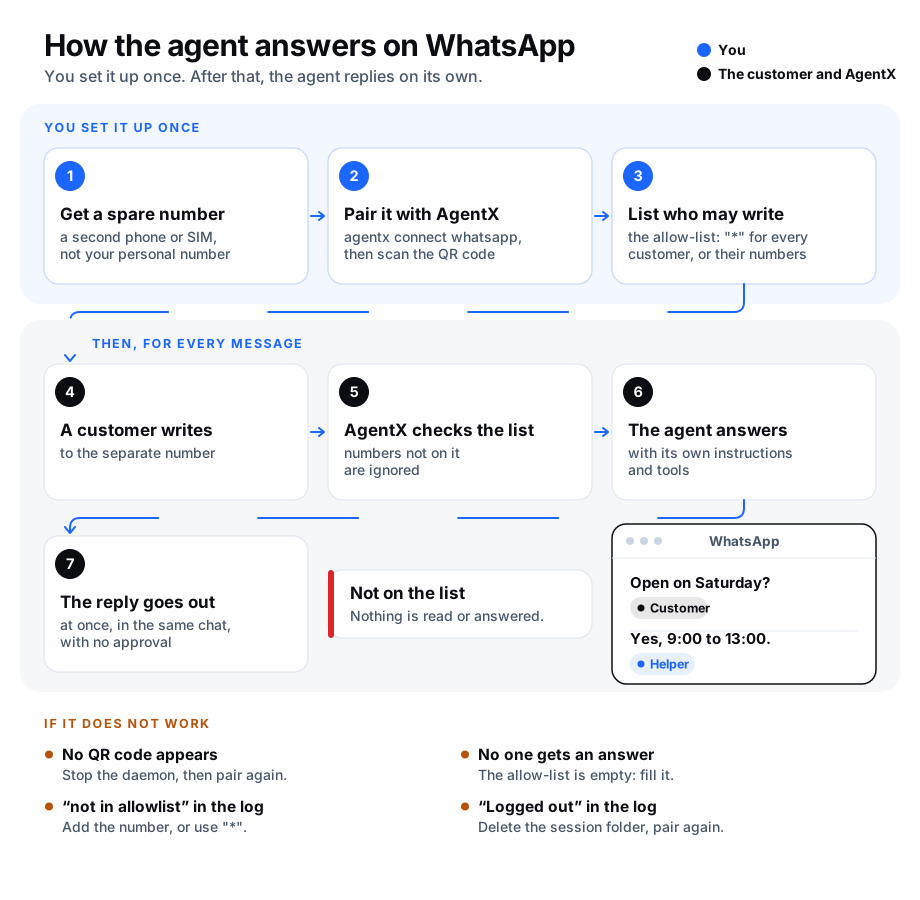
AgentX joins WhatsApp the way WhatsApp on a computer does: as a linked device (an extra screen signed in to your phone's WhatsApp account). You link it once by scanning a QR code (a square barcode) with the phone.
Which WhatsApp page do I need?
AgentX has two separate ways to use WhatsApp. Pick one per job:
| You want | Use | What the contact gets |
|---|---|---|
| An agent that replies to customers by itself | This page (agentx connect whatsapp) | The agent's answer, sent at once |
| Summaries and draft replies for chats you keep answering yourself | Watch a WhatsApp chat (wacli triage) | Nothing, until you approve a draft |
You need:
- An agent with instructions for customers. See Your first agent and Answer questions from a channel.
- A phone with WhatsApp, signed in to the number customers will write to.
- A terminal in the folder with
agentx.json.
1. Before you pair
Read these first. They are the price of answering from a normal WhatsApp account.
- Use a separate number. AgentX sees every chat on the paired number, and to answer customers you don't know yet, you let every chat reach the agent (step 3). Pair a spare phone or a second SIM, never your personal number.
- The number can be banned. AgentX is not an official WhatsApp app and does not use the paid WhatsApp Business service. WhatsApp may block a number that it thinks is automated, for example one that sends many messages to people who never wrote first. Use a number you can afford to lose.
- An empty allow-list answers no one. The allow-list is the list of phone numbers the agent may answer (step 3). While it is empty or missing, the agent ignores every message, even the ones you send yourself, just like Telegram. You fill it in step 3.
- Replies go out without you. Give the agent clear instructions and only the tools it needs. Each message also costs model usage; see Costs.
2. Pair the number
- Terminal: stop the daemon (the AgentX background service), so pairing can sign in by itself:sh
agentx daemon stop - Terminal: start pairing, naming the agent that should answer.
helperis an example; use your agent's ID:shagentx connect whatsapp --agent helper - A QR code appears in the terminal.
- Phone (the separate number): open WhatsApp, go to Settings › Linked devices › Link a device, and scan the QR code. You have 2 minutes; run step 2 again if it runs out.
- Terminal: wait for
✓ Paired, then✓ WhatsApp bound to agent "helper".
The paired session is kept in the .agentx/whatsapp-sessions folder. Don't start the daemon yet.
The terminal also reminds you that no chat is answered until you list the allowed numbers. That is step 3.
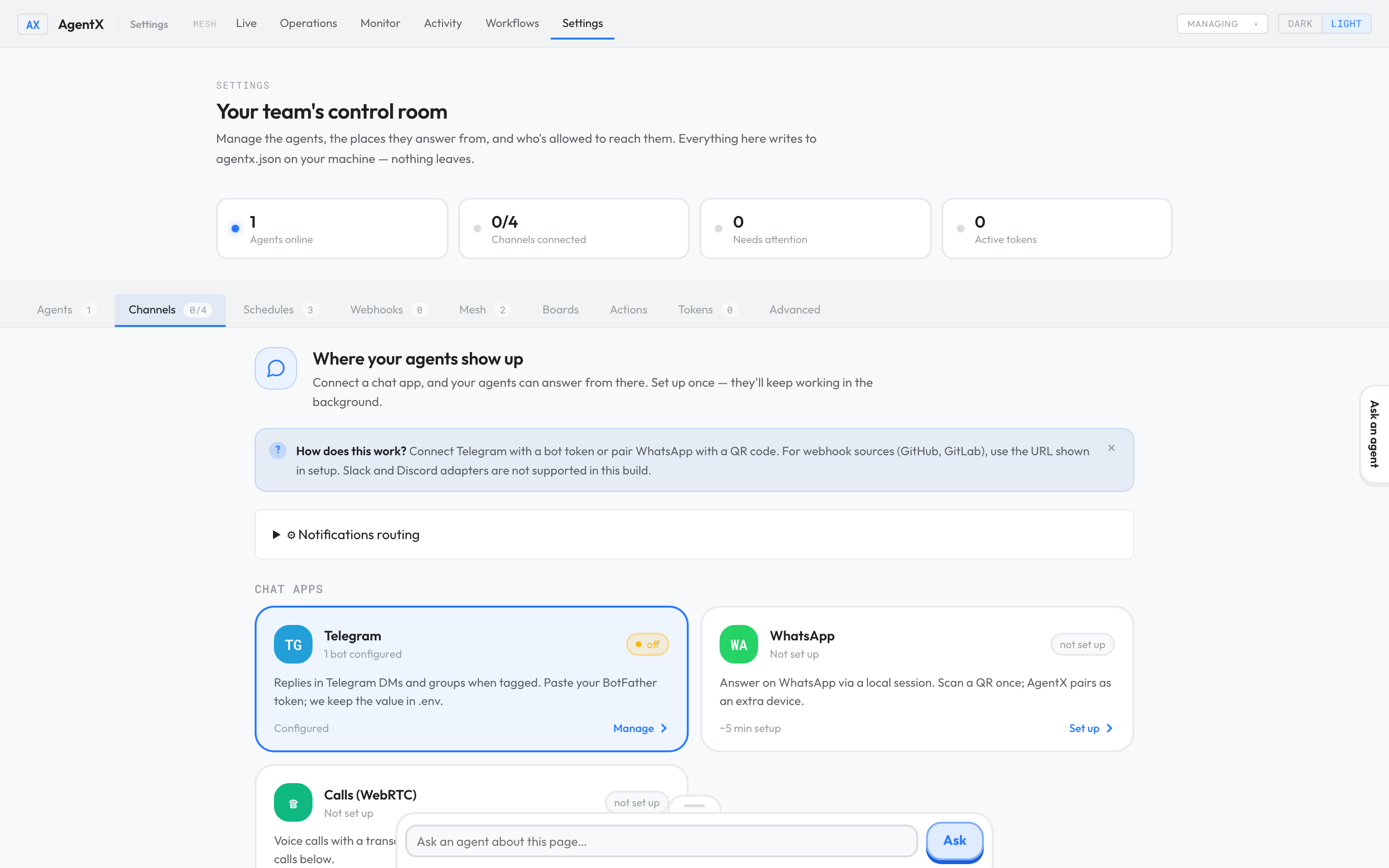
You can also pair from the dashboard: with the WhatsApp channel turned on and the daemon running, Settings › Channels › WhatsApp shows the QR code to scan.
3. List who may write
Choose one of the two options below.
Option A: answer every customer. Use this for a customer-facing number, where you can't know in advance who will write. Only do this on the separate number from step 1.
- Terminal: let every chat reach the agent.
"*"(a star in quotes) means "everyone":shagentx config set channels.whatsapp.allowFrom '["*"]'
The agent then answers every person who writes to the number, and every group the number is in. Leave groups you don't want answered.
Option B: answer only some people. Use this to try the agent with a few people first.
- Collect the phone numbers the agent may answer. Write each one with its country code, digits only, no spaces, for example
15550001111. A leading+is fine. - Terminal: save the list:sh
agentx config set channels.whatsapp.allowFrom '["15550001111", "15550002222"]'
A number matches when it contains an entry, so always write the full number. A short entry such as 555 would let in every number with 555 in it.
With either option, the chat you have with yourself on the paired phone ("message yourself") is answered too, so you can test from there.
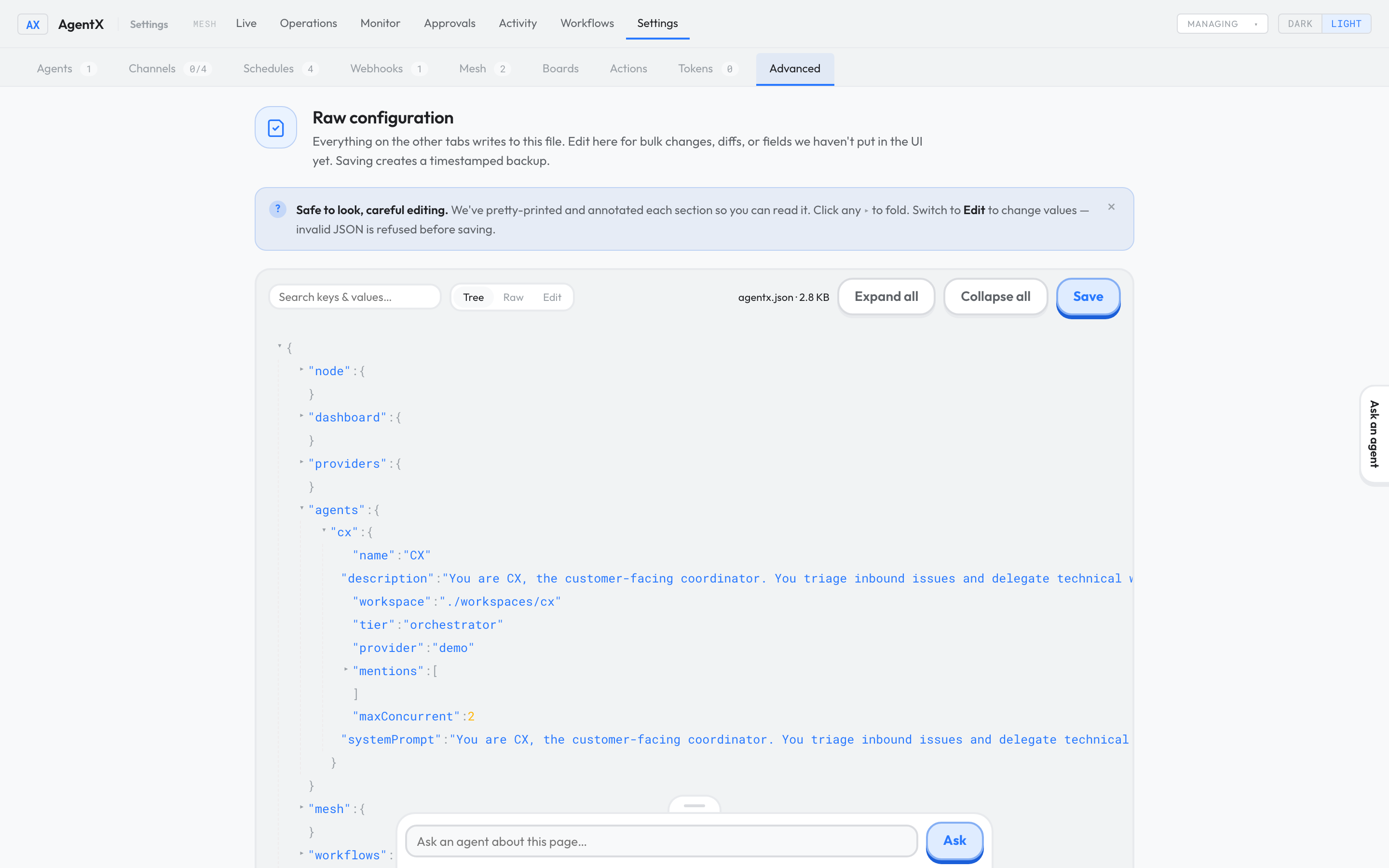
Or in the browser: Settings › Advanced › Edit, find "whatsapp" under "channels", add "allowFrom": ["*"] (or your list of numbers), and select Save.
4. Start the daemon
- Terminal: start the daemon:sh
agentx daemon start --detach - Terminal: run
agentx daemon logs. Look for the lineWhatsApp connected. - In the same log, the line starting
WhatsApp: enabledsays how the allow-list was read:- With option A, it ends with
WARNING: allowFrom contains "*". Every chat on the paired account is answered.That is expected on a customer-facing number. - With option B, it ends with
allowFrom entries:and the number of entries. - If it ends with
WARNING: no allowFrom. All incoming messages will be DROPPED., the list is empty: go back to step 3, then runagentx daemon restart.
- With option A, it ends with
Each reply starts with the agent's name in bold, so customers can see that an agent answered.
Send some customers to another agent
By default, the agent you named in step 2 answers everyone the allow-list lets in. A route sends one contact or one group to a different agent. The first route that matches wins.
- Terminal: add the route.
15550002222andbillingare examples:shagentx config set channels.whatsapp.routes '[{"contact": "15550002222", "agent": "billing"}]' - For a group, use
"group"with part of the group's name instead of"contact". - With option B, the contact must still be on the allow-list.
See every setting in Settings: channels › WhatsApp.
Stop answering
- For a while: run
agentx config set channels.whatsapp.enabled false, thenagentx daemon restart. Set it back totrueand restart again to resume. - For good: on the phone, open Settings › Linked devices, select the AgentX device and select Log out. Then delete the
.agentx/whatsapp-sessionsfolder.
When the connection drops
WhatsApp sometimes closes the link to AgentX. AgentX reconnects by itself. What it does depends on why the link closed:
| What the log says | What it means | What AgentX does |
|---|---|---|
WhatsApp network timeout (408) | The network was slow or down for a moment. The number is still paired. | Tries again after 10 seconds, then waits twice as long each time, up to 5 minutes between tries. It never gives up. |
WhatsApp pairing timed out (408, QR not scanned) | A QR code was shown but nobody scanned it. | Tries again 4 times, then stops. |
WhatsApp conflict (440) | Another copy of AgentX, or another program, signed in with the same paired session. | Tries again 4 times, then stops. Network timeouts in between do not count toward this limit. |
The counts start again once the connection stays up for one minute, or as soon as a message arrives.
When AgentX stops trying, it sends you a notification titled WhatsApp stopped reconnecting (see Get notified). The channel then stays off until you restart the daemon. /reload and changes to agentx.json do not restart it.
Check it worked
- Phone: from another phone (on the allow-list, if you chose option B), send the separate number a question the agent's material answers.
- Within a minute, the reply arrives in the same chat, starting with the agent's name.
- Browser: open Activity. The conversation shows under the agent.
- With option B only: Phone: from a number that is not on the list, send a message. No reply comes, and
agentx daemon logsshows a line ending innot in allowlist.
If something is wrong
agentx connect whatsappwarns that the daemon is running: answer No, runagentx daemon stop, then run it again.Timed out waiting for scan (2min): runagentx connect whatsappagain and scan sooner.- No one gets a reply, and the log says
WARNING: no allowFrom: the allow-list is empty or missing, so every message is dropped. Fill it (step 3), then runagentx daemon restart. - No reply, and the log shows
dropped message from … not in allowlist: the sender is not on the list. The line shows only the last 6 digits of the number. Add the full number with its country code and no spaces (step 3), then runagentx daemon restart. If there is no such line, follow It's not answering. - The agent answers people who are not on the list: the list contains
"*", which lets everyone in, or a short entry that is part of other numbers. Check it withagentx config get channels.whatsapp.allowFrom. - The agent answers in a group: the list contains
"*", someone on the list wrote there, or the group's chat ID is on the list. Remove the number from the group, or change the list. - The log says
Logged out. Delete session dir and restart to re-scan QR.: the phone unlinked AgentX, or WhatsApp signed it out. Runagentx daemon stop, delete.agentx/whatsapp-sessions, and pair again (step 2). If it keeps happening, WhatsApp may be limiting the number. - The log says
giving up after 5 conflict (440) closes. Another session is active for this number: another copy of AgentX uses the same session. Stop it, then runagentx daemon restart. - The log says
giving up after 5 pairing timeouts (408): the QR code was never scanned. Pair again (step 2), then runagentx daemon restart. - The log keeps showing
WhatsApp network timeout (408): the computer cannot reach WhatsApp. Check its internet connection. AgentX keeps trying and reconnects by itself once the network is back; you don't need to restart. - You got a "WhatsApp stopped reconnecting" notification: read the message in it, fix the cause from the lines above, then run
agentx daemon restart. - You wanted drafts to approve, not automatic replies: use Watch a WhatsApp chat instead, and turn this channel off.