
Start from a ready-made team
Add a team of agents that already does a job, in one command. A team is a set of agents with their instructions, their skills (written how-tos an agent follows), the schedules that make them work without being asked, and the channels they expect to be reached on. You only connect the channel yourself.
The teams you can add
| Team | What you get |
|---|---|
client-inbox | Every client message on WhatsApp gets a polite answer within minutes, and each evening you get the short list of what still needs you. |
support | Every customer question on Telegram gets an answer from your own documents, with the page it came from, and each evening you get the questions your documents could not answer. |
sales-follow-up | Every Monday morning you get a ready-to-send follow-up for each lead that has gone quiet, and nothing is sent until you approve it. It also researches new leads, sends a daily brief with a source link on every line, and watches competitor pages. See Find and follow up sales leads. |
dev-team | Issues you assign on GitLab come back as merge requests with a second agent's review, and each weekday morning you see what is stuck. |
content | Every Friday next week's posts are planned in your content calendar, every Monday they are drafted in your voice from your past posts, and nothing is published until you approve it. See Draft posts in your voice. |
Each team has a README next to its package in the source (src/teams/catalog/<team>/README.md) that lists its agents and schedules, and says what its first result is and when it arrives.
You need:
- AgentX installed, with an
agentx.json. See Install. - A terminal in the folder with
agentx.json.
Add a team on the first run
When you install AgentX with agentx start in a terminal, it asks Start with a ready-made team as well? Pick a team with the arrow keys and press Enter, or keep No, one assistant for now. The team runs on the same engine as your first agent, so it needs no other login or key. To choose without the question, run agentx start --team support, with any team name from the list above.
Then go on with 3. Connect the channel.
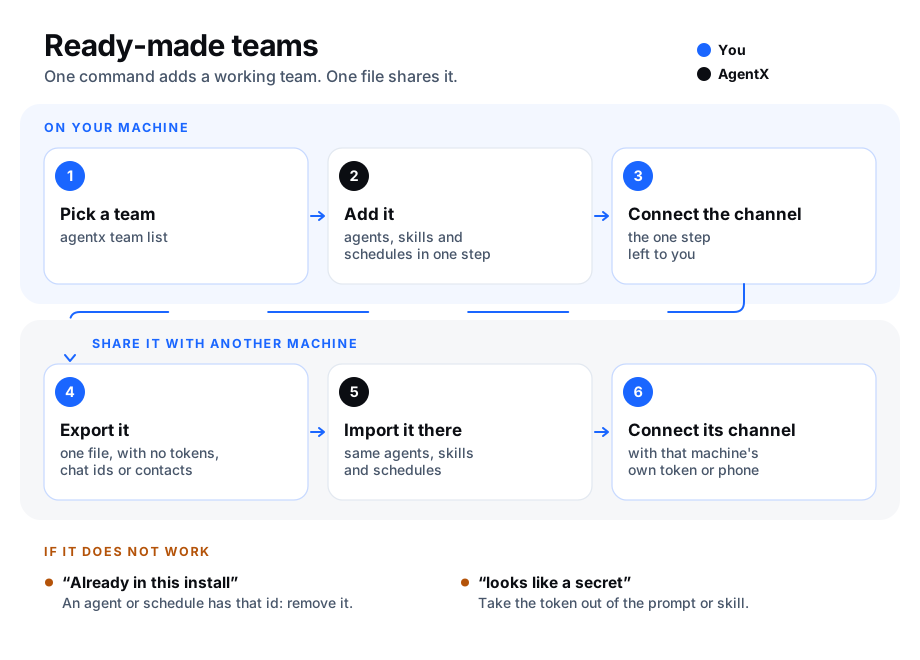
1. Pick a team
In the terminal, run:
bashagentx team listChoose a name from the Teams you can add list. A team you already added is marked
installed.
2. Add it
In the terminal, run the command with the team's name, for example:
bashagentx team add client-inboxIt adds each agent, with its own folder under
agents/, its instructions and its skills, and turns its schedules on. The output ends with One step left: connect the channel and the command for it.To see what it would add without writing anything, add
--dry-run.
team add never takes over a folder that is already there. If agents/<id> exists, it stops and names the folder. Choose another place with --workspaces <dir>, or add --force to use the folder as it is: files already in it, such as a skill you edited, are kept and listed in the output. A skill folder or file that is a shortcut (a symbolic link) to somewhere else is left alone too, so nothing is written outside the workspace. A folder that is another agent's workspace, or sits inside one, is always refused.
The agents run on Claude Code unless you choose another runtime with --tier, for example --tier codex-cli. Schedules use this machine's time zone unless you set --timezone, for example --timezone Europe/Paris.
3. Connect the channel
In the terminal, run the command that
team addprinted. For the client inbox:bashagentx connect whatsapp --agent inboxFor the support desk it is
agentx connect telegram --agent support, for the sales follow-upagentx connect telegram --agent sales, and for the content teamagentx connect telegram --agent content. For the dev team, runagentx channel add, choose GitLab, and route your project todev.The support desk and the client inbox can also answer email: run
agentx connect email --agent support(or--agent inbox). Each email reply waits for your approval. See Answer customer email.Start the daemon, or restart it if it was running:
bashagentx daemon restart
Get the team's results
The team's schedules send their answers to your own chat, the one AgentX calls notifications.destination.
If that chat is already set, the output of
team addsays Results go to you on telegram. Nothing else to do.If not, the output says Then tell AgentX where to send you the results. Run
agentx connect telegramand answer yes when it offers to listen for your first message. The team's schedules then report to that chat, and the command lists them.To send them somewhere else, in the terminal, run:
bashagentx team notify sales-follow-up telegram:<chat id>
The channel pages explain each step in detail: Answer customers on WhatsApp, Connect Telegram and Watch GitLab.
Share a team with another machine
A team that works for you can be copied to another AgentX install as one file. The file holds the agents, their instructions and skills, the schedules, and which kind of channel each agent expects, and whether each schedule reports to you. It never copies channel settings: no tokens, chat ids, phone numbers, contact routes, webhook secrets or where reports are sent, and schedules that run a shell command are left out. Instructions and skills are copied as written. The export stops and names the place when one contains a common token format (GitHub, GitLab, Anthropic, Slack, Telegram, AWS, private keys), but it cannot recognise every password or connection string, so read them before you share the file.
On your machine, in the terminal, run:
bashagentx team export client-inboxIt writes
client-inbox.team.jsonin the current folder. Use-o <file>to choose the name, or-o -to print it.Send the file to the other machine.
On the other machine, in the terminal, run:
bashagentx team import client-inbox.team.jsonOn the other machine, connect the channel with that machine's own token or phone, as in step 3.
Export a team you built yourself
Agents added by agentx team add remember their team. For agents you added one by one, name them and describe what the team does:
In the terminal, run:
bashagentx team export front-desk --agents helper booking --title "Front desk" --result "Every booking request gets a confirmed slot or a question back within the hour."
Each agent's team setting is described in Configuration: agents.
Check it worked
In the terminal, run
agentx team list. The team showsinstalled.In the terminal, run
agentx schedule list. The team's schedules are listed with a filled dot, which means they are on.In the same list, each of the team's schedules has a
notify:line that ends with(results and failures).Send a message to the agent on the channel you connected. It answers.
Check the team's first result, at the time its README gives:
Team First result client-inboxMessage the WhatsApp number as a client would. The answer comes within minutes. At 18:00 on the next weekday, the evening summary arrives in your chat. supportPut one guide in agents/support/docs/, then ask the bot a question it answers. The answer ends withSource: docs/<file>. At 18:00 on the next weekday, the list of open questions arrives in your chat.sales-follow-upAt 08:30 on the next weekday, the daily brief arrives in your chat, with a source link on each line. dev-teamAt 08:30 on the next weekday, the morning digest arrives in your chat. Assign an issue to devon GitLab: a merge request with a test comes back.contentOn Friday at 10:00, agents/content/calendar.mdhas next week's posts, and the list arrives in your chat. On Monday at 08:00, the drafts wait in your Approvals inbox.
If something is wrong
| What you see | What to do |
|---|---|
Already in this install: agent "inbox" | An agent or schedule with that id exists. Remove it with agentx agent remove <id> or agentx schedule remove <id>, then add the team again. |
Already in this install: team "client-inbox" | That team is already added, maybe from another file. Remove its agents first, or export it under another name. |
Already in this install: folder …/agents/dev (already exists…) | Choose another --workspaces folder, or add --force to use it. Its files are kept. |
Already in this install: folder … (overlaps the workspace of agent "…") | Another agent works in that folder, or in a folder around it. Choose another --workspaces folder. |
| The schedule ran but no message arrived | agentx schedule list shows no notify: line for it. Run agentx team notify <team> (uses your saved chat), or give telegram:<chat id>. |
No team named "<name>" | Check the spelling with agentx team list. To add from a file, give the file's path, ending in .json. |
looks like a GitLab token (or another kind of secret) | A token is written in an instruction, a skill or a schedule. Take it out, put it in the channel settings instead, and export again. |
Not a valid team package | The file was edited by hand or comes from a newer version. The lines below the message name each wrong key. |
No agents belong to team "<name>" | Those agents were not added with team add. Name them with --agents. |
| The team is added but nobody answers | The channel is not connected yet, or the daemon was not restarted. Do step 3. |
agentx start stopped with Team … can't be added: already in this folder | An agent, schedule or agents/<id> folder with the team's name is already there. Nothing was written. Remove or rename it, or run agentx start without --team. |
agentx start printed Restart it to start the team's agents | The daemon was already running when the team was added. Run agentx daemon restart. |
| The support agent says someone will reply, for a question your guide covers | The guide is not in agents/support/docs/, or is not a .md or .txt file. Move it there and ask again. |