
Notifications on your phone
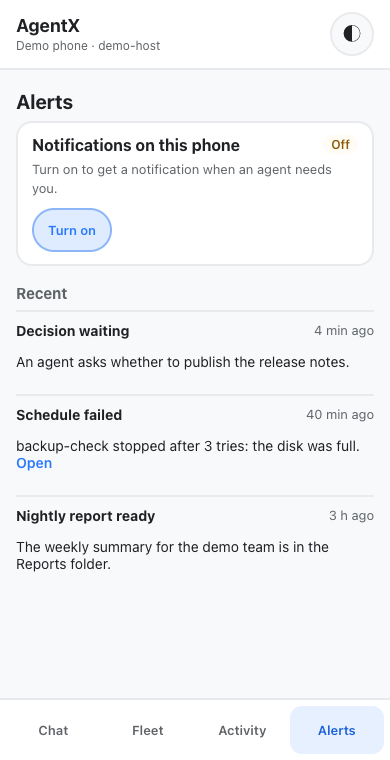
The Alerts tab of the phone app turns on notifications for your phone. After that, when an agent needs you, a job fails or a script runs agentx notify, your phone shows a notification, even while the app is closed. The tab also lists the most recent notifications.
These are standard web notifications (Web Push). They reach the phone through the push service of the phone's own browser, so no extra app or account is needed.
Before you start
- Install and pair the phone app, and add it to the home screen.
- iPhone: iOS 16.4 or newer. On an iPhone, notifications only work in the app opened from the Home Screen, not in a Safari tab.
- Android: Chrome, or another browser that can install apps.
Set up the computer that hosts the phone app
Do this once, on the computer the phone pairs with.
- Terminal (computer): go to the folder that holds
agentx.json, for example:shcd ~/agentx - Terminal (computer): create the key pair that lets this computer send notifications:shThe keys are saved in
agentx app push-keys.agentx/push-keys.json, which only you can read. They are never stored inagentx.json. - Terminal (computer): turn notifications on. The push services need a way to contact whoever runs the server, so give an email address (or a web address starting with
https://):shagentx notifications push --subject mailto:you@example.com --enable - Terminal (computer): restart AgentX so the change takes effect:sh
agentx daemon stop && agentx daemon start --detach
Set up your other computers
If you run AgentX on more than one computer (a mesh), the other computers send their notifications through the host. Do this on each of them.
- Terminal (other computer): find the host's name in the mesh:sh
agentx mesh list - Terminal (other computer): from the folder that holds
agentx.json, send notifications through the host. Use the host's name from step 1:shagentx notifications push --relay-to my-host --enable - Terminal (other computer): restart AgentX:sh
agentx daemon stop && agentx daemon start --detach
Turn on notifications on the phone
- Phone: open the AgentX app from the home screen.
- Phone: tap Alerts.
- Phone: tap Turn on.
- Phone: when the phone asks whether AgentX may send notifications, tap Allow.
- Phone: check that the card now says On.
Each phone turns notifications on for itself. Repeat these steps on every phone you paired.
Use it
- Tap a notification to open the app on the Alerts tab. When the message carries a link, for example to a failed job, tapping opens that link instead. A notification about a chat answer opens that conversation (see below).
- Some notifications have buttons. Each button opens its own link.
- To stop notifications on one phone, open Alerts and tap Turn off.
- Removing a phone with
agentx app revokealso stops its notifications. - Once notifications are on,
agentx notifysends to the phone app. To send somewhere else by default, runagentx notifications channel ntfy(or another channel's name). For ntfy, see Get notified.
Notifications when a chat answer finishes
When you talk to several agents at once in Chat, an answer can finish while you look at another conversation, or while the app is closed. The phone is told:
- App open: a banner at the top of the screen. No notification is sent.
- App closed or in the background: a notification with the agent's name and the first line of its answer. Tapping it opens that conversation.
It only goes to the phone that asked the question, never to your other phones. Nothing is sent for the conversation you are looking at, or for an answer you stopped yourself.
This is on by default. To turn it off or on again for this phone:
- Phone: open the AgentX app and tap Alerts.
- Phone: tap the switch next to When a chat answer finishes.
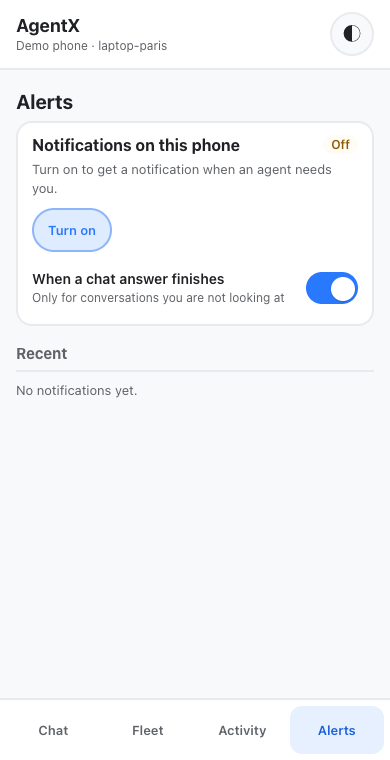
The setting is kept on the computer, for this phone's pairing: other phones keep their own, and a phone paired again starts with it on. It only changes notifications: the in-app banner still shows while the app is open.
Announcements
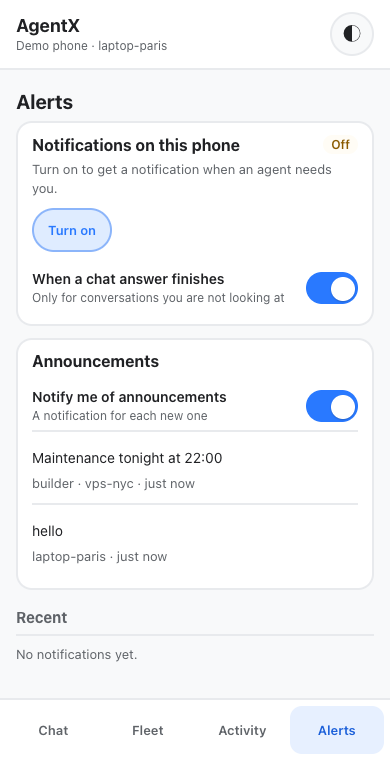
An announcement is a short note sent to every computer in the mesh, for example "Maintenance tonight at 22:00". The Alerts tab lists the most recent ones (up to 50), newest first, from every computer. Each shows the text, who sent it when an agent did, the computer it came from and how long ago. The list refreshes every few seconds while the tab is open.
To send one:
- Terminal (any computer in the mesh): runsh
agentx mesh announce "Maintenance tonight at 22:00"
By default, a phone with notifications on also gets a notification titled Announcement for each new one. Tapping it opens the Alerts tab. Each announcement is sent once, even though every computer sees it. Announcements made before AgentX started, or more than ten minutes old when they arrive, are listed but not sent.
To stop announcement notifications on one phone, and keep the others:
- Phone: open the app and tap Alerts.
- Phone: in the Announcements card, turn off Notify me of announcements.
The switch only shows when this computer sends the notifications itself (see Set up the computer that hosts the phone app). More about announcements: Events › Announcements.
Check it worked
- Terminal (computer): run
agentx notifications show. Thepushline sayson,subject setandkeys set. - Terminal (computer): send a test:sh
agentx notify "Hello" --title "Test" - Phone: a notification titled Test appears within a few seconds.
- Phone: open the app and tap Alerts. Test is at the top of Recent.
- Terminal (other computer): if you set up a second computer, run the same
agentx notifythere. The phone gets it too. - Phone: in Chat, ask an agent something that takes a while, then close the app. When the answer is ready, a notification with the agent's name appears. Tap it: the app opens on that conversation.
- Terminal (any computer): run
agentx mesh announce "Hello from the mesh". Within a few seconds the phone shows an Announcement notification, and the text is at the top of the Announcements card in Alerts.
If something is wrong
- The card says "Notifications are off" — the host isn't set up yet. Follow Set up the computer that hosts the phone app.
- The card says "This computer has no push keys yet" — run
agentx app push-keysin the folder that holdsagentx.json, then restart AgentX. - The card says "Notifications are set up on …" — this phone is paired with a computer that relays to another. Pair the phone with the host named on the card.
- The card says "This browser can't receive notifications here" — on an iPhone, add the app to the Home Screen and open it from there.
- The card says notifications are blocked — you tapped Don't Allow earlier. Allow notifications for the AgentX app in the phone's settings, then tap Turn on again.
agentx notifysays "no phone has turned on notifications" — turn notifications on in the Alerts tab on at least one phone.agentx notifysaysUnknown channel: "push"— notifications aren't turned on on this computer. Follow the setup above, or restart AgentX if you just turned them on.- A second computer says "is not a mesh peer of this node" — the name after
--relay-todoesn't match. Check it withagentx mesh list. - Notifications stopped after
agentx app push-keys --force— new keys cut off every phone. Open Alerts on each phone; the card shows Off. Tap Turn on again. - No notification when a chat answer finishes — check that the When a chat answer finishes switch is on, and that notifications are On for this phone. While the app is open on screen you get a banner instead; close the app or lock the phone to get a notification.
- An announcement is listed but no notification came — check that Notify me of announcements is on for this phone and that notifications are On in the card above it. Announcements older than ten minutes when they arrive, for example from a computer that was offline, are not sent.
- The Announcements card says "Could not load announcements" — AgentX on this computer isn't answering. Run
agentx daemon status, and start it if it's stopped. - An announcement from another computer doesn't show — that computer is not reachable in the mesh. Run
agentx mesh listand check it is listed as healthy. - Tapping Turn on shows "known push service" — the phone's browser uses a push service that isn't in
channels.push.allowedHosts. Add the host name the error shows to that list inagentx.json, restart AgentX, and try again.