
Send a daily report
A schedule asks an agent to do something at a set time, with no one having to ask. This page sets up a schedule that asks an agent for a short report every day.
Create the schedule in the browser
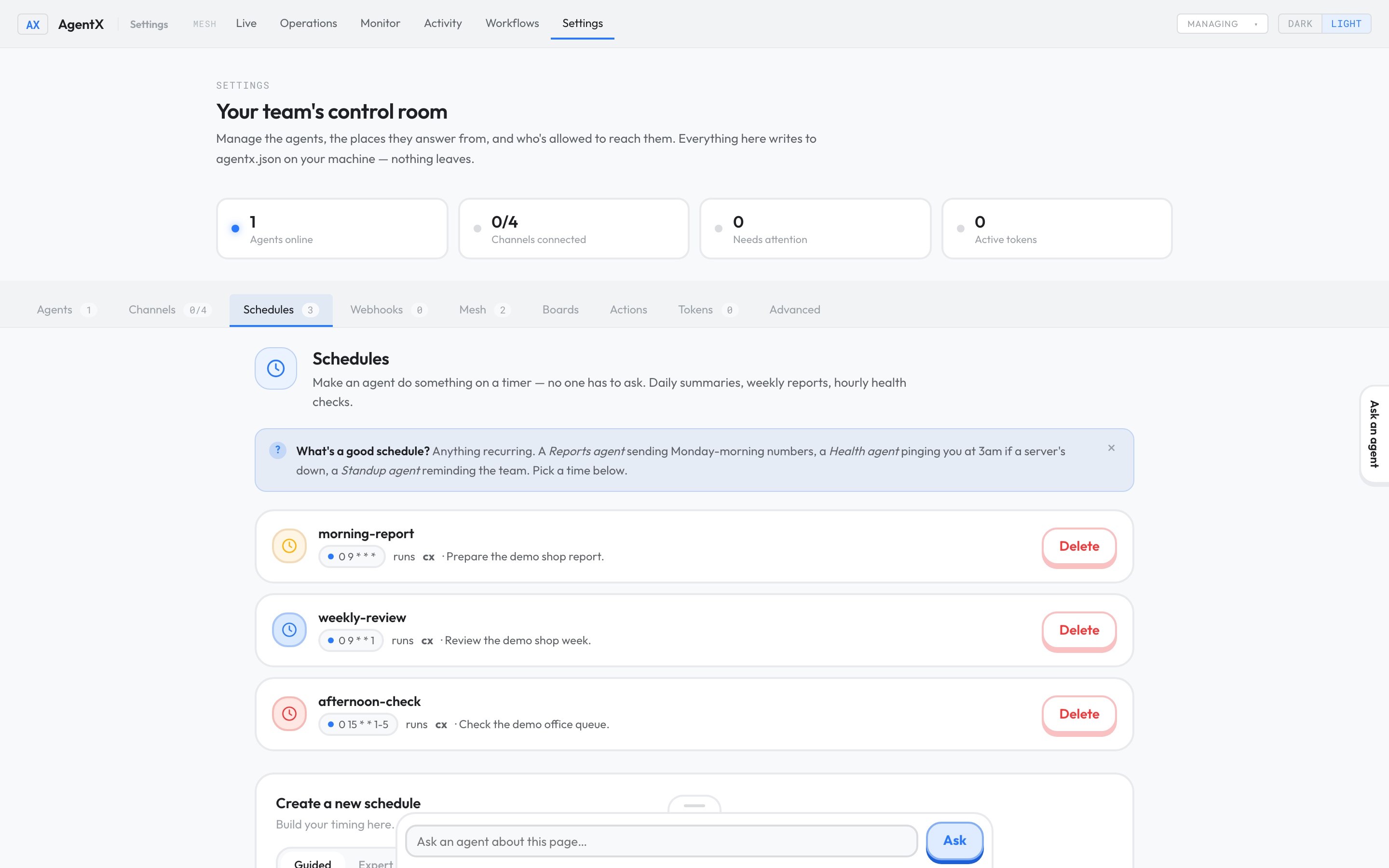
- Browser: open the dashboard and select Settings.
- Select the Schedules tab.
- Under Create a new schedule, keep Guided selected.
- In the sentence, pick the agent that should write the report.
- Pick every day.
- Pick a time, such as 9:00 am.
- Under Give it a name, type an ID such as
daily-report(lowercase, no spaces). - Under What should the agent do?, say which information to read and what the report should look like.
- Select Add schedule. The schedule is switched on straight away.
The guided form always uses the UTC timezone; it has no timezone picker. To use your own timezone, create the schedule from the terminal instead (below).
Or create it from the terminal
- Terminal: preview the schedule without saving it. Replace
reporterwith one of your agent IDs andUTCwith your timezone (for exampleEurope/Paris):shagentx schedule "daily at 9am" --agent reporter --do "Summarize yesterday's work in a short report" --timezone UTC --dry-run - Read the preview it prints.
- Terminal: run the same command again without
--dry-runto save it.
Without --timezone, the command uses the machine's own timezone. The daemon (the AgentX background service) must be running for the schedule to fire.
Deliver the report to a chat
A finished scheduled run doesn't send its result to a chat by itself. To have the report posted somewhere, build a workflow with an explicit send step and the right channel and conversation: see Describe what you want. The terminal's --notify option only tells you when the schedule fails; it doesn't deliver successful reports.
Check it worked
- Browser: in Settings › Schedules, the new schedule appears in the list with its timing and agent.
- Terminal:
agentx schedule listshows it with a plain-English description of when it runs. - After its first run time, Browser: open Operations, switch the view to Operations, and find the schedule under Today's automations. Its drawer lists the run with an Open link. See Operations.
If something is wrong
- It ran at the wrong hour: the guided form uses UTC. Remove the schedule and create it again from the terminal with
--timezone. Cron id must be lowercase: use only lowercase letters, digits,-and_in the name.Cron "…" already exists: pick another name, or delete the old schedule first.- Nothing ran: check that the daemon is running with
agentx daemon status, and that the schedule is switched on (agentx schedule on <id>). - It ran but no message arrived: a schedule doesn't post its result to a chat. Use a workflow with a send step, as above.
- The run failed: open it from Operations to read the error. See also It's not answering.