
AgentX Voice: talk to your agents from anywhere on your Mac
AgentX Voice is a small assistant that lives in your Mac's menu bar (macOS lists the app as AgentX Desktop). Hold a key, say what you need, and let go. Your words go to one of your AgentX agents, and the agent answers out loud, in its own voice. You don't need to open a browser, a chat window or a terminal, whichever app you are in.
This page is the user guide: install it, ask your first question, and learn the pill, the menu, the settings and History. The Desktop assistant page is the full reference, and goes deeper into speech to text, talks between two agents, live lessons, task narration and automations.
What it does
- Ask any agent from any app. Hold Option–Space, speak, let go. The ticked agent answers.
- Hear the answer, and read it. Each agent has its own voice, so you can tell who is talking without looking. When an answer has links or more to read, the pill opens to show it.
- Ask several agents at once. Start with an agent's name ("Researcher, what's the status?") to ask it directly. Answers never talk over each other: they wait their turn.
- Stop it any time. One key, Command–Option–. (the period key), silences everything.
- Hear it again later. History keeps every question you asked out loud, and replays any answer.
The agents do the work on the AgentX daemon (the background service that runs your agents). The Mac app only listens, shows what is happening, and plays the answers.
Before you start
You need:
- a Mac with Apple Silicon (M1 or newer) and macOS 14 or newer;
- AgentX installed, with the daemon running and at least one agent (see Install AgentX and Create your first agent);
- a microphone (the one built into your Mac is fine).
Speech to text (turning your voice into words) runs through ElevenLabs if you have a key, or on your Mac otherwise. See Voice input and spoken replies to set one up. Answers use the free Mac voices unless you choose ElevenLabs.
Install and first run
- Terminal: check the daemon is running:shIt prints
agentx daemon statusStatus: runningand lists your agents. - Terminal: preview what the installer will do, without changing anything:sh
agentx desktop install --dry-run - Terminal: install it:shThis builds the app and puts it in the Applications folder of your home folder as AgentX Desktop (
agentx desktop install~/Applications/AgentX Desktop.app), with its helper, AgentX Helper, next to it. It starts AgentX Desktop every time you log in; the helper starts when an agent needs it. If Apple's command-line tools are missing, it tells you how to install them. Ifffmpegis missing, it warns you: Whisper on your Mac needs it. - Mac: when macOS asks to let AgentX Desktop use the microphone, choose Allow.
- Mac: when the AgentX Helper asks, open System Settings › Privacy & Security and switch on Accessibility and Screen Recording for AgentX Helper. The helper lets agents point at things on your screen. See macOS permissions.
- Mac: look for the AgentX icon (a small waveform) in the menu bar at the top of the screen.
- Mac: click it and choose the agent you want to talk to.
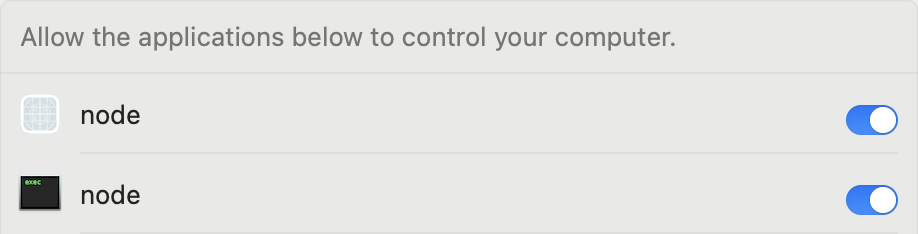
Developers building from a source checkout can also run apps/mac-voice/install.sh. It installs a copy named AgentX Voice into /Applications instead, with its log in ~/Library/Logs/agentx-voice.err.log. Both keep a single login item: each one takes over the login item the other made (even under an older name) and removes any duplicate, so whichever you ran last is the copy that starts at login. The other copy stays in its Applications folder but no longer starts. Use one way or the other, not both.
Ask your first question
- Mac: hold Option–Space. The floating pill appears in the bottom-right corner and says Listening.
- Say "What can you do?" while you keep holding the keys.
- Let go. The pill shows the agent thinking, then the agent says its answer out loud.
- Say nothing more. After an answer, the microphone stays open for a few seconds in case you want to add something, then closes on its own.
That's it. From now on, hold Option–Space from any app to ask again.
The floating pill
The pill is the small bar that shows what the assistant is doing. It appears while the assistant listens, thinks or speaks, and goes away when it is done. The glowing ball at its left end is the orb, in the colours of the agent that is answering. Next to it, the pill names the agent and says what is happening.


| What you see | What it means |
|---|---|
| The orb swells and shrinks with your voice, and the pill says Listening | The microphone is on and hears you |
| A white ring goes round the orb, and the pill shows what the agent is doing and for how long | The agent is thinking |
| The orb pulses, and the answer scrolls past in the pill | The agent is speaking |
| A still orb and HOLD ⌥SPACE | Idle. You only see this with Show floating pill ticked in the menu |
| An amber orb | Notifications are held (see the menu) |
| A red orb | Something went wrong. The pill says what |
Each agent has its own orb colours, taken from one of seven nature palettes (Sunrise, Desert, Forest, Lagoon, Ocean, Dusk and Blossom). You can pick one in the settings window. See Orb palettes.
Talk without holding a key
- Mac: click the pill. It says Listening.
- Say your question.
- Stop talking. The app hears that you have finished and sends your words. To send sooner, click the pill again.
If you say nothing for a few seconds, the microphone closes and the pill says Didn't catch that. How the app hears the end of your turn is set by End of a hands-free turn on the Speech tab.
Read the answer in the pill
Most answers are only spoken. When an answer has a link, a picture, or much more text than was read aloud, the pill grows to show it. The orb and its row stay where they were, and the answer opens above them when the pill is low on the screen, or below them when it is high.
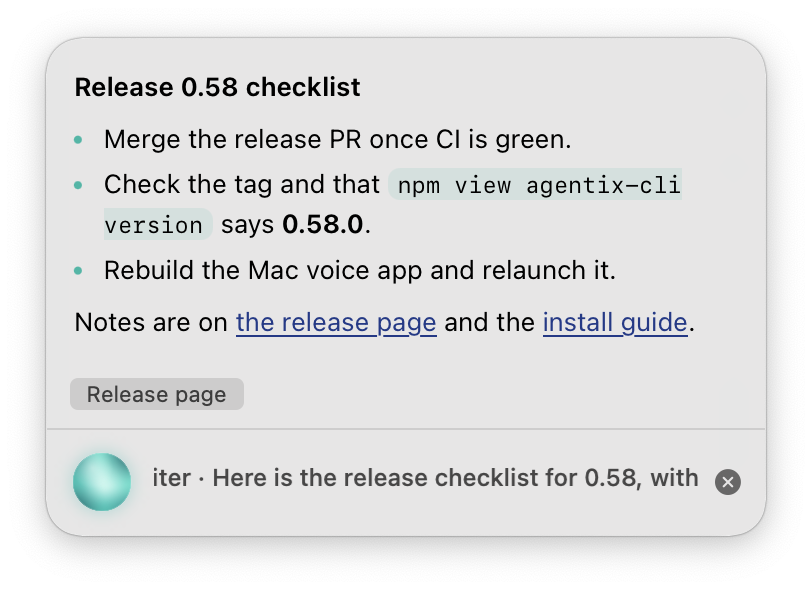
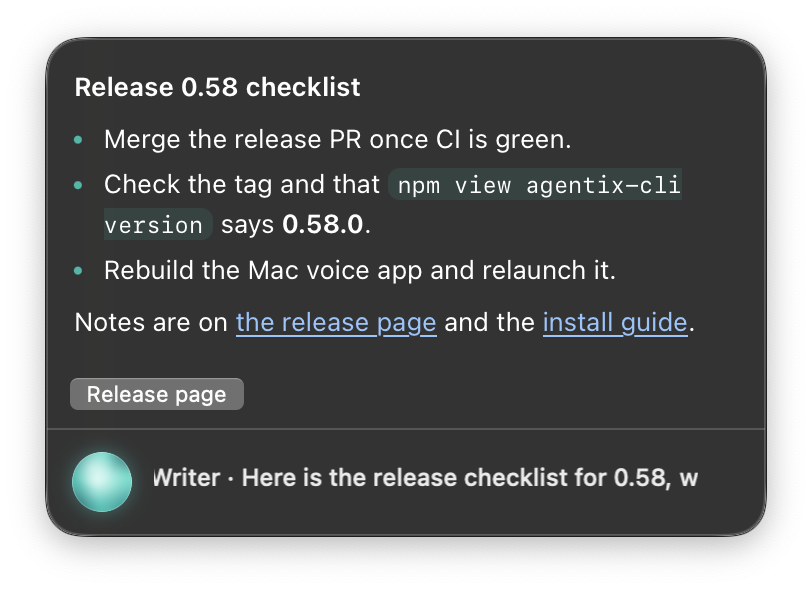
- Mac: read or scroll the answer. Click a link or a button to open it in your browser.
- Mac: move the pointer over the answer. Two small buttons appear at its top-right corner: Copy the answer and Open in chat (which opens the agent's chat in the dashboard).
- Mac: to copy only part of it, select the text and press Command–C.
- Move the pointer away. The pill shrinks back 30 seconds after the answer has been spoken, never while the pointer is over it.
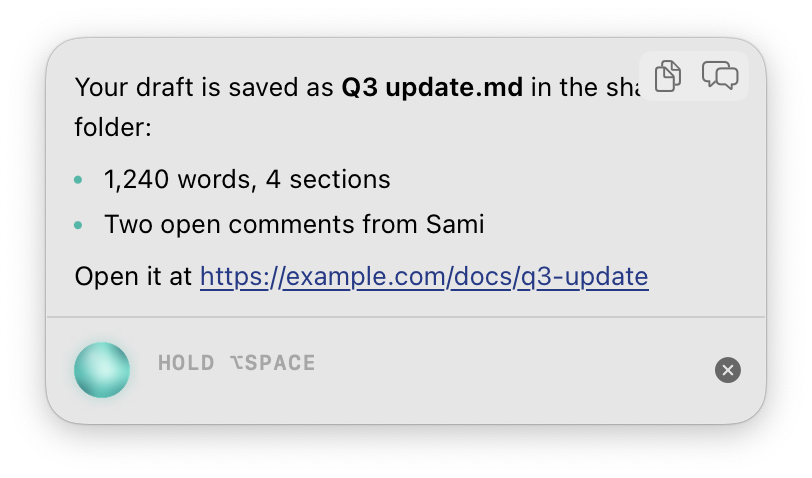
To keep answers open longer, or let them grow taller, change Answer in the pill on the General tab.
Move the pill
- Mac: press anywhere on the pill and drag it where you want it.
- Let go. The pill stays there, and comes back to the same place after a restart.
To put it back in the bottom-right corner, click the AgentX icon in the menu bar and choose Reset position.
Close the pill
Closing the pill also stops the voice that is speaking, and closes an open answer.
- Mac: move the pointer over the pill.
- Mac: click the × that appears at its right end.

You can also press Esc after clicking the pill, or choose Hide pill in the menu. The pill comes back the next time you hold Option–Space.
The menu-bar menu
Click the AgentX icon in the menu bar, press Command–Option–A from any app, or right-click the pill: all three open the same menu. The icon itself also shows the state: a waveform when idle, a microphone while listening, dots while thinking, a speaker while answering, a bell with a line through it when idle while notifications are held, and a warning triangle after an error. A number next to it counts the answers waiting to be spoken.
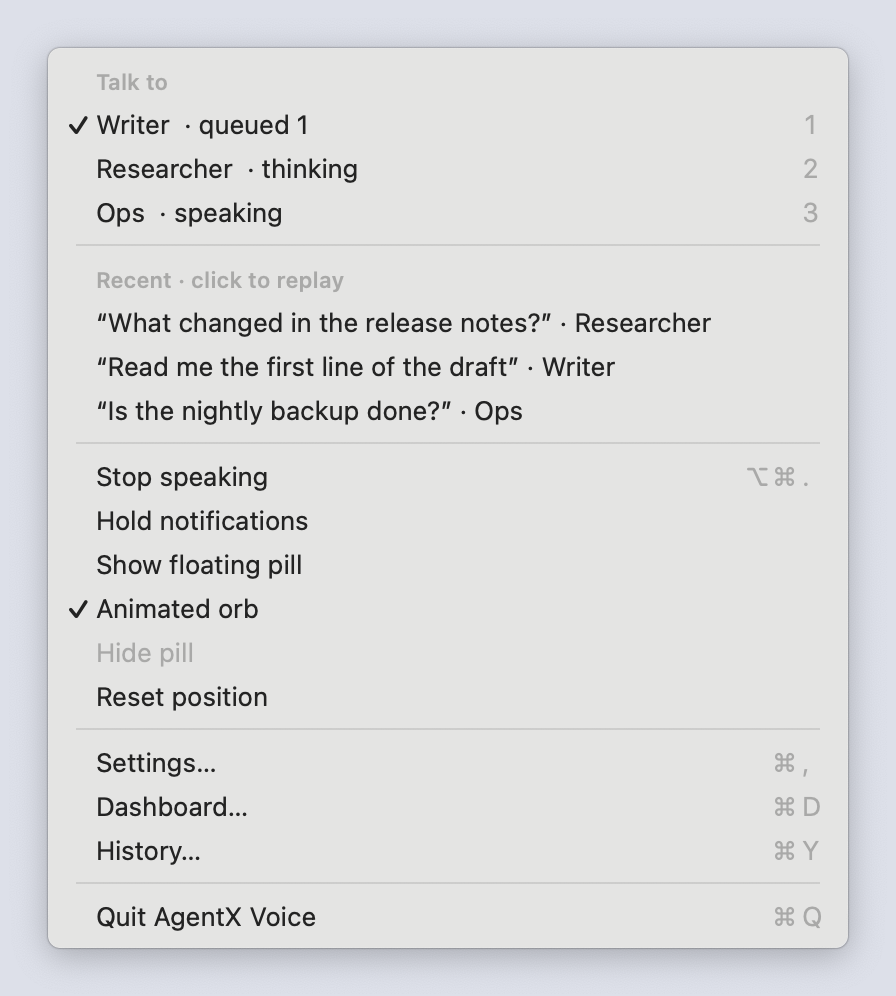
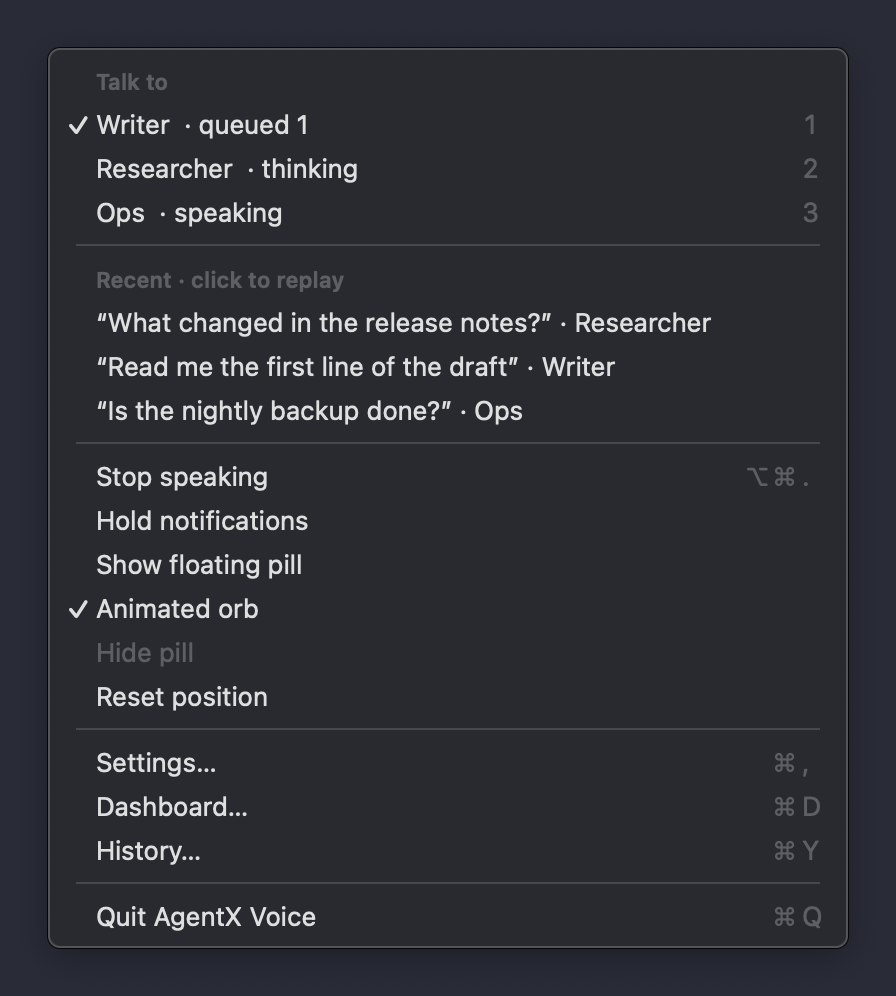
| Item | What it does |
|---|---|
| Talk to (your agents) | The ticked agent answers your questions. Click another one, or press its number (1 to 9) while the menu is open. Each row shows what the agent is doing: idle, thinking, speaking, working on something else, or queued 2 when two answers wait to be spoken. The app remembers your choice |
| Agent (set by AGENTX_VOICE_AGENT) | Shown instead of Talk to when the app was installed with --agent. The agent can't be changed from the menu |
| Loading agents… | The app is asking the daemon for your agents |
| No agents configured | The daemon answered but has no agents. Add one to agentx.json |
| AgentX daemon isn't reachable and Retry | The app can't reach the daemon. Start it, then choose Retry (or press R) |
| Recent · click to replay | Your last three spoken questions and who answered. Click one to hear its answer again. Point at a row to see the start of its answer. Not shown until you have asked something |
| Stop speaking | Stops every voice on the Mac and drops the answers still waiting. Same as Command–Option–. |
| Hold notifications | A "don't interrupt me" switch. While ticked, agent notifications wait and the orb turns amber. Untick it to let them through |
| Show floating pill | Keeps the pill on screen when idle. Off by default |
| Animated orb | Lets the orb move with your voice and the answer. On by default. Untick it for a still orb |
| Hide pill | Hides the pill and stops the voice. Greyed out when the pill isn't showing |
| Reset position | Puts the pill back in the bottom-right corner |
| Settings… | Opens the settings window (Command–,) |
| Dashboard… | Opens the dashboard's Settings page in your browser (Command–D) |
| History… | Opens the History window (Command–Y) |
| Quit AgentX Voice | Closes the app (Command–Q). An app installed with agentx desktop install starts again on its own; use agentx desktop stop to keep it closed |
The settings window
The settings window changes each agent's voice and the app's shortcuts without editing files. It saves your changes through the daemon into agentx.json, the AgentX settings file, and nothing needs a restart.
- Mac: click the AgentX icon in the menu bar.
- Mac: choose Settings….
- Mac: change what you need on the Agents, General or Speech tab.
- Mac: choose Save (or press Command–S). Revert puts back what was saved.
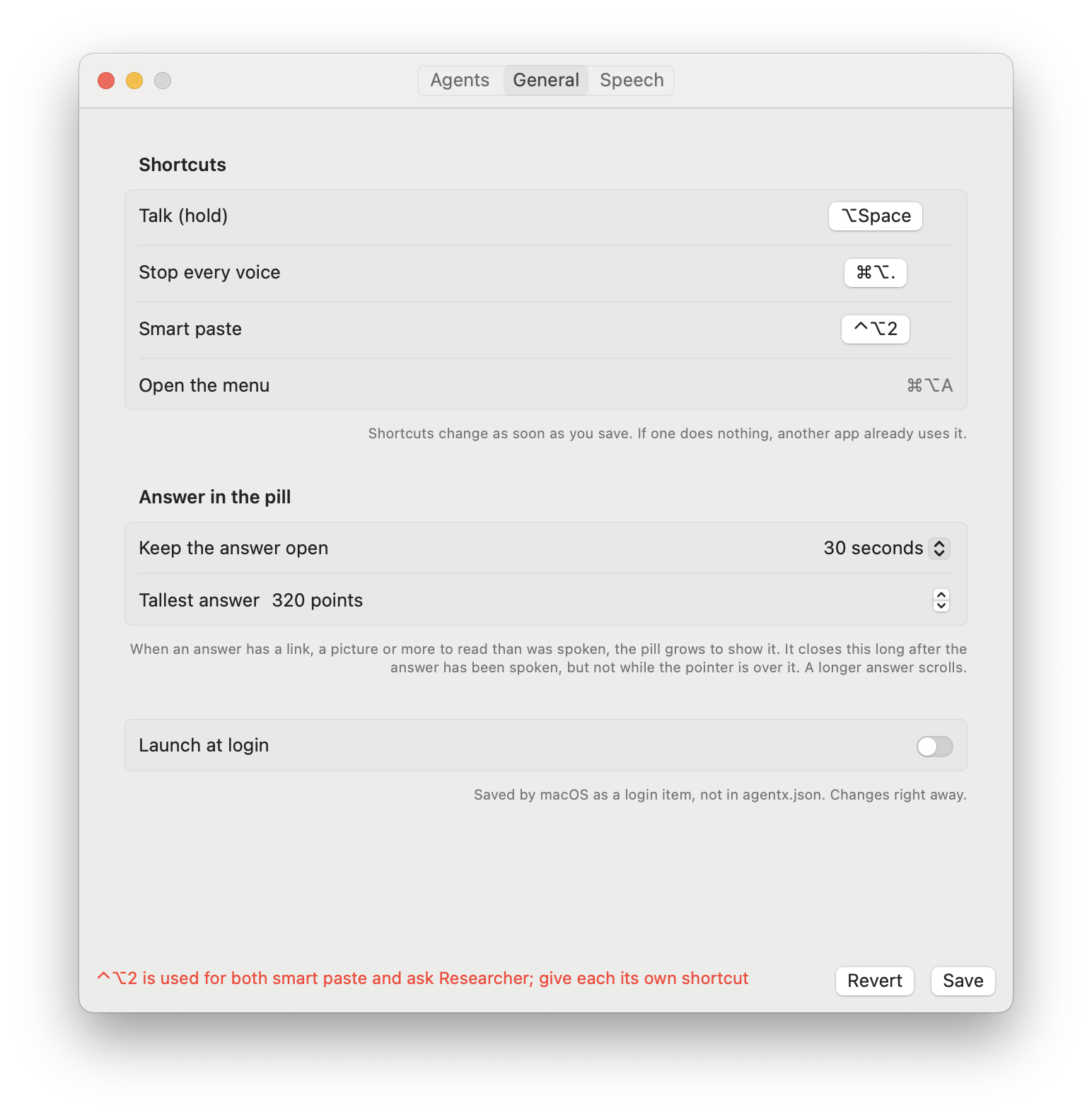
If a value is refused, a red message at the bottom says what to fix, and nothing is saved.
Agents tab
Pick an agent on the left. Its settings show on the right.
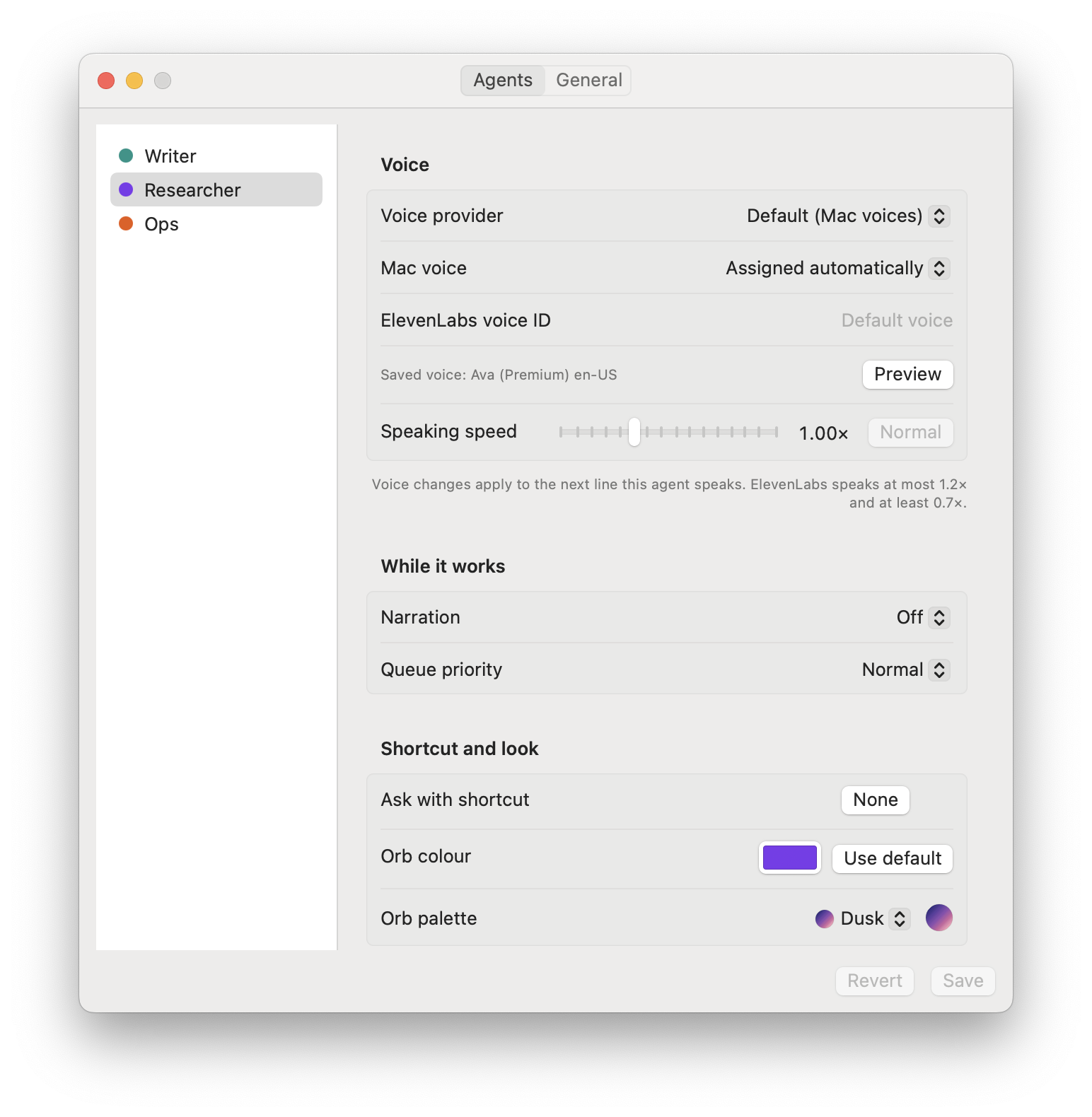
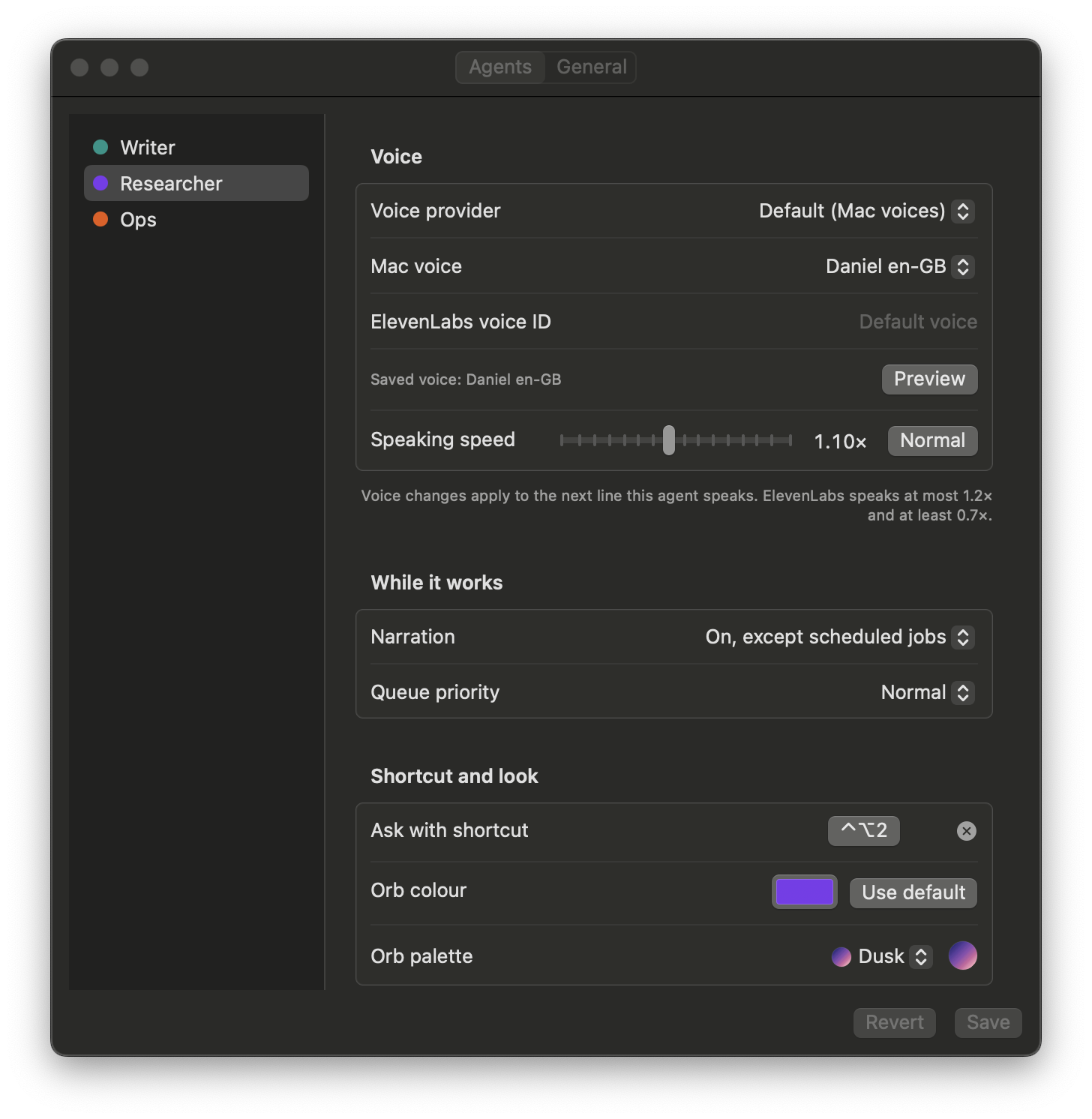
| Setting | What it does |
|---|---|
| Voice provider | Mac voices (free), ElevenLabs, or Default (Mac voices) / Default (ElevenLabs), which follows the Speech tab |
| Mac voice | Which Mac voice this agent uses. Assigned automatically gives every agent a different one. The Mac's default voice uses the voice set in System Settings, including Siri voices. An agent with one voice per language in agentx.json shows that instead |
| ElevenLabs voice ID | The ElevenLabs voice, when the provider is ElevenLabs |
| Preview | Plays a sample line in the voice as set in the window, before you save. The line beside it names the saved voice |
| Speaking speed | From 0.75× to 1.5×. Normal puts it back to 1×. ElevenLabs speaks between 0.7× and 1.2× at most |
| Narration | Short spoken updates while the agent works on a task: Off, On, except scheduled jobs, or On, scheduled jobs too |
| Queue priority | High: ahead of waiting lines, Low: after waiting lines, or Normal, which keeps the order they arrive in |
| Ask with shortcut | Hold this shortcut to ask this agent directly, without changing the ticked agent. Click the field and press the keys; Esc cancels, Delete or the × clears it |
| Orb colour | The colour of this agent's on-screen pointer, which also picks its orb palette. Use default goes back to the colour taken from the agent's id |
| Orb palette | The orb's colours: one of the seven palettes, or Match the colour, shown with the name of the palette nearest the orb colour (for example Match the colour: Forest) |
To try a voice before keeping it:
- Mac: pick the agent on the Agents tab.
- Mac: choose another Mac voice or Speaking speed.
- Mac: choose Preview. The agent says a sample line.
- Mac: choose Save to keep it, or Revert to go back.
General tab
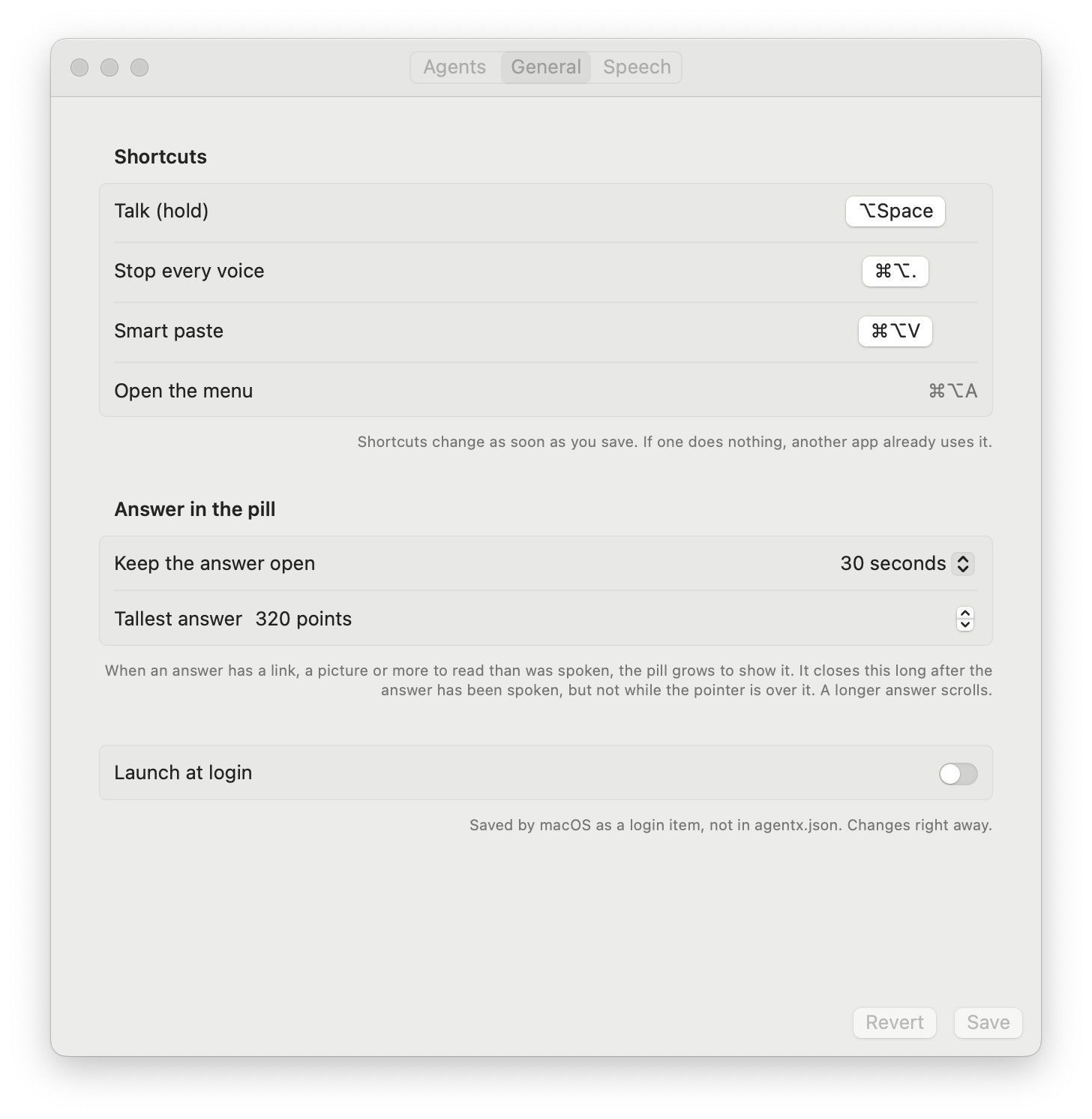
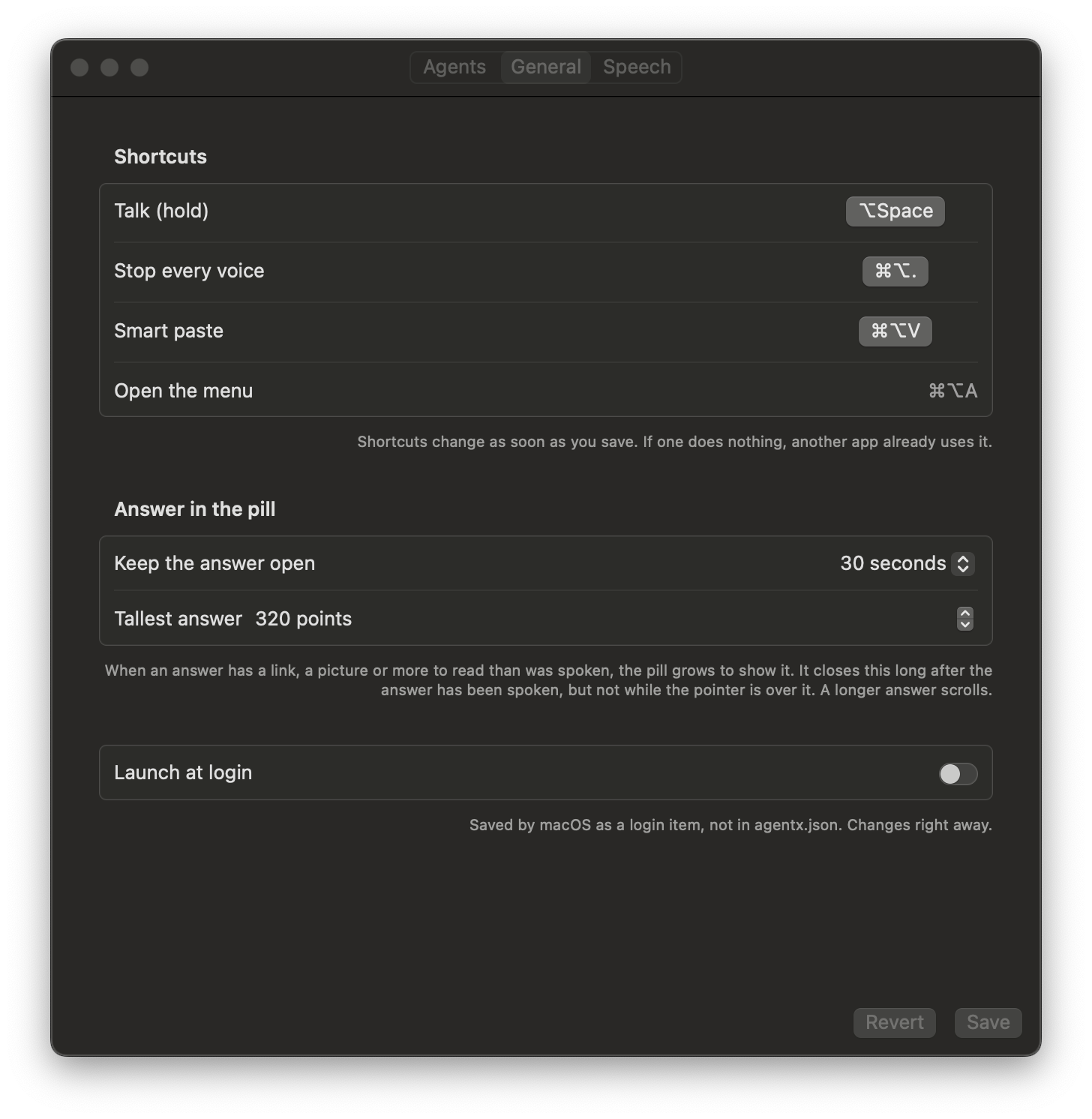
| Setting | What it does |
|---|---|
| Talk (hold) | Hold to speak, let go to send. Default Option–Space |
| Stop every voice | Silences everything. Default Command–Option–. |
| Smart paste | Reshapes what you copied for the app you are typing in, then pastes it. Default Command–Option–V |
| Open the menu | Command–Option–A. Fixed; shown so you don't reuse it |
| Keep the answer open | How long an answer in the pill stays open after it has been spoken: from 10 seconds to 5 minutes, or Until I close it. Default 30 seconds |
| Tallest answer | How tall the answer grows before it scrolls, from 120 to 800 points. Default 320 |
| Launch at login | Starts the app when you log in. Greyed out and on when agentx desktop install already does it |
A shortcut needs Control, Option or Command (a function key such as F5 can be used alone). Two actions can't share one shortcut.
Speech tab
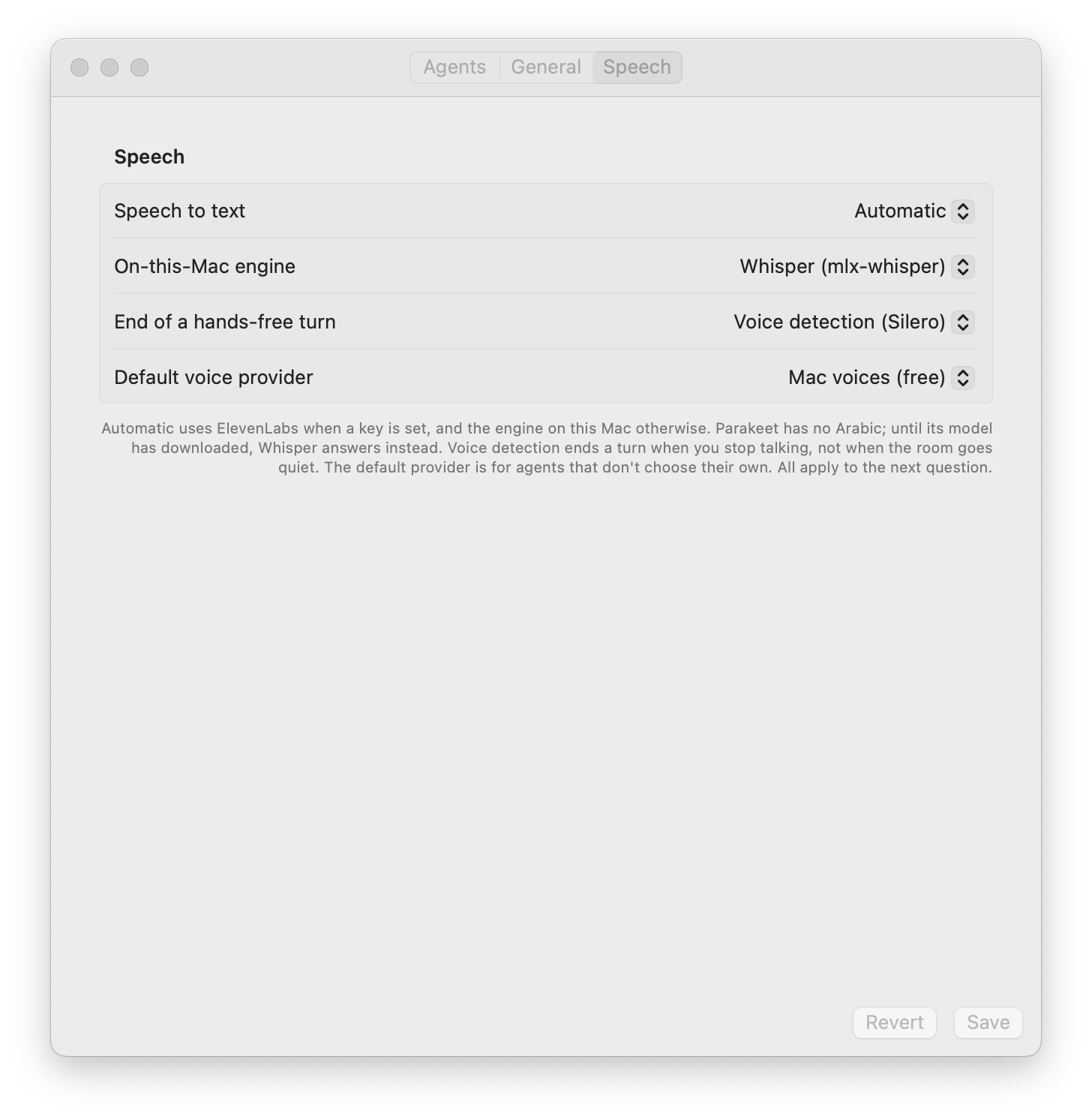
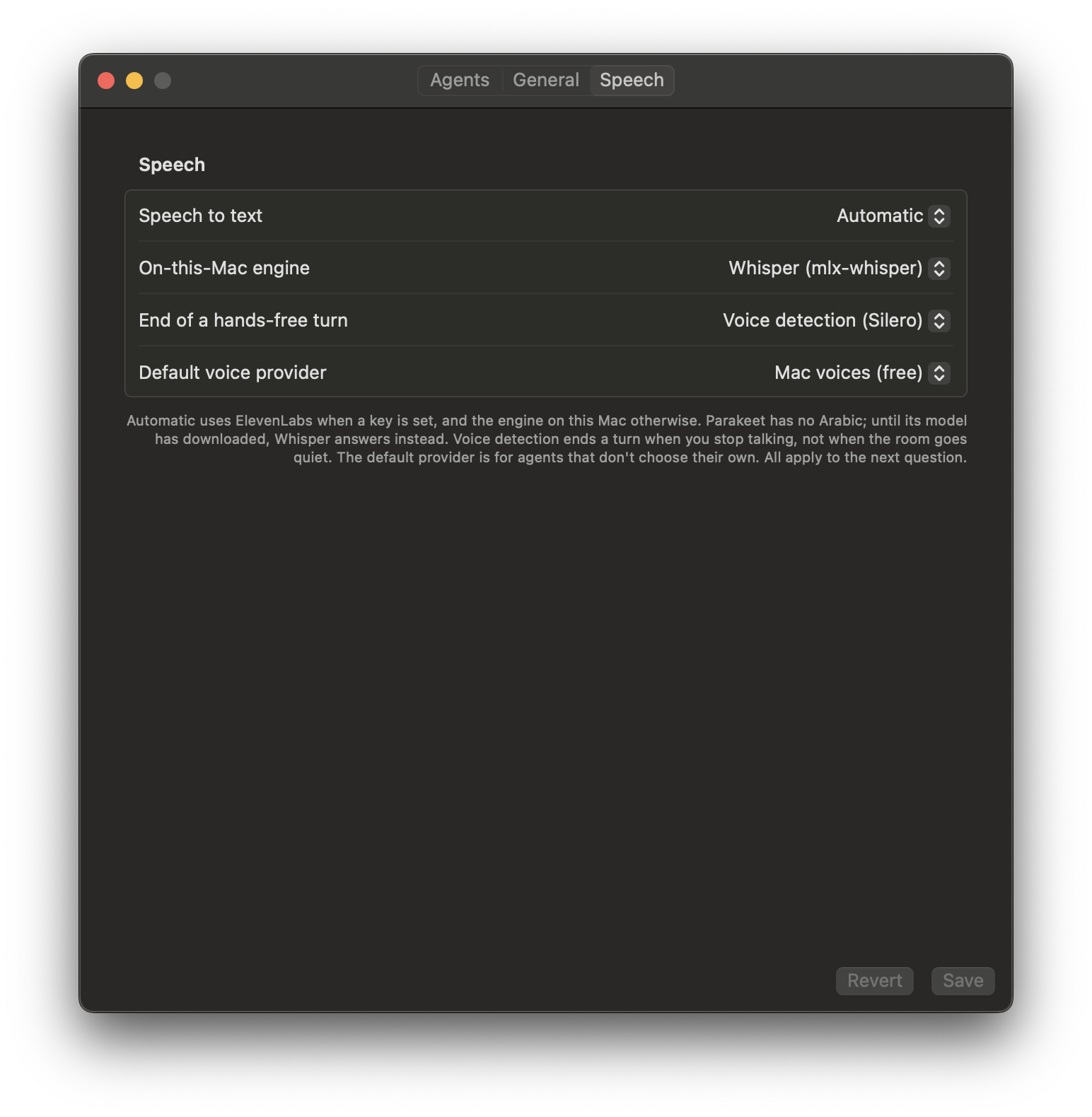
| Setting | What it does |
|---|---|
| Speech to text | Automatic (ElevenLabs when a key is set, this Mac otherwise), ElevenLabs, or On this Mac, which keeps your voice on the Mac |
| On-this-Mac engine | Whisper (mlx-whisper), the default, knows every language including Arabic. Parakeet (downloads 483 MB) is much faster but has no Arabic. It downloads the first time you pick it, and Whisper answers until it is ready. See Speech to text on this Mac |
| End of a hands-free turn | How the app hears that you have finished when you are not holding a key. Voice detection (Silero), the default, tells your voice apart from background noise. Volume stops when the room goes quiet |
| Default voice provider | The provider for agents set to Default |
Talking to agents
Ask the ticked agent
- Mac: hold Option–Space.
- Say your question.
- Let go. The pill names the agent that answers.
Ask another agent by name
Start with an agent's name to send just that question to it. The ticked agent stays ticked.
- Mac: hold Option–Space.
- Say the agent's name first, then the question: "Researcher, what's the status?"
- Let go. The pill shows the agent you named while it answers.
The name can be the agent's id, its name, or one of its mentions in agentx.json. Capital letters don't matter. Only the first word or two count, so "ask Researcher later" is an ordinary question for the ticked agent. If no agent matches, or more than one does, the ticked agent answers. An agent with its own Ask with shortcut can also be asked by holding that shortcut instead.
Agents on your other computers. If you link several computers running AgentX (a mesh), you can ask any agent on them by name the same way: "Planner, what's the status?" reaches the agent called Planner on the other computer, and the answer is spoken here. Only computers that are online right now count. If two computers each have an agent with that name, the name is ambiguous and the ticked agent answers; ask by the agent's id instead.
Ask several agents at once
- Mac: ask one agent something that takes a while.
- While it thinks, hold Option–Space and ask another agent by name.
- Both agents work at the same time. Each answer is spoken when it arrives, one after the other.
While more than one agent is busy, a row of small orbs appears in the pill, one per agent in its colours. The big orb on the left keeps following the agent that is listening or speaking.


| Small orb | What it means |
|---|---|
| A ring goes round it | The agent is thinking on your question |
| A steady ring | Its answer is ready and waits its turn to be spoken |
| It pulses | Its answer is being spoken |
| A number on it | More questions wait for that agent |
Point at a small orb to see the agent's name and the computer it runs on. The small orbs never take clicks: clicking or dragging the pill works as before. The row goes away once only one agent is left working on what the big orb shows.
Open the menu to see each agent's state. If you ask the same agent again while it is still thinking on your question, your new words replace the old question. More rules are in Ask several agents at once.
Interrupt or stop
- Interrupt: hold Option–Space while an agent is speaking. It goes quiet at once and listens to you.
- Stop everything: press Command–Option–., or choose Stop speaking from the menu. Every voice stops and the answers still waiting are dropped.
- Say "stop": hold Option–Space and say "stop" (or "that's enough"). The question in flight is dropped and nothing more is said.
- Close the pill: click its ×. The voice stops too.
History
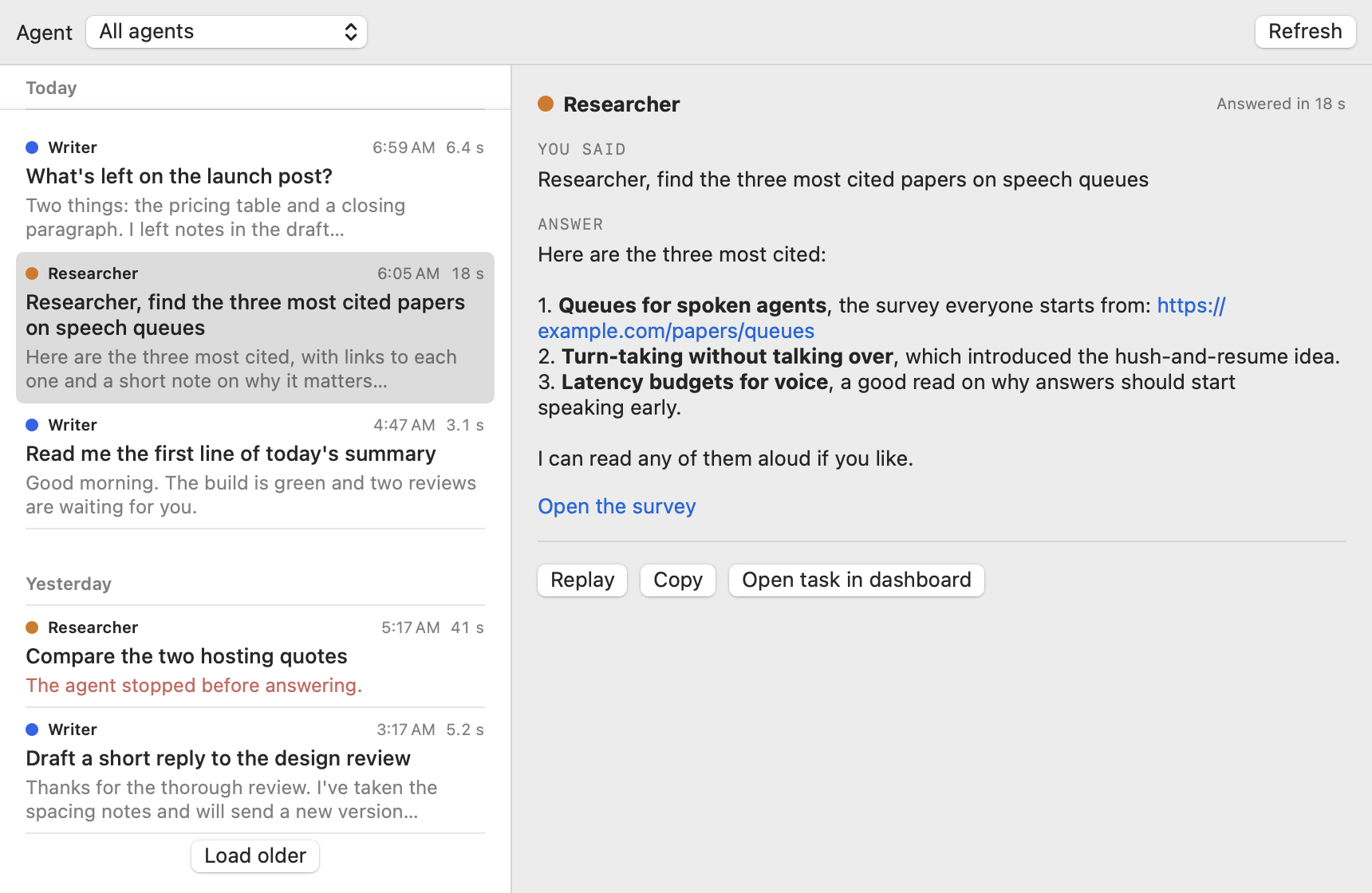
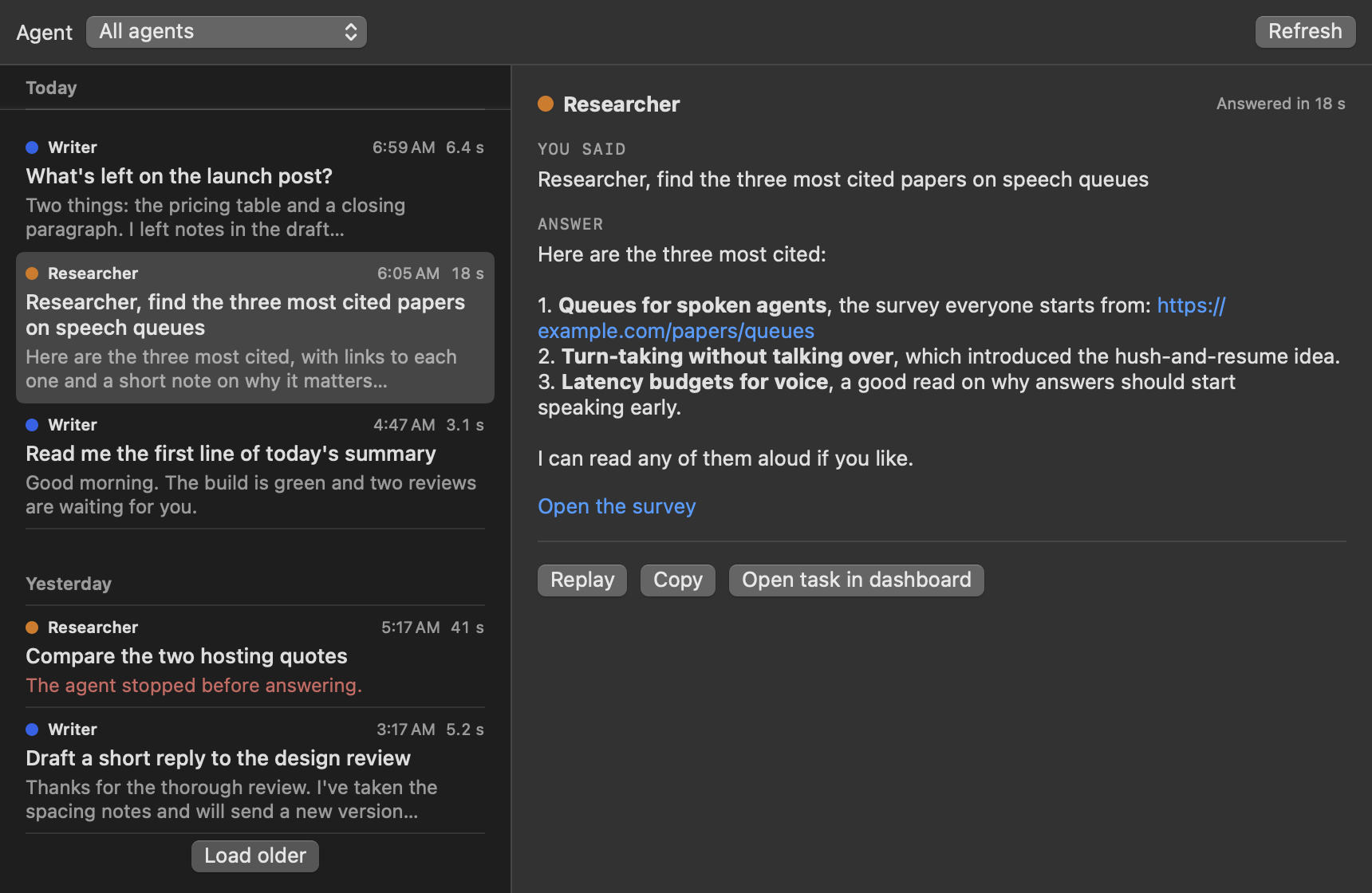
The History window lists the questions you asked out loud and the answers you got, by day, newest first. The daemon already keeps these as tasks, so nothing extra is stored on the Mac.
- Mac: click the AgentX icon in the menu bar.
- Mac: choose History….
- Mac: select a question on the left. The answer shows in full on the right, with its links and buttons.
- Mac: choose Replay (Command–Return) to hear it again, Copy (Command–Shift–C) to copy it, or Open task in dashboard to see every step the agent took.
To see one agent only, pick it in the Agent menu at the top; All agents shows everyone again. Load older at the bottom of the list shows more, and Refresh (Command–R) shows new questions. A replay waits for anything already speaking. For the last three questions, the menu's Recent section is quicker. More in History of what you asked.
Config reference
The settings window writes most of these for you. You can also edit agentx.json by hand; the daemon checks every value when it loads.
Shared voice settings (voice in agentx.json)
| Key | Default | What it does |
|---|---|---|
voice.provider | "system" | "system" (free Mac voices) or "elevenlabs" for every agent without its own |
voice.fallback | "system" | When ElevenLabs can't speak: "system" uses a Mac voice, "none" stays silent |
voice.system | not set: each agent gets its own voice | A Mac voice for every agent without its own. "system" means the Mac's default voice |
voice.locale | "en" | The language of automatically assigned voices, for example "fr-FR" |
voice.listener | not set: "the user" | What agents call you, for example your first name |
voice.stt | "auto" | Speech to text: "auto", "elevenlabs" or "local" |
voice.localStt | "mlx-whisper" | The engine on this Mac: "mlx-whisper" or "parakeet" |
voice.endOfTurn | "vad" | How a hands-free turn ends: "vad" (voice detection) or "volume" |
voice.hotkeys.talk | "opt+space" | Hold to talk |
voice.hotkeys.stop | "cmd+opt+period" | Stop every voice |
voice.hotkeys.paste | "cmd+opt+v" | Smart paste |
voice.card.timeout | 30 | Seconds an answer in the pill stays open once spoken, 0 to 600. 0 keeps it open until you close it |
voice.card.maxHeight | 320 | Tallest the answer grows before it scrolls, in points, 120 to 800 |
node.defaultAgent | not set: the first agent | The agent that answers when none is ticked or pinned |
Per-agent settings (in each agent's block)
| Key | Default | What it does |
|---|---|---|
voice.provider | the shared voice.provider | This agent's provider |
voice.system | assigned automatically | A Mac voice name, "system", or one voice per language such as { "en": "Samantha", "fr": "Thomas" } |
voice.elevenlabsVoiceId | AGENTX_VOICE_ID, else ElevenLabs' default | The ElevenLabs voice |
voice.gender | not set | "female", "male" or "neutral"; an assigned voice matches it |
voice.style | not set | A few words on manner, for example "warm, calm" |
voice.intro | not set | The one-line introduction the agent uses the first time it speaks |
voice.rate | 1 | Speaking speed, from 0.75 to 1.5. ElevenLabs is held to 0.7–1.2 |
voice.narrate | "off" | "on" (all tasks except scheduled jobs), "all", or "off" |
voice.priority | "normal" | "high", "normal" or "low" in the speaking queue |
voice.hotkey | none | A shortcut that asks this agent directly, for example "ctrl+opt+1" |
presence.color | picked from the agent's id | Orb and pointer colour as "#RRGGBB" |
presence.palette | the palette nearest presence.color | The orb's palette: sunrise, desert, forest, lagoon, ocean, dusk or blossom |
Agents on other AgentX computers in your mesh can get a voice here too, under meshVoices.<agent-id>, with the same keys except rate, priority and hotkey, plus name (what to call the agent aloud).
A shortcut is written as modifiers and a key joined by +. Modifiers are ctrl, opt, shift and cmd. Keys are a letter, a digit, f1 to f20, or space, period, comma, slash, semicolon, quote, minus, equal, leftbracket, rightbracket, backslash, grave, return or tab. In agentx.json, use these names only. A character such as . or , in its place is not understood by the app. In the settings window you just press the keys, and it saves them by name.
Settings kept on the Mac only
These are menu choices, not in agentx.json. macOS saves them for your user, except Hold notifications, which is kept in ~/.agentx/focus.json so that agentx notify in the daemon and in your agents can read it. A macOS Focus also holds notifications, and the two don't override each other.
| Setting | Default |
|---|---|
| The ticked agent | the daemon's node.defaultAgent, else the first agent |
| Show floating pill | off |
| Animated orb | on |
| Hold notifications | off |
| Pill position | bottom-right corner of the main screen |
| Launch at login | off (on and fixed when installed with agentx desktop install) |
Environment variables
| Variable | Default | What it does |
|---|---|---|
AGENTX_DAEMON_URL | http://127.0.0.1:18800 | The daemon the app talks to. agentx desktop install sets it from your agentx.json |
AGENTX_VOICE_AGENT | not set | Pins one agent; the menu can't switch. Set by agentx desktop install --agent |
AGENTX_DASHBOARD_URL | http://127.0.0.1:4202 | Opened by Dashboard…, Open in chat and Open task in dashboard |
ELEVENLABS_API_KEY | not set; the app also reads ~/.elevenlabs/key and ~/.agentx/elevenlabs-key.txt | ElevenLabs speech to text, and voices for ElevenLabs agents |
AGENTX_VOICE_ID | ElevenLabs' default voice | ElevenLabs voice for agents without voice.elevenlabsVoiceId |
AGENTX_VOICE_PROVIDER | system | The engine for lines spoken before the daemon names one, such as an error |
AGENTX_MLX_WHISPER | ~/.local/bin/mlx_whisper | The Whisper program on your Mac |
AGENTX_MLX_MODEL | mlx-community/whisper-large-v3-turbo | The Whisper model |
AGENTX_MODELS_DIR | ~/.agentx/models | Where voice detection and Parakeet are downloaded |
AGENTX_STT_MODEL | scribe_v1 | The ElevenLabs speech-to-text model |
AGENTX_TTS_MODEL | eleven_turbo_v2_5 | The ElevenLabs voice model |
AGENTX_PASTE_COMMAND | the line in ~/.agentx/paste-command.txt, else agentx paste | The command Smart paste runs. The app also uses it to find agentx notify. Set by agentx desktop install |
AGENTX_VOICE_PATH | the folder of ffmpeg plus macOS's standard folders | Read by the installer only: the PATH the app starts with |
An app started at login doesn't see variables set in your terminal. Keep keys in a key file rather than in your shell profile.
Commands
| Command | What it does |
|---|---|
agentx desktop install | Builds and installs the app and its helper, and starts the app at login; the helper starts when an agent needs it. --agent <id> pins one agent; --dry-run only shows the plan |
agentx desktop status | Shows whether the app is installed and running |
agentx desktop start | Starts the installed app |
agentx desktop stop | Stops it until you start it again or next log in |
agentx voice list | Lists the Mac voices for your language. --all lists every language; -c <path> reads another agentx.json |
agentx voice set <agent> [voice] | Sets an agent's voice: a Mac voice name, siri:<name> for a Siri voice, or system for the Mac's default. --provider system|elevenlabs, --lang en|fr|ar for one language only, --gender female|male|neutral, -c <path> |
agentx voice palette [agent] [palette] | Lists the orb palettes and who uses which, or picks one for an agent. default goes back to the one nearest its colour. -c <path> |
agentx voice card | Shows or changes the answer in the pill. --timeout <seconds> (0 to 600, 0 keeps it open), --max-height <points> (120 to 800), -c <path> |
agentx narrate <agent> on|off|default | Switches task narration for an agent. --task targets one task id instead |
agentx talk <agentA> <agentB> <topic…> | Two agents talk out loud. See Talk mode |
Check it worked
- Terminal: run
agentx desktop status. It shows the app's login service running, notNot installed. - Mac: click the AgentX icon in the menu bar. Your agents are listed and one is ticked.
- Mac: hold Option–Space, say "What can you do?", then let go.
- Mac: the pill shows Listening, then a ring while the agent thinks, then the answer while it is spoken aloud.
- Mac: hold Option–Space again and say another agent's name before a question. The pill names that agent while it answers, and the ticked agent stays ticked in the menu.
- Mac: ask one agent something long, then at once ask a second agent by name. The pill shows two small orbs until both have answered.
- Mac (with a mesh): ask an agent on another computer by name. While it thinks, the menu lists it with that computer's name in brackets.
- Mac: while an answer plays, press Command–Option–.. The voice stops at once.
- Mac: open History… from the menu. Your questions are listed under Today.
- Mac: open Settings…, pick an agent, change its Mac voice, and choose Preview. The sample plays in the new voice.
If something is wrong
- No AgentX icon in the menu bar: Terminal: run
agentx desktop status. If it says it isn't running, runagentx desktop start. If it isn't installed, follow Install and first run. - The menu says the daemon isn't reachable: Terminal: run
agentx daemon statusand start the daemon, then choose Retry in the menu. - Nothing is heard, or "Sorry, I didn't hear that": check System Settings › Privacy & Security › Microphone allows AgentX Desktop, and keep holding the keys while you speak. If it still fails, speech to text isn't working: check your ElevenLabs key, or run
agentx doctorto check Whisper andffmpegon this Mac. After installingffmpeg, runagentx desktop installagain. - The pill says "Too short — hold while speaking": you let go before saying anything. Keep holding Option–Space until you have finished.
- Parakeet is picked but answers are still slow: it is still downloading (483 MB) or loading for the first time; Whisper answers meanwhile. Parakeet has no Arabic: for Arabic, set On-this-Mac engine back to Whisper. See Switch to Parakeet.
- No sound from the answer: check the Mac's volume and output device. Then check an agent isn't waiting behind another: Terminal: run
curl -s http://127.0.0.1:18800/voice/queue. Ifpausedistrueand you are not speaking, runcurl -s -X POST http://127.0.0.1:18800/voice/queue/resume. An ElevenLabs agent without a key uses a Mac voice, or stays silent whenvoice.fallbackis"none". - The answer closes before you finish reading it: keep the pointer over it, or raise Keep the answer open on the General tab.
- The pill doesn't show: it was closed with ×, Esc or Hide pill. Hold Option–Space to bring it back. If it is off screen, choose Reset position in the menu.
- Option–Space does nothing: another app already uses that shortcut. Pick another Talk (hold) shortcut in Settings… › General. The app log,
~/Library/Logs/agentx-desktop.err.log, saysis taken by another app. - The menu can't switch agents: the app was installed with
--agent. Terminal: runagentx desktop installagain without it. - A question by name went to the ticked agent: the name matched no agent, or more than one. Check names and mentions with
agentx agent list. For an agent on another computer, check that computer is online: Terminal: runagentx mesh list; it should sayhealthy. Two computers with an agent of the same name make the name ambiguous; say the agent's id instead. - Two agents are busy but the pill shows no small orbs: the pill was closed or Show floating pill hides it when idle; hold Option–Space to bring it back. The row also shows only questions asked from this Mac.
- History is empty or says the daemon isn't reachable: History reads from the daemon. Start it, then choose Refresh.
- Save in the settings window shows a red message: a shortcut is used twice. Change one of them and save again.
- Where to find the logs: the app keeps its own log in
~/Library/Logs/agentx-voice.log, whichever way you installed it. Crash messages and anything else it prints go to a second file that depends on how you installed it:~/Library/Logs/agentx-desktop.err.logafteragentx desktop install, or~/Library/Logs/agentx-voice.err.logafterapps/mac-voice/install.sh. The installer prints this second path when it finishes. Terminal: runtail -n 50 <path>to see the latest lines. - Anything else: see If something is wrong on the Desktop assistant page.