
Pinned pages
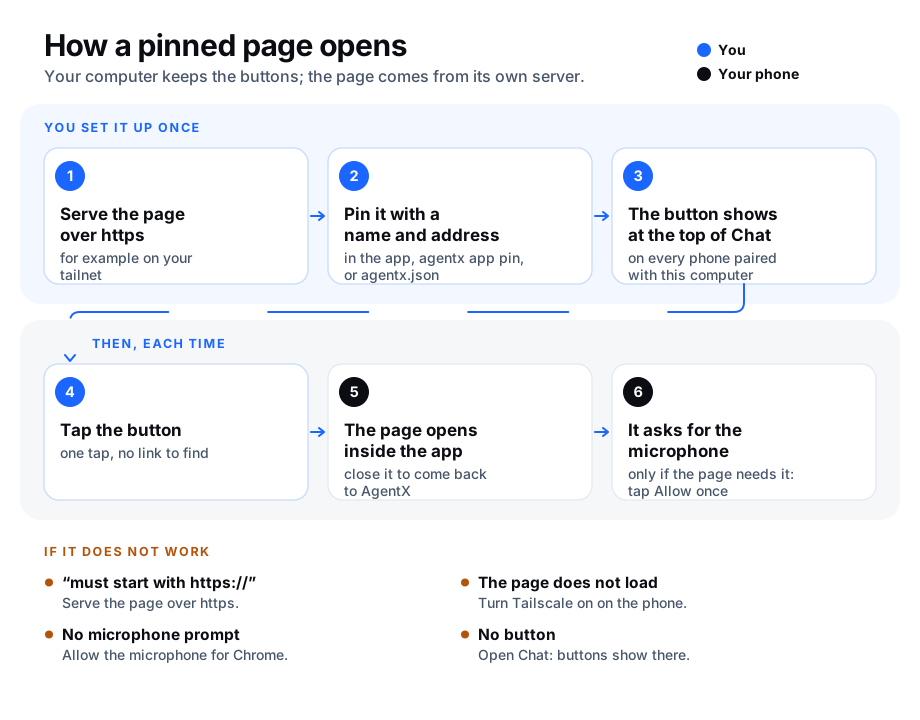
A pinned page is a button in the phone app that opens a web page you chose: a tool page on your tailnet, a status page, a remote control for another machine. One tap opens it inside the app, without looking for the link in the browser.
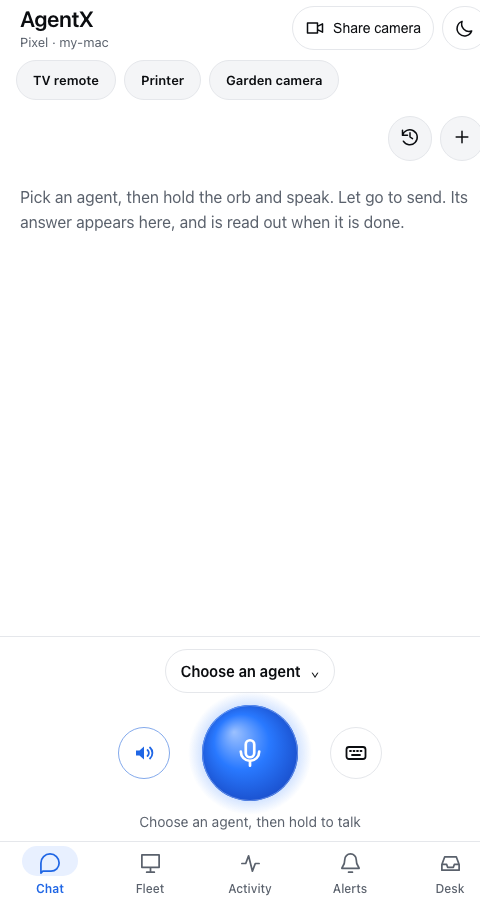
The buttons sit in a row under the app's header, on the Chat tab, where the app opens. You add, rename and remove them in Alerts, on the Pinned pages card, or set them for every phone in agentx.json.
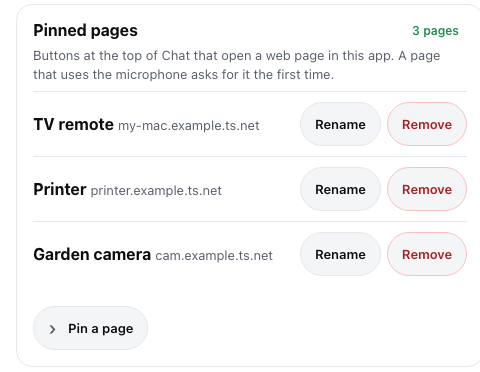
Pin a page
- Open the phone app and go to Alerts.
- On the Pinned pages card, tap Pin a page.
- Type a Button name (up to 40 characters) and the Page address. Only
https://addresses can be pinned. - Tap Pin page. The button shows under the header on Chat.
To rename or remove a button, tap Rename or Remove next to it on the same card.
You can also do it from the computer, in the folder that holds agentx.json:
agentx app pin "Remote" https://my-mac.tailnet-name.ts.net/remote
agentx app pins            # lists them, with their ids
agentx app unpin Remote    # by name or id
If the phone and the computer change the list at the same moment, one waits for the other, so neither change is lost.
The phone shows a change the next time the app opens or comes back to the screen. Without a connection, the row shows the buttons from the last time the app loaded them.
Set buttons in agentx.json
To give every paired phone the same buttons, list them in agentx.json on the computer. These buttons come first in the row. The phone app and agentx app show them but can't rename or remove them; you change them in agentx.json.
Computer: open
agentx.jsonin a text editor.Computer: add the pages under
app.pins.pages, each with alabel(the button name, up to 40 characters) and aurl(anhttps://address):json{ "app": { "pins": { "pages": [ { "label": "Status", "url": "https://status.example.com/" } ] } } }Computer: save the file. A running daemon reloads it.
Terminal (computer): in the same folder, run
agentx config check. It prints✓ Config valid.Phone: open the phone app, or switch back to it. The button shows under the header on Chat.
On the Pinned pages card in Alerts, a button from agentx.json says Set in agentx.json in place of Rename and Remove.
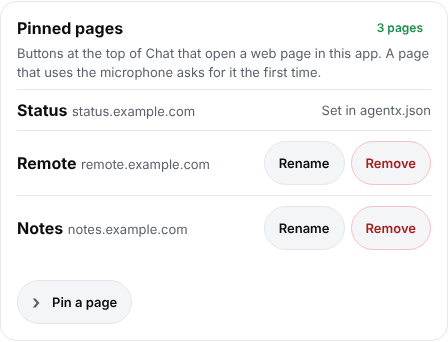
These buttons count toward app.pins.max, so app.pins.pages can't list more pages than app.pins.max allows: AgentX refuses to load agentx.json until you raise app.pins.max or remove a page. If a page repeats an earlier page's address or name, only the first one shows. If you had already pinned the same page (same address or name) from the phone, only the agentx.json button shows; the phone's copy stays in .agentx/app-pins.json and comes back if you take the page out of agentx.json.
How the page opens
- In the AgentX Android app, the page opens in the app's own window. A page on the same address as the phone app opens full screen; a page on another address opens with a slim bar at the top that shows its address. The back gesture returns to the phone app.
- In the phone app installed from the browser, the page opens in the same window, or, on an iPhone, in the app's built-in browser.
If you tap a button while a voice message is under way (the app is listening, waiting for the answer, or reading it out), the app asks first: opening the page stops that voice message. Tap Cancel to stay, or OK to open the page.
The page is opened by your phone directly. The computer only keeps the list of buttons; it never loads or passes on the page.
Pages that use the microphone
A page that asks for the microphone (for example a hold-to-talk button) gets the browser's own question the first time: tap Allow. The answer is kept for that page's address, so it doesn't ask again. The browser only allows the microphone on https:// pages, which is why only those can be pinned.
If the page says the microphone is blocked, open the browser's site settings for that address and allow the microphone there. In the AgentX Android app, that is Chrome's site settings; Chrome itself must also be allowed to use the microphone in Android's settings.
Keep the address private
Some addresses work as a key: anyone who has the link can use the page. The list of buttons is kept on the computer in .agentx/app-pins.json (and agentx.json, for the buttons set there), readable only by you, and given only to phones paired with this computer. Each phone also keeps the last list it loaded, so the row works offline. Unpairing a phone doesn't delete that saved list: to clear it, delete the stored data for this computer's address in Chrome's site settings on the phone. AgentX never writes the addresses or the button names to its logs, and the phone app sends no referrer when it opens one.
Settings
| Field | Default | What it does |
|---|---|---|
app.pins.file | ".agentx/app-pins.json" | Where the buttons are kept, relative to the folder that holds agentx.json. |
app.pins.max | 12 | Most buttons you can pin (1 to 50), counting the ones in app.pins.pages. Must be at least the number of pages in app.pins.pages. |
app.pins.pages | [] | Buttons for every phone: a list of { "label": …, "url": … }, https:// only. Read only in the phone app and agentx app. |
Check it worked
- Phone: open the phone app. Under the header on Chat, your button shows.
- Phone: tap it. The page opens inside the app.
- Phone: on a page that uses the microphone, start it (for example hold the talk button). The browser asks for the microphone the first time; after Allow, the page hears you.
- Phone: go back. The phone app shows again.
- Terminal (computer):
agentx app pinslists the same button. Buttons fromagentx.jsonare marked(agentx.json).
If something is wrong
- No row of buttons on Chat — no page is pinned yet, or the app has not loaded the list. Check Alerts > Pinned pages; close the app and open it again.
- "Only https:// pages can be pinned" — the address starts with
http://or has no scheme. Browsers allow the microphone only onhttps://pages; serve the page over https (on a tailnet,tailscale servedoes it). - The page opens in the Chrome browser instead of the app — the phone app was opened from Chrome, not from the AgentX app. Open AgentX from the app list.
- The page says the microphone is blocked — open the site settings for the page's address in the browser and allow the microphone. On Android, also check Settings > Apps > Chrome > Permissions > Microphone.
- "The pinned pages file is busy" — another change was still being saved and did not finish within 3 seconds. Try again. If it keeps happening and no
agentxcommand is running, delete.agentx/app-pins.json.lockon the computer. - "This button is set in agentx.json" — the button comes from
app.pins.pages. Edit or remove it inagentx.jsonon the computer. agentx config checkreportsapp.pins.pages— an address there is nothttps://, has a user name or password in it, or alabelis empty or longer than 40 characters. Fix the entry named in the error. If the error says there are more pages thanapp.pins.maxallows, raiseapp.pins.maxor remove a page.- "This page is already a button, set in agentx.json" — the page you tried to pin on the phone is already in
app.pins.pages. Use that button. - The page shows "not found" or asks you to sign in — the address is wrong or has expired. Remove the button and pin the current address.