
Let a workflow follow a request
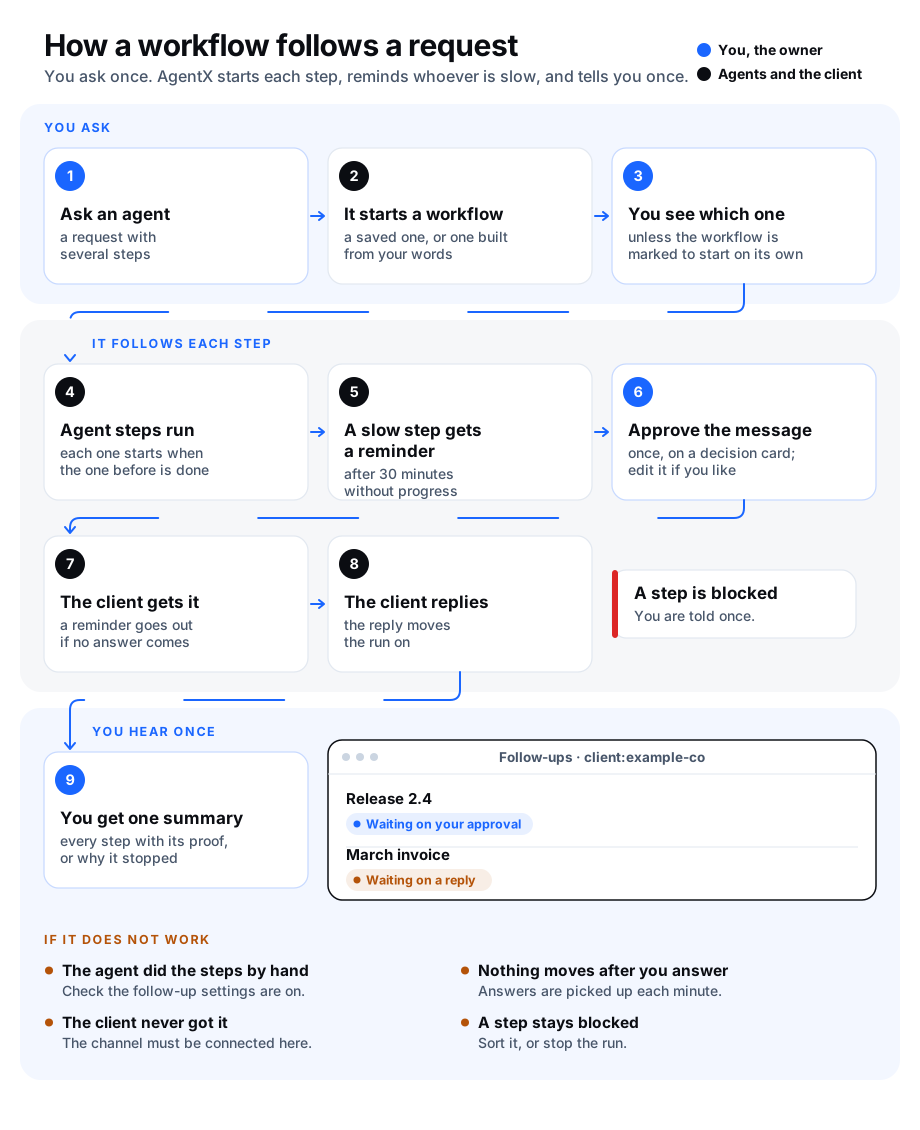
Some requests have several steps: put a release live, check it, tell the client. Done by hand, each step waits for someone to remember it. With follow-up workflows, the agent turns your request into a workflow (a saved list of steps that AgentX runs in order) and AgentX follows it to the end. It starts each step as soon as the one before is done, reminds whoever is slow, asks you before any message goes to a person, and tells you once when it is over.
What it does
- The agent starts a workflow instead of doing the steps by hand. It picks a saved workflow that fits your request, or builds one from your own words. When a saved workflow looks like your request, the agent is told so in one line before it answers.
- You see which workflow it chose. You get a notice with the steps and the command to stop it. A workflow marked
autoStart: truestarts without that notice. - Each step runs on its own. An agent step ends when the agent says it is done and gives proof (a link, an id, what it checked). If the agent goes quiet, it gets a reminder, called a nudge. After the last nudge the step counts as blocked and you are told once.
- No message goes to a person without your yes. You approve each message on a decision card (a yes/no question in your Approvals inbox), or all of them once when the run starts.
- A person's answer moves the run on. A step can wait for a client or a colleague to write back, remind them, and give up at a deadline.
- You get one summary at the end. It lists each step with its proof, and says why the run stopped if it did not finish.
One pass through a workflow is a run. A run that serves an open request closes that request as done, with the steps' proof, when the run completes. If the run stops or fails, the request needs attention instead.
Turn it on
Follow-up workflows are on by default, but they need the workflow engine.
- Terminal: go to the folder that holds
agentx.json. - Terminal: run
agentx config set workflows.enabled trueto turn the workflow engine on. - Terminal: run
agentx daemon restart. At start, the daemon puts AgentX's own tool server in every agent's workspace, so each agent has theagentx_workflowtool. A.mcp.jsonyou wrote by hand is left alone. - Terminal: run
agentx workflow follow-up. It prints the settings. The first line saysFollow-up workflows on. - Optional: to have a finished run also close the request it served, turn on open requests:
agentx requests settings --enabled on.
If the last command prints The workflow engine is off, step 2 did not take: check workflows.enabled in agentx.json.
Start one
Ask an agent
- Ask an agent for something with several steps, in your own words. For example: "Put release 2.4 live at example.com, check it, then tell Example Co on Telegram."
- The agent looks for a saved workflow that fits. If none fits, it builds one from what you said.
- You get a notice: which workflow the agent chose (or that it built one), the steps in order, and the command to stop it.
- From here AgentX runs the steps. You hear from it for decision cards, notices the workflow itself sends you, a blocked step, and the summary at the end.
A workflow the agent builds for you is saved switched off, with the tag built-on-demand, and runs only this once. To keep it for next time, see Save a workflow for reuse.
From the terminal
- Terminal: find the workflow's id with
agentx workflow list. - Terminal: start a followed run:sh
agentx workflow run my-release --follow --title "Release 2.4" --tag client:example-co \ --input '{"release":"2.4","url":"https://example.com","client":"Example Co","clientChannel":"telegram","clientChatId":"123456"}' - The command prints
run started: <runId> (followed). If the workflow asks for your approval at the start, it also saysIt waits for your approval (Approvals inbox) before the first step.
--follow is what makes the run followed: nudges, reminders and the summary. --title names the run in a few words. --tag says what it concerns, as kind:name; give it more than once for several tags. Use kinds such as client:, employee:, project: and idea:. Tags are saved in lower case.
Stop a run
- Terminal: run
agentx workflow cancel <runId>. - Reminders and nudges for that run stop, and you get its summary, marked as stopped.
The steps a workflow can have
Next to the usual workflow steps, four step types deal with you and with people:
| Step | What it does | Ways out |
|---|---|---|
owner.notify | Tells you something (text) and goes on. | — |
owner.ask | Asks you a yes/no question on a decision card (ask), with an optional advice line (recommend), a message you can edit (draft), choices (choices) and an expiry (expires). | yes, no, expired |
person.message | Sends a message (text) to a person (to) on a channel (channel, chatId), after your approval. | sent, declined |
person.wait | Waits for a person to write back in a chat, with a deadline and reminders. | reply, timeout |
Ways out are the step's ports: the names an arrow from the step can leave on. An arrow without a port leaves on the first one (yes, sent or reply). If a step ends on another port and no arrow leaves on it (you said no, the card expired, nobody replied), the run stops there and your summary says why.
person.wait takes:
| Setting | Meaning |
|---|---|
reminds | The id of the person.message step it follows up. The wait then uses that step's channel and chat, and reminders repeat that message. |
channel, chatId | Where to wait, when there is no reminds. |
from | In a group chat, only this sender's reply counts. |
timeout | How long to wait: minutes as a number, or "4h", "2d", "P2D". Default one day. |
remindAfter | When to send a reminder, in the same form. No reminder without it. |
maxReminders | How many reminders at most. Default 1 when remindAfter is set. |
Later steps read what an earlier step produced. In a person.wait step called reply, the person's answer is {{reply.text}}.
An agent that builds or proposes a workflow may use only these step types: agent, owner.notify, owner.ask, person.message, person.wait, branch, transform, timer.boundary and end. Steps that send straight to a channel, run commands or call addresses are yours to add, in the editor or a file.
The full field list is in the workflow schema.
Approve messages to people
A message to a person never leaves without your yes. There is no setting that skips it. You choose when you give it:
| Approval | What happens |
|---|---|
step (default) | Each message gets its own decision card, with the text as a draft you can edit. What you leave in the box is what is sent. |
start | One card when the run starts lists every message it will send, with the chat it goes to. The run waits for your yes. After that, those messages go out without asking again. A message that uses what an earlier step produces (an agent's answer, a person's reply) cannot be known at the start: the card says so, and that message gets its own card when its turn comes. A no stops the run before its first step. |
To answer a message card:
- Browser: open the dashboard and click the Approvals tab.
- Browser: read the card Send to …. It names the person and the exact chat (channel and chat id) the message goes to. The message is in the box Message the agent gets (you can edit it).
- Browser: change the text if you like.
- Browser: click Yes to send it, or No to not send it.
From the terminal, run agentx approvals approve <key> --text "the message as you want it sent", or agentx approvals reject <key>.
A no, or a card that expires, takes the step out on declined.
The setting for all workflows is workflows.followUp.approval (see Change the settings). One workflow can set its own with approval: start or approval: step at the top of its file.
Reminders and nudges
Reminders to people. A person.wait step with remindAfter sends a reminder when no answer has come by then:
- With
reminds, the person gets the message you approved again, starting withReminder:. - Without
reminds, the reminder goes to you instead: AgentX tells you it is still waiting, where, and until when.
The person's next message in that chat moves the run on. That message belongs to the workflow: the agent that usually answers in that chat does not answer it. When the deadline passes with no reply, the step leaves on timeout.
Nudges to agents. In a followed run, every agent step is supervised:
- The agent is told to end its reply with
RESULT: doneand the proof, orRESULT: blockedand the reason. If the work finishes later (a deploy still running), it reports it then with itsagentx_workflowtool.RESULT: failedcounts as blocked: you are told, and the run does not go on. - If it says neither, the step waits.
- After
stallMinutes(default 30) without progress, the agent gets a nudge. The run's history showsnudge 1/2 to <agent>. - After
maxNudgesnudges (default 2) and one more quiet spell, the step is blocked and you are told once, with the reason and the command to stop the run.
A blocked step stays where it is until the agent reports it done or you stop the run. One agent step can opt out with supervise: false in its config. In a run that is not followed, supervise: true opts a step in.
See progress
From the terminal:
- Terminal: run
agentx workflow progress. - You see every followed run still going, grouped by tag. Each shows its title, the step it is on, what it waits on (your approval, a reply, an agent) and since when. A blocked run is marked
⚠. - For one tag only, run
agentx workflow progress --tag client:example-co. Add--jsonfor output a program can read. - For one run's steps, run
agentx workflow trace <runId>.
agentx workflow progress reads the runs of the computer you run it on.
In the dashboard:
- Browser: open the dashboard and click the Workflows tab.
- Browser: look at Follow-ups, at the top of the left column. There is one group per tag; a run without tags is under
untagged. The first three groups are open, and so is every group with a blocked run. - Browser: click a group's name to open or close it.
- Browser: click a run to open it: its steps, what each produced, and what it waits on.
The dashboard collects runs from every computer it is connected to. If one cannot be reached, the heading says how many.
Agents see the same list with their agentx_workflow tool, so you can also ask an agent "what is still being followed for Example Co?".
Change the settings
The settings are the workflows.followUp block in agentx.json.
- Terminal: go to the folder that holds
agentx.json. - Terminal: run
agentx workflow follow-upto see the current settings. - Terminal: change what you need, for example
agentx workflow follow-up --stall-minutes 60 --max-nudges 3. - The command saves
agentx.json, reloads the daemon and prints the new settings.
| Command | What it does |
|---|---|
agentx workflow follow-up --enabled off | Agents no longer start workflows for requests, and get no hint about saved ones. Runs already going carry on. |
agentx workflow follow-up --agent <agent-id> --agent-enabled off | The same, for one agent only. on turns it back on. |
agentx workflow follow-up --stall-minutes 60 | Minutes without progress before an agent step gets a nudge. Default 30. |
agentx workflow follow-up --max-nudges 3 | Nudges before the step counts as blocked, from 0 to 20. Default 2. With 0, the step is blocked after the first quiet spell. |
agentx workflow follow-up --approval start | Approve every message to people once, when a run starts. step (the default) asks before each one. |
One workflow can use its own values. At the top level of its file:
approval: start
autoStart: true
followUp:
  stallMinutes: 120
  maxNudges: 1
An agent step can also set stallMinutes and maxNudges in its own config.
Save a workflow for reuse
A workflow an agent built for you runs once. To keep it:
- Ask the agent to propose it as a template, for example: "Keep that as a workflow for next time."
- A decision card asks you whether to keep it. The workflow is saved switched off until you answer.
- Browser: open the Approvals tab and click Yes on the card. The workflow is switched on and agents can pick it next time.
A no, or a card that expires, leaves it switched off. An agent can also propose a new workflow from scratch the same way.
Use the release template
AgentX ships one follow-up template: put a release live, check it is live, tell the client after your approval, and send you one summary.
- Terminal: go to the folder that holds
agentx.json. - Terminal: create the workflow:sh
agentx workflow init my-release --template release-follow-up --agent <agent-id> --title "Release" - Terminal: open
.agentx/workflows/my-release.yamland read the prompts and the message to the client. Change the wording if you like. - Terminal: run
agentx workflow validate .agentx/workflows/my-release.yaml. - Terminal: start a release with the
agentx workflow run my-release --follow …command shown in From the terminal.
The steps are deploy (an agent puts it live and gives the link as proof), verify (an agent checks it is live and says what it checked), tell_client (the message to the client, after your yes) and done. Agents can start it too, with the same five inputs.
Check it worked
- Terminal: run
agentx workflow follow-up. It saysFollow-up workflows on, and no line says the engine is off. - Ask an agent for a small request with two steps, for example: "Ask Sam on Telegram for the March invoice, then tell me what Sam says."
- You get a notice naming the workflow and its steps, then a card Send to Sam.
- Terminal: run
agentx workflow progress. The run is listed, waiting on your approval. - Click Yes on the card. Within a minute,
agentx workflow progressshows the run waiting on a reply. - When Sam replies, the run goes on by itself. At the end you get one summary, titled
Workflow done: …, with each step.
If something is wrong
- The agent did the steps by hand: check
agentx workflow follow-upsayson, and that the agent is not listed as off. Check the agent has theagentx_workflowtool: it comes from AgentX's tool server, which is added to agents' workspaces when open requests are on. If the agent's workspace has a.mcp.jsonyou wrote yourself, add the server there:agentx serve --stdio --cwd <install folder>. Then runagentx daemon restart. Follow-up workflows are off on this node, oroff for <agent>: turn them on withagentx workflow follow-up --enabled on, or--agent <agent-id> --agent-enabled on.workflow "…" is not active: the saved workflow is switched off or still a draft. Check it, then setstate: activeandstatus: activein its file. A workflow an agent built for you is switched off on purpose; keep it with Save a workflow for reuse.type "…" is not one an agent may use: an agent tried to build a workflow with a step it may not use. Add that step yourself in the editor or the file.- Nothing moves after you answer a card: answers are picked up by the Approvals check, which runs once a minute. Wait a minute, then run
agentx workflow progressagain. - The card is not on the computer where you answer cards: cards for workflow steps are raised on the computer that runs the workflow, even when
approvals.forwardTosends other cards elsewhere. Open the dashboard of that computer, or choose it in the top bar's machine menu. - The client never got the message: look for
approved message not sentinagentx daemon logs. The channel must be connected on this computer or on another computer of your mesh. The run stops and your summary gives the reason. - The run stopped after a no or a missed reply: the step ended on
no,expired,declinedortimeout, and the workflow has no arrow for it. Add an arrow with thatfromPortif the run should go on another way. - A step stays blocked: read the reason in the notice or in
agentx workflow progress. Sort it with the agent, which then reports it done, or stop the run withagentx workflow cancel <runId>. - The agent did not answer someone's message: while a
person.waitstep waits in a chat, the next message there goes to the workflow, not to the agent. That is expected.