
Invite a teammate to their work page
This page is for you, the owner. A teammate who asks your agents for things on GitLab, Telegram or WhatsApp cannot see, from that channel, whether the agent is working, waiting or stuck. This page gives them one small window of their own: My work, the agents they use and what they asked for, and where it stands. Of your own work they see what an agent is busy with right now, in a short preview, and nothing of it once it is done. The teammate's own steps are on Join My work, a short page you can send them as it is. Which way in fits whom, side by side: Who gets which way in.
It covers a teammate, a person with the role member. A client, someone you do work for, goes through the same door but gets a different page, Your project: see Give a client a page of their own.
It works like the phone app: one page served on your private network, a one-time code to pair, a key per machine. Two things are stricter, because a teammate is not you:
- the code is made for one person from your people list, and the key it gives opens that person's own work only;
- a new machine does nothing until you say yes to it on a decision card.
The whole path, from your first step to the teammate's desktop:
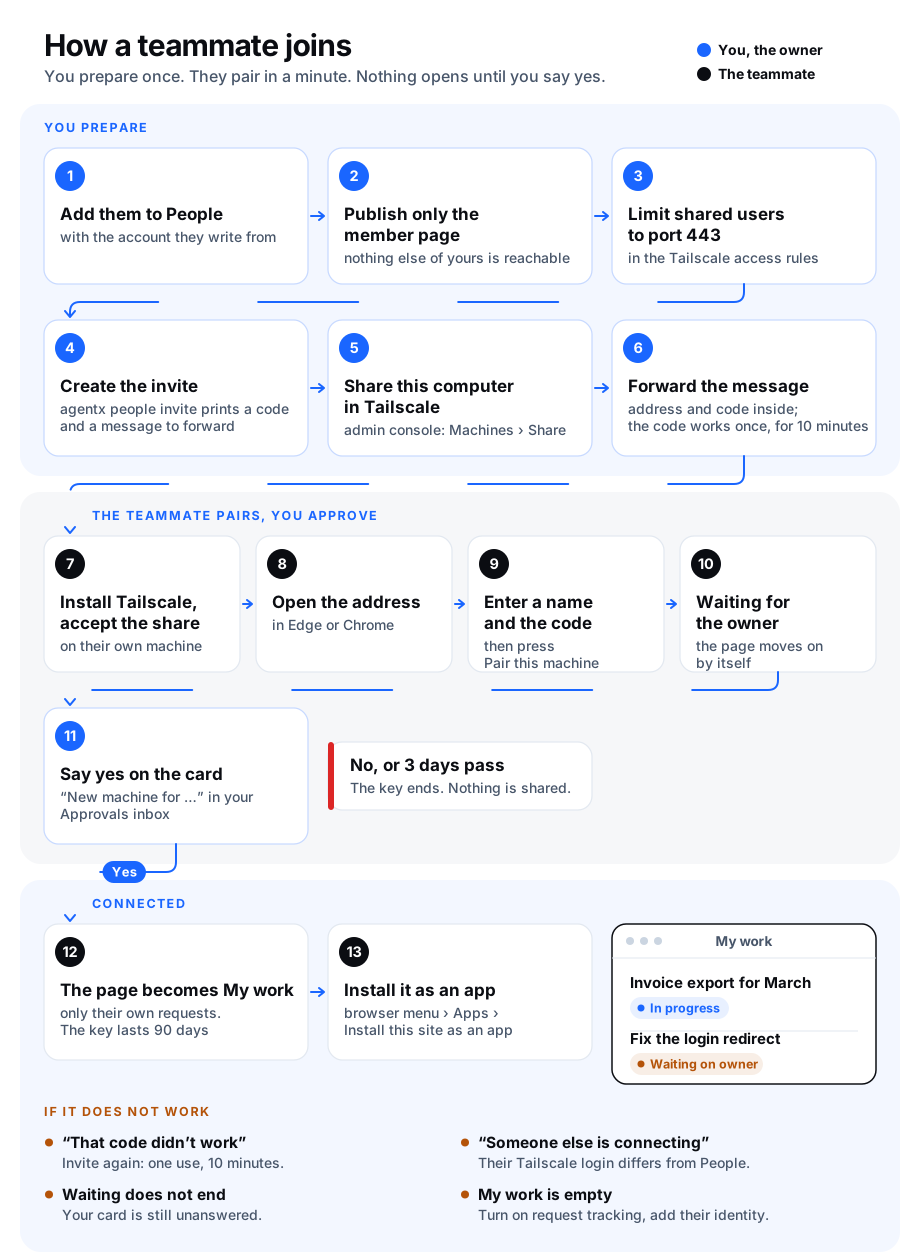
What you need
- The teammate listed in people, with the identity they use on the channel they write on.
- Request tracking turned on, so there is something to show.
- Tailscale on your computer and on theirs. Their machine joins your network through a share of this one computer; no public address is used.
- The dashboard running from the folder that holds
agentx.json.
What is Tailscale?
Tailscale is an app that links computers into a small private network over the internet, so they can reach each other without opening anything to the public. A share lets someone outside your network reach one of your computers, and nothing else. To install it and connect your own machines, see Connect machines with Tailscale.
Serve only the member page
The dashboard trusts anything that reaches it from your own computer, so only the member page may be published on the network.
Terminal: publish the two member paths and nothing else:
shtailscale serve --bg --set-path /member http://127.0.0.1:4202/member tailscale serve --bg --set-path /api/member http://127.0.0.1:4202/api/memberIf you also use the phone app, keep its two
/applines. Never runtailscale serve --bg 4202: that shares the whole dashboard.The dashboard answers only addresses written in their plain form. An address with
.or..parts, or with a backslash, gets "not found" on every page. So a published path cannot be used to reach another page, even behind a proxy other thantailscale servethat passes such addresses on unchanged.Browser (Tailscale admin console): in Access controls, make sure a shared user reaches this computer on port 443 and nothing else. Access rules only allow; none of them takes access away. So adding a rule is not enough while the default rule (
"src": ["*"], "dst": ["*:*"]) is still there:*includes the people you share with, and they reach every port.- Narrow the allow-all rule so it covers your own users only, for example
"src": ["autogroup:member"]. If you have tagged devices that relied on*, give them their own rule first. - Add one rule for shared users, with this computer's Tailscale address (from
tailscale ip -4) and port 443:
json{ "action": "accept", "src": ["autogroup:member"], "dst": ["*:*"] }, { "action": "accept", "src": ["autogroup:shared"], "dst": ["100.101.102.103:443"] }Until this is in place, a shared user can reach everything on this computer that listens on its Tailscale address: remote login, file sharing, a development server, and the daemon or the dashboard if you set
node.bindordashboard.bindto0.0.0.0. Check it from the teammate's machine before you rely on it: see Check it worked.- Narrow the allow-all rule so it covers your own users only, for example
Invite
Terminal (computer): from the folder that holds
agentx.json:shagentx people invite saraIt refuses to go on if
tailscale servepublishes the whole dashboard.It prints the share step, the address of the page, and a pairing code such as
7KQ4-M2XH. The code works once, for 10 minutes. It ends with a block marked Message to forward: a short message in plain words, written for the teammate, that you copy and send as it is. It names their page, My work, and asks them to run nothing on your computer.textHi Sara B, I use AgentX to give our AI agents their jobs. It has a page for you, "My work": what you asked the agents for, and where each request stands. To open it: 1. Accept the Tailscale share I sent you. Tailscale is a small program that connects your computer to mine, privately. 2. Open https://your-mac.tailnet-name.ts.net/member in Edge or Chrome, give your computer a name and type this code: 7KQ4-M2XH The code works once, for 10 minutes. If it has stopped working, tell me and I will send you a new one. I then approve your machine, and the page opens by itself.Browser (Tailscale admin console): open Machines, this computer, Share, and send the link to the teammate. Do this once per person; the invite reminds you.
Copy the message between the two dashed lines and send it to the teammate on WhatsApp, Telegram or mail, on a channel you know is theirs. Only the lines between the dashes are for them; the rest of the output is for you. If they want more than the message, send them Join My work, which has only their steps.
If the teammate's Tailscale login is on their person entry as tailscale:<login> (for example agentx people link sara tailscale:sara@example.com), pairing is refused unless the network reports that very login. Without the entry, the login the network reports is recorded and shown to you on the card instead.
The teammate pairs their machine
The teammate follows Join My work, which walks them through these four steps with a screenshot of each page: they install Tailscale and accept the share, open the address (for example https://your-mac.tailnet-name.ts.net/member), type a name for the machine and the code, and the page says Waiting for the owner. Opening the address before Tailscale on their machine says Connected gives them "site can't be reached", the most common stumble.
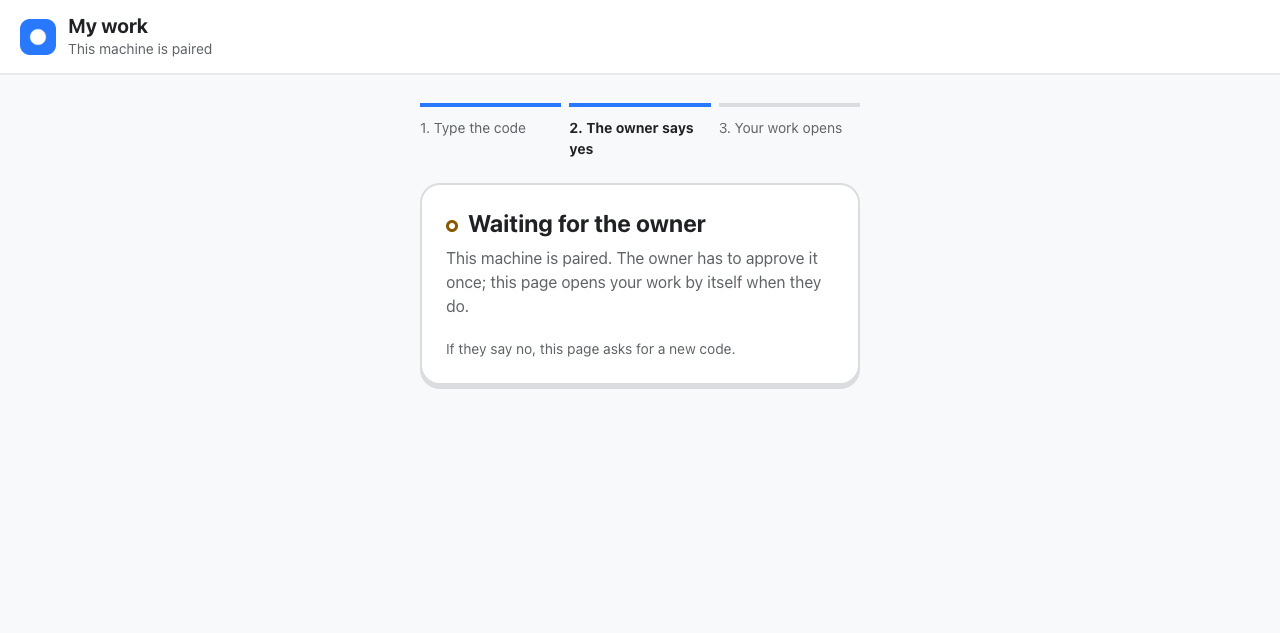
Approve the machine
- A decision card New machine for Sara B arrives in your Approvals inbox: the Tailscale address it came from, the login the network reported, and the name the machine gave itself. The name is typed by whoever holds the code, so judge by the address and the login.
- Answer Yes if the teammate told you they just paired. No ends that key at once; a card nobody answers is treated as no after three days.
- Their browser: the waiting page turns into My work by itself.
My work
The page shows, for that person only:
- One sentence at the top: which of their agents is working on their task, and which is free.
- Needs a person, right under that sentence: present only when one of their requests waits on your answer or is stuck, with the question you were asked.
- Your agents: one card per agent they use (the agents you allowed them, or else the ones they talked to in the last 7 days). Each says Working, Free or Blocked in words, with a colour and a shape. A working card says what the agent is doing, in the first 200 characters of the message, and whether they, you or someone else started it. On their own task it also says when and where it was asked, and Show this request opens the full text in place. Under the line of the card, the line: a message they sent while the agent was busy waits there, and the card says how many messages are ahead of it; with nothing of theirs waiting, it says how many messages a new one would wait behind. What a free agent finished, or a blocked one stopped on, is shown only when it was their own task. Tell me when an agent is free, under the cards, lets the browser show a notification each time one of these agents goes from Working to Free. The page itself shows it, so only while the page is open: there is no alert with the page closed.
- What you sent in the last 7 days: first their messages still waiting in line, marked In line with their place in it; then every turn they started, with its agent, where it was asked and its state (running, finished, waiting on the owner, stopped). A finished request links to what was delivered. A GitLab or GitHub thread is a link. Below the turns come their requests that no turn of the list stands for: one still open whose turn is older than 7 days, or one closed this week.
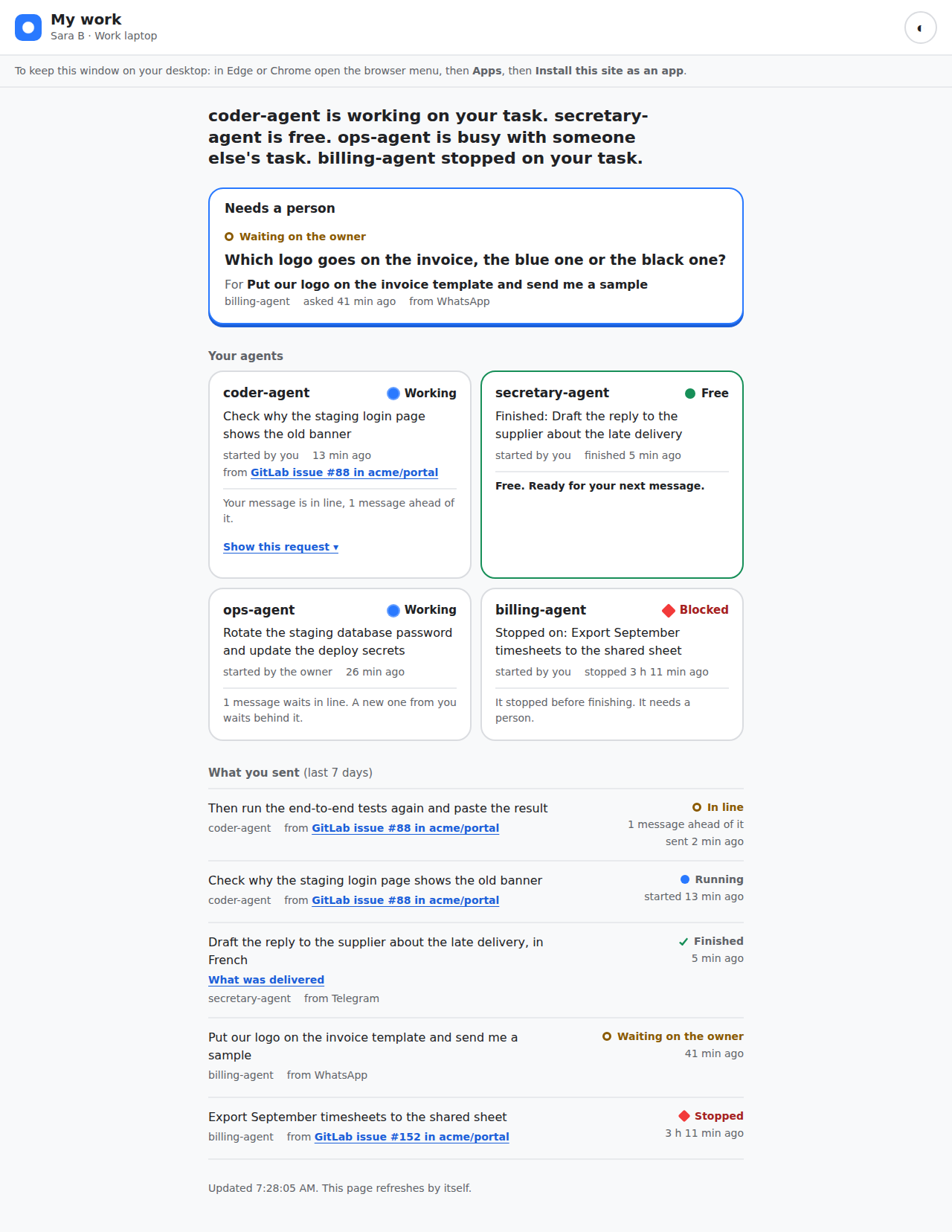
The line is read from the daemon, which notes who sent each message that waits behind a busy agent. After the daemon restarts, the line starts empty: a message that was waiting is run again from the channel it came from, as before.
It refreshes every 30 seconds. Opened without a connection, it shows what was last loaded and says it is offline. When the connection is up but your computer does not answer, the page says it can't reach the server, tries again every 20 seconds, and shows a Try now button. Either notice goes away as soon as a load works.
A refresh does not move someone who uses the keyboard or a screen reader. A button or link they are on keeps their place. If it goes away, for example Show this request when their task finishes, they land on the section's heading instead of the top of the page. The top sentence is read out again only when its words change.
Keep it on the desktop
- Their browser (Edge or Chrome, Windows or Mac): open the browser menu, then Apps, then Install this site as an app.
- It opens in its own window, like a small program, and stays in the Start menu or Dock.
Manage machines
On the Hub, select People in the nav and select the teammate: every machine of theirs is listed with its state, the address it paired from, and its first and last use. End access on a line ends that machine at once.
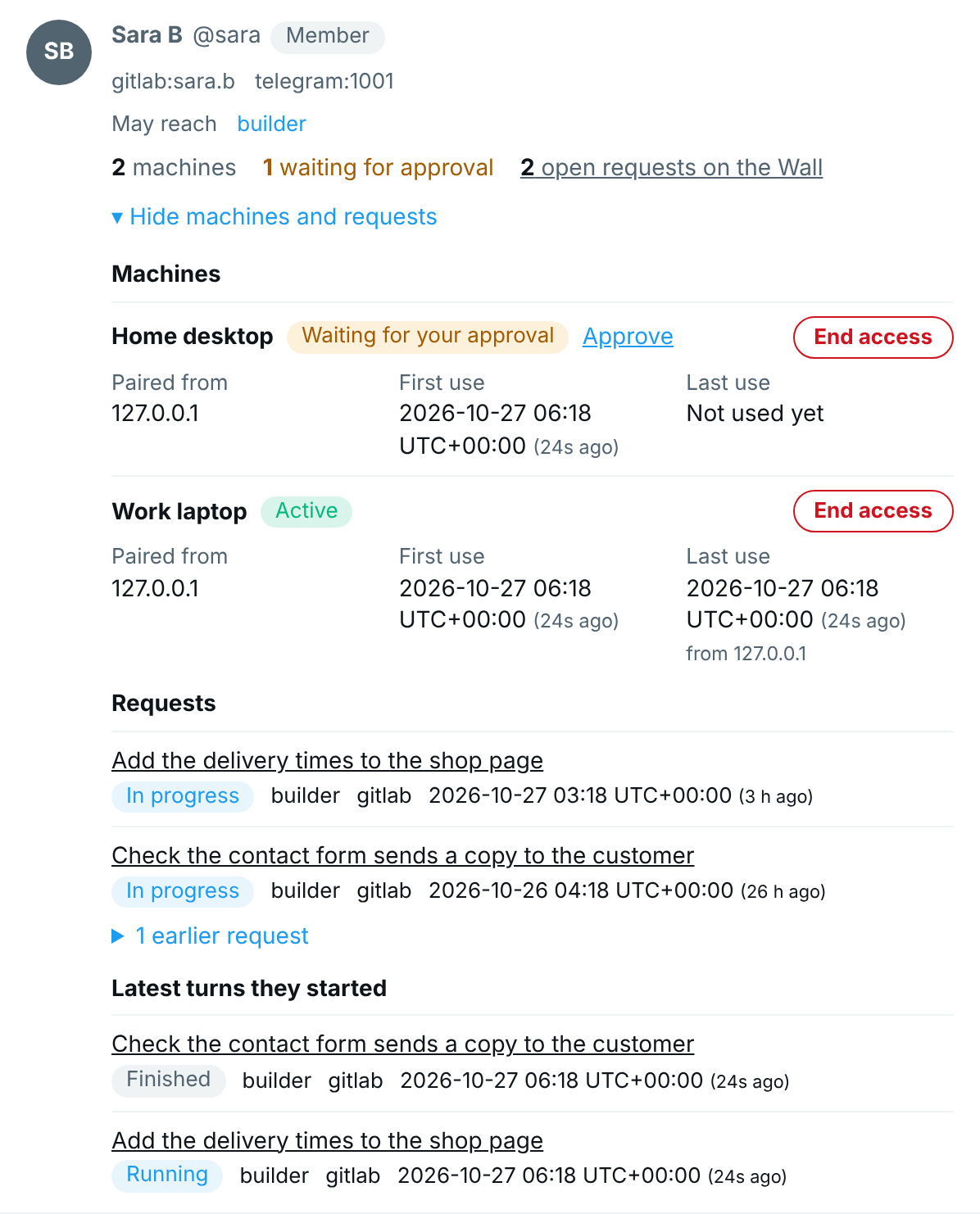
The same from a terminal:
| Command | What it does |
|---|---|
agentx people devices | Every paired machine: person, name, state, where it paired from, first and last use. agentx people devices sara for one person. |
agentx people revoke-device <id> | Ends one machine at once. The id is in the list. |
agentx people remove sara | Removes the person and ends every machine of theirs. Remove the share in Tailscale too. |
A machine's key lasts 90 days. After that, invite again.
Every invite, pairing, approval, refusal, sign-in and removal, every message a person sent to an agent they may not reach, and every tool or skill their work was stopped from using, is written to .agentx/members-log.jsonl, one line per event, with the person and the machine. Lines older than 90 days are dropped; members.logRetentionDays in agentx.json changes that. Only you, the owner, can read it: it sits next to agentx.json and is never served.
Check it worked
Terminal: run
agentx people devices. The teammate's machine is listed asactive. The People page of the Hub shows it as Active too.Their browser: My work shows a request they made on their channel, with the right state.
Their browser: opening
https://<your computer>/,/peopleor/appshows nothing of yours: only/memberanswers. On My work, a card busy with your task shows its first 200 characters and that you started it, but not where it was asked and no Show this request button; once it is finished, the card shows nothing of it.Their browser: while an agent is busy, they send it a second message on their channel. Within 30 seconds the card says Your message is in line, and the message appears at the top of What you sent as In line.
The access rule holds: a port other than 443 does not answer the teammate. The daemon (18800) and the dashboard (4202) listen on your own computer only, so they refuse a teammate even with no rule at all and prove nothing here. Open a test port for a minute instead.
Terminal (yours): serve an empty folder on port 8099, and confirm it answers on your Tailscale address:
shmkdir -p /tmp/agentx-port-check && cd /tmp/agentx-port-check && python3 -m http.server 8099 curl -m 5 http://$(tailscale ip -4):8099/ # in a second terminal: prints a short pageTheir terminal:
shcurl -m 5 http://<your computer>:8099/It must fail to connect. If it prints the page, your access rules still let shared users past port 443: fix them before the teammate keeps the page. Stop the test server with Ctrl+C either way. If your computer's firewall blocks incoming connections, turn it off for this one check, or the port stays silent whatever the rule says.
If something is wrong
tailscale serve publishes the whole dashboard: runtailscale serve reset, then the two--set-pathlines above. The reset removes every served path, so add the phone app's two/applines, and its/.well-known/assetlinks.jsonline, back if you use them.Could not read this machine's Tailscale name: Tailscale is not running on your computer. Start it, or pass--url https://<address>toagentx people invite.- The browser says the address does not exist (
DNS_PROBE_FINISHED_NXDOMAINor similar): the share is not accepted yet, or Tailscale on their machine is not connected. Accept the share, wait for Connected, then restart the browser and open the address again. - "That code didn't work": the code was mistyped, is older than 10 minutes, or was already used. Run
agentx people inviteagain and forward the new message. The page and the message both tell the teammate to ask you for a new code; neither sends them to a terminal. - The teammate sees Your project instead of My work: their role is
client. Setroletomemberinagentx.json; the page changes on the next open. - "The private network says someone else is connecting": the login Tailscale reports for their machine is not among the person's
tailscale:identities. Check withagentx people show <id>and fix the identity, or remove it to accept whatever login is reported. - "Waiting for the owner" does not end: the card is still in your Approvals inbox. Answer it.
- The page is empty: request tracking is off (
agentx requests settings), or the teammate's identity on that channel is not on their person entry, so their requests were not stamped with their id. - A message they sent while the agent was busy is not shown as In line: their identity on that channel is not on their person entry, so the daemon could not tell the message was theirs. It still counts in the line the card shows, as someone else's.
- The teammate can open other pages or ports of yours: your access rules let shared users reach more than port 443. Narrow the allow-all rule and add the shared-user rule above.
- A link to a dashboard page answers
{"error":"not found"}although the page exists: the address has.or..parts, or a backslash. Open the page from the dashboard's menu, or remove those parts from the address. - A teammate added a moment ago cannot pair: fixed after 0.82.0. On 0.82.0, restart the dashboard after
agentx people add, then invite again.