
Desktop assistant for macOS
First complete the desktop prerequisites, choose a speech backend, and review macOS permissions. Each section includes setup steps and official help.
AgentX Desktop is a menu-bar assistant with voice, smart paste, and native computer-use tools. Hold Option–Space, speak, then release to send your question to an AgentX agent. The response appears in a small floating pill and is spoken aloud. The daemon and the selected agent do the work.
Install and activate
You need a Mac with Apple Silicon and macOS 14 or newer, a running daemon (the AgentX background service), and at least one agent.
Terminal: preview what the installer will do, without changing anything:
shagentx desktop install --dry-runTerminal: install it:
shagentx desktop installThis builds and installs the app into
~/Applications/AgentX Desktop.appand its helper into~/Applications/AgentX Helper.app, remembers the daemon address, and starts the app at login. If Apple's command-line tools are missing, it tells you how to install them.There is only ever one login item. If an earlier install, or
apps/mac-voice/install.sh, already made one under another…agentx.voice…name, the installer keeps that name and points it at the new app, and removes any other login item that starts the voice app.--dry-runshows the login item it will use and the ones it will remove.agentx desktop status,startandstopuse the same login item.Mac: when macOS asks, allow the microphone.
Mac: when the helper asks, allow Accessibility and Screen Recording in System Settings › Privacy & Security.
Mac: click the AgentX icon in the menu bar and pick the agent to talk to (see Choose who answers).
Hold Option–Space, say a question, then release.
From a source checkout, run pnpm build once and replace agentx with node dist/cli.js.
To tie the app to one agent for good, install with --agent <id> (for example agentx desktop install --agent helper). The menu then shows that agent and can't switch; run the install again without --agent to switch from the menu again.
To manage the app afterwards:
agentx desktop status
agentx desktop stop
agentx desktop start
Choose who answers
The AgentX icon in the menu bar shows what the assistant is doing: a waveform when idle, a microphone while listening, dots while the agent thinks, and a speaker while it answers. Its menu lists your agents and what each one is doing: thinking on your question, speaking, working on something else, queued 2 when it has two answers waiting to be spoken, or idle. A number next to the icon counts every line waiting in the speaking queue.
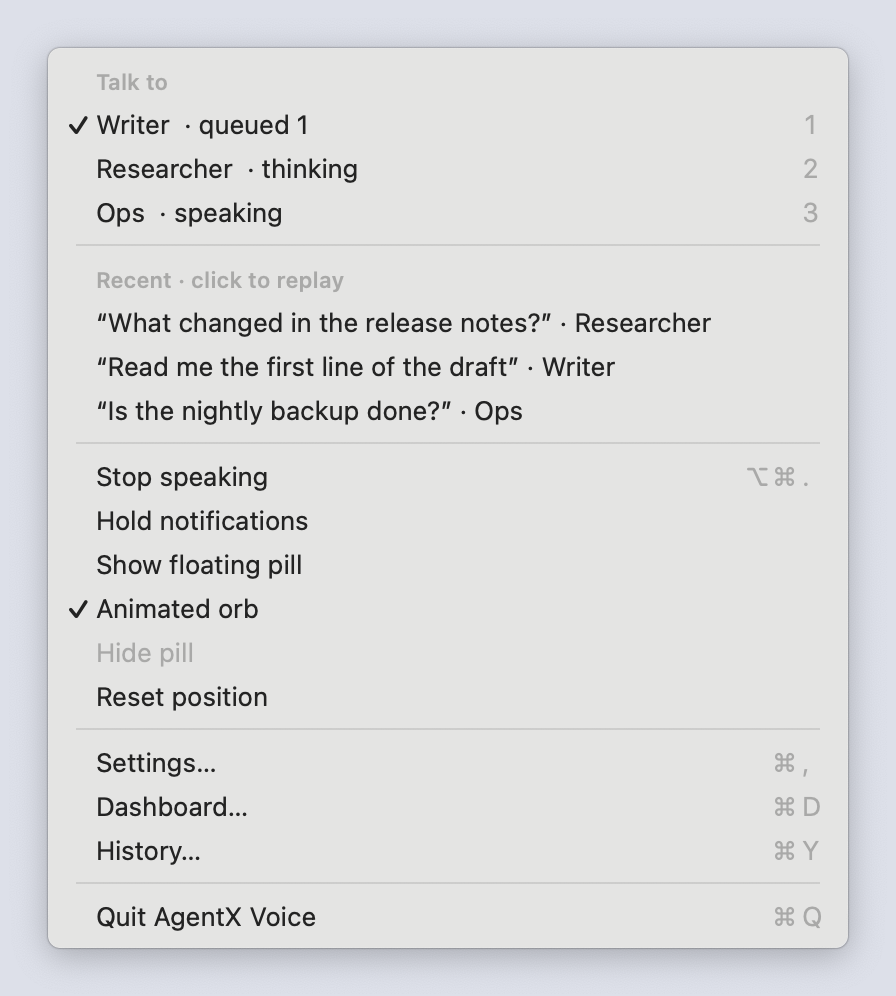
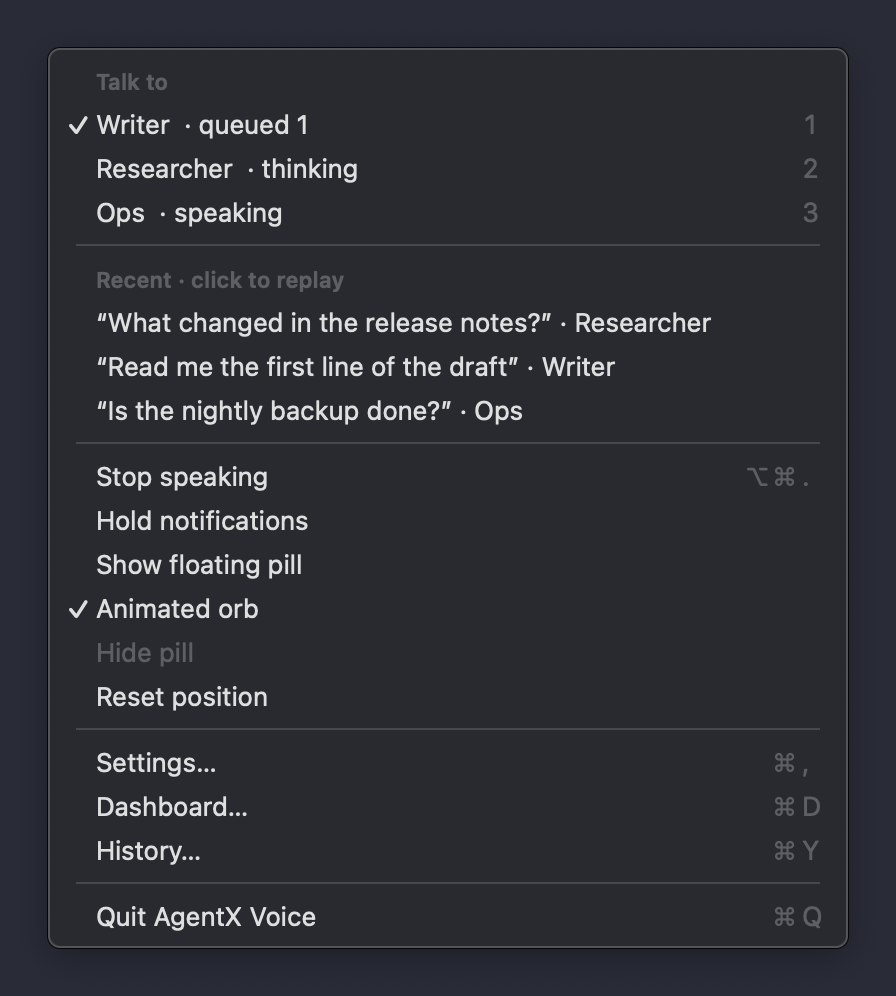
- Mac: click the AgentX icon in the menu bar, or press Command–Option–A.
- Mac: choose an agent, or press its number (1 to 9).
- Hold Option–Space and speak. The pill names the agent while it listens and answers.
The app remembers your choice after a restart.
Ask another agent without switching
Start with an agent's name to send just that question to it. With Writer ticked, "Researcher, what's the status?" goes to Researcher, and Writer stays ticked for your next question.
- Mac: hold Option–Space.
- Say the agent's name first, then your question: "Researcher, what's the status?"
- Let go. The pill shows the named agent while it answers.
The name can be the agent's id, its name, or any of its mentions from agentx.json without the @. Capital letters don't matter. Only the first word or two count, so "ask Researcher later" still goes to the ticked agent. If no agent matches, or more than one does, the ticked agent answers.
Agents on other computers
When this computer is linked to others running AgentX (a mesh, set up with agentx mesh add), their agents can be asked by name too. With Writer ticked on this Mac, "Planner, what's the status?" goes to the Planner agent on the other computer. Its answer is spoken here in a voice of its own (see Agent voices), and Writer stays ticked.
- Only computers that are online right now count. Terminal: run
agentx mesh listto see which ones sayhealthy. - A remote agent answers to its id, its name, and the mentions its computer shares (up to four).
- The same name on two computers, or on this Mac and another computer, is ambiguous: the ticked agent answers. Say the agent's id instead.
- When a computer has an agent with the same id as one on this Mac, the name means the one on this Mac.
- While a remote agent is working, the menu lists it under your agents with its computer's name in brackets, for example Planner (server) · thinking.
Ask several agents at once
You don't have to wait for one answer before asking another agent.
- Mac: ask the ticked agent something that takes a while.
- While it thinks, hold Option–Space and ask another agent by name.
- Both agents work at the same time. Each answer is spoken as soon as it arrives, one after the other, through the speaking queue, so they never talk over each other.
Each agent gets one question at a time from the assistant. Rules for asking the same agent again:
- Another agent's question is still being answered: your new question waits for that answer, then goes. The menu shows it as thinking (+1 asked), and its small orb in the pill carries a 1.
- The agent is still thinking on your main question: your new words replace that question. The first answer is not spoken, and the agent answers the new words instead. Say "stop" to drop the question without asking anything else.
- The agent is busy with a question from somewhere else (Siri or a phone shortcut): your question waits its turn. You no longer hear "I'm still working on your last request".
While another agent's answer is still to come, the microphone does not reopen by itself after an answer. Hold Option–Space to talk.
Small orbs in the pill
While more than one agent is busy, the pill shows a row of small orbs beside its words, one per busy agent in that agent's palette. The big orb keeps following the agent that is listening or speaking. The row also stays while a question is still out and the pill is otherwise idle, so the pill doesn't vanish while an agent is still working.


| Small orb | What it means |
|---|---|
| A ring goes round it | Thinking on your question |
| A steady ring | Its answer is back and waits in the speaking queue |
| It pulses | Its answer is being spoken |
| Smaller and paler | Only questions waiting for it; none asked yet |
| A number on it | That many more questions wait for it |
- Point at a small orb to see the agent's name, the computer it runs on (this Mac for your own agents), and what it is doing.
- Clicks go through the small orbs to the pill, so clicking and dragging work as before, and they never take the keyboard.
- More than four busy agents show as three orbs and +n.
- The small orbs move only while the pill is on screen and an agent is thinking or speaking. With Reduce Motion on, or Animated orb off in the menu, they stand still.
The rest of the menu works from the keyboard too: use the arrow keys and Return, or Escape to close it.
| Menu item | What it does |
|---|---|
| Stop speaking | Silences every voice (see Stop every voice at once) |
| Hold notifications | Holds agent notifications until you turn it off |
| Show floating pill | Keeps the pill on screen when idle. Off by default: the pill appears only while listening or answering. Unticked while the pill is hidden, so one click brings it back |
| Animated orb | Lets the orb in the pill move with your voice and the answer. On by default. Turn it off for an orb that stands still |
| Hide pill | Hides the pill and stops the voice, like its close button. The next Option–Space or Show floating pill brings it back |
| Reset position | Puts the pill back in the bottom-right corner of the screen |
| Settings… | Opens the settings window: voices, shortcuts and speech to text |
| Dashboard… | Opens the dashboard's Settings page |
| History… | Opens the History window: past questions and answers, by day |
If the daemon isn't running, the menu says AgentX daemon isn't reachable and offers Retry. Right-clicking the pill opens the same menu.
The pill and its orb
The pill is the small floating bar that shows what the assistant is doing. It appears in the bottom-right corner of the screen while the assistant listens, thinks or speaks. At its left end is a small, glowing orb in the palette of the agent that is answering. Next to it, the pill names the agent and says what is happening.

| What you see | What it means |
|---|---|
| The orb swells and shrinks with your voice, and the pill says Listening | The microphone is on and hears you |
| A white ring goes round the orb, and the pill shows the step the agent is on and for how long | The agent is thinking on your question |
| The orb pulses in a speaking rhythm, and the answer scrolls past in the pill | The answer is being spoken |
| A still orb and HOLD ⌥SPACE | The assistant is idle. You only see this when Show floating pill is ticked |

Read the answer in the pill
When an answer has a link, a picture, or more text than was read aloud, the pill grows to show it. There is no separate window: the orb and the words stay where they were, and the answer opens above them when the pill sits low on the screen, or below them when it sits high.
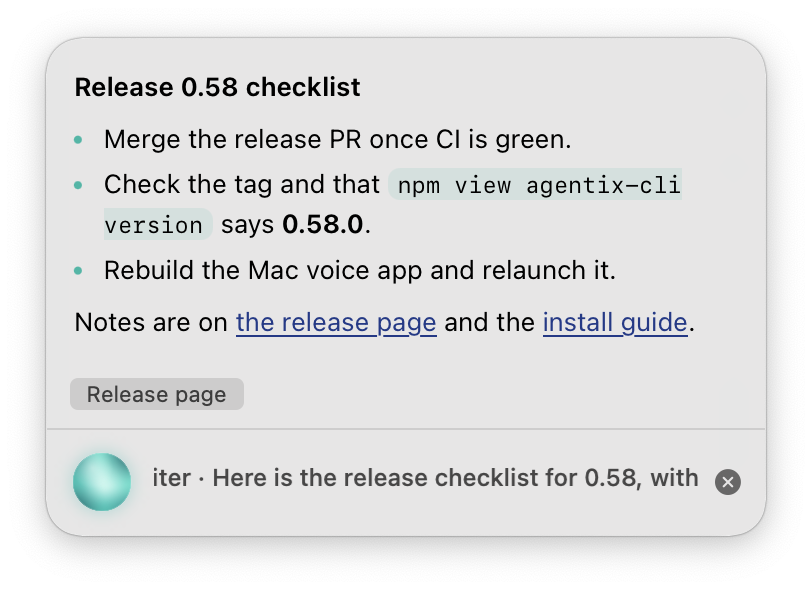
Mac: hold Option–Space and ask something with a longer answer, for example "Give me the release checklist with links."
Let go. When the answer arrives, the pill grows into it while the answer is spoken.
Mac: read, scroll, or select text in the answer. Click a link or a button to open it in your browser.
Mac: move the pointer over the answer. Two buttons appear at its top-right corner:
- Copy the answer (the two pages) copies the whole answer.
- Open in chat (the two speech bubbles) opens the agent's page in the dashboard with its chat open.
To copy only part of it, select the text and press Command–C.
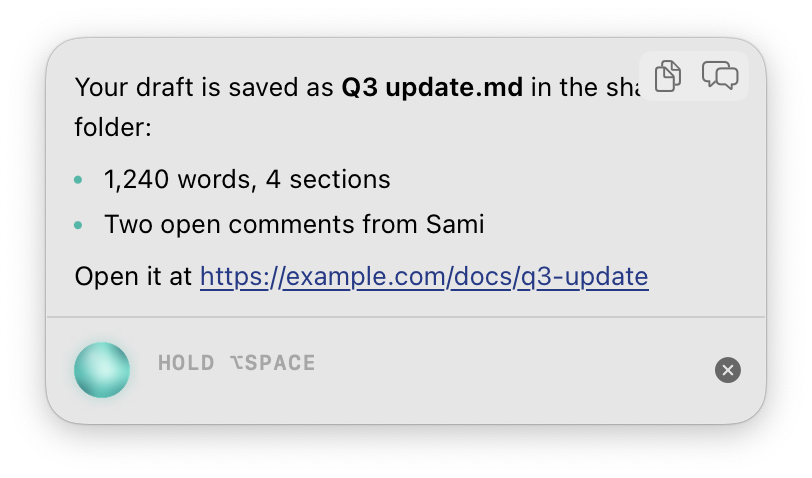
- Leave it. Once the answer has been spoken, the pill shrinks back after 30 seconds. It never shrinks while the pointer is over it. To close it at once, click × or press Esc.
It follows the look of your Mac: light or dark, and a clearer outline and a more solid background with Increase contrast or Reduce transparency on (System Settings › Accessibility › Display). With Reduce motion on, it grows and shrinks at once, without the animation.
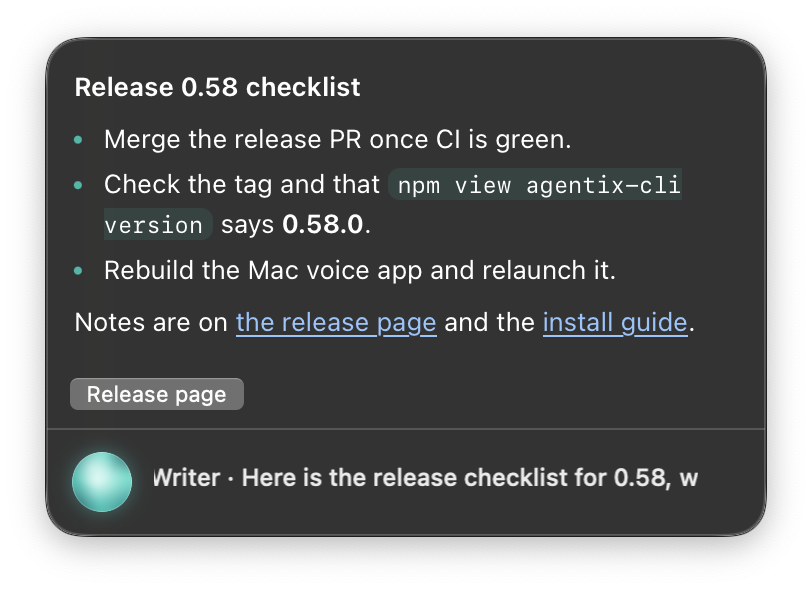
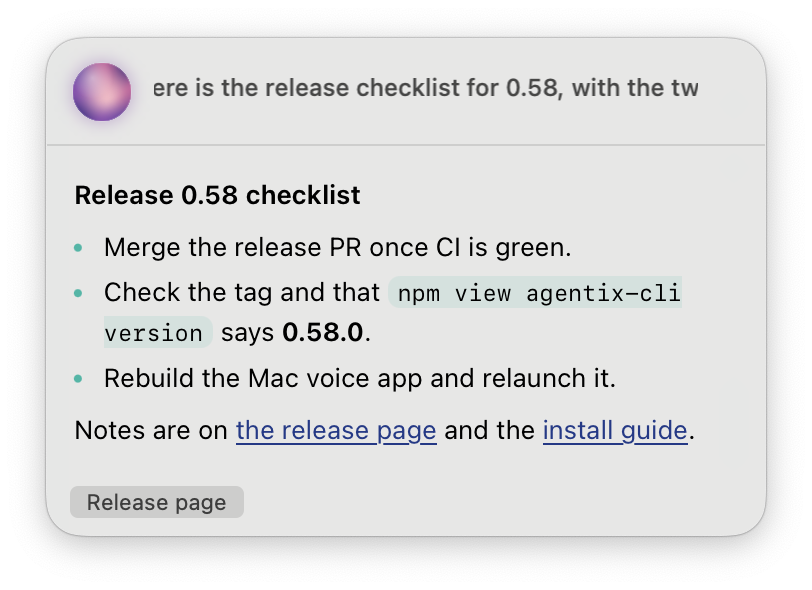
To change how long the answer stays open or how tall it grows, use Answer in the pill on the General tab, or the Terminal:
agentx voice card --timeout 60 --max-height 400--timeout 0 keeps the answer open until you close it. agentx voice card on its own shows the current values. In agentx.json they are voice.card.timeout (seconds, 0 to 600, default 30) and voice.card.maxHeight (points, 120 to 800, default 320). A longer answer scrolls.
Orb palettes
Each agent's orb flows through a gradient drawn from nature. There are seven:

| Palette | Colours | Given by default to agents coloured |
|---|---|---|
sunrise | coral to amber | red and orange |
desert | terracotta to sand | brown and gold |
forest | moss to fern | green |
lagoon | teal to aqua | teal, and grey |
ocean | deep blue to sky | blue and cyan |
dusk | indigo to rose | violet and purple |
blossom | rose to blush | pink |
Without a choice, an agent gets the palette nearest its colour, so its orb still matches its on-screen pointer. To pick one:
- Mac: open Settings… from the AgentX menu, pick the agent on the Agents tab, and choose an Orb palette. Match the colour goes back to the default.
- Mac: choose Save.
Or in the Terminal, from the folder with your agentx.json:
agentx voice palette                  # the palettes, and which one each agent uses
agentx voice palette writer forest    # pick one
agentx voice palette writer default   # back to the one nearest the agent's colour
In agentx.json it is the agent's presence.palette. The app picks up a change the next time you open its menu.
Move the pill
- Mac: press anywhere on the pill (the orb and the words too) and drag it where you want it.
- Let go. The pill stays there, and it comes back to the same place the next time the app starts.
If the pill was on a screen that is no longer connected, it comes back in the bottom-right corner of your main screen. To put it back in the corner yourself:
- Mac: click the AgentX icon in the menu bar.
- Mac: choose Reset position.
Hide the pill
Hiding the pill also stops the voice that is speaking, the same as Command–Option–.. Use any of these:
- Mac: move the pointer over the pill and click the × button that appears at its right end.
- Mac: click the pill, then press Esc. (Clicking the pill also starts listening, the same as Option–Space.)
- Mac: click the AgentX icon in the menu bar and choose Hide pill.

The pill stays hidden until you next hold Option–Space (or an agent's own shortcut). It then comes back where you left it.
Good to know:
- Colour: each agent's orb uses its palette. Without one it gets the palette nearest its
presence.color(see Presence on screen), or the colour picked from its id. The orb turns amber while notifications are held and red when something went wrong. - Your typing is safe: showing the pill never takes the keyboard from the app you are using. Only clicking the pill does, so that Esc can reach it.
- Reduce Motion: with System Settings › Accessibility › Display › Reduce motion on, the orb stands still. It still changes between listening, thinking and speaking, but nothing moves on its own.
- A still orb: to keep the orb still without changing the system setting, click the AgentX icon in the menu bar and choose Animated orb to remove its tick.
- Speaking rhythm: the answer is played by the AgentX daemon, not by the app, so the orb pulses in a speaking rhythm rather than measuring the sound.
- No battery drain when idle: the orb only moves while the assistant listens, thinks or speaks. Idle or hidden, it stops completely.
Settings window
The settings window changes each agent's voice and the app's own shortcuts without editing agentx.json by hand. It saves through the AgentX daemon, which checks every value first and then writes agentx.json. The app keeps no copy of its own, so the file stays the one place your settings live.
- Mac: click the AgentX icon in the menu bar, or press Command–Option–A.
- Mac: choose Settings… (or press Command–, while the menu is open).
- Change what you need on the Agents, General or Speech tab.
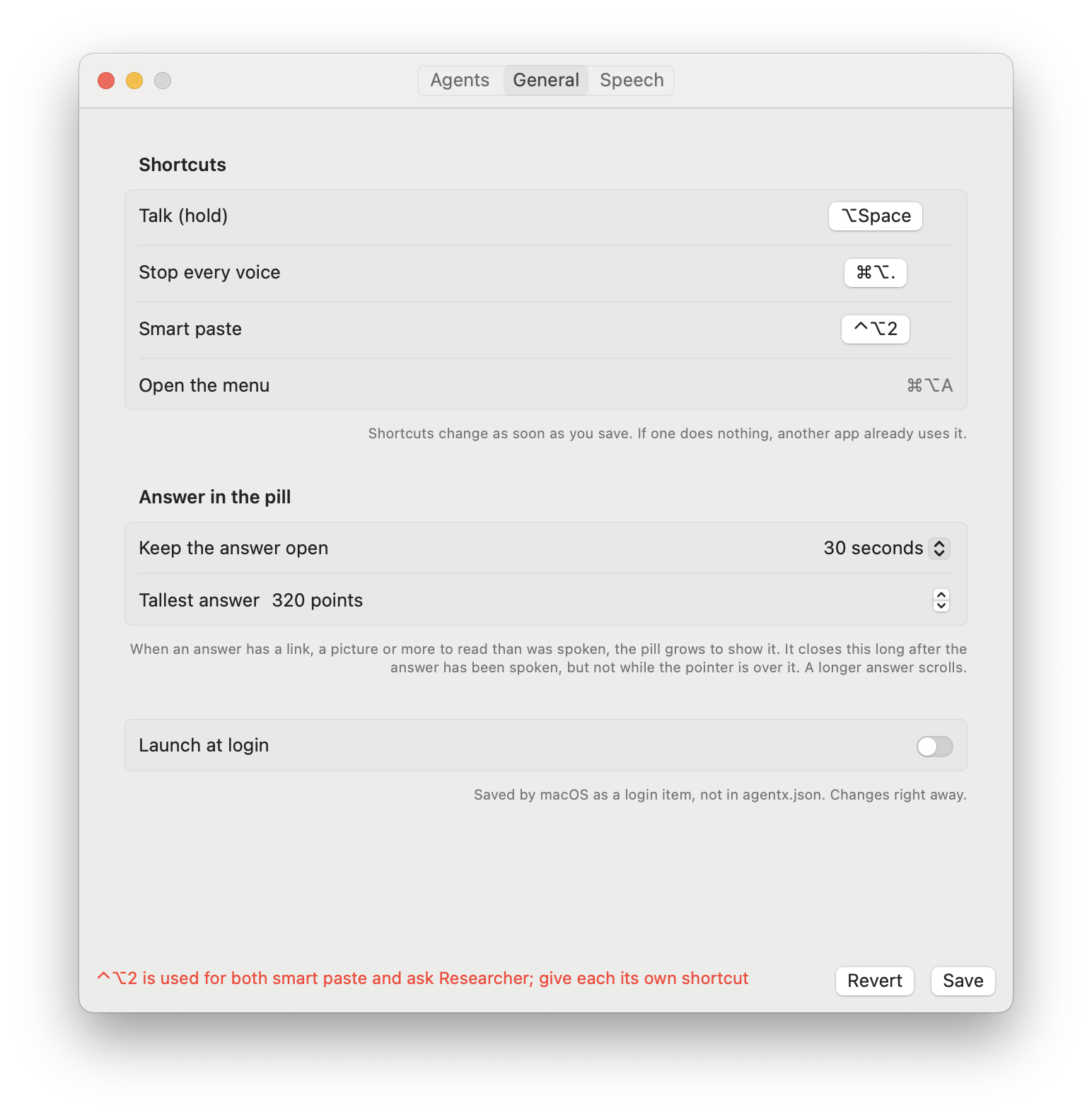
- Choose Save (or press Command–S). A red message at the bottom says what to fix if a value is refused; nothing is saved then.
Nothing in the window needs a restart. Voice changes apply to the next line the agent speaks, shortcuts change as soon as you save, and the speech-to-text engine applies to your next question. Revert puts back what is saved.
Agents tab
Pick an agent on the left; its settings show on the right.
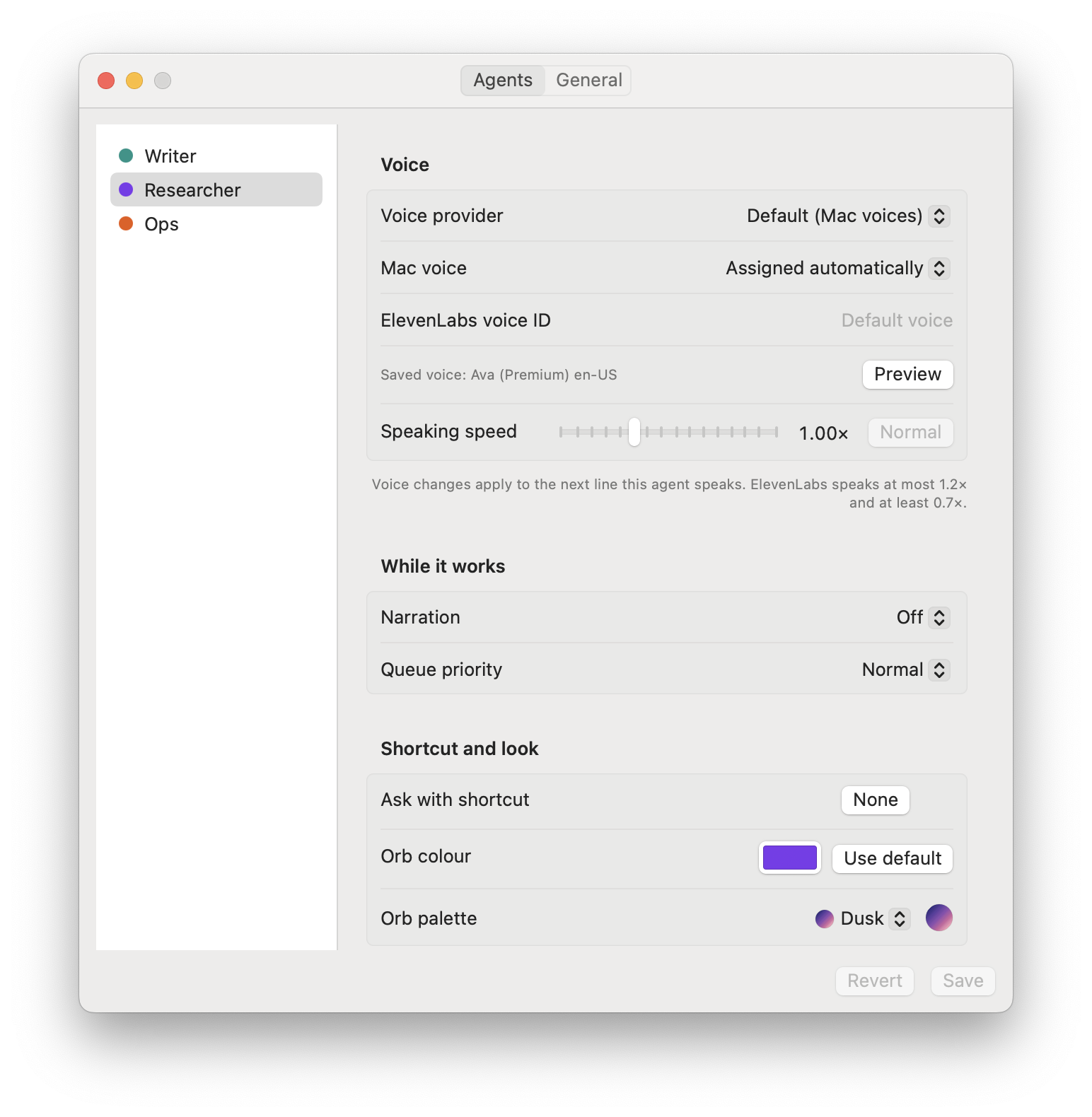
| Setting | What it does | Saved in agentx.json as |
|---|---|---|
| Voice provider | Mac voices (free) or ElevenLabs. Default follows the Speech tab | agent voice.provider |
| Mac voice | One of the voices installed on this Mac, The Mac's default voice, or Assigned automatically (each agent gets a different one). An agent with one voice per language shows that and leaves it alone | agent voice.system |
| ElevenLabs voice ID | The ElevenLabs voice, used when the provider is ElevenLabs. Empty: the default voice | agent voice.elevenlabsVoiceId |
| Preview | Says a sample line in the voice as it is set in the window, before you save | nothing |
| Speaking speed | From 0.75× to 1.5×; Normal is 1×. ElevenLabs speaks at most 1.2× and at least 0.7× | agent voice.rate |
| Narration | Short spoken updates while the agent works: Off, On, except scheduled jobs, or On, scheduled jobs too (see Task narration) | agent voice.narrate |
| Queue priority | High: this agent's lines go ahead of lines already waiting in the speaking queue. Low: they go after them. Normal: in order of arrival | agent voice.priority |
| Ask with shortcut | Hold this shortcut and speak to ask this agent, without changing the agent ticked in the menu. Click the field, then press the keys; Escape cancels, Delete or the clear button removes it | agent voice.hotkey |
| Orb colour | The colour of this agent's on-screen pointer, which also picks its orb palette by default. Use default goes back to the colour picked from the agent's id | agent presence.color |
| Orb palette | The nature palette of this agent's orb. Match the colour uses the one nearest the orb colour | agent presence.palette |
To hear a voice before you keep it:
- Mac: on the Agents tab, pick the agent.
- Mac: choose a different Mac voice or Speaking speed.
- Mac: choose Preview. The agent says "Hello, this is …" in the new voice.
- Mac: choose Save to keep it, or Revert to go back.
General tab
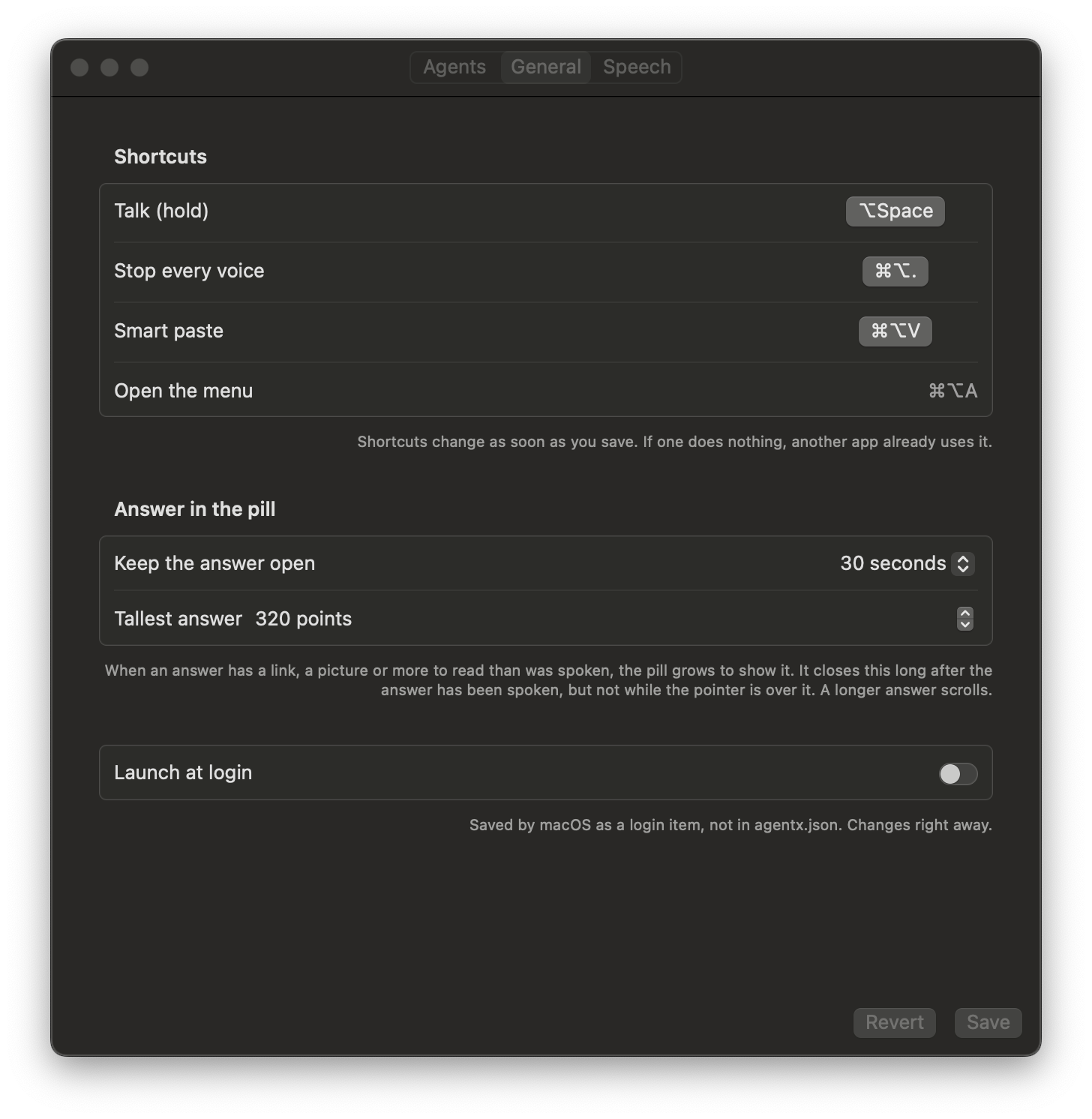
| Setting | What it does | Saved as |
|---|---|---|
| Talk (hold) | Hold to speak, let go to send. Default Option–Space | voice.hotkeys.talk |
| Stop every voice | Silences everything spoken. Default Command–Option–. | voice.hotkeys.stop |
| Smart paste | Reshapes the clipboard, then pastes. Default Command–Option–V | voice.hotkeys.paste |
| Open the menu | Command–Option–A. Fixed; shown so you don't reuse it | not saved |
| Keep the answer open | How long the answer in the pill stays open once it has been spoken, or Until I close it | voice.card.timeout |
| Tallest answer | How tall the answer grows before it scrolls, 120 to 800 points | voice.card.maxHeight |
| Launch at login | Starts the app when you log in. Saved by macOS as a login item, not in agentx.json. If you installed with agentx desktop install, that already starts it at login: the switch is on and greyed out | macOS |
A shortcut needs Control, Option or Command (a function key such as F5 can stand alone), so it never takes a key away from your typing. Two actions can't share one shortcut: the window says which ones clash.
In agentx.json a shortcut is written as modifiers and a key joined by +, for example "opt+space", "cmd+opt+period" or "ctrl+opt+1". Modifiers are ctrl, opt, shift and cmd; keys are a letter, a digit, f1 to f20, or space, period, comma, slash, semicolon, quote, minus, equal, return or tab.
Speech tab
| Setting | What it does | Saved as |
|---|---|---|
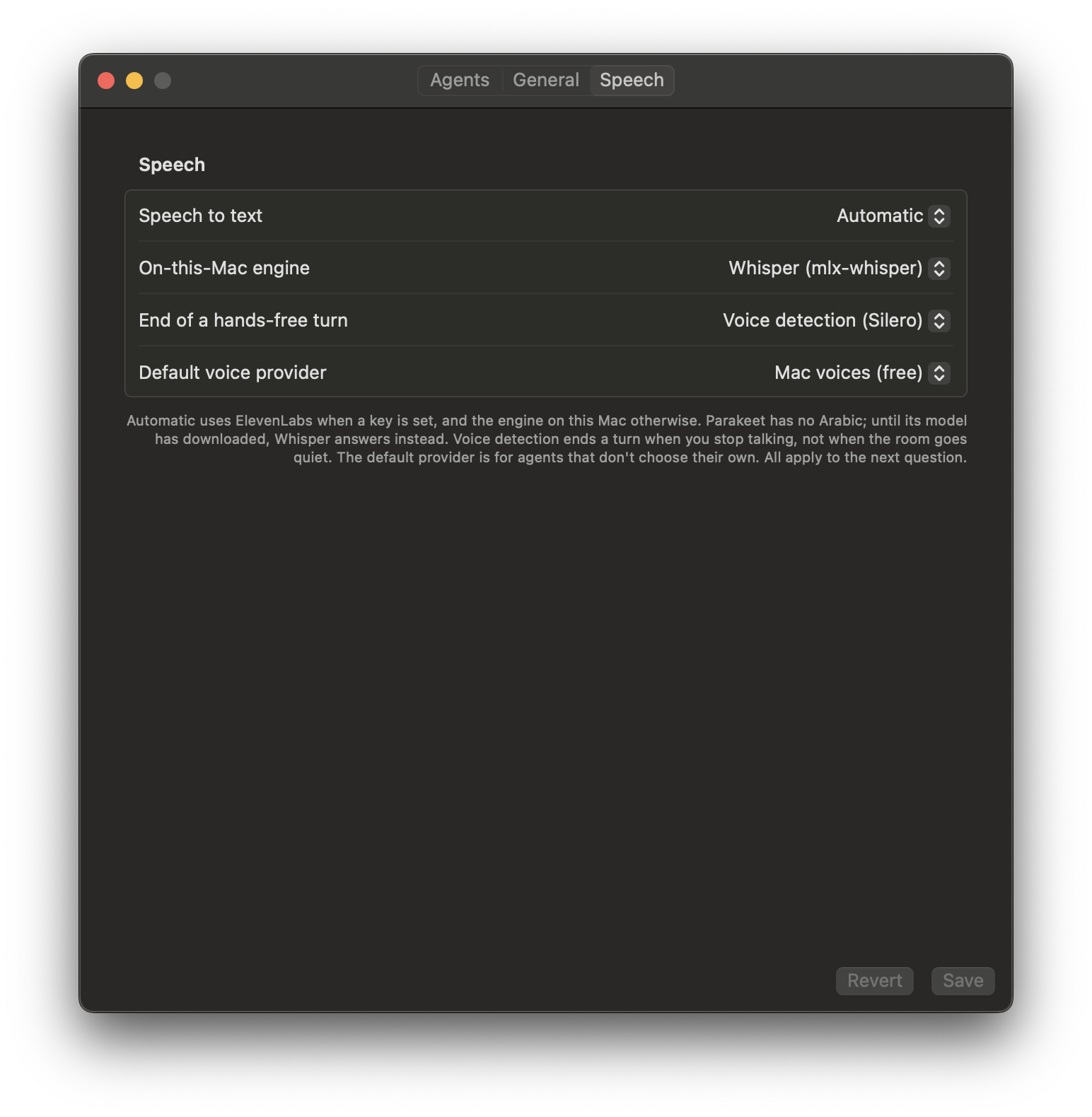
| Speech to text | Automatic: ElevenLabs when a key is set, the engine on this Mac otherwise. ElevenLabs: the same, and the app log says so when no key is set. On this Mac: your voice never leaves the Mac | voice.stt |
| On-this-Mac engine | Whisper: mlx-whisper, every language. Parakeet: faster, no Arabic, downloads 483 MB the first time. See Speech to text on this Mac | voice.localStt |
| End of a hands-free turn | Voice detection: the turn ends when you stop talking. Volume: the older check, which ends it when the room goes quiet. See When a hands-free turn ends | voice.endOfTurn |
| Default voice provider | The voice provider for agents set to Default | voice.provider |
Command–Option–V is smart paste: it reshapes the clipboard for wherever you are typing. It runs the agentx paste command, so that command must work. The helper also powers pointing, screen checks, and guided lessons.
Speech and configuration
| Setting | Default / purpose |
|---|---|
AGENTX_DAEMON_URL | http://127.0.0.1:18800 |
AGENTX_VOICE_AGENT | Pins the agent the app talks to; the menu can't switch while it is set. agentx desktop install --agent <id> sets it. Without it: the agent picked in the menu, else the daemon's node.defaultAgent, else the first agent |
AGENTX_DASHBOARD_URL | http://127.0.0.1:4202, opened by the menu's Dashboard… and by Open task in dashboard in the History window |
ELEVENLABS_API_KEY | Optional hosted transcription, and speech for agents whose provider is elevenlabs |
AGENTX_VOICE_ID | ElevenLabs voice ID for elevenlabs agents without voice.elevenlabsVoiceId |
AGENTX_VOICE_PROVIDER | system; which engine speaks before the daemon has named one (e.g. an error line) |
AGENTX_MLX_WHISPER | ~/.local/bin/mlx_whisper, the local transcription executable |
AGENTX_MLX_MODEL | mlx-community/whisper-large-v3-turbo |
AGENTX_VOICE_PATH | Read by the installer, not the app: the full PATH to give the login service. By default, this is the folder of the ffmpeg found at install time plus macOS's standard folders |
AGENTX_MODELS_DIR | ~/.agentx/models, where the voice detection and Parakeet models are downloaded |
Without an ElevenLabs key, transcription needs a working local mlx_whisper installation. Speech uses the free macOS voices unless you choose ElevenLabs (see Agent voices). ElevenLabs usage and the agent's model usage are separate costs. The app checks the key environment variable first, then ~/.elevenlabs/key and ~/.agentx/elevenlabs-key.txt.
The installer persists the pinned agent (if any), daemon URL, helper path, and CLI command in the login service. Finder does not inherit terminal environment variables. Use a key file for speech credentials or configure the login service environment for advanced speech settings.
When a hands-free turn ends
After an answer, the microphone opens again by itself for a follow-up, and clicking the pill opens it too. Nobody holds a key then, so the app has to hear when you have finished. It sends what you said once you have stopped talking for 1.2 seconds. Shorter pauses, the kind people make in the middle of a sentence, don't end the turn.
By default the app listens with voice detection: a small model (Silero VAD, 0.9 MB) that tells a voice apart from a fan, a keyboard, or a busy café. Background noise then neither ends your turn early nor keeps the microphone open after you have finished. The older way, Volume, treats any sound louder than a fixed level as talking, so in a loud room it can keep listening long after you have finished.
The model is downloaded the first time the microphone opens, into ~/.agentx/models/silero-vad-coreml (about 1 MB, checked against a fixed checksum). Until it has arrived, and whenever it can't be loaded, the app uses the volume check instead.
To change it:
- Mac: click the AgentX icon in the menu bar and choose Settings….
- Mac: open the Speech tab.
- Mac: set End of a hands-free turn to Voice detection or Volume.
- Mac: choose Save. The next hands-free turn uses it.
In agentx.json this is voice.endOfTurn: "vad" (default) or "volume".
Speech to text on this Mac
When the app can't use ElevenLabs (no key, no network, or Speech to text set to On this Mac), it turns your speech into text on the Mac itself. Two engines can do that:
| Whisper (default) | Parakeet | |
|---|---|---|
| Program | mlx_whisper, a Python tool you install (see local Whisper) | Built into the app; nothing to install |
| Languages | All Whisper languages, including Arabic | 25 European languages, including English and French. No Arabic |
| Download | About 1.5 GB, by mlx_whisper the first time | 483 MB, by the app the first time |
| Speed | Several seconds per question | A fraction of a second per question |
Parakeet is NVIDIA's Parakeet TDT 0.6B v3 speech model (licensed CC-BY-4.0), in the Core ML format that runs on the Mac's Neural Engine. The app downloads it from Hugging Face into ~/.agentx/models/parakeet-tdt-0.6b-v3-coreml and checks every file against a fixed checksum before using it. Whisper stays the default until the comparison below has been reviewed.
Switch to Parakeet
- Mac: click the AgentX icon in the menu bar and choose Settings….
- Mac: open the Speech tab.
- Mac: set On-this-Mac engine to Parakeet, then choose Save.
- Mac: ask a question. If Speech to text is On this Mac, or no ElevenLabs key is set, the app starts downloading Parakeet in the background the first time, and Whisper answers meanwhile.
- Mac: after the download, the first question loads Parakeet, which can take about 30 seconds on a new Mac (macOS prepares it for the Neural Engine once). Whisper answers until it is ready; after that, Parakeet answers.
To download the models ahead of time instead:
- Terminal: runshIt prints its progress and
~/Applications/"AgentX Desktop.app"/Contents/MacOS/agentx-voice-local fetch allparakeet: installed in …when done. - Terminal: run the same program with
status. Both models showinstalled.
In agentx.json the engine is voice.localStt: "mlx-whisper" (default) or "parakeet".
Compare the local engines
A benchmark script runs Whisper and Parakeet on the same recordings and reports the time each takes and its word error rate (the share of words it got wrong; lower is better). It uses sentences spoken by the Mac's own English, French and Arabic voices, the same with room noise added, and optionally real recordings.
- Terminal: from a source checkout, build the app:
apps/mac-voice/build.sh. - Terminal: fetch Parakeet:
"apps/mac-voice/build/AgentX Voice.app/Contents/MacOS/agentx-voice-local" fetch parakeet. - Terminal: run the comparison, adding eight recordings per language from the FLEURS public dataset:sh
node scripts/voice-stt-bench/index.mjs --fleurs 8 - Read the tables it prints: first where a hands-free turn ended with each detector, then speed and word error rate per engine and language.
To test your own recordings, put NAME.wav (16 kHz, mono) next to NAME.txt (what was said) and NAME.lang (en, fr or ar) in a folder and add --clips <folder>.
Agent voices
Out of the box every agent speaks with a free macOS voice, and each agent gets a different one: the best installed voices first (Premium, then Enhanced, then standard), of the agent's gender when it has one, else alternating female and male. Nothing is sent to a speech service and no key is needed.
agentx voice list                                  # installed voices, best first, and who uses which
agentx voice set helper Daniel                     # pick a system voice
agentx voice set reviewer siri:aaron               # a Siri voice (see below)
agentx voice set support system                    # follow the OS default voice
agentx voice set support Thomas --lang fr          # French lines in Thomas, other lines as before
agentx voice set support --gender female           # an assigned voice will be female
agentx voice set helper <voice-id> --provider elevenlabs   # this agent speaks through ElevenLabs
agentx voice set edits agentx.json; a running daemon reloads it, so the next line uses the new voice.
Better free voices.
- Mac: open System Settings › Accessibility › Spoken Content.
- Next to System Voice, open the list and choose Manage Voices….
- Download a Premium or Enhanced voice (for example Ava, Zoe or Evan).
- Terminal: run
agentx voice list. The new voice is listed. (AgentX also notices it on its own within ten minutes.)
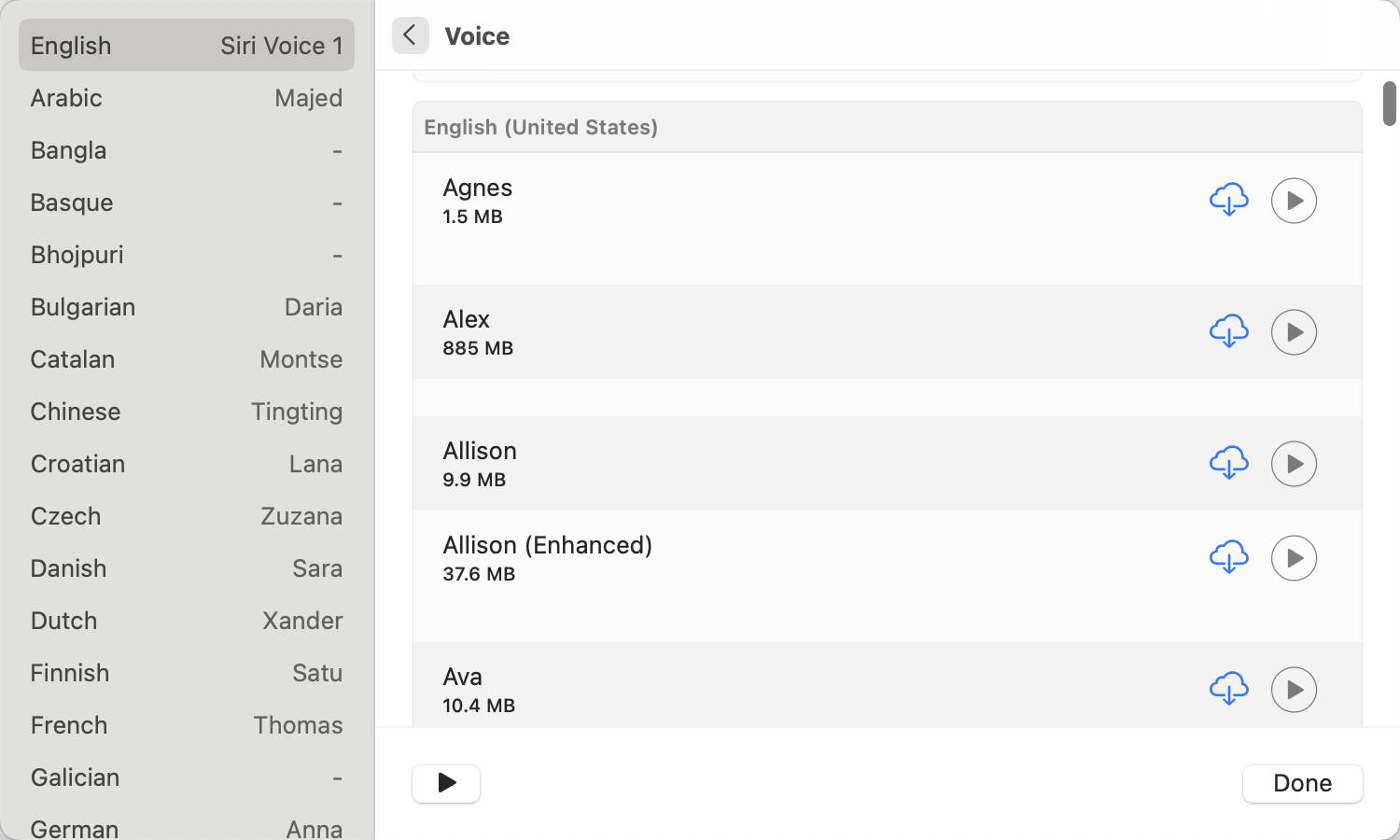
Siri voices. say -v cannot use the Siri voices, but say without a voice follows the Spoken Content System Voice. So an agent set to siri:<name> (listed as siri:aaron, siri:marie… by agentx voice list) speaks each line by switching the System Voice to that Siri voice, speaking, and switching your own choice straight back. Every line that uses the OS default voice, from the daemon and from AgentX Voice, goes through one script (~/.agentx/voice/siri-say.sh, written by the daemon) that holds a lock, so two agents never switch it at once; lines wait their turn. If a speaker is killed mid-line, the next line restores your choice first, and so does the daemon when it starts. On a Mac every system-voice line goes through that script, Siri or not: it reads the text before taking the lock (a caller that never closes stdin gives up after 5 s without blocking anyone), stops a line that runs past its length's worth of speech (5 s plus 0.6 s a word, at most 5 minutes), and drops a line that waited more than 30 s rather than play it late. Siri voices are never assigned automatically, only when named. A per-language list works as usual ("system": { "en": "siri:aaron", "fr": "siri:marie" }). If the Siri voice is not downloaded, the system voice of the same name and language speaks instead (siri:daniel → Daniel), else the fallback described in When a voice goes missing. The script never switches the System Voice to a Siri voice whose download is gone, because macOS would then speak with a fallback of its own. Download Siri voices in Spoken Content → System Voice → Manage Voices.
Configuration. The global voice block sets the defaults; each agent's voice block overrides them. Every field is optional.
"voice": {
  "provider": "system",
  "fallback": "system",
  "locale": "en",
  "listener": "Sam"
},
"agents": {
  "helper": {
    "voice": {
      "system": { "en": "Daniel", "fr": "Thomas", "ar": "Majed" },
      "provider": "elevenlabs",
      "elevenlabsVoiceId": "<your-elevenlabs-voice-id>",
      "gender": "male",
      "style": "laid-back, dry",
      "intro": "Hello, this is Helper. I answer questions about your projects.",
      "narrate": "on"
    }
  }
}| Field | Meaning |
|---|---|
voice.provider | system (default) or elevenlabs, for every agent without its own |
voice.fallback | system (default): when ElevenLabs cannot speak (no key, quota, network), use the system voice. none: stay silent |
voice.system | One system voice (or one per language) for every agent without its own. Unset: each agent gets its own |
voice.locale | Language of assigned voices, e.g. en, fr, en-GB (default en) |
voice.listener | Who agents address in talk and live teach, e.g. "Sam". Unset: they say "the user" |
agent voice.provider | Overrides the global provider for this agent |
agent voice.system | This agent's system voice: a name (Daniel, Ava (Premium)), an identifier from agentx voice list, system for the OS default voice, or one per language: { "en": "Samantha", "fr": "Thomas", "ar": "system" } |
agent voice.fallbacks | Voices to try in order when voice.system names one that is not installed, e.g. ["Ava (Premium)", "Allison"]. Unset, or none installed: the best voice in the missing voice's language and gender (see When a voice goes missing) |
agent voice.gender | female, male or neutral. An assigned voice, and the global voice.system, are used only if they match |
agent voice.rate | Speaking speed from 0.75 to 1.5 (default 1). System voices speak 175 words a minute times this; ElevenLabs is held to 0.7–1.2 |
agent voice.priority | high, normal (default) or low: where this agent's lines go in the speaking queue |
agent voice.hotkey | A shortcut that asks this agent from AgentX Voice, e.g. "ctrl+opt+1" (see Settings window) |
voice.stt | Speech to text for AgentX Voice and for voice chat on your phone: auto (default), elevenlabs or local |
voice.localStt | The engine on this Mac: mlx-whisper (default) or parakeet (see Speech to text on this Mac) |
voice.endOfTurn | How a hands-free turn ends: vad (default, voice detection) or volume (see When a hands-free turn ends) |
voice.hotkeys | AgentX Voice shortcuts: talk (default opt+space), stop (cmd+opt+period), paste (cmd+opt+v) |
The system voice is chosen in this order: the agent's own, the global voice.system if it matches the agent's gender, then one assigned to it. A name that is not installed is replaced as described in When a voice goes missing. With provider: "system", no request goes to ElevenLabs, even when a key is set. meshVoices entries accept the same provider, system, gender and fallbacks fields. A meshVoices key is an agent id, which applies on every computer that has that agent, or <computer>/<id> (the name agentx mesh list shows, for example office-mac/main), which applies to that computer's agent only and wins over the plain id. When two computers each have an agent with the same id, each gets a voice of its own.
Per-language voices. With a list, each line is spoken by the voice of its language (English, French or Arabic, told apart by script and common words); a line in another language, or one too short to tell, uses the voice for voice.locale. An agent's list overrides the global one language by language. A plain name speaks every language. An agent without a voice for voice.locale in its list gets one assigned. agentx voice list shows each agent's voice with its per-language picks.
When a voice goes missing
macOS can remove downloaded voices on its own, for example Siri, Premium and Enhanced voices when the disk is nearly full. An agent whose configured voice is gone keeps speaking, with a stand-in chosen in this order:
- The first installed voice in the agent's
voice.fallbacks. - The global
voice.system, if it matches the agent's gender. - The best installed voice in the missing voice's language (
siri:<name>usesvoice.locale), of the agent'sgender, or else the missing voice's gender, then Premium before Enhanced before standard. Eloquence voices (Flo, Eddy and the rest) and the classic voices are used only when no current macOS voice speaks that language. Among voices of the same quality, one no other agent uses comes first.
On a Mac, the daemon checks every configured voice when it starts, every minute after that, and whenever an agent is about to speak with a missing voice. It tells you once about each missing voice. Voices found missing in the same check share one notification, which lists each voice, the agents that use it, the voice they use for now, and where to reinstall it (System Settings › Accessibility › Spoken Content › System voice › Manage Voices). It notifies you again only after the voice has come back and gone missing again, and a restart does not repeat the notification. The notification uses your usual notification channel, is held during Focus, and shows a banner on the Mac.
To see which voices are missing:
- Terminal:
agentx voice listshows a Not installed section, and every agent that uses a stand-in is marked. - Dashboard: the Settings page counts missing voices under Needs attention and lists them in a notice.
When you install the voice again, agents switch back to it within about a minute. You don't need to restart.
An agent introduces itself the first time it speaks in a voice session, or after eight hours of silence, and talks casually after that. Without intro, the line is derived from the first sentence of its system prompt.
Talk mode: two agents talk out loud
In talk mode, two of your agents discuss a topic out loud, like two colleagues thinking something through. You listen, and you can join in at any time. The voices come out of the speakers of the computer that runs the daemon.
During a talk, the agents only talk. They can't run tools, change files or send messages. If something needs doing, they say which of them will do it afterwards.
Start a talk
- Terminal: list your agents and pick two of them:sh
agentx agent list - Terminal: start the talk. Put the two agent ids first, then the topic (here the ids are
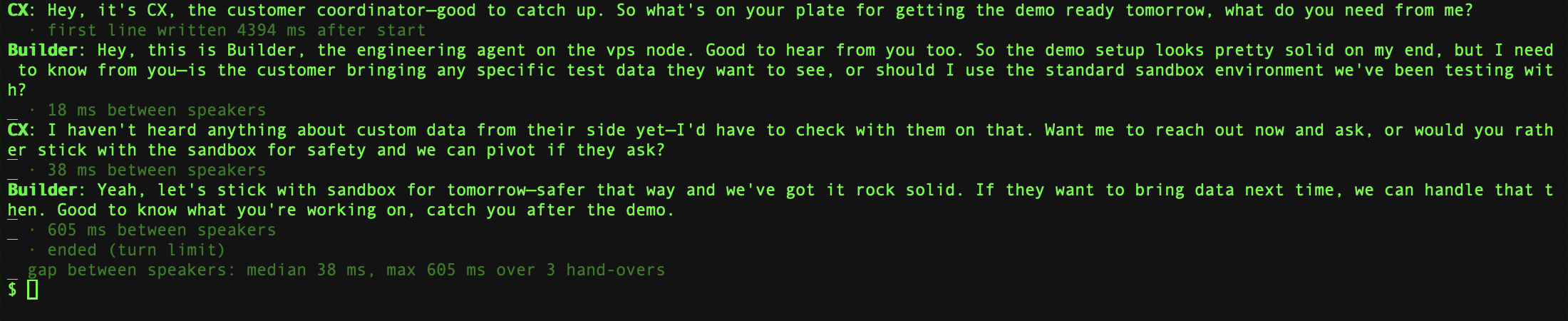
supportandreviewer):shagentx talk support reviewer "how to prepare tomorrow's demo" - Listen. Each line is spoken in that agent's voice and also printed in the terminal.
- Wait for the end. The talk ends on its own when the agents agree the topic is settled, or after 10 lines. At the end, the terminal prints how long the pauses between speakers were.
Either agent can live on another AgentX computer in your mesh (the group of AgentX computers that know each other); its voice still plays on this computer. Only one talk or lesson runs at a time.
| Option | What it does |
|---|---|
--context "<text>" | A few lines of background both agents should know |
--turns <n> | The most lines before they wrap up (default 10; the daemon accepts 2 to 40) |
--local | Run the talk in this terminal instead of in the daemon |
-c, --config <path> | With --local: the agentx.json file to read the agents from |
Join in or stop a talk
- Mac: hold Option–Space. The talk goes quiet at once.
- Mac: say what you want to add, then release the keys.
- Listen. The agent you named answers you first. If you named neither, the agent you cut off answers.
- To end the talk, hold Option–Space again and say "stop".
You can also type instead of speaking:
- Terminal: in the window where the talk runs, type a line and press Return. The agents answer it first.
- Terminal: type
stopand press Return to end the talk, or press Control–C.
If you hold Option–Space and then say nothing, the talk carries on by itself after about 20 seconds.
Why the agents can't hear you by themselves. The microphone is only on while you hold Option–Space. The agents' voices come out of the same speakers the microphone would listen to, so an open microphone would hear the agents and interrupt them with their own words.
Which model writes the lines. To keep the pauses short, each line comes from a fast model (Claude Haiku 4.5) with no tools, not from a full agent turn. It runs through the claude command-line program with your existing sign-in. To call the model's API directly instead, set AGENTX_TALK_BACKEND=api in the daemon's environment. This is faster, but needs an API key or sign-in token that AgentX can find.
Stop every voice at once
One key stops everything that is speaking on your Mac: the widget's own answer, a talk, a lesson, task narration, and every line waiting its turn. Your macOS voice setting is put back as it was.
- Mac: press Command–Option–. (the period key).
Or use the menu instead:
- Mac: click the AgentX icon in the menu bar.
- Mac: choose Stop speaking.
Holding Option–Space also silences everything before the widget starts listening, but it only pauses the lines waiting their turn (see the next section). To end a lesson from the dashboard, see Check a running lesson in the browser.
One queue for everything spoken
Everything spoken aloud on your Mac waits in one line, called the speaking queue: the widget's answers, task narration, talks and lessons. Each item plays only when the one before it has finished, so two agents never talk at the same time. If you ask two agents questions back to back, the second answer plays right after the first.
You come first. When you hold Option–Space, the line being spoken stops and the queue waits. Once you release the keys and the widget has your words, the line that was cut off plays again from the start, followed by everything that was waiting. If you say "stop" instead, everything waiting is dropped. If you say nothing, the queue plays on by itself after a minute at most.
Command–Option–. still stops everything and empties the queue.
To see what is speaking and what is waiting:
- Terminal: run
curl -s http://127.0.0.1:18800/voice/queue. - Read the answer.
playingis the line being spoken now,waitinglists the lines still to come, in order, andrecentlists the last lines that finished.pausedistruewhile you are speaking.
Each line shows its id, the agent (agentId), what kind of line it is (answer, narration, talk, lesson or line), its text and when it joined the queue (enqueuedAt).
Agents can check the queue themselves when they need to, using the agentx_voice_queue tool of agentx serve. It is never added to every message an agent receives.
If the daemon can't be reached, the widget speaks its answer itself, as before.
History of what you asked
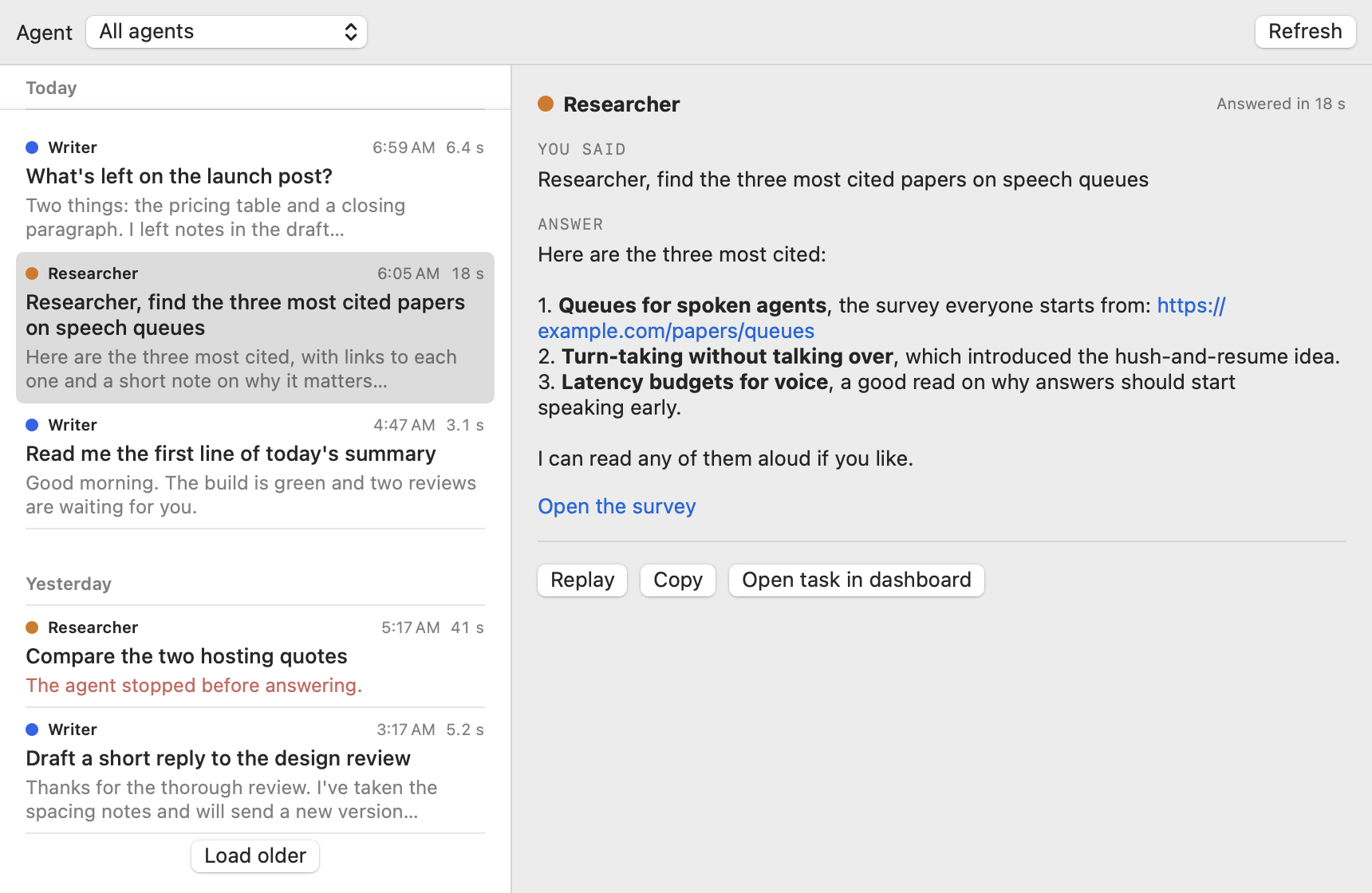
The History window lists the questions you asked out loud and the answers you got, grouped by day, newest first. Each row shows the agent, the time, how long the answer took, what you said and the start of the answer. A question that failed shows why in red.
The daemon already keeps a record of every spoken question: each one is a task in the agent's task history, marked as coming from voice. The window reads those records, so nothing new is stored and nothing is kept on the Mac.
To read an answer again:
- Mac: click the AgentX icon in the menu bar, or press Command–Option–A.
- Mac: choose History… (or press Command–Y while the menu is open).
- Mac: select a question on the left. The answer shows in full on the right, as it was written, with its links and buttons.
To see one agent only:
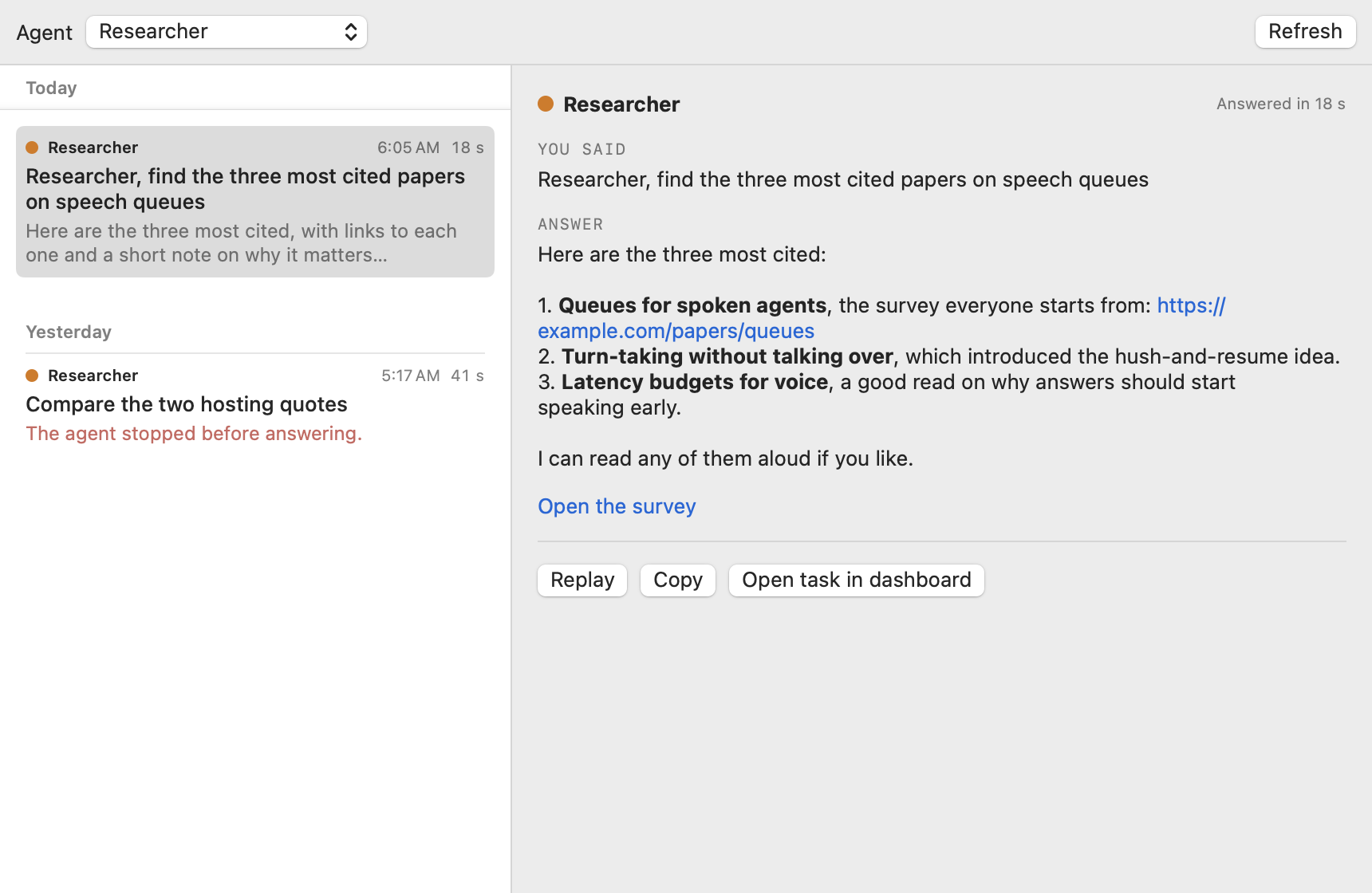
- Mac: in the History window, open the Agent menu at the top.
- Mac: choose the agent. Only its questions and answers are listed. Choose All agents to see everyone again.
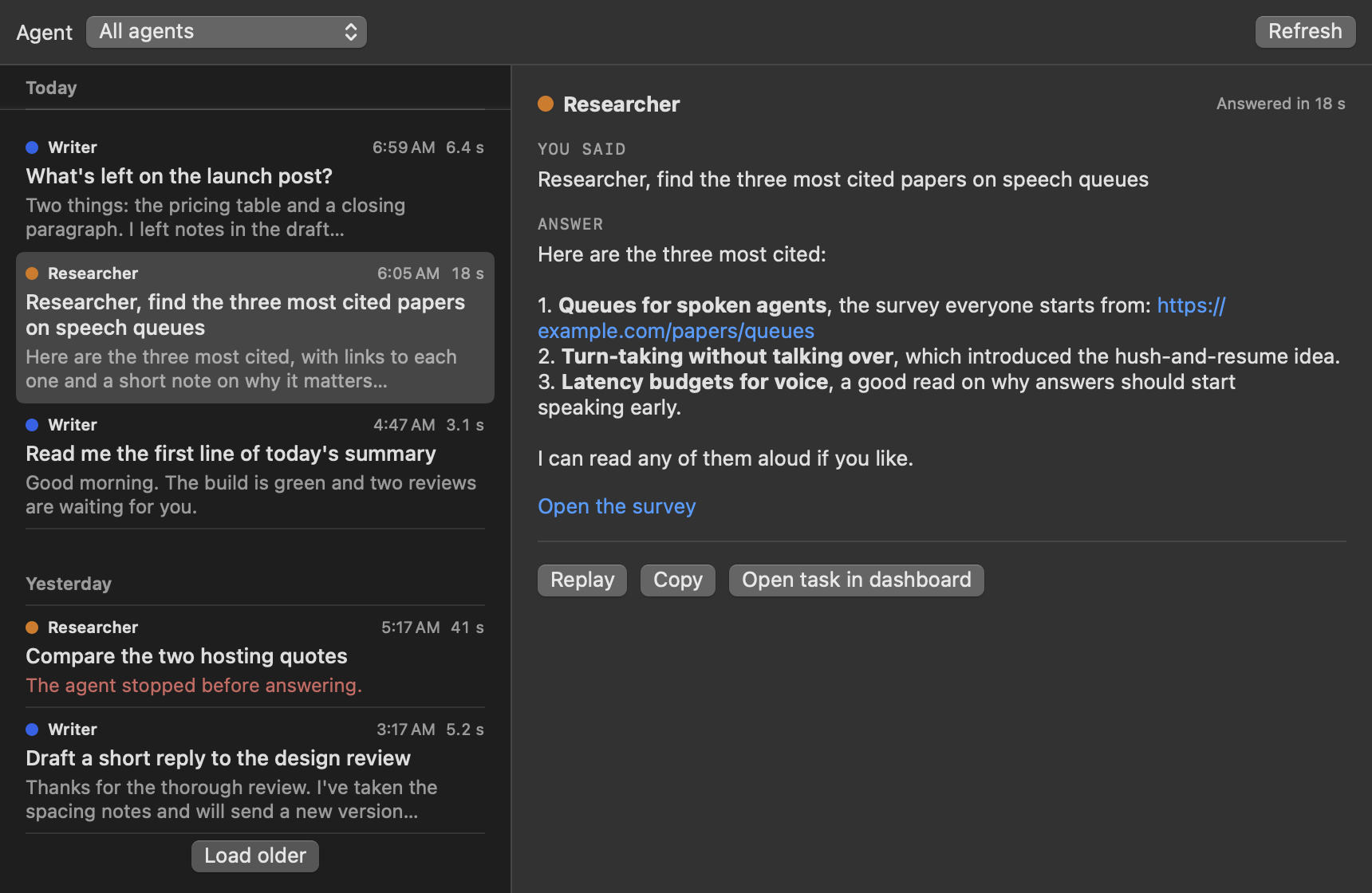
With an answer selected, you can:
- Replay (Command–Return): the agent says the answer again. It joins the end of the speaking queue, so it never talks over a line already playing or waiting.
- Copy (Command–Shift–C): copies the written answer.
- Open task in dashboard: opens the task on the dashboard, with every step the agent took.
The window shows 30 questions at a time. Choose Load older at the bottom of the list for more, and Refresh (Command–R) to see new ones.
Replay from the menu
The AgentX menu lists your last three questions under Recent · click to replay, with the agent that answered each one. Click one to hear its answer again, through the speaking queue like any other answer. A question with no answer is greyed out. Point at a row to see the start of its answer.
History for scripts
The same records are available to scripts from the daemon. Requests from the same Mac need nothing more; requests from another computer need the mesh token, the same as agent memory. The list never contains a whole answer, only its first 240 characters and its length; ask for one exchange to read all of it.
| Address | What it does |
|---|---|
GET /voice/history | Past spoken questions, newest first: {"exchanges": [...], "next"}. Add ?agent=<id> for one agent, &limit=<n> for how many (20 by default, at most 50), and &before=<next> for the page after this one. next is empty on the last page |
GET /voice/history/<id> | One exchange in full: the question, the written answer, its ui links and buttons, durationMs, and taskPath, the task's address on the dashboard |
POST /voice/history/<id>/replay | Say that answer again in its agent's voice, at the end of the speaking queue. Replies 202 with the queued line |
Each row of the list has an id, the agentId, at (when you asked, in milliseconds since 1970), durationMs, status (ok, error, in-flight, canceled or timeout), your question (up to 200 characters), answerPreview, answerChars and error.
Task narration
With narration on, an agent tells you out loud what it is doing while it works on a real task, in its own voice. For example: "I'm reading the latest test results now."
- It says at most one short sentence every 20 seconds.
- It only describes the steps the agent really took since its last sentence. If there is nothing worth saying, it stays silent.
- Before the steps go to the model that writes the sentence, long strings of letters and numbers, and anything written like
password=…ortoken: …, are blanked out. The model is also told never to read out commands, file paths, code, numbers or anything that looks like a key. - It stays silent while something else is speaking, such as a talk.
- Questions you ask through the widget are not narrated this way; the widget narrates those itself.
Narration is off until you switch it on.
Switch narration on for an agent
- Terminal: open
agentx.jsonin a text editor. - In the agent's
voiceblock, add"narrate": "on". Use"all"instead to narrate scheduled jobs too (jobs that run on a timer, such as routines). - Save the file. A running daemon reloads it.
"agents": {
  "helper": {
    "voice": { "narrate": "on" }
  }
}
voice.narrate | What the agent narrates |
|---|---|
off (default) | Nothing |
on | Its tasks, except scheduled jobs |
all | Its tasks, including scheduled jobs |
Switch it on or off for now
These switches last until the daemon restarts.
- Terminal: switch narration on for one agent (here
helper):shUseagentx narrate helper onoffto silence it, ordefaultto go back to whatagentx.jsonsays. Scheduled jobs stay quiet unless the file says"all". - Browser: to narrate one task only, even a scheduled one, open the task in the dashboard. Its id is the last part of the address, after
/tasks/. - Terminal: switch narration on for that task:sh
agentx narrate --task <task-id> on
Each command prints the switches that are now set, for example {"agents":{"helper":true},"tasks":{}}.
To silence a narrating task by voice:
- Mac: hold Option–Space. Narration pauses.
- Mac: say "stop", then release the keys. Narration of that task is switched off.
Presence on screen
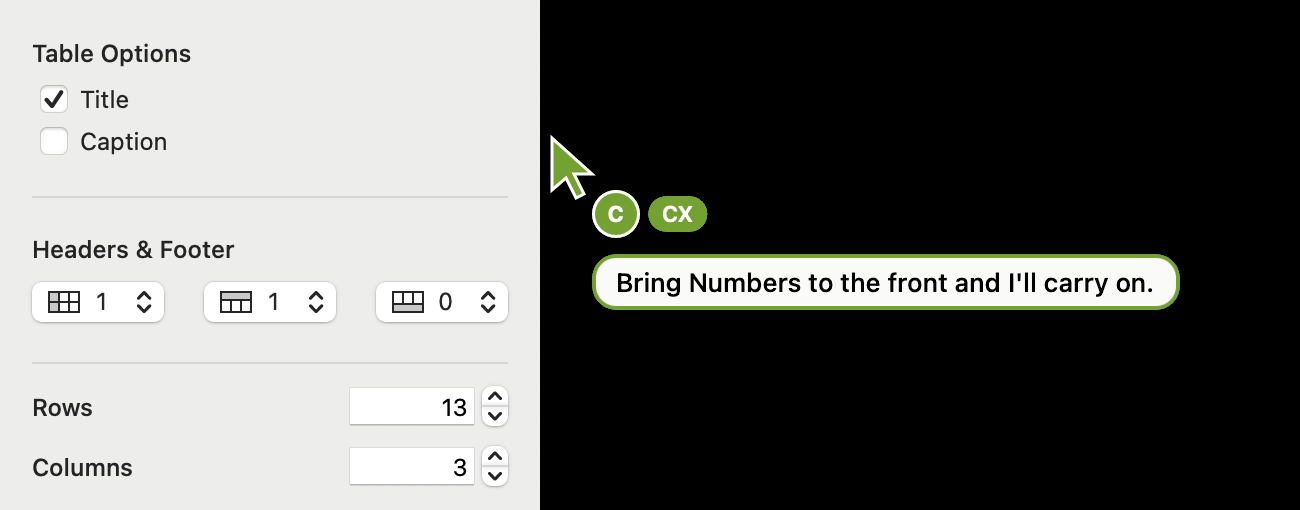
An agent can appear on your screen as its own pointer: an arrow in its colour, with its initial, its name, and a speech bubble showing what it says. The AgentX Helper app draws it. You can click straight through it, and it never moves your own mouse.
The pointer appears during lessons (see Live lessons), and after a spoken answer when presence mode is on.
To change how an agent's pointer looks:
- Terminal: open
agentx.jsonin a text editor. - In the agent's block, add a
presenceblock:json"helper": { "presence": { "color": "#7C3AED", "initial": "H", "label": "Helper", "allowActions": false } } - Save the file.
| Field | Meaning |
|---|---|
color | The pointer's colour, also used for the orb. Default: a colour picked from the agent's id |
initial | The letter on the pointer. Default: the first letter of the label |
label | The name shown. Default: the agent's name, else its id |
allowActions | true lets the agent click and type for you in act mode. Default false |
Without allowActions, the agent never clicks or types. It shows you where to click and lets you do it.
Presence mode
Presence mode lets AgentX decide, on each question you ask through the widget, whether the agent should also show something on screen. A small, fast decision model called a seat makes this choice; see Jev and typed decisions for how seats work and how to set up their backend. This seat is named presence-mode and is off by default. While it is off, answers are spoken only, and no pointer appears after them.
| Mode | What happens |
|---|---|
talk | The agent answers out loud. Its pointer rests in a corner with the answer in its bubble |
teach | A live lesson: the agent points at each step and says it; you do it |
watch | You work; the agent coaches you and points at what you need |
act | The agent does the steps itself. Only when allowActions is true; otherwise the answer is talk |
quiet | Nothing appears on screen |
Some safety rules always apply:
- A lesson (
teachorwatch) starts only when you ask to be shown something, for example "show me how…", "how do I…", "where is…", "walk me through…" or "montre-moi…". An instruction such as "merge and deploy the release" is always answered astalk. - If the seat is unsure (below 55% confidence), takes longer than 2.5 seconds, or fails, the answer is
talk. - After a
talkanswer, the pointer disappears once the answer has had time to be heard. If the seat expects the conversation to go on, it stays, quietly, for up to 5 minutes.
To switch presence mode on:
- Terminal: open
agentx.jsonin a text editor. - Add the seat under
decisions:jsonUse"decisions": { "seats": { "presence-mode": { "mode": "active", "backend": "typesafe" } } }"mode": "shadow"to try it first: the daemon log records what the seat would choose, without acting on it. - Terminal: restart the daemon so the seat is set up with its backend.
Live lessons
In a live lesson, an agent teaches you how to do something in an app, one step at a time, with no script written in advance:
- The agent reads the app's window: the buttons and fields macOS lists for accessibility tools, or the text it can read from a screenshot when that list is short.
- A fast model plans the next single step.
- The agent's pointer moves to the right control, or outlines it, while the agent says the step.
- The agent waits for the screen to change (you did the step). In
actmode withallowActionsset, it does the step itself. - The window is read again, and the next step starts from what is really there.
A lesson stays in the app it started in. If you switch to another app, the agent asks you to bring it back and waits without doing anything else. After 45 seconds it ends. A lesson stops after 12 steps unless you set another limit.
A lesson starts in one of two ways: when presence mode chooses teach, watch or act for your question, or from a terminal.
Start a lesson from the terminal
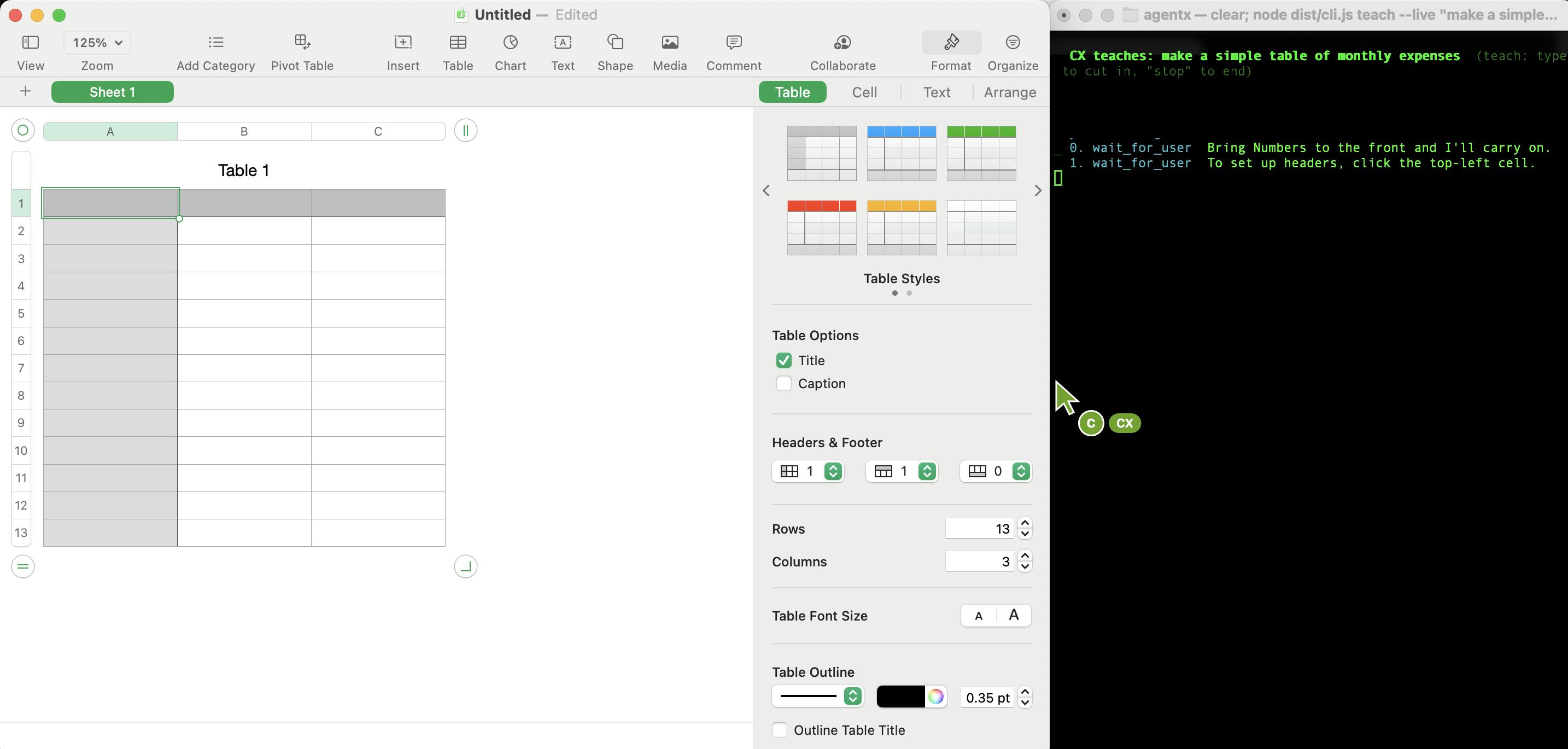
- Terminal: run the lesson. This example opens Numbers and teaches in your assistant agent's voice:sh
agentx teach --live "make a simple table of monthly expenses" --app Numbers --agent helper --mode teach - Mac: follow the spoken steps in the app. The terminal prints each step as it happens.
| Option | What it does |
|---|---|
--live "<goal>" | What the lesson should teach |
--mode <mode> | teach (default, you do each step), watch (you drive, it coaches), act (it does the steps, if allowActions is true) or draw (see below) |
--app <name> | Open this app first and teach in it. Without it, the lesson uses the app in front when it starts |
--agent <id> | The agent who teaches. Default: your assistant agent (set with AGENTX_VOICE_AGENT in the terminal's environment), else the node's default agent (node.defaultAgent) |
--steps <n> | The most steps before it stops (default 12) |
-c, --config <path> | The agentx.json file to read the agent from |
Drawing mode. With --mode draw, the agent draws an illustration of the goal in the tldraw offline app instead, with its pointer moving over each shape as it appears. It saves a .tldraw file and a .png picture in your Documents folder. --out <folder> picks another folder, and --model <id> another planning model (default claude-sonnet-5). The tldraw offline app must be installed.
Interrupt or end a lesson
- Mac: hold Option–Space. The lesson ends at once and the screen is yours again.
- Mac: say your question, then release the keys. It goes to the agent as a normal question.
Pressing Command–Option–. also ends a lesson. In the terminal where it runs, type stop and press Return, or press Control–C.
Check a running lesson in the browser
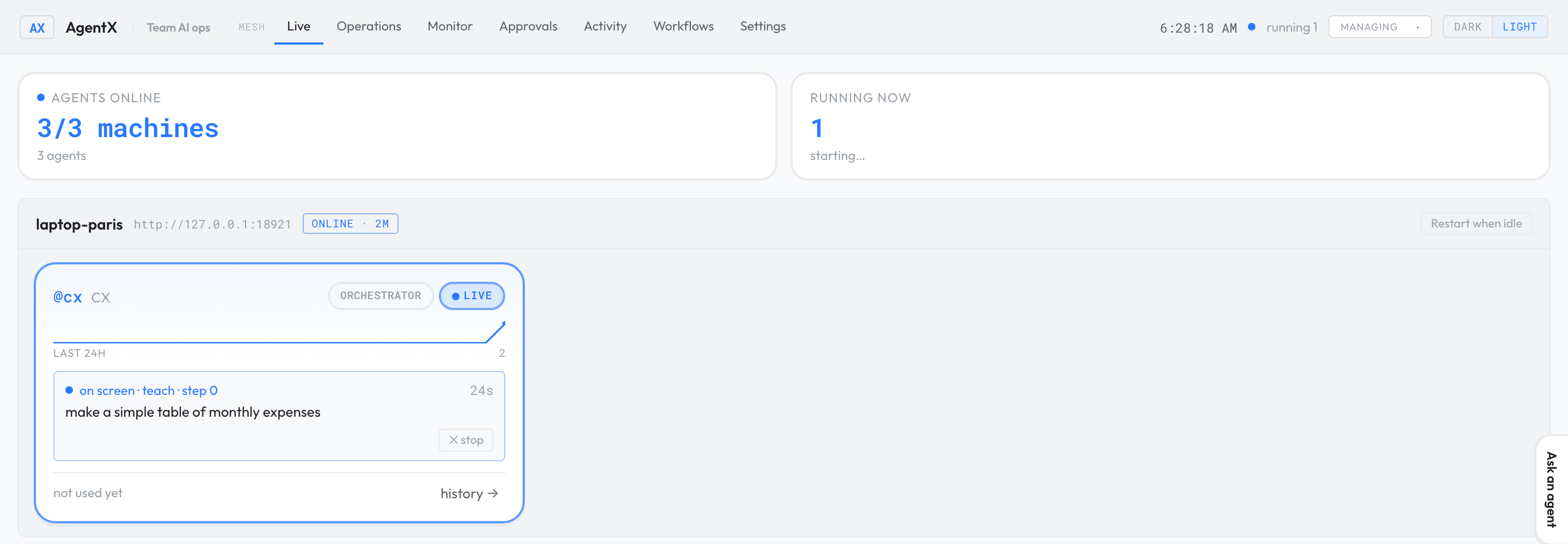
- Browser: open the dashboard's Live tab.
- Find the agent's card. A running lesson shows on screen, the mode, the step number and what the agent is saying.
- To end it, select ✕ stop on that line.
For automations (Siri, Shortcuts, scripts)
The daemon offers these addresses for talks, lessons and narration. Requests from the same Mac need nothing more. Requests from another computer need the mesh token, the same as /ask.
| Address | What it does |
|---|---|
POST /talk | Start a talk: {"agents": ["<id>", "<id>"], "topic": "…", "context": "…", "maxTurns": 10} |
GET /talk | The running talk or lesson: what was said, its state and the pauses |
POST /talk/stop | End the talk |
POST /teach/live | Start a lesson: {"agent": "<id>", "goal": "…", "mode": "teach", "app": "Numbers"} (draw is terminal only) |
GET /voice/settings | What the settings window shows: general (with the answer's card settings), each agent's voice, colour and palette, the orb palettes, and the installed system voices |
POST /voice/settings | Save settings: {"general": {…}, "agents": {"<id>": {…}}}. null or "" puts a field back to its default. 400 with errors when a value is refused; nothing is written then |
POST /voice/preview | {"agentId": "<id>", "voice": {…}}: say a sample line with unsaved voice changes, next in the queue |
POST /voice/address | {"text": "…", "target": "<id>"}: which agent the words are addressed to. Returns {"agentId"}, which is target when no leading name matches |
POST /voice/hush | Silence whatever is speaking, pause the speaking queue and wait for your words (what Option–Space sends when pressed) |
POST /voice/door | {"text": "…"}: your words for the talk or lesson; the queue plays on. stop ends the talk or lesson and empties the queue |
POST /voice/stop | Silence every voice and empty the speaking queue (what Command–Option–. sends) |
GET /voice/queue | The speaking queue: {"paused", "playing", "waiting", "recent"} |
POST /voice/queue | Add a line in an agent's voice: {"text": "…", "agentId": "<id>", "kind": "answer"}. kind is answer, narration or line. Add "wait": true to get the reply only once the line has been spoken ({"item", "played"}) |
POST /voice/queue/<id>/skip | Drop that line, whether it is playing or waiting. The others keep their order |
POST /voice/queue/<id>/front | Play that waiting line next |
POST /voice/queue/<id>/replay | Say a waiting or recently finished line again, next |
POST /voice/queue/pause, POST /voice/queue/resume | Hold the queue, or let it play on. A held queue plays on by itself after a minute |
GET /voice/history, GET /voice/history/<id>, POST /voice/history/<id>/replay | Past spoken questions and answers, and saying one again (see History for scripts) |
GET /narration, POST /narration | Read or set narration switches: {"agentId": "<id>", "on": true} or {"taskId": "<id>", "on": null} |
/talk/hush and /talk/door still work as older names for /voice/hush and /voice/door.
Every change to the speaking queue is also sent on the live event stream (GET /events) as a voice event whose message has "kind": "voice:queue" and the same fields as GET /voice/queue.
Check it worked
- Terminal: run
agentx desktop status. It prints the login service's details.Installed, but not runningorNot installedmeans it isn't running. - Mac: click the AgentX icon in the menu bar. Your agents are listed and one is ticked.
- Hold Option–Space, ask "What can you do?", then release.
- The answer appears in the pill, after the ticked agent's name, and is spoken aloud.
- Browser: the question shows on the dashboard's Live tab under your agent.
- Terminal: to check talk mode, run
agentx talk <first-agent-id> <second-agent-id> "say hello". Both agents speak, and the terminal prints their lines. - Terminal: to check address by name, run
curl -s -X POST http://127.0.0.1:18800/voice/address -H 'Content-Type: application/json' -d '{"text": "<agent-name>, hello", "target": "<ticked-agent-id>"}'. It prints the named agent'sagentId,name,colorandnode. With a mesh, try the name of an agent on another computer:nodeis that computer's name andremoteistrue. - Mac: ask the ticked agent something that takes a while.
- Mac: while it thinks, hold Option–Space and say another agent's name followed by a question, for example "Researcher, what time is it?".
- Mac: open the AgentX menu. Both agents show thinking, and the ticked agent is still ticked. Both answers are spoken, one after the other. While one plays and the other waits, a 1 shows next to the menu-bar icon. The pill shows a small orb for each of the two agents until both are done.
- Mac: hold Option–Space. The pill appears with its orb in the ticked agent's palette, and the orb swells as you speak. Let go: a ring goes round the orb while the agent thinks, and it pulses while the answer is spoken.
- Mac: drag the pill to another place on the screen. Quit the app from its menu and start it again: the pill comes back in the same place.
- Mac: while an answer is spoken, move the pointer over the pill and click ×. The pill goes and the voice stops. Hold Option–Space: the pill is back.
- Mac: open Settings…, pick an agent, change its Mac voice, and choose Preview. The sample plays in the new voice. Choose Save, then ask that agent something: the answer uses the new voice.
- Terminal: run
curl -s http://127.0.0.1:18800/voice/settings. It prints the saved settings, including the change you just made. - Terminal: to check the speaking queue, run
curl -s -X POST http://127.0.0.1:18800/voice/queue -H 'Content-Type: application/json' -d '{"text": "First line.", "agentId": "<agent-id>"}'twice in quick succession, thencurl -s http://127.0.0.1:18800/voice/queue. You hear both lines one after the other, and the second shows underwaitinguntil the first has finished. - Mac: open the AgentX menu and choose History…. The question you asked in step 3 is listed under Today, with the agent's name and how long it took.
- Mac: choose one agent from the Agent menu at the top of the window. Only that agent's questions are listed.
- Mac: select a question and choose Replay. The answer is spoken again, after anything already speaking.
- Terminal: run
curl -s 'http://127.0.0.1:18800/voice/history?limit=3'. It prints your last three questions, each with ananswerPreviewand not the whole answer. - Terminal: to check the on-device models, run
~/Applications/"AgentX Desktop.app"/Contents/MacOS/agentx-voice-local status.vad: installedappears once the microphone has been used;parakeet: installedonce Parakeet has been chosen and downloaded. - Mac: click the pill so the microphone opens without a key, say a sentence with a short pause in the middle, then stop. The question is sent about a second after your last word, not during the pause.
- Mac: ask "Give me three links about macOS design." The pill grows into the answer, with no second window. Once it has been spoken and you move the pointer away, it shrinks back after the time set in Keep the answer open.
- Terminal: run
agentx voice palette <agent-id> forest, then open the AgentX menu and hold Option–Space. The orb is moss to fern green. Runagentx voice palette <agent-id> defaultto undo it.
If something is wrong
- No recording: check the microphone permission in System Settings › Privacy & Security › Microphone, and hold the shortcut while speaking.
- "Sorry, I didn't hear that": transcription failed and nothing was sent. Check your ElevenLabs key, or the local Whisper program and model.
- A hands-free turn is sent in the middle of a sentence, or never ends: Terminal: run
agentx-voice-local status(see Check it worked). Ifvadisnot installed, the app is still using the volume check: runagentx-voice-local fetch vad. The app log (~/Library/Logs/agentx-voice.log) saysSilero VAD would not loadwhen the model is there but broken; delete~/.agentx/models/silero-vad-coremland fetch it again. To go back to the old behaviour, set End of a hands-free turn to Volume. - Parakeet is chosen but Whisper still answers: the app log says why.
Parakeet is not downloaded yetmeans the 483 MB download is still running or failed (could not be downloaded: …); runagentx-voice-local fetch parakeetin Terminal to see the error.still loadingmeans the first load on this Mac is under way; ask again in a minute. - Parakeet answers an Arabic question in Latin letters, or with nonsense: Parakeet has no Arabic. Set On-this-Mac engine back to Whisper, or use ElevenLabs.
- A model download fails with
did not match its checksum: the file arrived damaged or changed upstream, and was deleted. Run the fetch again; if it keeps failing, the app needs an update. - Local Whisper fails: Terminal: run
agentx doctor. If it reportsffmpeg not reachable by the desktop app, install FFmpeg (for examplebrew install ffmpeg) and runagentx desktop installagain. - Agent unavailable: check the daemon address, then pick another agent from the menu. If the menu can't switch, the app is pinned to one agent: it was installed with
--agent, or installed before the menu existed (older installs always pinned an agent). Runagentx desktop installagain without--agent. - The menu says the daemon isn't reachable: Terminal: run
agentx daemon status, start the daemon, then choose Retry. - A daemon on another machine refuses it: the widget can't send a mesh token yet. Use a daemon on the same Mac.
- A question you started with a name went to the ticked agent: the name matched no agent, or more than one. Check the ids and
mentionswithagentx agent list, or try it with the curl in Check it worked. For an agent on another computer, runagentx mesh list: that computer must sayhealthy. If two computers have an agent with that name, say its id. - No small orbs while two agents work: the row counts only questions asked from this Mac's assistant, and answers waiting in its speaking queue. A task an agent runs for someone else doesn't show.
- A second question to the same agent waits a long time: it waits until that agent has finished answering the question before it. The assistant gives up after 10 minutes and says "Sorry, that didn't work" (or "Sorry, Researcher couldn't answer that" for a question asked by name).
- An answer by name was never spoken: you said "stop", pressed Command–Option–. or chose Stop speaking before it arrived. Stopping drops every answer still to come. Ask again.
- The settings window says the daemon isn't reachable: Terminal: run
agentx daemon statusand start the daemon, then open Settings… again. - Save shows a red message: the value was refused and
agentx.jsonwas not changed. If it names a shortcut used twice, change one of them and save again. A message that startsagentx.json would not be validmeans another part of the file is wrong; the lines after it name the setting to fix. - A shortcut does nothing: another app already uses it. The app log (
~/Library/Logs/agentx-desktop.err.log) saysis taken by another app. Pick another one in Settings…. - A preview is silent: another line is playing first, or the voice is ElevenLabs without a key. Check
curl -s http://127.0.0.1:18800/voice/queue. - Launch at login is greyed out:
agentx desktop installstarts the app at login. Terminal: runagentx desktop stopto stop it. - The pill doesn't appear: it was hidden with ×, Esc or Hide pill. Hold Option–Space, or choose Show floating pill in the menu, to bring it back. The orb needs macOS 14 or later; on macOS 14 it uses a simpler gradient than on macOS 15.
- The pill is off screen or in an odd place: click the AgentX icon in the menu bar and choose Reset position.
- Esc does nothing: the pill only hears Esc after you click it. Click the pill first, or use its × button.
- The orb is the wrong colour: pick a palette with
agentx voice palette <agent-id> <palette>or in Settings…, or setpresence.colorfor that agent as#RRGGBB. The app reads colours and palettes when you open its menu, so open it once after a change. An orb in plain shades of one colour means the daemon is older than the palettes: update it. - No answer text in the pill: the answer had nothing the voice didn't already say. The pill only grows for a link, a picture, or more text than was spoken. If you closed the pill with × or Esc, the next answer doesn't open it either; hold Option–Space first.
- The answer closes too soon or stays too long: change Keep the answer open on the General tab, or run
agentx voice card --timeout <seconds>. agentx voice paletteoragentx voice cardsays a value is refused: the palette must be one of the seven names, the timeout 0 to 600 seconds and the height 120 to 800 points.- The orb doesn't move: Reduce Motion is on, Animated orb is unticked in the AgentX menu, or the microphone permission is missing, so there is no voice level to follow.
- Voices talk over something else, or won't stop: press Command–Option–., or choose Stop speaking from the AgentX menu.
- An answer is late to play: another line is ahead of it in the speaking queue. Terminal: run
curl -s http://127.0.0.1:18800/voice/queueto see what is ahead. Ifpausedistrueand you are not speaking, runcurl -s -X POST http://127.0.0.1:18800/voice/queue/resume. Unknown agent: …fromPOST /voice/queue: theagentIdmust be an agent on this computer or on a connected mesh computer. Check the id withagentx agent list.A talk or lesson is already running: only one runs at a time. Wait for it to end, or press Command–Option–. to stop it.Unknown agent: …fromagentx talkoragentx teach --live: check the id withagentx agent list. Foragentx talk, an agent on another computer must be reachable: check that its computer shows inagentx mesh list.- A talk never starts speaking: the lines come from the
claudeprogram. Terminal: runclaude --versionon the daemon's computer and sign in if needed, or setAGENTX_TALK_BACKEND=api. - No pointer appears after an answer: presence mode is off, or the seat chose
talkwith low confidence. Look for[presence]lines in the daemon log. - A lesson says "Bring … to the front": click the app the lesson started in; it carries on.
- The agent never clicks in
actmode: set"allowActions": truein the agent'spresenceblock. - History says the daemon isn't reachable: Terminal: run
agentx daemon statusand start the daemon, then choose Refresh. - History is empty: only questions asked out loud (with the widget, Siri or
/ask) are listed, and only those this daemon answered. A question answered by an agent on another computer is in that computer's history. - Replay is greyed out, or says there is no answer: the question failed or was stopped before an answer came back. Ask it again.
- A replay plays late: it waits for the lines ahead of it in the speaking queue. Terminal: run
curl -s http://127.0.0.1:18800/voice/queueto see what is ahead. - Open task in dashboard shows nothing: the dashboard isn't running on
AGENTX_DASHBOARD_URL. Terminal: runagentx board serve, or setAGENTX_DASHBOARD_URLto where it runs. 401from/voice/historyon another computer: send the mesh token asAuthorization: Bearer <token>.- Narration stays silent: check
voice.narratefor the agent, or runagentx narrate <agent-id> on. Scheduled jobs need"all", and questions from the widget are never narrated this way.