
Place reminders
A place reminder is a note that reaches your phone when you arrive at a place or leave it: "when I arrive at the school, remind me to pick up the parcel". It can also ask one of your agents a question at that moment and send you the answer.
A web app can't do this on its own: Android lets a web page read the location only while it is open on screen. So place reminders come with the AgentX Android app, a small app that opens the same phone app and adds one thing a web page can't have: it asks Android to watch your saved places, even with the app closed and the screen off.
You only need this app for place reminders
It is not in Google Play: you build it yourself, as shown below. Everything else (chat, fleet, activity, alerts) works in the browser phone app without it. The iPhone version is not built or tested yet, so iPhone has no place reminders.
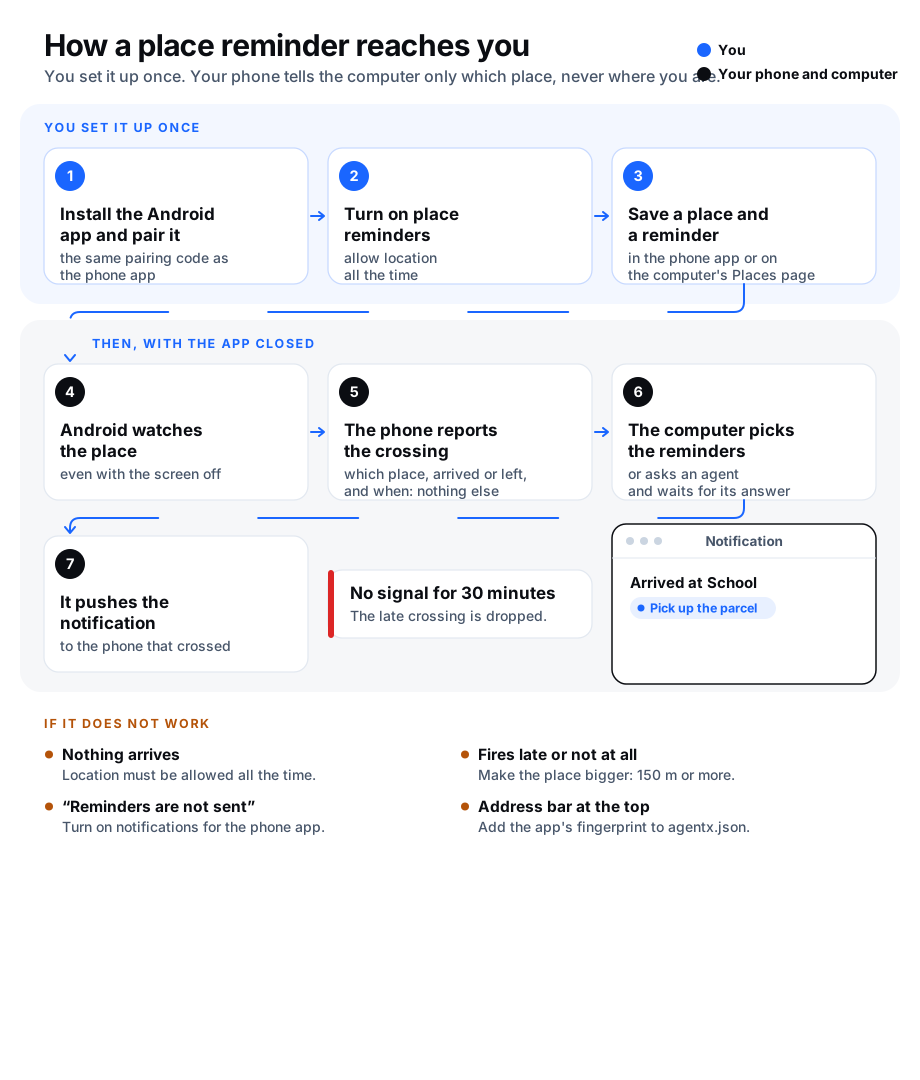
What leaves your phone
- Android watches the places, not AgentX. Each place is registered with Android as a geofence: a circle around a point. Android wakes the app only when the phone crosses a circle.
- The phone sends three things per crossing: which saved place, whether you arrived or left, and the time. It never sends where you are, and it never sends your position in the background.
- The computer keeps nothing about the crossing except a random id, so a report that is sent twice fires once.
- The phone keeps a copy of your places (name, centre and size) in the app's own storage, which no other app and no backup can read. After a restart it uses that copy to watch your places again at once, even before Tailscale is connected. Forget this computer deletes it.
- Where a place is is what you typed or picked when you saved it. Use where I am now in the phone app reads the location once, only when you tap it, to fill in the form; nothing is sent until you tap Save place.
- Everything stays on your tailnet. The Android app talks only to the computer you paired it with, over the same private address as the phone app.
What you need
- The phone app set up and working, with notifications turned on. Reminders arrive as phone app notifications.
- An Android phone with Android 8 or newer, Chrome, and Google Play services. iPhone is not supported yet.
- To build the app yourself: a computer with Android Studio, or with Java 17 and the Android command-line tools.
Get the Android app
The app is in the AgentX source code, in apps/android. Build it once, then install it on the phone.
- Terminal (computer): go to the app's folder in your copy of the AgentX source code:sh
cd apps/android - Terminal (computer): build it:shThe app is written to
./gradlew assembleDebugapp/build/outputs/apk/debug/app-debug.apk. The file ending in.apkis the app. - Phone: connect the phone to the computer with a USB cable and turn on USB debugging (how).
- Terminal (computer): install the app on the phone:shWithout a cable, copy the
adb install app/build/outputs/apk/debug/app-debug.apk.apkfile to the phone instead, open it in the phone's Files app, and allow the install when Android asks.
Every change to apps/android is also built by the Android app check on GitHub; the app it builds is attached to that run as agentx-android-debug.
Or: the Flutter app (preview)
apps/phone is the same app written once in Flutter, so that one codebase can also become an iPhone app later. It talks to the computer in the same way and uses the same name on the phone (dev.agentx.phone), so install this one or the one above, not both. It is a preview: it has not yet been checked on a real phone.
- Computer: install Flutter 3.47 or newer, with Java 17 and the Android SDK.
- Terminal (computer): go to the app's folder:sh
cd apps/phone - Terminal (computer): build it:shThe app is written to
flutter build apk --debugbuild/app/outputs/flutter-apk/app-debug.apk. - Terminal (computer): with the phone connected as in step 3 above, install it:shIf the other Android app is already on the phone, uninstall it first: Phone: long-press AgentX, tap App info, then Uninstall.
adb install -r build/app/outputs/flutter-apk/app-debug.apk
Without building it yourself: on GitHub, open the latest Phone app check of a change to apps/phone, and download agentx-phone-debug under Artifacts. It is a .zip holding the .apk.
The Flutter app's screens differ from the steps below in a few places:
- After pairing, and every time you open it from the app list, it goes straight to the phone app. Press Back to reach its own screen, which holds Open AgentX and the Place reminders switch.
- The location is one line, Location:, which should say allowed all the time.
- Open Android settings for AgentX is called Open settings for AgentX.
- There is no long-press shortcut on the icon yet. Use Location settings on the Places card, or press Back from the phone app.
To set its package name or sign a release build, use the Gradle properties in apps/phone/README.md. They are the same names as for the app above.
iPhone: the iPhone project is set up but not built or tested yet. Building it needs Xcode, and installing it needs an Apple account.
Use your own package name
The app is called dev.agentx.phone on the phone. To install your own build next to another one, or to publish it, give it another name:
- Terminal (computer): build with your own name:sh
./gradlew assembleDebug -PagentxApplicationId=org.example.phone - Computer: in
agentx.json, set the same name underapp.android.packageName:json{ "app": { "android": { "packageName": "org.example.phone" } } }
A signed release build reads its key from the Gradle properties agentxKeystore, agentxKeystorePassword, agentxKeyAlias and agentxKeyPassword (./gradlew assembleRelease). See apps/android/README.md.
Open it without an address bar (optional)
The app runs the phone app in Chrome. Chrome shows it full screen only when your computer vouches for the app; until then a slim address bar stays at the top. Everything works either way.
- Terminal (computer): from
apps/android, print the fingerprint of the key that signed the app:shCopy the line./gradlew signingReportSHA-256:of the variant you installed (debugfor the build above). It looks likeAB:CD:…, 32 pairs. - Computer: in
agentx.json, add it underapp.android.certFingerprints:json{ "app": { "android": { "certFingerprints": ["AB:CD:…:EF"] } } } - Terminal (computer): let the phone read that one address, next to the two from the phone app's install:sh
tailscale serve --bg --set-path /.well-known/assetlinks.json http://127.0.0.1:4202/.well-known/assetlinks.json - Terminal (computer): restart AgentX:sh
agentx daemon stop && agentx daemon start --detach - Phone: close AgentX completely and open it again. The address bar is gone.
Pair the Android app
The Android app pairs like the phone app, with a pairing code.
- Terminal (computer): from the folder that holds
agentx.json, make a pairing code:shagentx app pair --name "My phone (Android app)" - Phone: open AgentX from the app list. The Pair this phone screen opens.
- Phone: in Computer address, type the address from the QR code without
/app:<computer's Tailscale name>. The app addshttps://. - Phone: in Pairing code, type the code from step 1, and tap Pair.
- Phone: the Place reminders screen opens. Turn them on now, as below, or tap Open AgentX to go to the phone app.
The first time it opens the phone app, the Android app hands Chrome the same pairing, so the phone app opens without asking for a code.
Turn on place reminders
Android asks twice: first for the location, then for the location "all the time", which is what lets reminders fire with the app closed.
- Phone: open the Place reminders screen: long-press the AgentX icon and tap Place reminders, or tap Location settings on the Places card in the phone app's Alerts tab.
- Phone: read the note at the top, then turn on Place reminders.
- Phone: when Android asks for the location, tap While using the app and keep Precise selected.
- Phone: AgentX explains the next step. Tap Continue.
- Phone: on Android's page for AgentX, choose Allow all the time and keep Use precise location on. Then go back.
- Phone: check the screen: Precise location: allowed and Location all the time: allowed, and Watching: lists your places.
If you refuse either one, the switch stays off and the screen says what to change and where. Tap Open settings to go straight to AgentX's permissions.
If you take the location away later in Android's settings, the switch stays on but the screen says Place reminders can't fire in place of Watching:, until you allow it again.
Save a place
On the phone:
- Phone: in the phone app, open Alerts. The Places card lists your places.
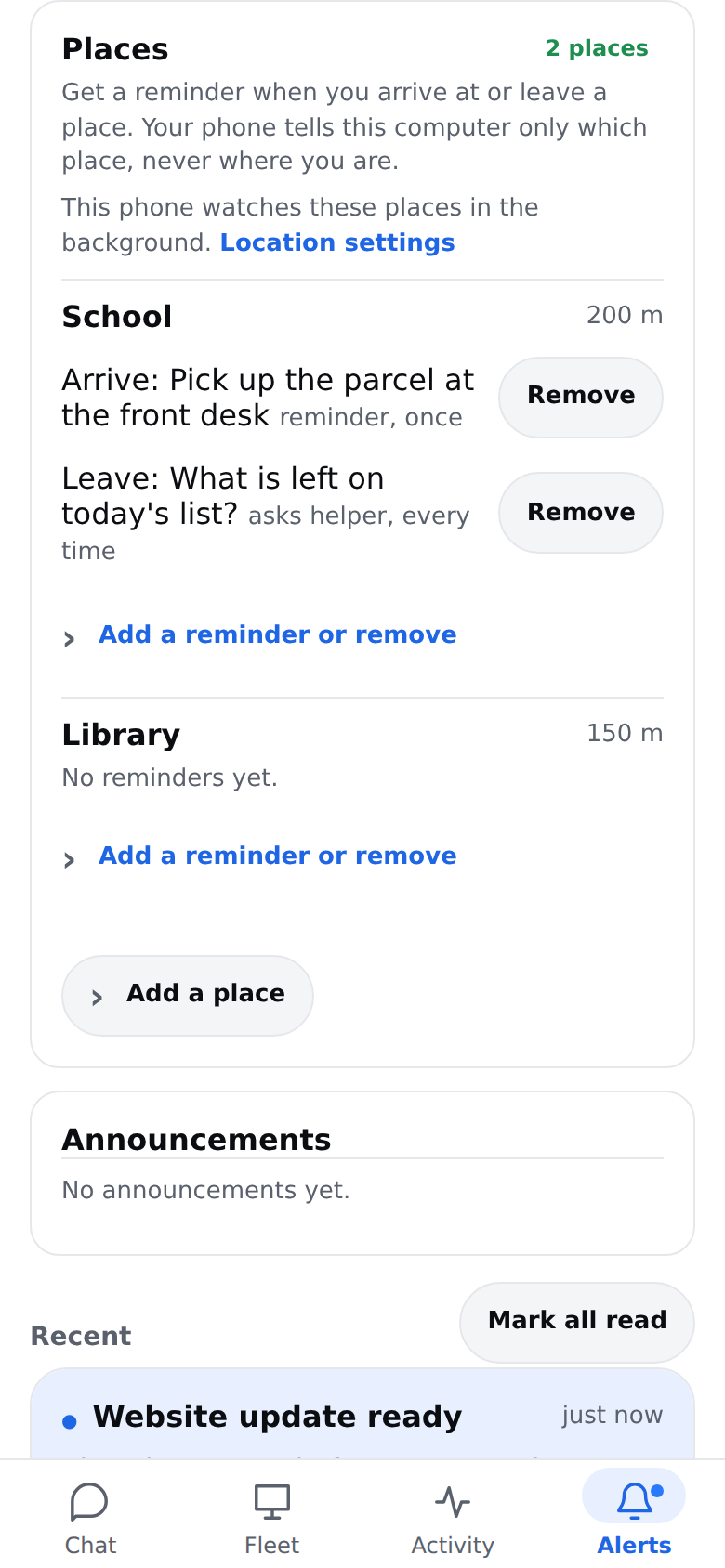
- Phone: tap Add a place.
- Phone: type a Name, such as
School. - Phone: stand at the place and tap Use where I am now, or type its Latitude, longitude (in most map apps, long-press the spot and copy the numbers). The first time, Android may ask whether AgentX can use the location: tap While using the app.
- Phone: leave Radius in metres empty to use 150 metres, or type another size. A bigger circle fires more reliably; 150 metres or more works best.
- Phone: tap Save place.
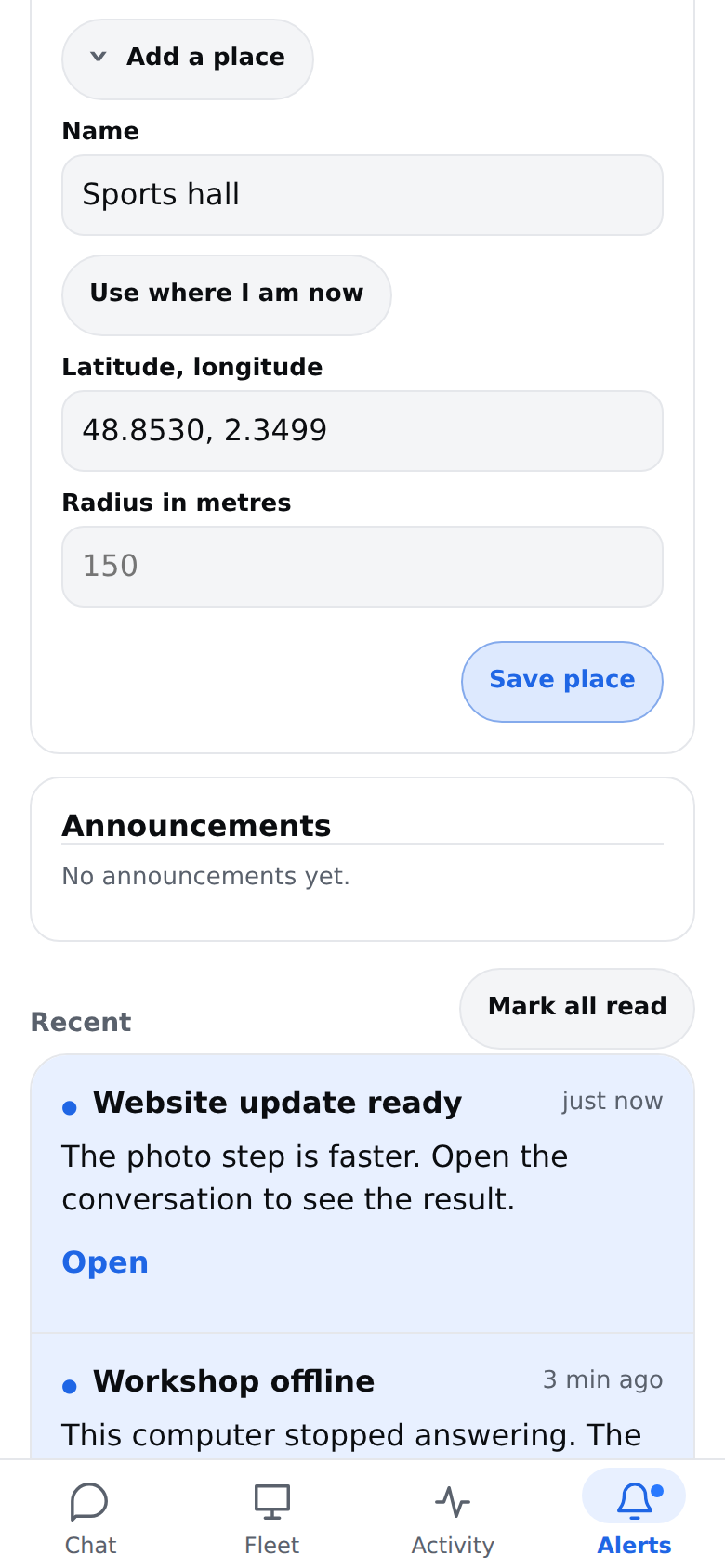
Places are added and changed in the phone app only. The dashboard's old Places page (/places) now opens the Hub.
The Android app picks up a new place the next time it checks: within the hour by default (app.places.syncMinutes), or at once when you tap Check for new places now on its Place reminders screen or open the app.
Add a reminder to a place
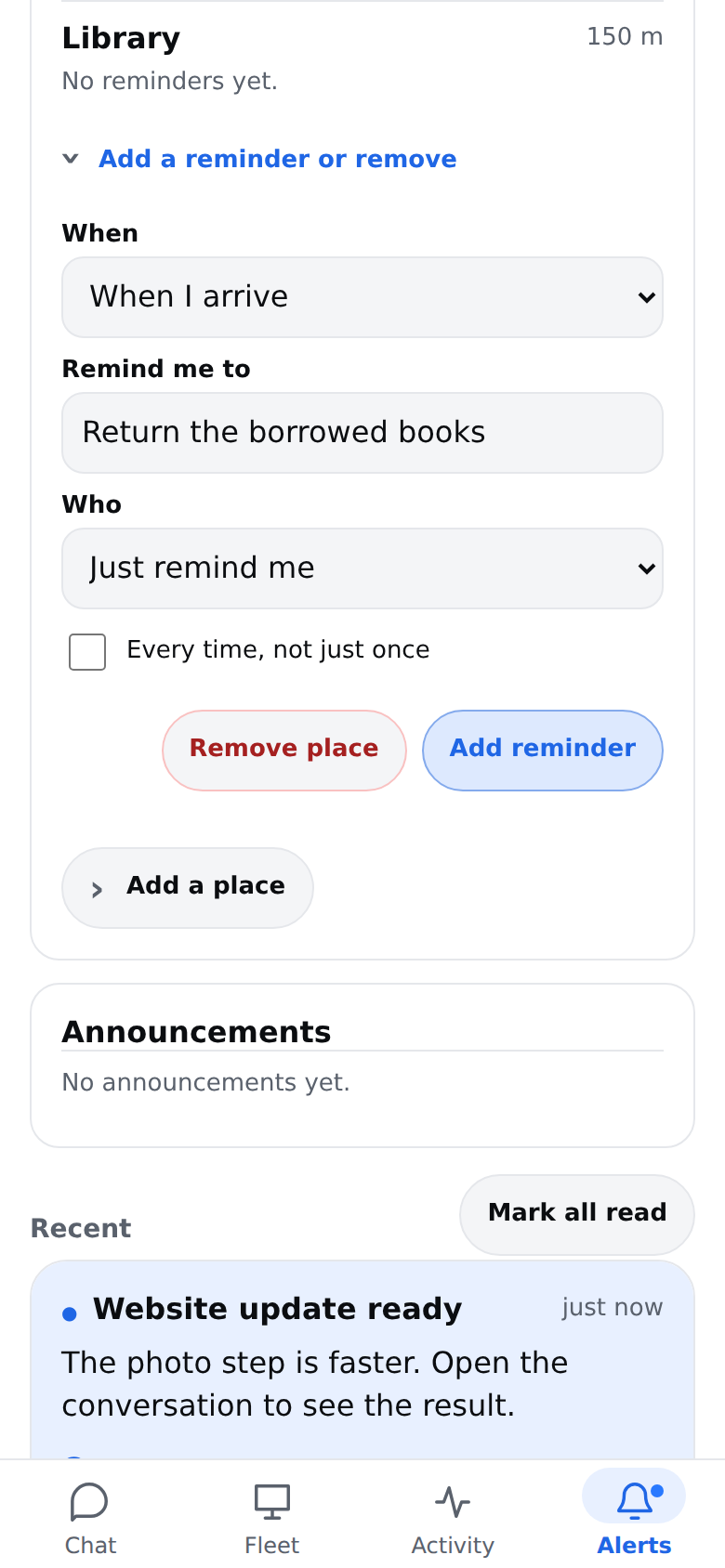
- Phone: on the Places card, under the place, tap Add a reminder or remove.
- Phone: in When, choose When I arrive or When I leave.
- Phone: in Remind me to, type the reminder, such as
Pick up the parcel. - Phone: in Who, keep Just remind me to get exactly that text. Or pick Ask and an agent: the agent gets the text as a task at that moment, and its answer is what reaches your phone. For example, "What is left on today's list?" when you leave the office.
- Phone: tick Every time, not just once for a reminder that fires on every visit. Otherwise it fires once and then shows as done.
- Phone: tap Add reminder.
The notification says Arrived at School or Left School, with the reminder or the agent's answer under it. It goes only to the phone that crossed the place.
A reminder set to fire every time fires at most once every 10 minutes (app.places.cooldownMinutes), so standing at the edge of a place doesn't buzz again and again. If the phone has no signal when it crosses, it sends the crossing when it can; one that is more than 30 minutes late (app.places.maxEventAgeMinutes) is dropped, because you are no longer there.
Remove a place or a reminder
- Phone: on the Places card, tap Remove next to a reminder, or open Add a reminder or remove under a place and tap Remove place. Removing a place removes its reminders too.
Turn location off
Any one of these stops it:
- Phone: on the Place reminders screen, turn off Place reminders. Android stops watching your places at once and nothing more is sent. The location permission stays as it was.
- Phone: to take the permission away too, tap Open Android settings for AgentX, then Permissions, then Location, and choose Don't allow.
- Computer: to turn place reminders off for every phone, set
app.places.enabledtofalseinagentx.jsonand restart AgentX. The phone app says they are off, and phones' reports are refused.
To remove the Android app's pairing, tap Forget this computer on its Place reminders screen, then on the computer run agentx app devices and agentx app revoke <id> for that phone, as in Manage paired phones.
Settings
All in agentx.json, under app. Each one is described in the configuration reference.
| Setting | Default | What it changes |
|---|---|---|
app.places.enabled | true | Place reminders on or off for every phone. |
app.places.defaultRadiusMeters | 150 | Size of a new place when none is given. |
app.places.minRadiusMeters, app.places.maxRadiusMeters | 100, 5000 | The smallest and largest place allowed. |
app.places.maxPlaces, app.places.maxRulesPerPlace | 50, 10 | How many places, and reminders per place. |
app.places.cooldownMinutes | 10 | Quiet time after a reminder that fires every time. |
app.places.maxEventAgeMinutes | 30 | How late a crossing may arrive and still count. |
app.places.syncMinutes | 60 | How often the Android app checks for changed places. |
app.places.file | .agentx/places.json | Where places and reminders are kept. |
app.android.packageName | dev.agentx.phone | The Android app's name, if you built your own. |
app.android.certFingerprints | none | Lets Chrome open the Android app without an address bar. |
Check it worked
- Phone: on the Place reminders screen, Place reminders is on, both location lines say allowed, and Watching: lists your place.
- Phone: add a test reminder to a place you can walk to, with When I leave.
- Phone: close the AgentX app and turn the screen off.
- Phone: walk out of the place, well past its circle. Within a few minutes a notification says Left … with your reminder. Android may take longer when the phone has been still for a while.
- Terminal (computer): the dashboard's log shows a line such as
[places] tok_… exit pl_…: fired (1). It names only ids: never the place's name or where you were.
If something is wrong
- The Places card says "Reminders fire only on an Android phone with the AgentX Android app" — the phone app was opened in the browser, not from the Android app. Open AgentX from the app list.
- "Places are saved, but reminders are not sent" — notifications are not set up on this computer. Follow Notifications on your phone, and turn notifications on in the Alerts tab inside the Android app.
- No notification after crossing — on the Place reminders screen, check that both location lines say allowed, that Watching: lists the place, and that Location is on in the phone's quick settings. Then:
- Phone: tap Check for new places now.
- Phone: make the place bigger: 150 metres or more. Android notices small circles late, or not at all.
- Phone: in Android settings, open Apps, then AgentX, then Battery, and choose Unrestricted. Some phones stop background apps to save battery.
- No notification after restarting the phone — the places are watched again as soon as the phone has started, without opening the app. If you changed places while the phone was off, open AgentX once, or tap Check for new places now.
- "Location is blocked for this app" when you tap Use where I am now — the Android app doesn't have the location permission yet, or it is an older build. Then:
- Phone: on the Place reminders screen, check that Precise location says allowed. If it doesn't, allow it as in Turn on place reminders.
- Phone: if it already says allowed, install the latest Android app (see Get the Android app): builds before this fix could not pass the location to the phone app.
- Phone: until then, type the place's coordinates instead.
- "The location was refused" when you tap Use where I am now — either you tapped Don't allow when the phone asked, or the Android app was installed again (for example after a new signing key) while Chrome kept running. Chrome only links an app the first time it opens it in a run. Then:
- Phone: if you tapped Don't allow, open Android settings, then Apps, then AgentX, then Permissions, and allow Location. Then try again.
- Phone: if you didn't, open Android settings, then Apps, then Chrome, and tap Force stop. Your Chrome tabs come back the next time you open it.
- Phone: open AgentX from the app list and tap Use where I am now again. Allow the location if the phone asks.
- "Location is off on this phone" — Location was turned off, so Android dropped every place. Turn it on in quick settings; the places are watched again at the next check, or at once when you tap Check for new places now.
- "This phone is no longer paired with the computer" — the Android app's key was removed with
agentx app revoke. Tap Forget this computer, then pair again. - "Could not reach the computer" — Tailscale is off on the phone or on the computer. Turn it on; the app tries again by itself.
- "Place reminders are off on this computer (app.places.enabled)" — set
app.places.enabledtotrueinagentx.json, or remove the line, and restart AgentX. - "There is no agent called … on this computer" — the reminder asks an agent this computer doesn't have. Pick one from the Who list.
- A reminder fired once and now shows "done" — it was set to fire once. Add it again with Every time, not just once ticked.
- The phone app opens with an address bar at the top — Chrome hasn't verified the app. Follow Open it without an address bar; check that
https://<computer's Tailscale name>/.well-known/assetlinks.jsonopens on the phone and lists your fingerprint. - The phone app asks for a pairing code inside the Android app — Chrome lost its pairing. Type a new code from
agentx app pair, or tap Forget this computer and pair the Android app again: it hands the pairing to Chrome once more.