
Activity — what ran, where, and what it decided
Monitor answers "what needs me?" Activity answers "what ran, where, and what did it decide?" Use Activity to look into a finished task, or a message that seems to have gone to the wrong agent.
Each bar on the timeline is one run: one task an agent worked on. Small marks on a run show what it recorded: a decision, a warning, friction (something that slowed it down), or something to do later. A cross marks a canceled run.
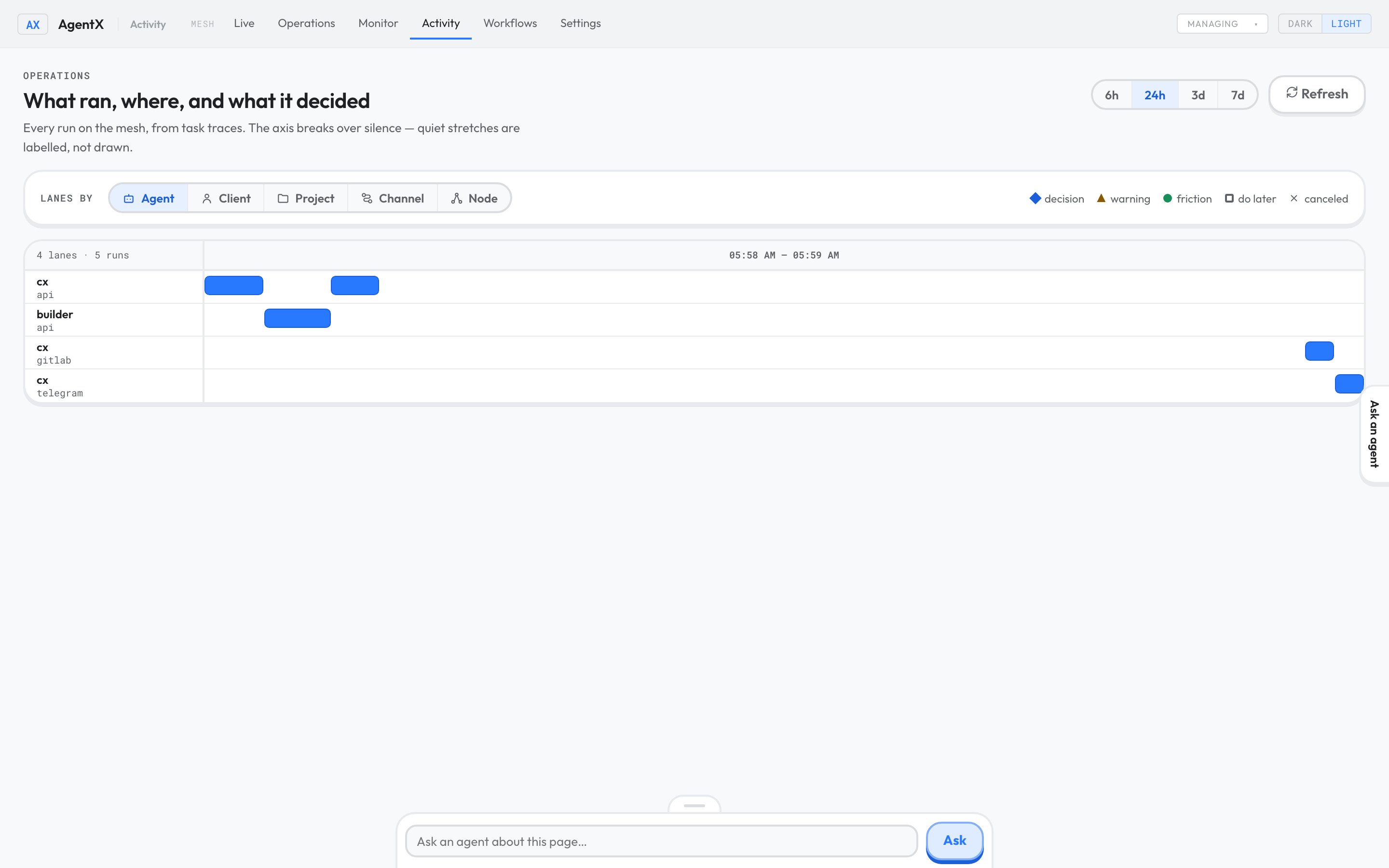
The three scripted runs appear on the agent timeline.
Find a run
- Browser: open the dashboard and select the Activity tab.
- Pick how far back to look: 6h, 24h, 3d or 7d.
- Next to Lanes by, pick how to group the runs: Agent, Client, Project, Channel or Node (machine).
- Find the lane you care about and the bar at the time you expect.
- Select the bar. Its details open below the timeline: the route the message took and the outcome.
- To pick up runs that finished since you opened the page, select Refresh.
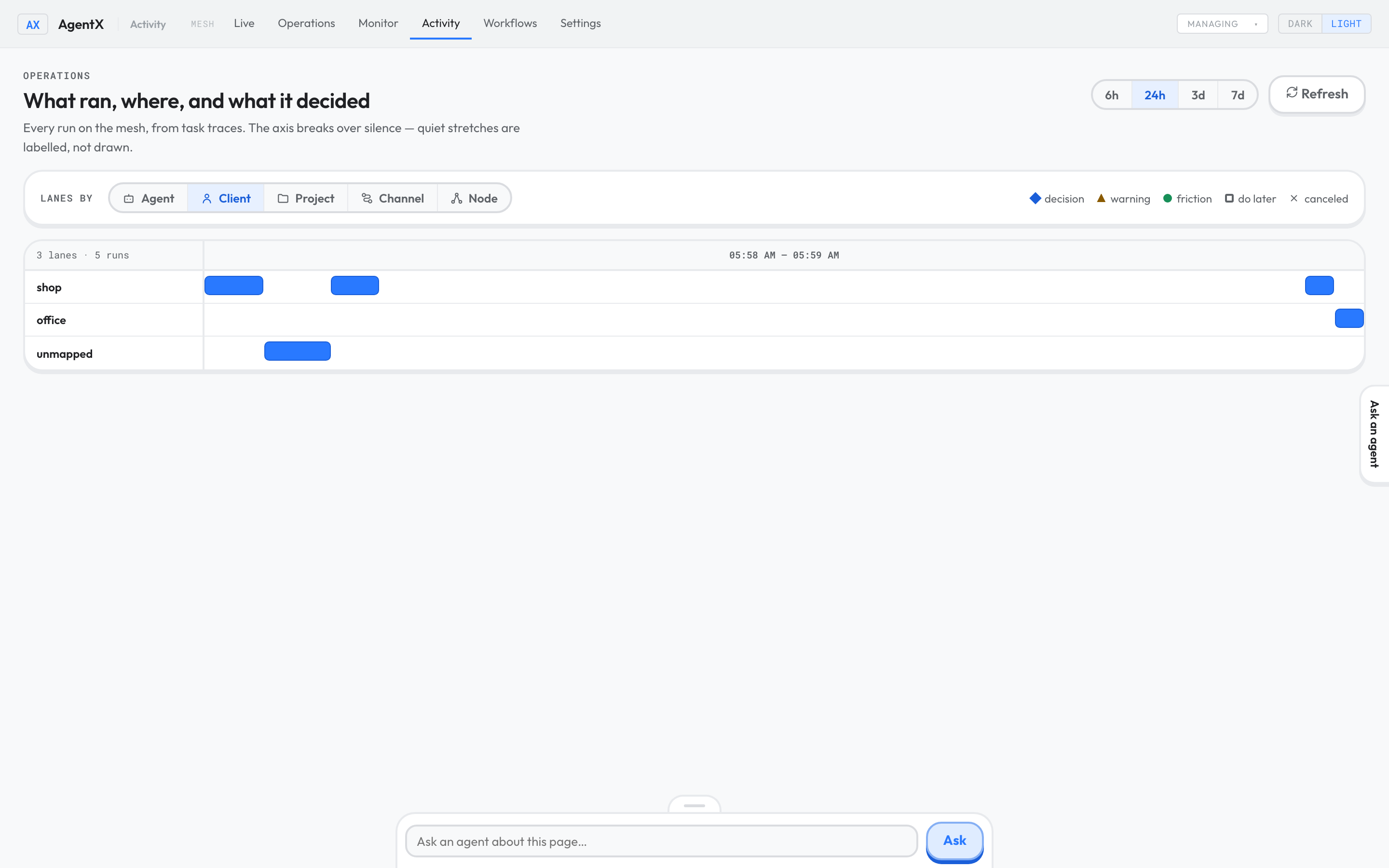
Grouped by Client. Runs whose chat isn't linked to a client land in unmapped.
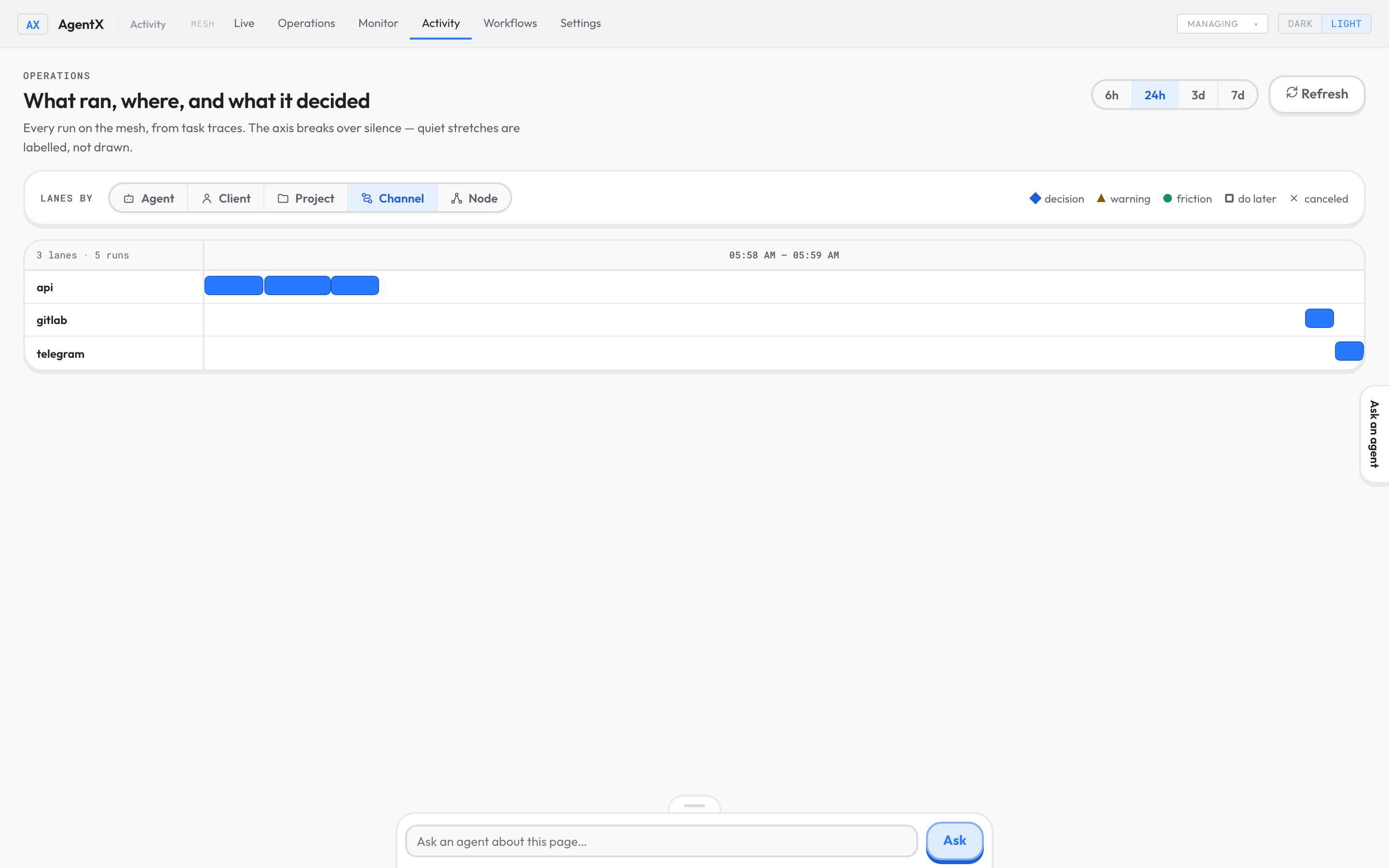
Grouped by Channel: where each message came from.
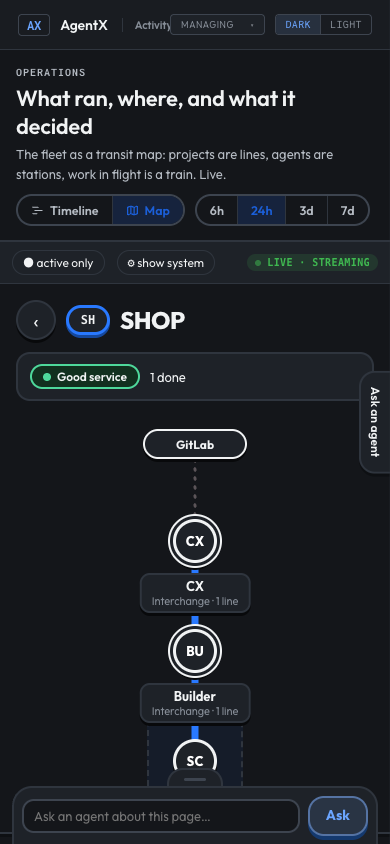
The Map view, next to Timeline, draws the whole team as a transit map: projects are lines, agents are stations, and work in progress moves along them.
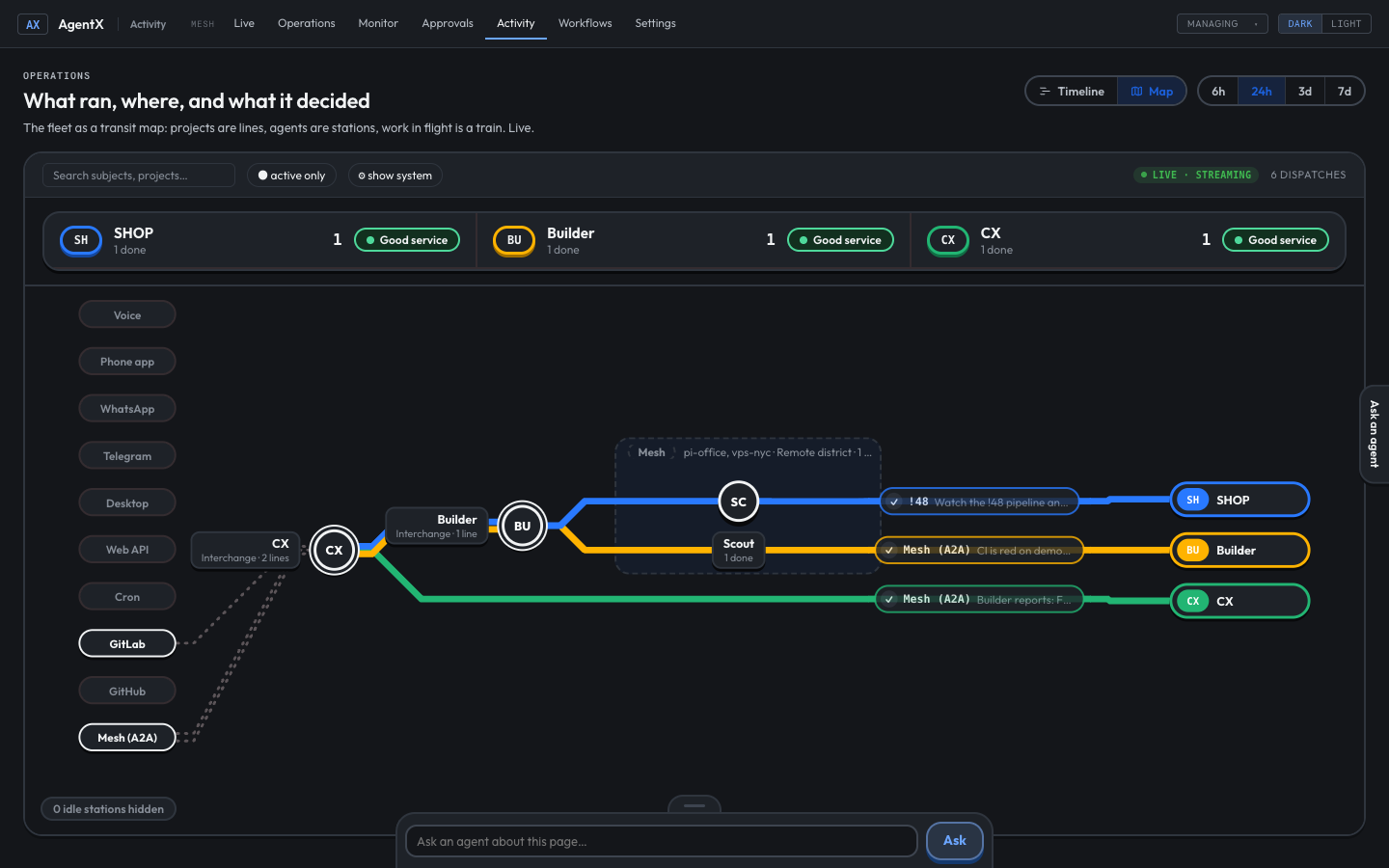
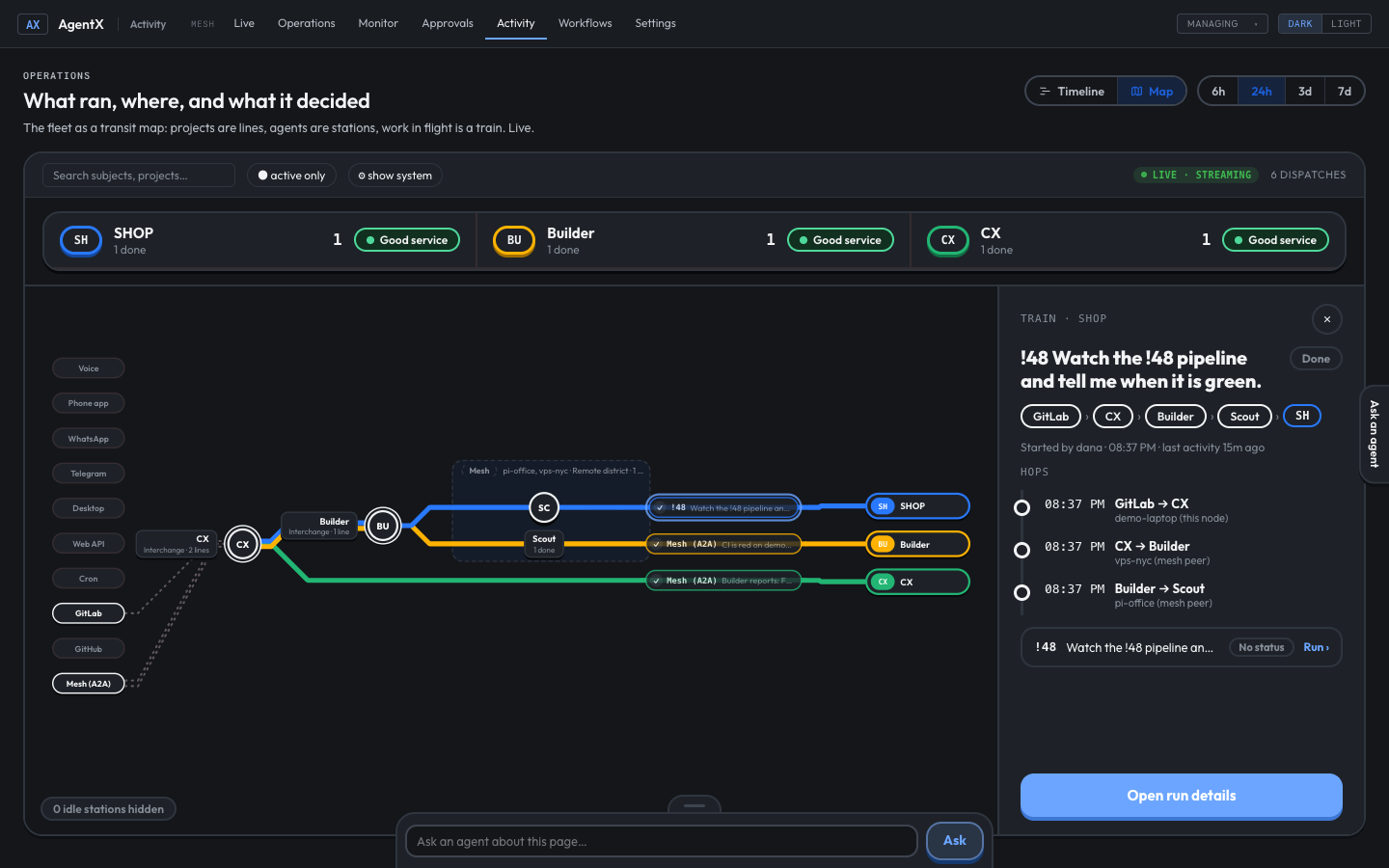
A merge request event from GitLab reaches CX, which asks Builder, which asks Scout on another computer. The work ends on the Shop line.
The channels on the left are where work comes from. Each piece of work (a train) starts at the channel it really came from: GitLab, GitHub, Telegram, Voice, Cron and so on. It then passes every agent that handed it on, in order, and ends on its project's line.
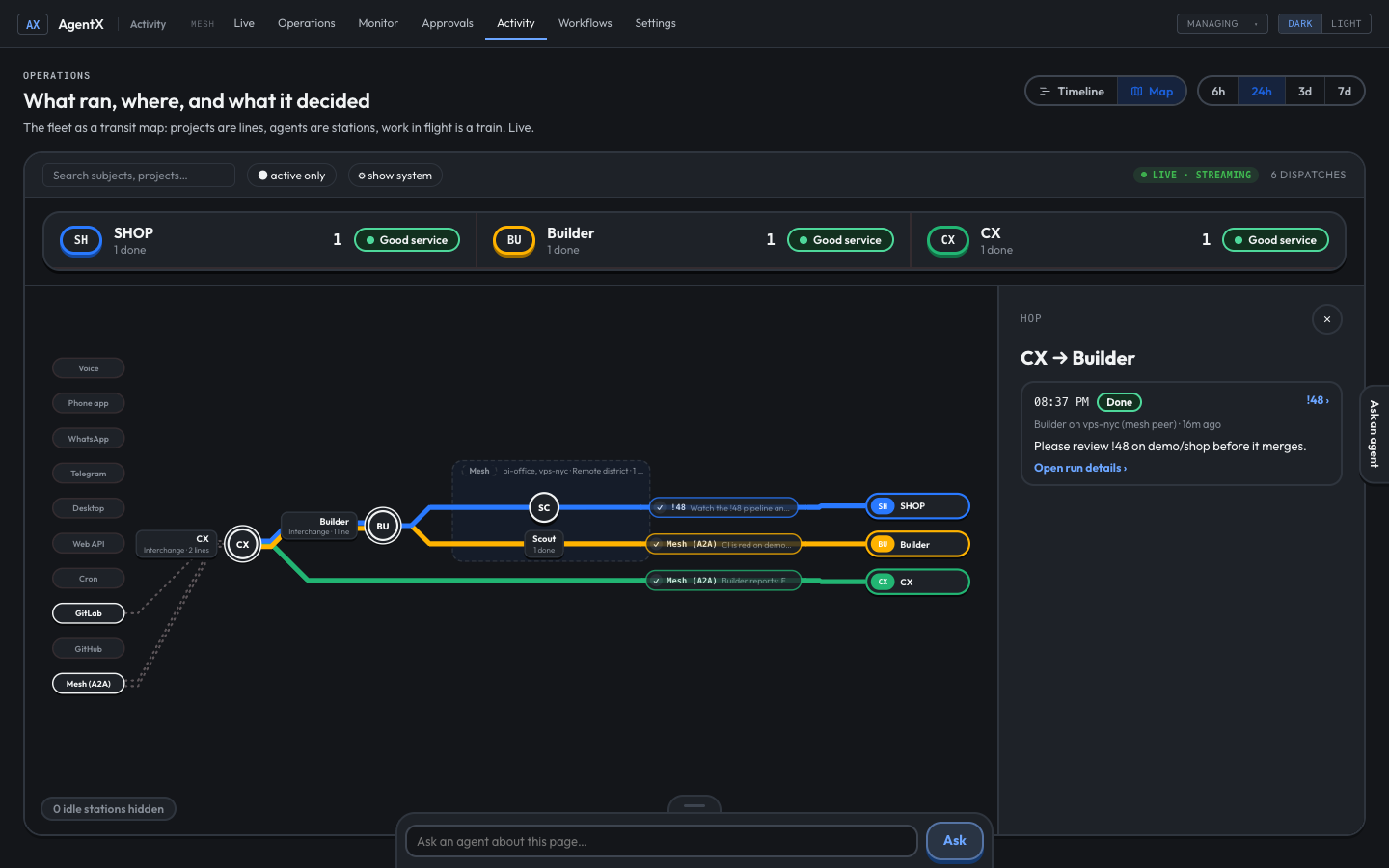
A hop is one agent asking another agent for help. When one agent asks a second, and the second asks a third, the map draws each hop. That holds when the agents run on different computers in your mesh (the computers linked together): the map reads each computer's own records. An agent only appears on a route when it really handled the work. For example, an agent that asks about a merge request later does not become its starting point.
A chat you start in the phone app, typed or spoken, comes in from Phone app and names you (operator) as the person who started it. That holds when the agent runs on another computer in your mesh too. In its details, a spoken message says Voice and a typed one says Phone app. Work that one agent hands to another, with no earlier channel on record, comes in from Mesh (A2A).
When an agent hands work off and gets the answer later, the answer shows as a hop back to the agent that asked. It is marked ↩ on the train's list of hops. It never starts a new train.
See how a piece of work travelled
- Browser: open Activity and select Map.
- Select a train (a pill on a line, such as !48). A card opens on the right.
- Read the route at the top of the card: the channel, every agent in order, then the line.
- Under Hops, read each hand-off with its time and the computer it ran on.
- Select a hop in that list to see the message that agent sent, its time and its result.
- Select Show more to read a longer message, or Open run details for the full run.
- Press Esc, or select ✕, to close the card.
Look at a channel, a station or a track
Everything on the map opens a card, with the mouse or with Tab and Enter.
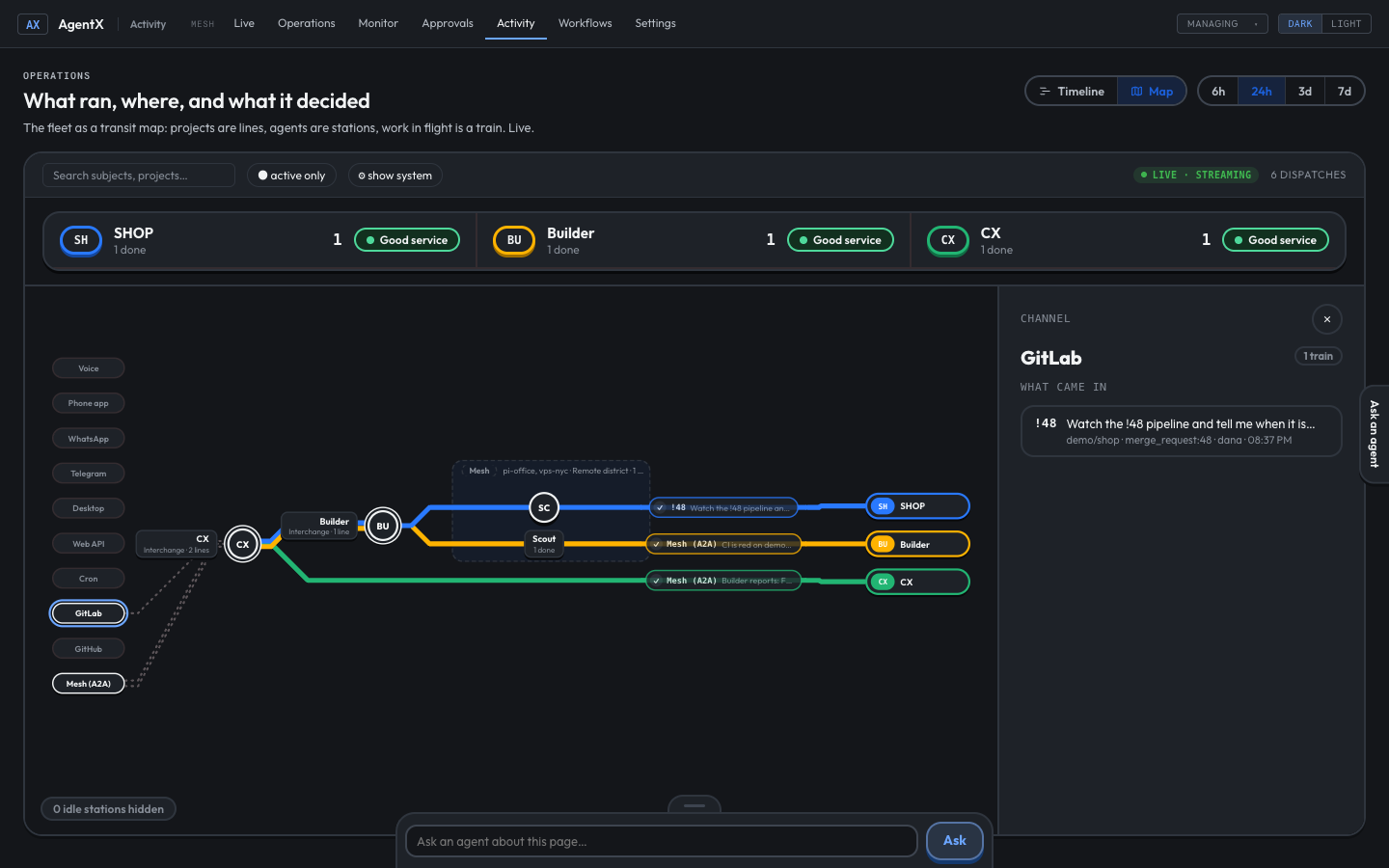
- Browser: select a channel on the left, such as GitLab. Its card lists what came in: the issue or merge request, the event, who sent it and when, with a link to open it.
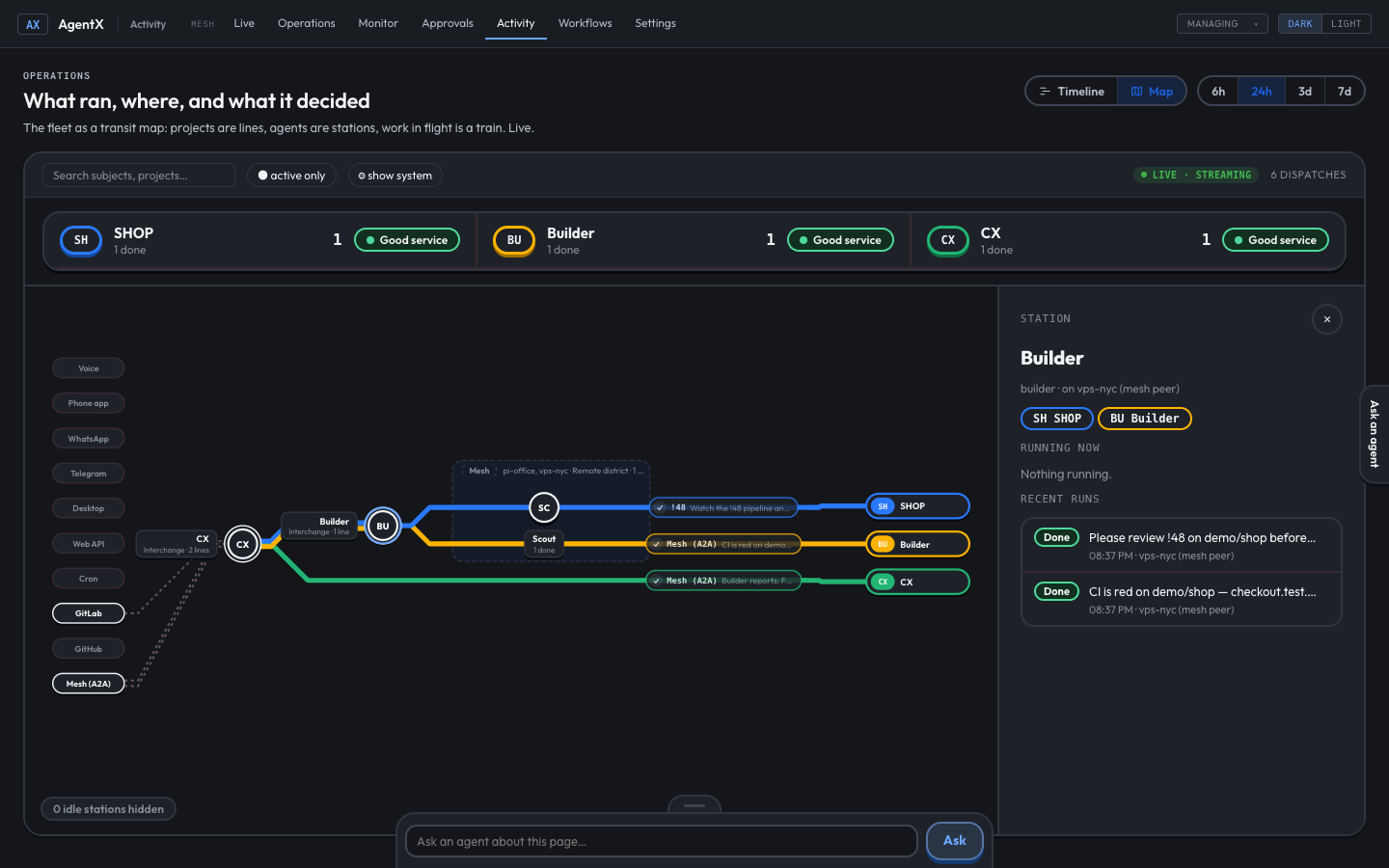
- Select a station (a round agent marker). Its card shows the agent, the computer it runs on, what it is running now and its recent runs. Select a run to open its details.
- Select a coloured track between two stations. Its card lists every hand-off along that track.
Long chains
When a train passes 4 or more agents, the map keeps it readable. It draws the first agent and the last two, and puts a +n button on the track between them. n is the number of agents hidden there.
- Browser: select +n on the track. The hidden agents appear in order.
- To fold them again, select Collapse long routes at the bottom of the map.
The train's card always lists every hop. On a long chain it shows the first and last hops and a +n hops button for the rest.
The line board, active only, and the idle stations switch still apply. Selecting a line on the board fades the other lines, their hops and their channel links. On a phone, open a line to see its route from top to bottom.
Check it worked
- Browser: send an agent a small task, and wait for it to finish.
- Open Activity with 24h selected.
- A new bar appears in that agent's lane. Select Refresh if the page was already open.
- Select the bar. Its details show the channel it came from and its result.
- Select Map, then select the train for that task. Its route starts at the channel you used and lists every agent that worked on it.
If something is wrong
- A message never appears: it may not have reached AgentX at all. Go to It's not answering and check whether the channel reached the daemon.
- Runs sit under unmapped when grouped by Client: that chat isn't linked to a client yet. The list that links chats to clients is under Settings › Business, a tab that only appears when the business features are switched on (
business.enabledinagentx.json). Restart the daemon after changing it. - A machine's runs are missing: that machine may be unreachable. Check Operations.
- The timeline is empty: widen the window to 7d. Nothing may have run in the last 24 hours.
- A train starts at Mesh (A2A) instead of where it came from: the run that started it is older than the window, or the computer it ran on did not answer. Widen the window, or check that computer in Operations. Work handed off by a computer with an older AgentX carries no starting point; update AgentX on every computer in the mesh.
- A hop you expected is missing: the map links a hop to the run that was in progress when the agent asked. If both computers' clocks are far apart, the link can fail. Set both computers to set their time automatically.
- A phone chat shows as Mesh (A2A) or Schedule on the map: it ran on a computer with an older AgentX, or it was sent before the update. Update AgentX on the computer that runs the agent and on the one your phone is paired with, then restart it there. New phone chats then come in from Phone app.