
Talk to an agent on your watch
Talk to AgentX lets you talk to one of your agents through a Bluetooth watch or headset, the way you take a phone call on it. The AgentX Android app rings the watch. You answer on the watch, speak, and hear the agent's answer on the watch. It goes on, turn by turn, until you hang up.
It works with watches that can't run apps but can take calls for the phone they are paired with. No phone number is used, and the call costs nothing: to Android it is an internet call, like a WhatsApp call.
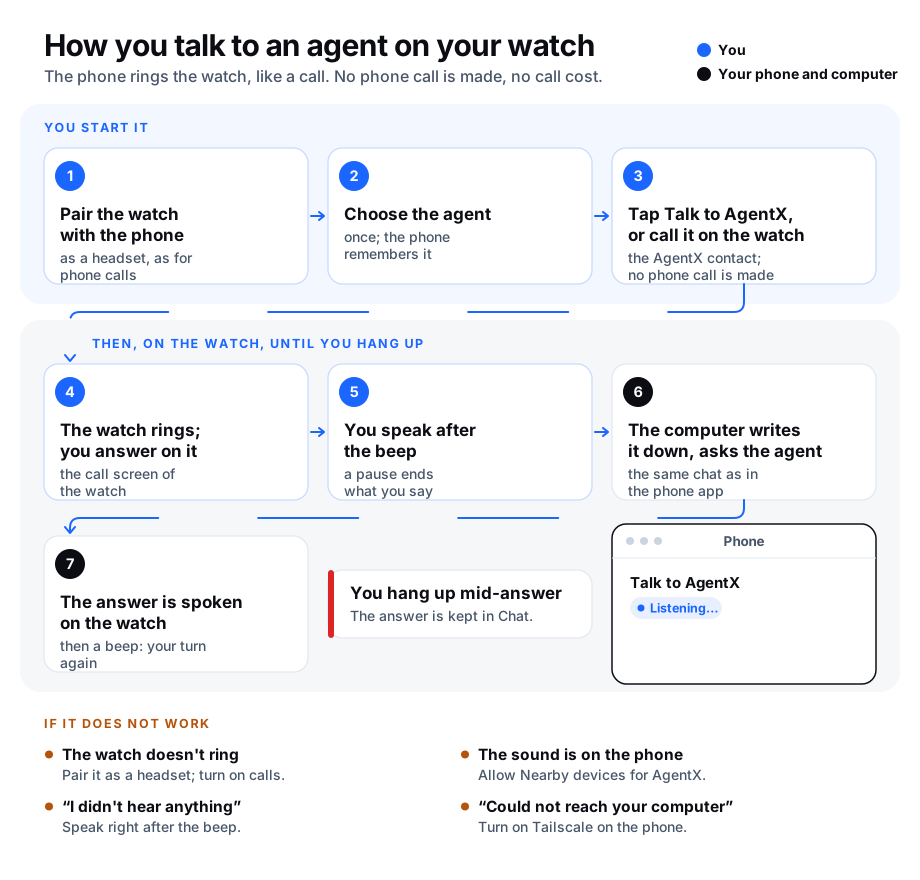
You can start the call in two ways: tap Start on the phone, or, once it is set up, call the AgentX contact from the watch itself. See Start from your watch.
What you need
- The AgentX Android app, built from this version or newer, installed and paired. It is the same app as for place reminders.
- A watch or headset that can take phone calls through Bluetooth, paired with the phone.
- Voice input on your computer, as for the phone app's Chat: see What the computer needs for voice. Without it the agent can't hear you.
- An agent's voice is optional. Without one, the phone reads the answer in its own voice.
Pair the watch with the phone
- Phone: pair the watch in the phone's Bluetooth settings, or in the watch's own phone app, the way its maker describes for calls.
- Phone: in Bluetooth settings, tap the watch and check that Calls (or Phone audio) is on.
If the watch already rings when someone calls the phone, it is ready.
Choose the agent
You do this once. The phone remembers the agent until you choose another.
- Phone: open Talk to AgentX from the app list. It has its own icon next to AgentX.
- Phone: under Choose another agent, tap the agent you want. Only agents on computers that are online are listed. With more than one computer, each agent shows its computer in brackets.
Talk
- Phone: open Talk to AgentX, or long-press the AgentX icon and tap Talk. The first time, Android asks for three things:
- Phone: allow the microphone. Without it the agent can't hear you.
- Phone: allow Nearby devices. Without it the call stays on the phone's speaker instead of the watch.
- Phone: allow notifications. They give you a Hang up button in the notification shade.
- Watch: the watch rings, showing AgentX or the agent's name. Answer it on the watch.
- Watch: you hear "You are talking to …", then a beep. Speak after the beep. Stop speaking for a moment and the phone takes that as the end of what you said.
- Watch: a soft tick every few seconds means the agent is working. Then you hear the answer, in the agent's voice when the computer has one, then a beep: your turn again.
- Watch: hang up on the watch when you are done.
The whole call is one conversation in the phone app's Chat, so you can read it there afterwards, with any links or files the agent sent.
Good to know:
- Hang up whenever you like. If the agent is still working, it finishes, and the answer appears in Chat with a notification, as when you leave Chat.
- Silence ends the call. If you say nothing twice in a row, the phone says goodbye and hangs up.
- Code and links are not read out. The phone says "code left out" and "a link" instead. Read them in Chat.
- Keep it short. One turn can be up to 45 seconds long.
- Without a watch the call still works, on the phone's speaker.
Start from your watch
With this set up, you start a call without touching the phone, which can stay locked in your pocket. Your watch can't run the AgentX app, but it can call a contact. So you call a contact named AgentX from the watch. AgentX catches that call on the phone before it is made, cancels it, and rings your watch straight back with the agent.
No phone call is made and nothing is charged. The AgentX contact's number (+21400000000) is not a real line. The phone cancels the call before the SIM dials it, and the number uses a country code that no network connects, in case it ever got through.
What you need, on top of What you need:
- Android 10 or newer.
- A watch that can call the phone's contacts. Some watches only show contacts you choose in the watch's own phone app (such as Mi Fitness or Zepp).
Set it up
You do this once.
- Phone: open Talk to AgentX and check that an agent is chosen. See Choose the agent.
- Phone: under Start from your watch, tap Set up.
- Phone: allow the microphone, Nearby devices and notifications if Android asks. A call started from the watch can't ask for them later, with the phone in your pocket.
- Phone: Android asks whether to make AgentX your call redirect app. Tap AgentX, then Set as default. This lets AgentX see the number of each call the phone places. It changes only the call to the AgentX contact, and every other call goes out as before.
- Phone: the Contacts app opens with a new contact, AgentX with the number
+21400000000, filled in. Tap Save. To add it again later, tap Add the AgentX contact. - Phone: in the watch's phone app (such as Mi Fitness or Zepp), add AgentX to the watch's contacts or favourites, if your watch needs that.
- Phone, Xiaomi only: tap Allow on Xiaomi and turn on Open new windows while running in the background. Without it the watch is still rung back from the background. With it on, the Talk screen can open too.
The Start from your watch section now says On.
Call from the watch
- Watch: open the watch's contacts and call AgentX.
- Watch: the call ends at once, and about two to four seconds later the watch rings again: AgentX is calling back.
- Watch: the phone answers the call itself after a second, so you don't need to tap. You hear "You are talking to …", then a beep.
- Watch: talk as in Talk, and hang up on the watch when you are done.
Good to know:
- The phone stays locked. AgentX holds the microphone with its call notification while the call is on, so it needs no screen and no "open windows in the background" permission.
- "Answer the ring-back by itself" is on by default. Turn it off if you would rather answer the ring-back on the watch. The setting is saved as soon as you tap it. In tests, a ring-back answered on the watch could keep moving its sound to the phone, so leave it on unless you have a reason.
- The sound stays on the watch. Some phones (Xiaomi) move a call from the watch to the phone's earpiece a second after it starts. AgentX asks for the watch again, once a second, up to ten times. If the watch is still gone after that, the call goes on from the phone. On a Xiaomi phone the sound can jump away and back up to three times in the first three seconds, before the greeting. That is expected, and the greeting and the rest of the call stay on the watch.
- Your phone may flash its call screen for about two seconds when the watch calls. It closes by itself.
- To stop it, tap Turn off under Start from your watch. A call to the AgentX contact then goes to the phone network, which refuses it without connecting. To hand back the call redirect role as well, open Android settings, then Apps, then Default apps, then Call redirect app, and choose None.
Check it worked
- Phone: open Talk to AgentX. The screen shows Talk to and your agent's name.
- Watch: the watch rings. Answer it on the watch, not on the phone.
- Watch: you hear "You are talking to …" and a beep.
- Watch: ask something short, such as "What time is it?". You hear the answer on the watch.
- Phone: while the call is on, the Talk to AgentX screen shows each step: Listening…, then You said: …, then the agent answering. If it says No watch or headset took the call, see below.
- Watch: hang up. The screen says Call ended.
- Phone: open AgentX, then Chat. The conversation is there, with what you said and the answer.
To check the start from the watch:
- Phone: lock the phone and put it away.
- Watch: call the AgentX contact.
- Watch: within about five seconds the watch rings, the call connects by itself and you hear "You are talking to …".
- Watch: ask something short, hear the answer, then hang up on the watch.
- Phone: unlock the phone and open Talk to AgentX. It says Call ended. If you are collecting
adb logcat -s AgentXTalk(a log from the phone over USB), the line for the end of the call reads call ended by Telecom (watch or call screen hung up). - Phone: open the phone's call history. It shows no call to AgentX that went out, or only a cancelled one.
If something is wrong
- The watch doesn't ring — it is not connected for calls. Check Pair the watch with the phone. The Talk to AgentX screen says The watch did not answer after 45 seconds. Tap Answer on the phone to talk on the phone's speaker instead.
- "Another call is on, so the watch can't ring now" — a phone or app call is still on. End it and tap Start.
- "No watch or headset took the call, so it is on the phone's speaker" — the watch is not connected, or Nearby devices is not allowed. Then:
- Phone: open Android settings, then Apps, then AgentX, then Permissions, and allow Nearby devices.
- Phone: check that the watch is connected in Bluetooth settings.
- Phone: tap Start again.
- "AgentX may not use the microphone" — open Android settings, then Apps, then AgentX, then Permissions, and allow Microphone. Then tap Start.
- You hear "I didn't hear anything" each time you speak — speak right after the beep, close to the watch. If it keeps happening, the watch's microphone may not reach the phone: send
adb logcat -s AgentXTalkfrom a call, which names the microphone used, to whoever set up AgentX. - You hear "I could not reach your computer" — Tailscale is off on the phone or on the computer. Turn it on and start again.
- You hear an error about voice input, such as "Install ffmpeg" — the computer can't turn speech into text. Set it up as in What the computer needs for voice.
- You hear "This phone is no longer paired" — the app's key was removed with
agentx app revoke. Pair the app again as in Place reminders › Pair the Android app. - "No agent is online" — AgentX is not running on the computer, or it is offline. Start it, then tap Choose another agent again.
Starting from the watch:
- The watch's call to AgentX fails and nothing rings back. AgentX is no longer the call redirect app, or Start from your watch is off. Open Talk to AgentX: if the section says no longer the call redirect app, tap Set up again. Another app that redirects calls, such as some call-blocking apps, can take the role away.
- The section says "This phone can't start a call from the watch" — the phone runs an Android older than 10, or its maker removed call redirection. Start calls on the phone with Start instead.
- The watch rings back, but you hear "I didn't hear anything" each time. The phone did not let AgentX use the microphone in the background. Open Talk to AgentX once with the phone unlocked and check that Microphone is allowed. If it keeps happening, send
adb logcat -s AgentXTalkfrom a call to whoever set up AgentX: the line the microphone gave only silence confirms it. - The sound moves from the watch to the phone during the call — AgentX asks for the watch back by itself, a few times per call, so it usually returns within a second or two. If the sound keeps moving, or stays on the phone:
- Phone: open Talk to AgentX and turn Answer the ring-back by itself back on.
- Phone: check in Bluetooth settings that the watch is still connected.
- If it still happens, send
adb logcat -s AgentXTalkfrom a call to whoever set up AgentX. The lines watch audio dropped and recorded on the phone's microphone show when it happened.
- Hanging up on the watch does not end the call — tap Hang up on the Talk to AgentX screen or in the call notification. Then send
adb logcat -s AgentXTalkfrom that call to whoever set up AgentX: the line call ended by says what ended it. - The call is on the watch but you hear nothing, and AgentX does not hear you — send
adb logcat -s AgentXTalkfrom that call to whoever set up AgentX. It shows whether the watch's audio link (watch audio link, SCO link) was connected, the call's audio mode, whether the phone was locked, and the microphone's level each second (mic second). - "Choose the agent to talk to first" — no agent is chosen yet. Open Talk to AgentX, choose one, then call from the watch again.
- AgentX is not in the watch's contacts — add it in the watch's phone app (such as Mi Fitness or Zepp), or check that the contact was saved on the phone. Tap Add the AgentX contact to add it again.