
Share your phone camera
The phone app can show what your phone's camera sees to another computer that runs AgentX, or to one of your agents. Use it to look at something from your desk while someone else, or you, holds the phone: a server rack, a cable, a document. An agent can tell you what it sees ("the third port is empty", "this invoice is for 240 euros") and, once you allow it, can ask you to show it something.
The camera opens only when you tap Start camera or Show, and a red bar with a Stop button stays on screen the whole time it is live. The app never uses the camera in the background: leaving the app stops the share.
When you show the camera to another computer, the picture goes straight from the phone to that computer and isn't saved. When you show it to an agent, the agent doesn't get a video: it gets one picture when you tap Look now (or when it asks for one), and the pictures are deleted when the share ends unless you turn keepFrames on.
Before you start
- Install and pair the phone app. The phone must open it over
https://(thetailscale servesetup in that guide), or the browser won't give it the camera. - Turn calls on for the computer the phone is paired with. In its
agentx.json:jsonThen restart AgentX on that computer ({ "channels": { "webrtc": { "enabled": true } } }agentx daemon restart). A config reload isn't enough to turn calls on. - To show the camera to another computer, you need two AgentX computers in the same mesh (the private link between your AgentX computers), sharing a mesh token, with calls turned on on both. See Add a second machine. So you get the link to watch, set
channels.webrtc.ringNotifyon the computer you watch from, for example your Telegram chat. The options are in the calls settings. - To show the camera to an agent, the agent must live on the computer the phone is paired with. That computer needs the
@roamhq/wrtcpackage, which AgentX installs with itself; the sheet tells you if it is missing.
Show the camera to another computer
Phone: open the app and tap the camera button (📷) at the top right.
Phone: under Show it to, pick the computer you will watch from.
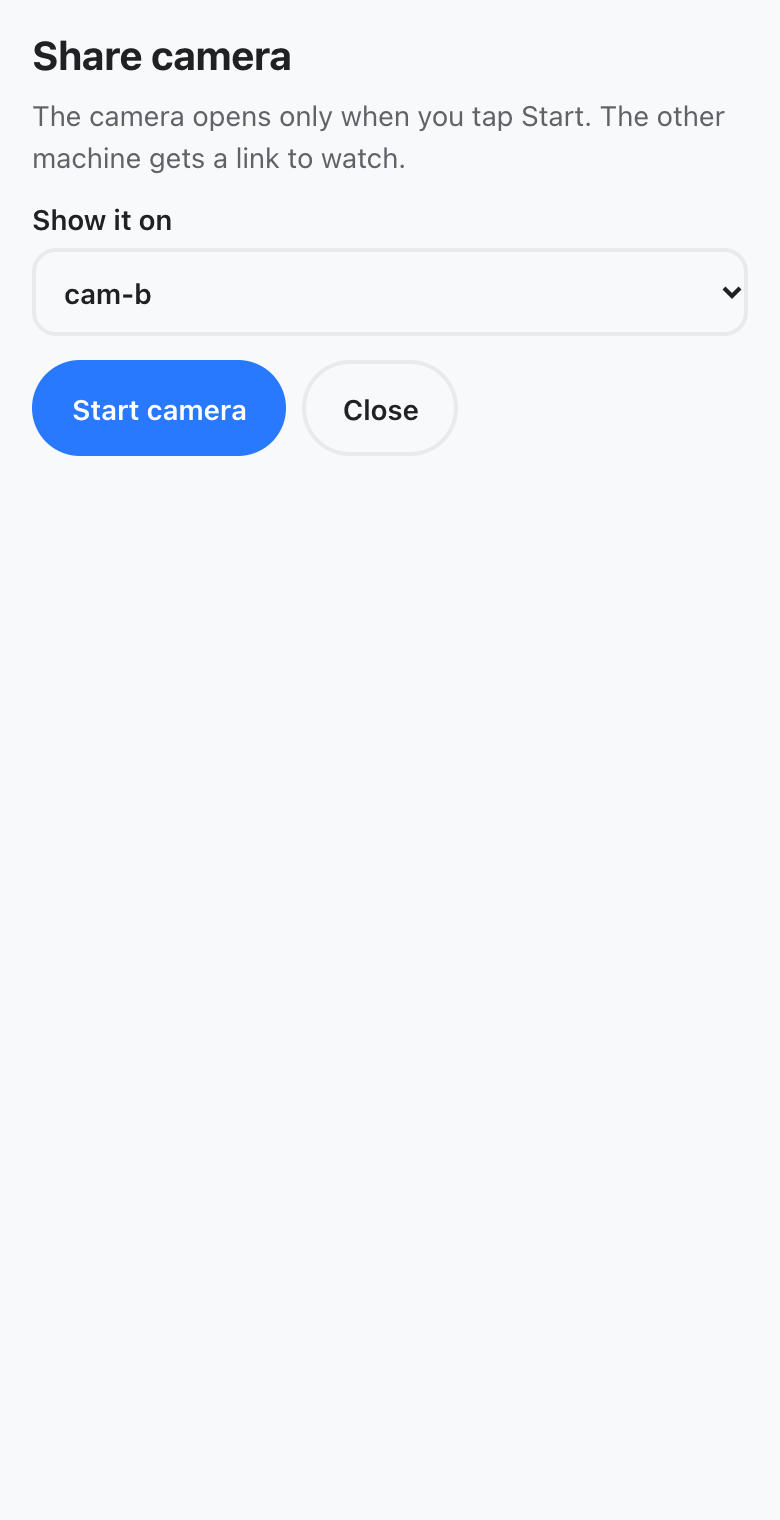
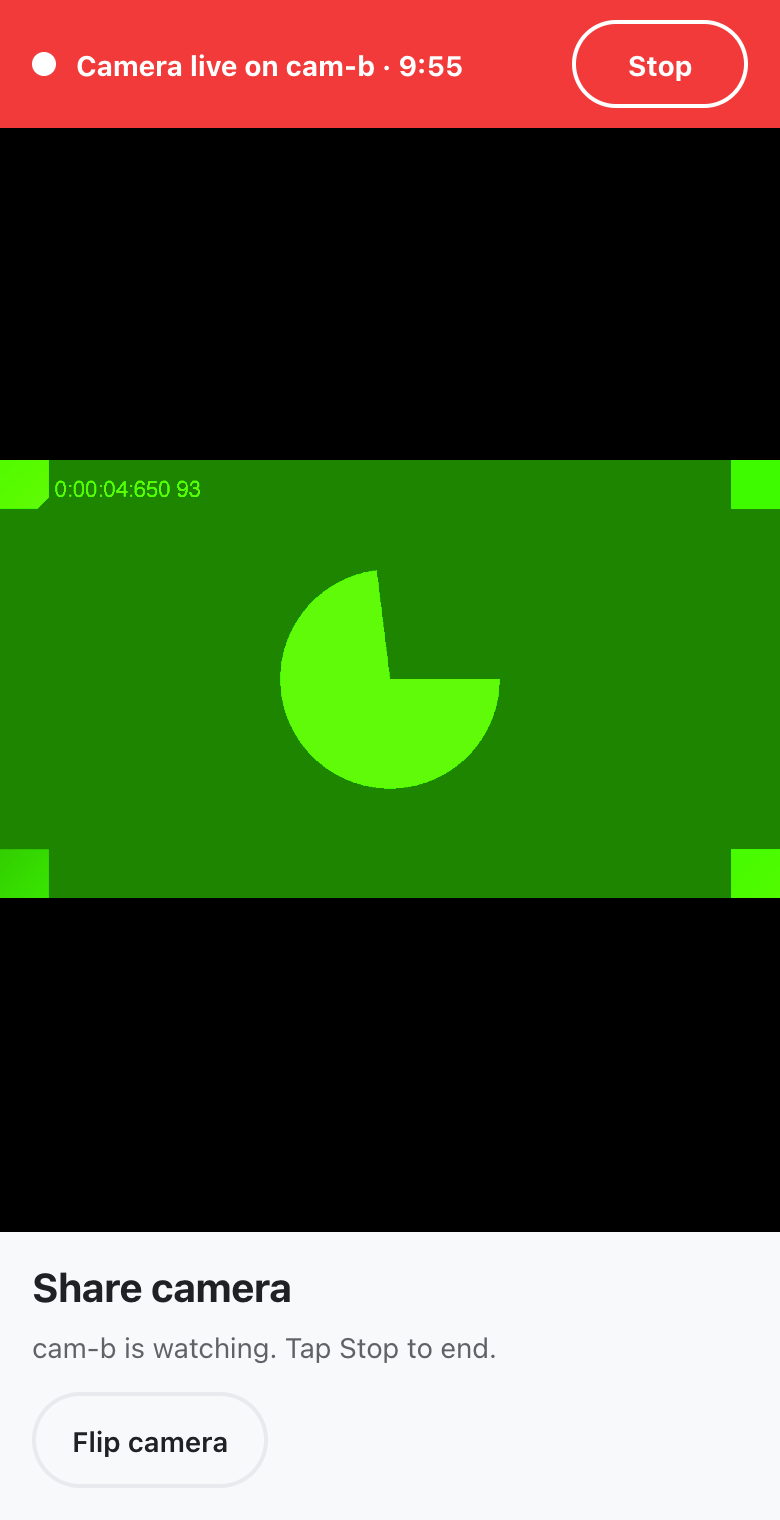
Phone: tap Start camera. The first time, the phone asks to use the camera: allow it. The back camera opens and a red bar says Camera live on … with the time left.
Other computer: you get a message such as "📷 my-mac is sharing a phone camera — tap to watch" with a link. Open it on that computer and click Join.
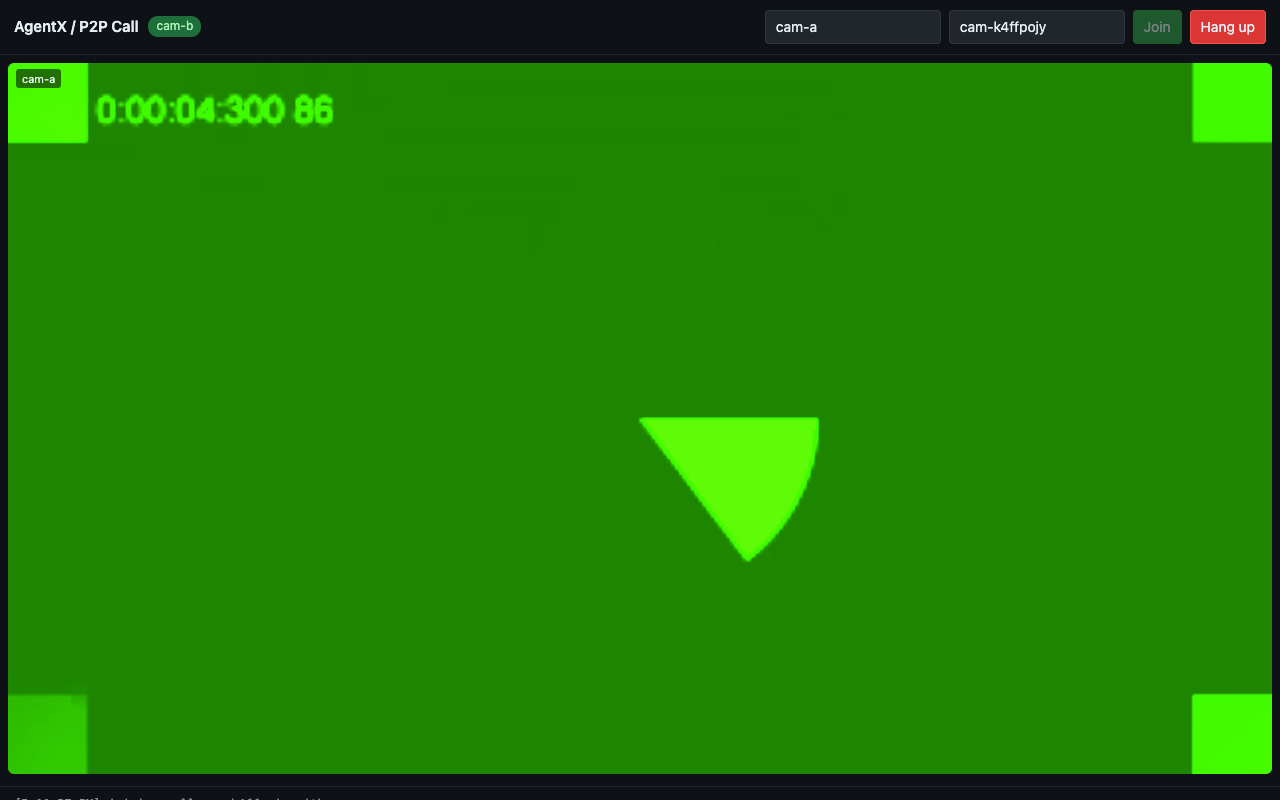
Phone: the sheet now says … is watching. Tap Flip camera to switch between the back and front cameras.
The phone waits until you open the link, so you can take your time.
Let an agent look
Phone: tap the camera button (📷) at the top right.
Phone: under Show it to, pick the agent. Agents are listed as Agent: … after the computers.
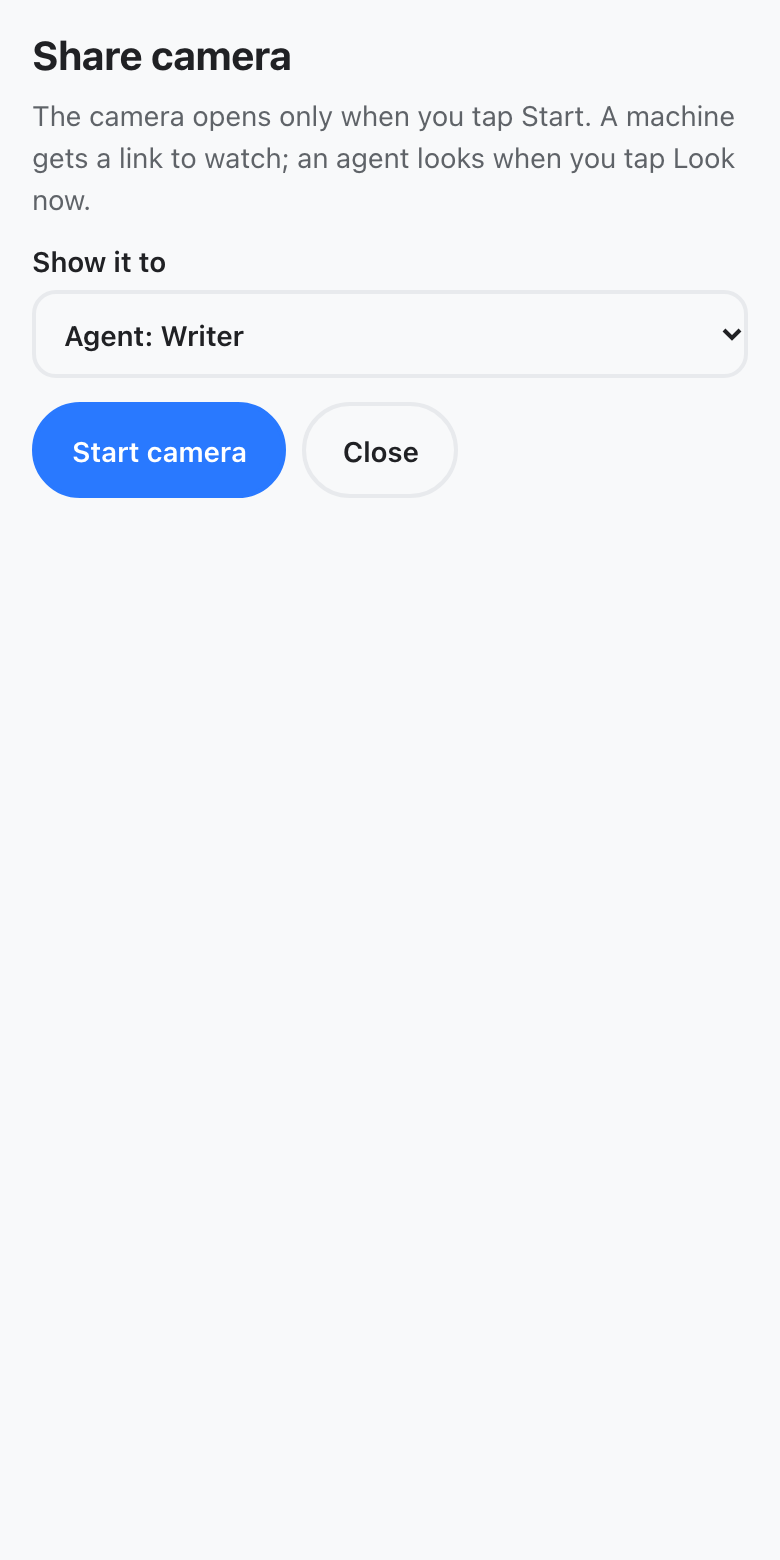
Phone: tap Start camera. The red bar says … is watching, and after a moment the sheet says the agent can see the camera.
Phone: point the camera at what you want the agent to see. Type a question in Ask the agent something if you have one.
Phone: tap Look now. The agent gets the newest picture and answers on the sheet, newest answer first. Tap Look now again whenever you want a fresh look.
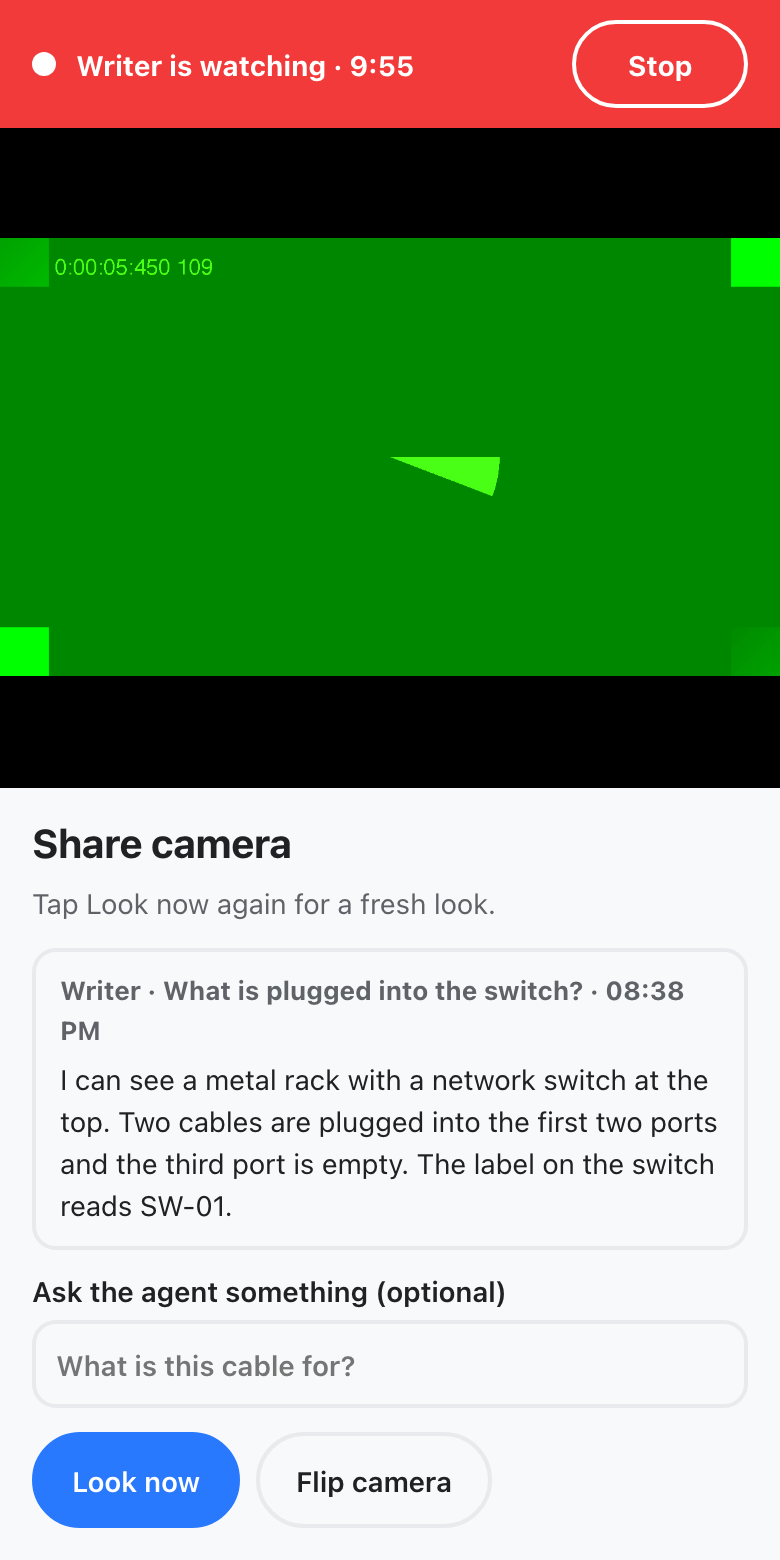
Phone: tap Stop when you are done.
While you share, the agent can also take a picture by itself from inside its own work, for example when you ask it something in chat or by voice: it runs agentx camera look, gets the newest picture, and opens it. Its answer comes back where you asked. An agent gets a picture by itself on a timer only if you set frameIntervalSeconds (see Settings); each of those pictures is a turn of the agent, so the default is off.
The share ends after maxSessionMinutes (10 by default) even if the phone's own limit is longer.
When an agent asks to see
An agent that needs to see something can ask you, the same way an agent calls you. Nobody can ask until you allow them, and the camera opens only when you tap Show.
Terminal: go to the folder that holds
agentx.jsonand allow the agent, replacingwriterwith your agent's id:shagentx call allow writerThis is the same list as for calls (
calls.allow).agentx call disallow writertakes it back.Phone: when the agent asks, a blue bar appears at the top of the app with the agent's name and what it wants to see. You also get a notification, the same way
agentx notifysends one.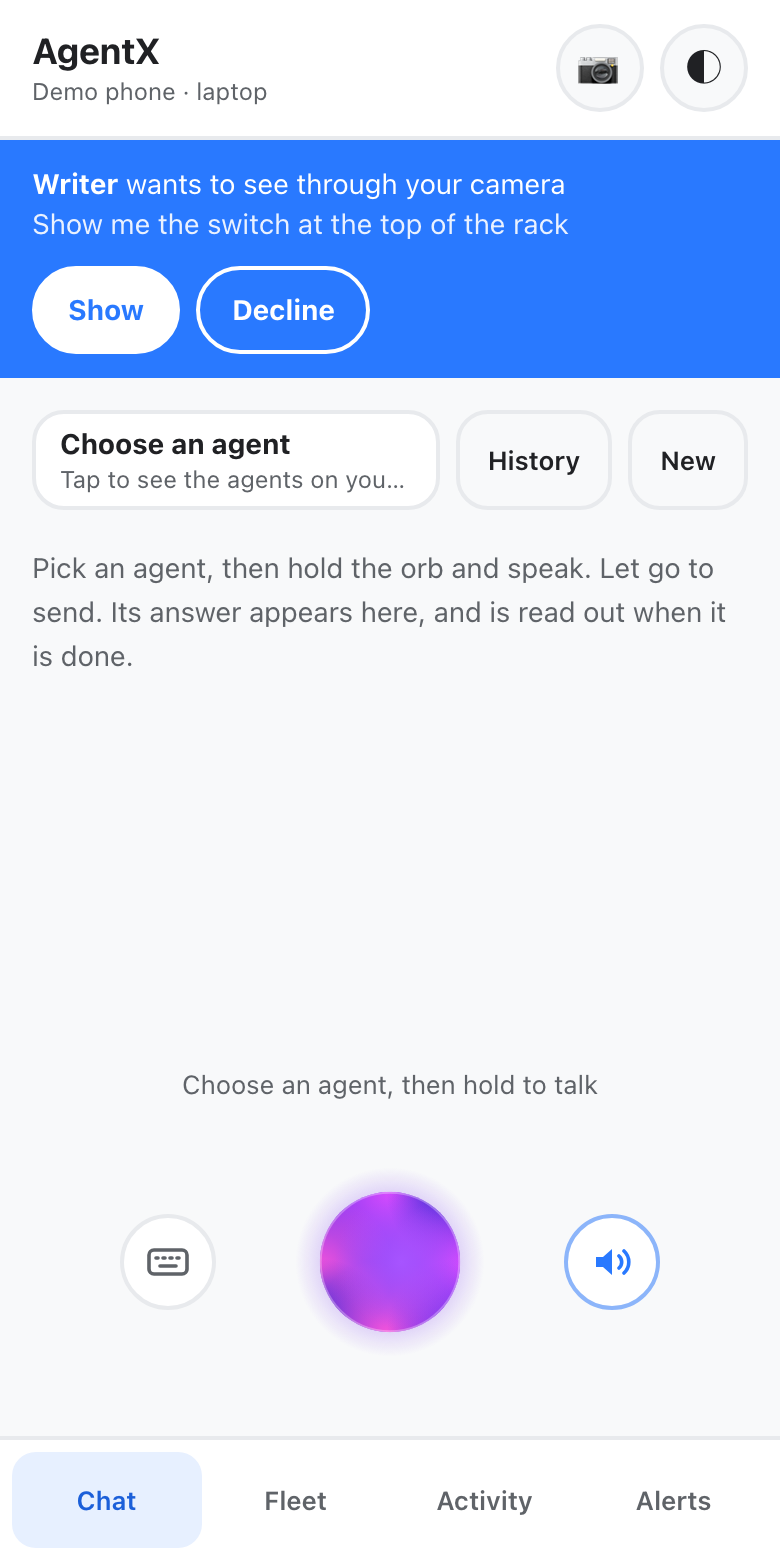
Phone: tap Show. The camera sheet opens with that agent already picked, the camera starts, and the agent's request is filled in as your question.
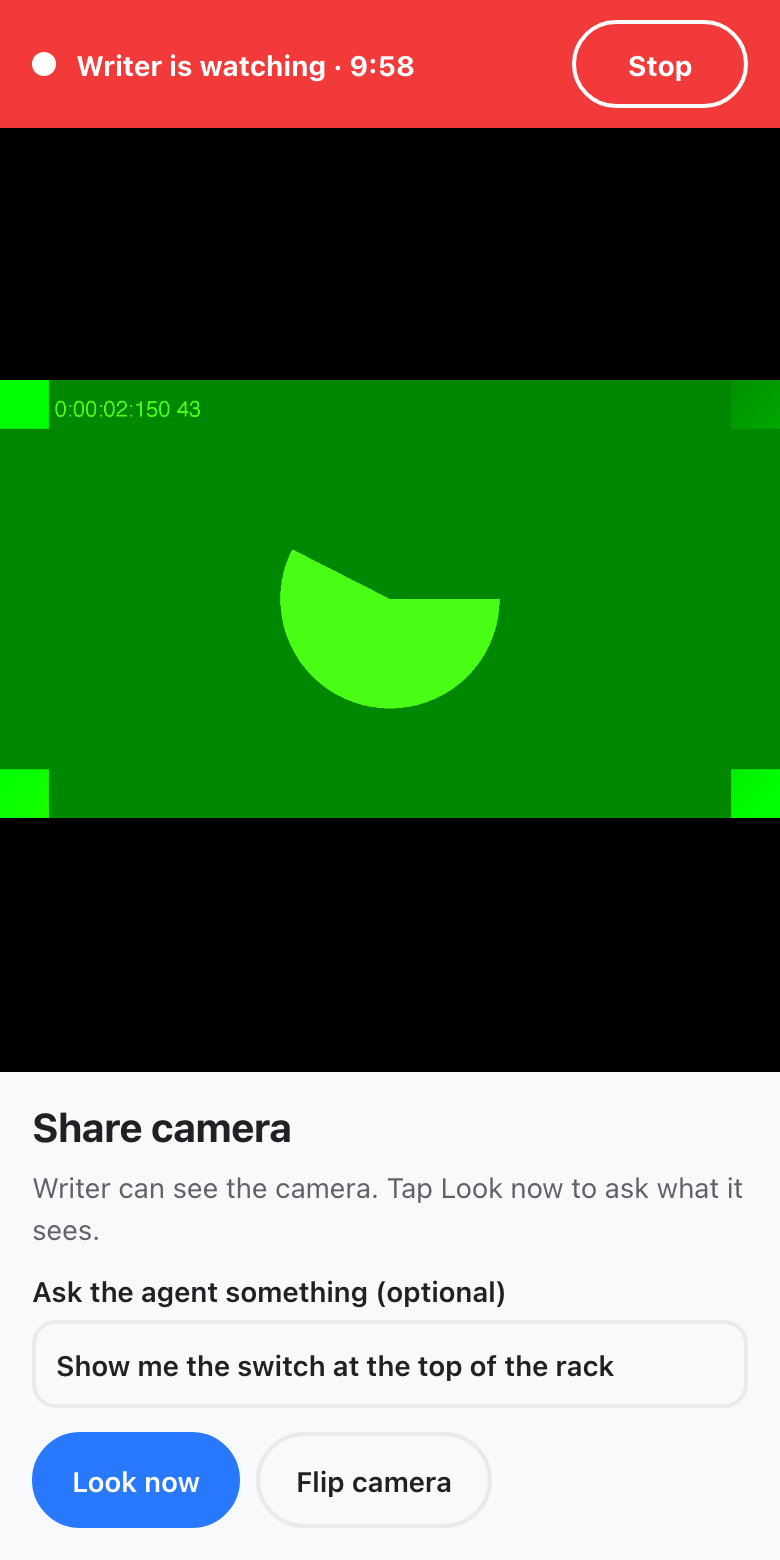
Phone: point the camera and tap Look now, or let the agent take its own picture. Its answer goes back to the chat it asked from, and shows on the sheet when you tapped Look now.
Phone: tap Stop when you are done. That ends the agent's request too.
Tap Decline instead to turn the request down. A request nobody answers counts as missed after calls.ringSeconds (45 seconds by default), and a request that isn't urgent waits until Focus ends. Each agent can ask, or call, at most calls.maxPerHour times an hour, and only one request or call at a time.
Agents ask through the agentx_camera_ask tool, which AgentX gives them, or with agentx camera ask --reason "…" inside their run. As with calls, a request counts only when it comes from a turn of that agent that is running now.
Stop sharing
Any of these stops the camera at once:
- Phone: tap Stop in the red bar.
- Other computer: click Hang up.
- Phone: leave the app or lock the screen. The app never uses the camera in the background.
- Terminal:
agentx camera stop <id>ends an agent's watch (agentx camera watchinglists them). - The time limit runs out: 10 minutes by default for the phone, and 10 minutes for an agent's watch.
Settings
Under channels.webrtc.camera in agentx.json, on the computer the phone is paired with:
| Key | Default | What it does |
|---|---|---|
width, height | 1280, 720 | Picture size the phone asks for. |
frameRate | 15 | Frames per second the phone asks for. |
maxSeconds | 600 | The share stops after this many seconds. |
For an agent watching, under channels.webrtc.camera.bot:
| Key | Default | What it does |
|---|---|---|
frameIntervalSeconds | 0 | How often the agent gets a picture by itself, in seconds. 0 means only when you tap Look now or the agent asks for one. |
maxSessionMinutes | 10 | The agent's watch ends after this many minutes. |
maxFrameEdge | 1024 | Pictures are shrunk so their longer side is at most this many pixels. |
keepFrames | false | Keep the picture files in the agent's workspace, under .agentx/camera/, after the share ends. |
Who may ask to see, and how often, is under calls (reference). channels.webrtc.allowedCallers on the watching computer limits which computers may share with it.
Check it worked
- Phone: tap 📷. The computer or the agent you expect is listed under Show it to.
- Phone: pick the agent and tap Start camera. The red bar says … is watching and the time left counts down.
- Phone: tap Look now. Within a few seconds the agent's answer appears on the sheet.
- Terminal: on the computer the phone is paired with, run
agentx camera watching. The share is listed with its frames and looks. - Phone: tap Stop. The red bar goes away and the phone's camera light turns off.
- Terminal: run
agentx call allow <agent>, then ask that agent in chat to show you its camera request (it usesagentx_camera_ask). The blue bar appears on the phone; tap Show, then Stop.agentx camera listshows the request asended.
If something is wrong
- "Calls are off on this computer" — set
channels.webrtc.enabledtotrueon the computer the phone is paired with, then restart AgentX there (agentx daemon restart). - "No other machine or agent to show it to" — this computer has no mesh peer and no agent. Add one as in Add a second machine, or add an agent.
- "This browser cannot share its camera here" — the app was opened over
http://. Open it from thehttps://address thattailscale servegives you. - "Camera access was refused" — allow the camera for the app, or for Safari, in the phone's settings, then try again.
- "could not join the share: WebRTC bot requires @roamhq/wrtc" — the package is missing on that computer. In the AgentX folder, run
pnpm add @roamhq/wrtc, then restart AgentX. - "no picture has arrived from the phone yet" — you tapped Look now in the first second. Wait a moment and tap again.
- "… did not answer" — the agent's turn failed. Check the agent in the dashboard's Live page and try again.
- "… is already watching a camera" — that agent still has a share open.
agentx camera watchinglists it andagentx camera stop <id>ends it. - The agent's request never shows on the phone — the agent isn't allowed yet (
may not ask to see: runagentx call allow <agent>), or the app is closed. Open the app; the bar shows while the request is waiting.agentx camera list --status missedshows requests that timed out. - "Could not reach …" — AgentX isn't running on the other computer, or the mesh token differs. Check with
agentx mesh list. - No message with a link arrives —
channels.webrtc.ringNotifyisn't set on the other computer. You can still watch: open/call?to=<phone's computer>&callId=<id>&watch=1on it. The id is in its AgentX log, in the linering received for call=<id>. - The page says connected but stays black, or "The connection … failed" — the two devices can't reach each other directly. Put both on the same tailnet, or add a relay under
channels.webrtc.turnServers.