
Give a client a page of their own
A client is someone you do work for: not a teammate, not another organisation running AgentX. When a client asks your agents for something on WhatsApp, Telegram, GitLab or GitHub, they have no way to see whether it is being worked on, waiting on you, or finished. This page gives them one small window of their own, Your project: what they asked you for, and where it stands, in plain words. It names none of your agents and shows nothing of yours or of anyone else's.
A client is listed in people with the role client. Everything else works like a teammate's page: one page served on your private network, a one-time code to pair, a key per machine, and nothing opens until you say yes to the machine. The difference is the page behind the door. A teammate gets My work, with their agents and what each is doing. A client gets Your project, with their own requests only.
What the page does not do yet: let the client share a folder with you, record their agreement before your agent touches their files, or let them pause that work. Those parts come once the sharing structure is settled.
The whole path, from your first step to the client's desktop:
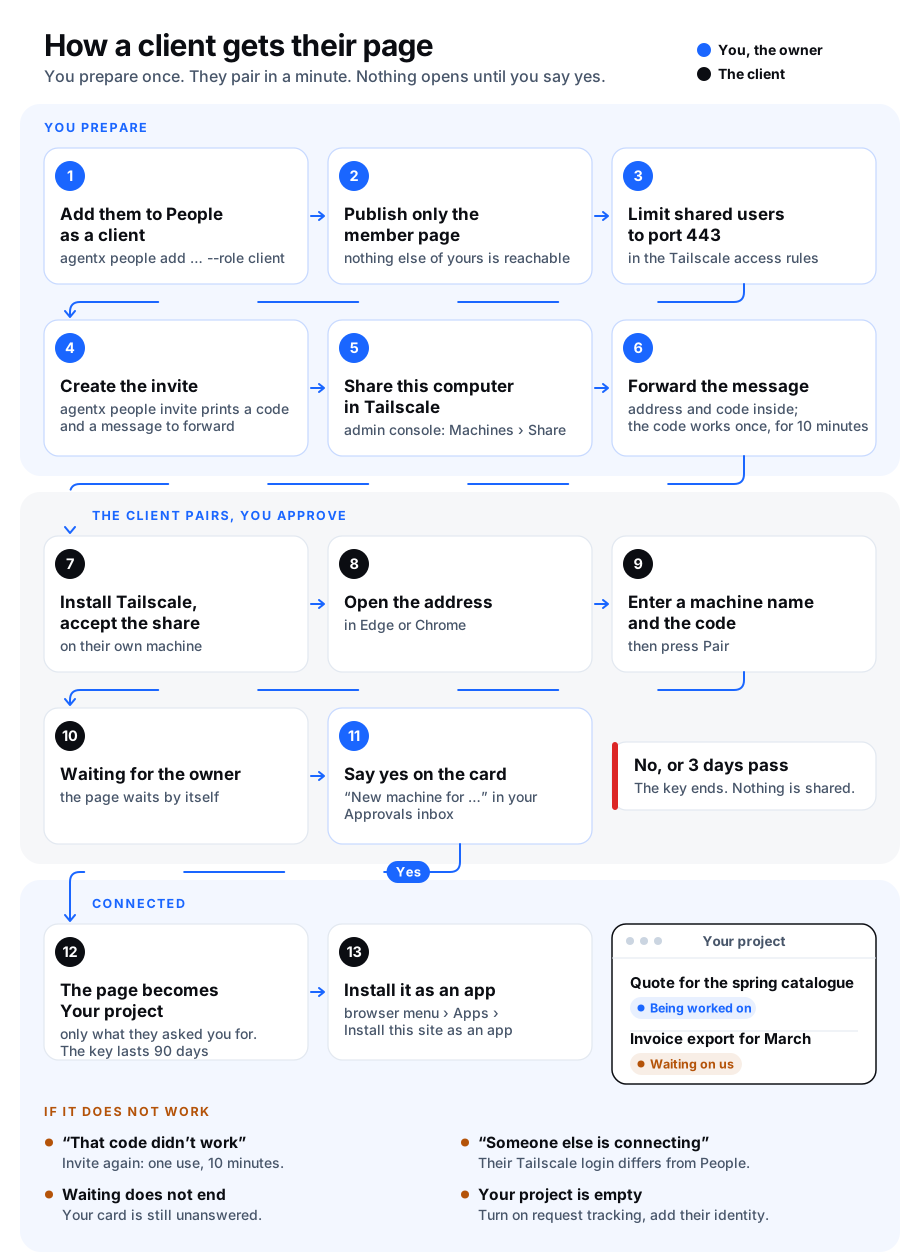
What you need
- The client listed in people with
--role client, and the identity they write from on the channel they use. - Request tracking turned on, so there is something to show.
- Tailscale on your computer and on theirs. Their machine joins your network through a share of this one computer; no public address is used.
- Only the member page published on the network, and shared users limited to port 443: follow Serve only the member page once. The client's page lives under the same two paths,
/memberand/api/member, so nothing more is published for it. - The dashboard running from the folder that holds
agentx.json.
What is Tailscale?
Tailscale is an app that links computers into a small private network over the internet, so they can reach each other without opening anything to the public. A share lets someone outside your network reach one of your computers, and nothing else. To install it and connect your own machines, see Connect machines with Tailscale.
Invite
Terminal (computer): from the folder that holds
agentx.json, list the client with their role and the identity they write from:shagentx people add acme --name "Acme Bakery" --role client --identity whatsapp:21620123456To turn a person already listed into a client, edit
peopleinagentx.jsonand set theirroletoclient. Their page changes the next time they open it.Terminal (computer): make their one-time code:
shagentx people invite acmeIt prints the share step, the address of the page, a pairing code such as
7KQ4-M2XH, and the name of the page the person gets, Your project. The code works once, for 10 minutes. The command refuses to go on iftailscale servepublishes the whole dashboard.It ends with a block marked Message to forward: a short message in plain words, written for the client, that you copy and send as it is. It names their page, Your project, says nothing about your agents, and asks them to run nothing on your computer.
textHi Acme Bakery, I use AgentX to keep track of the work I do for you. It has a page for you, "Your project": what you asked us for, and where each request stands. To open it: 1. Accept the Tailscale share I sent you. Tailscale is a small program that connects your computer to mine, privately. 2. Open https://your-mac.tailnet-name.ts.net/member in Edge or Chrome, give your computer a name and type this code: 7KQ4-M2XH The code works once, for 10 minutes. If it has stopped working, tell me and I will send you a new one. I then approve your machine, and the page opens by itself.Browser (Tailscale admin console): open Machines, this computer, Share, and send the link to the client. Do this once per person; the invite reminds you.
Copy the message between the two dashed lines and send it to the client on WhatsApp, Telegram or mail, on a channel you know is theirs. Only the lines between the dashes are for them; the rest of the output is for you.
The client pairs their machine
The pairing pages are the same ones a teammate sees.
Their machine: install Tailscale and accept the share.
Their browser: open the address, for example
https://your-mac.tailnet-name.ts.net/member.The page asks for a name for the machine and the code. They type both and press Pair this machine.
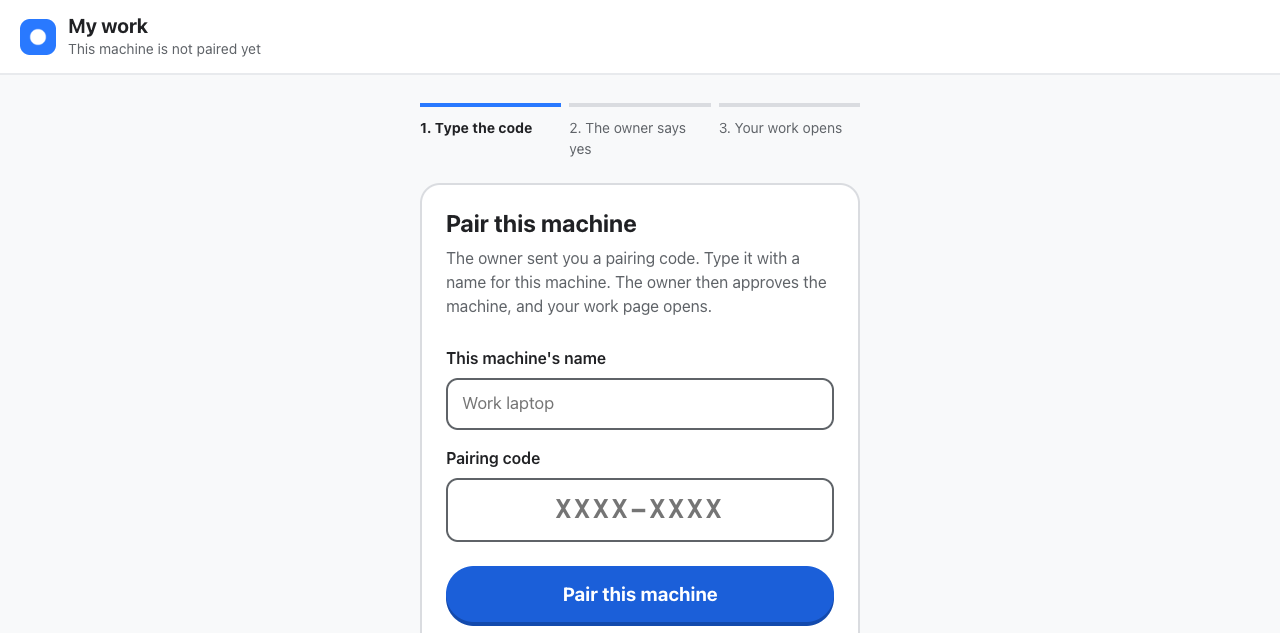
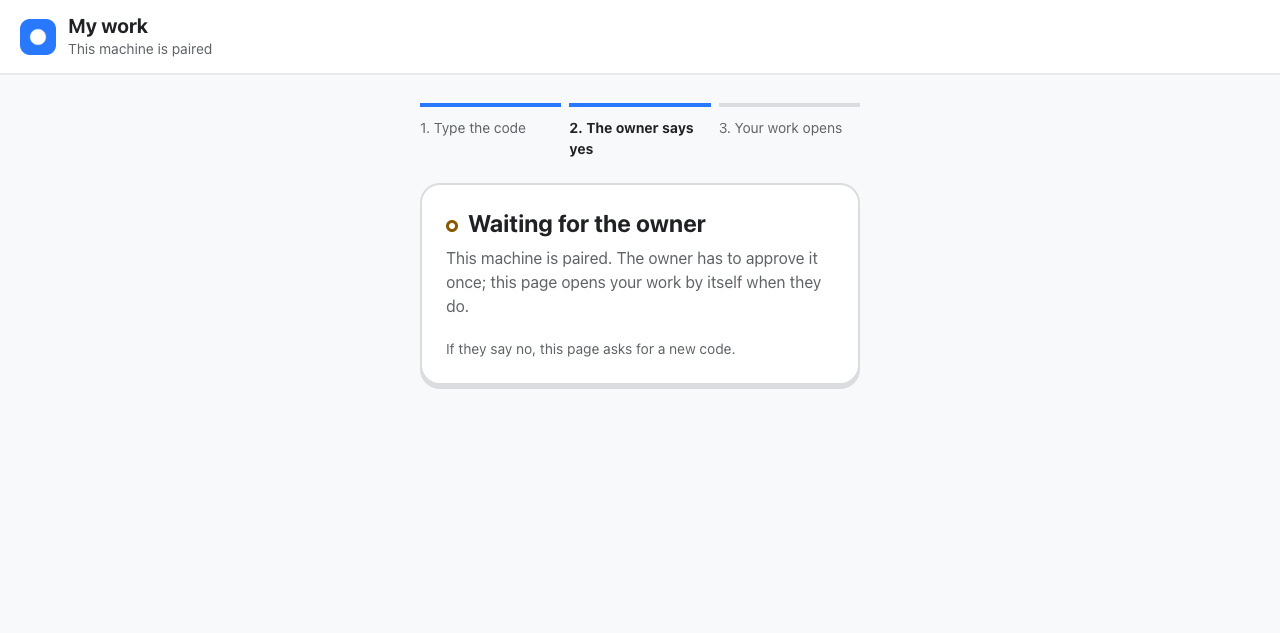
The page says Waiting for the owner.
If the code does not work, the page tells them to ask the person who invited them for a new one. It never sends them to a terminal: they have none on your computer.
Approve the machine
- A decision card New machine for Acme Bakery arrives in your Approvals inbox: the address it came from, the login the network reported, and the name the machine gave itself.
- Answer Yes if the client told you they just paired. No ends that key at once; a card nobody answers is treated as no after three days.
- Their browser: the waiting page turns into Your project by itself.
Your project
The page shows, for that client only:
- One sentence at the top: how many of their requests are being worked on, how many wait on you, and how many need a look from you. With nothing in progress, how many finished this week.
- What you asked for in the last 7 days: each request they made, where they asked it (WhatsApp, Telegram, a GitLab or GitHub thread, as a link), and its state in their words: Being worked on, Waiting on us, Needs a look from us, Finished, Stopped, Not taken on or Set aside. A finished request links to what was delivered. A request that waits on you is in the same list, not in a box of its own: the question your agent asked you is yours, not theirs.
- About this page: two lines that say what the page shows and whom to ask when something looks wrong.
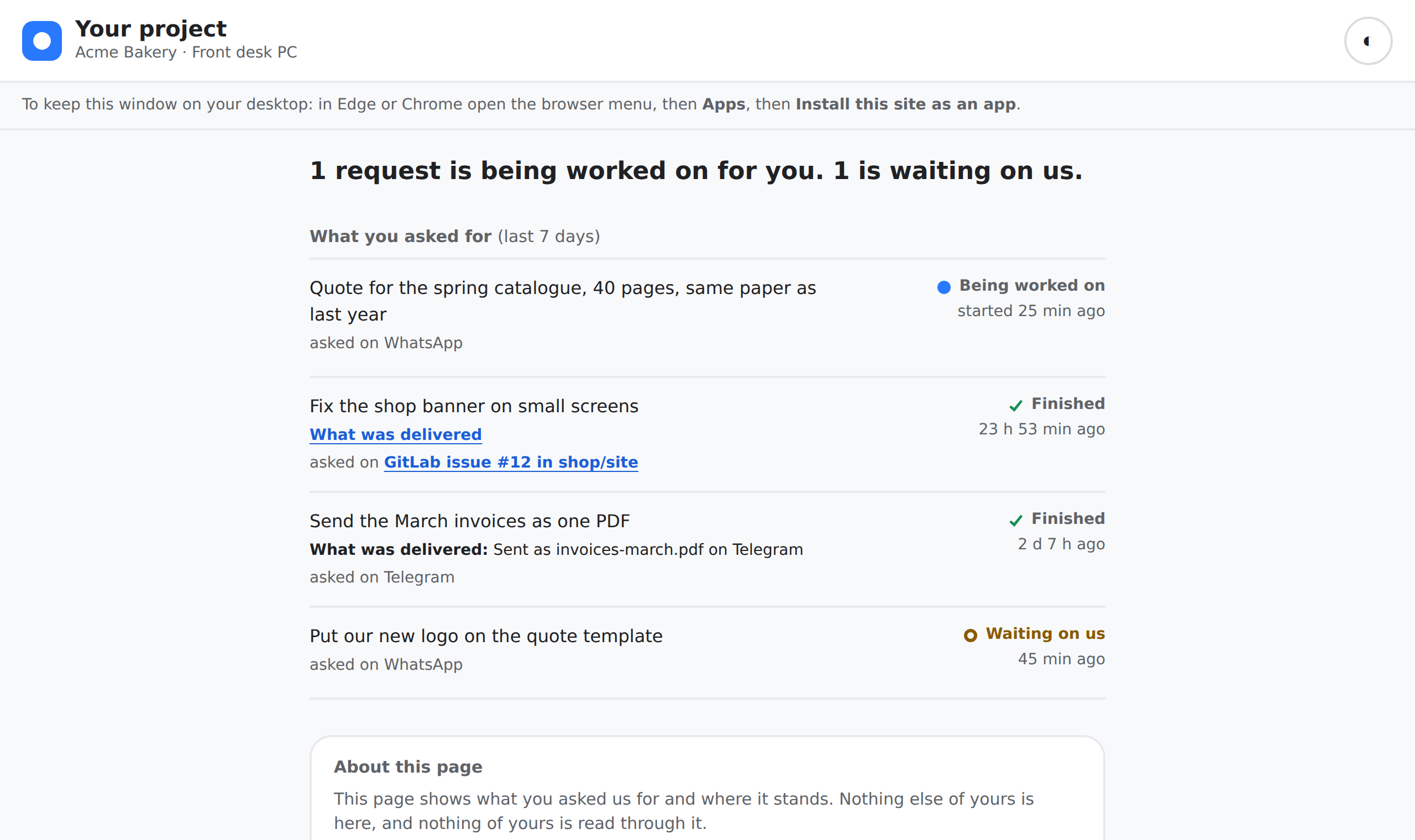
No agent id and no word about your other work appears on the page or in the data behind it. "Us" means you and your agents together; the client does not need to tell them apart.
It refreshes every 30 seconds. Opened without a connection, it shows what was last loaded and says it is offline. When the connection is up but your computer does not answer, the page says it can't reach the server, tries again every 20 seconds, and shows a Try now button.
Keep it on the desktop
- Their browser (Edge or Chrome, Windows or Mac): open the browser menu, then Apps, then Install this site as an app.
- It opens in its own window named Your project, like a small program, and stays in the Start menu or Dock.
Manage machines
A client's machines are managed like a teammate's: in the dashboard's People tab, where the client's row carries the badge Client, or from a terminal with agentx people devices, agentx people revoke-device <id> and agentx people remove acme. See Manage machines. A machine's key lasts 90 days; invite again after that.
Check it worked
- Terminal: run
agentx people list. The client's line ends with· client. - Terminal: run
agentx people devices. The client's machine is listed asactive. The People page of the Hub shows it as Active, under a row with the role Client. - Their browser: Your project shows a request they made on their channel, with the right state, and the title bar reads Your project, not My work.
- Their browser: opening
https://<your computer>/,/peopleor/appshows nothing of yours: only/memberanswers.
If something is wrong
- The client sees My work instead of Your project: their role is not
client. Runagentx people listand check the word after their name; setroletoclientinagentx.jsonif it is not. The page changes on the next open. --role must be one of: owner, member, client, guest: the role was mistyped. Writeclient.- "That code didn't work": the code was mistyped, is older than 10 minutes, or was already used. Run
agentx people invite acmeagain and forward the new message. - "The private network says someone else is connecting": the login Tailscale reports for their machine is not among the person's
tailscale:identities. Check withagentx people show acmeand fix the identity, or remove it to accept whatever login is reported. - "Waiting for the owner" does not end: the card is still in your Approvals inbox. Answer it.
- The page says "Nothing asked for yet" although they asked: request tracking is off (
agentx requests settings), or the client's identity on that channel is not on their person entry, so their requests were not stamped with their id. - The client can open other pages or ports of yours: your access rules let shared users reach more than port 443. Follow Serve only the member page.