
Answer customer email
Let an agent answer the email your customers send to a mailbox you own. The reply goes back into the same thread, so the customer sees it under their own message. By default nothing is sent until you approve it: each reply waits in Approvals, where you can read it, change it, and send it.
AgentX reads the mailbox over IMAP (how mail apps fetch mail) and sends over SMTP (how they send it), with the mailbox's own login. Gmail works with an app password, and so does any mail host that offers IMAP and SMTP.
You need:
- An agent with instructions for customers. See Your first agent, or add the ready-made
supportteam (see Answer from your documents). - A mailbox customers write to, with its IMAP and SMTP server names and password. For Gmail, an app password: a separate 16-letter password that Google gives you for one app. It needs 2-step verification on your Google account.
- A terminal in the folder with
agentx.json.
1. Before you connect
- Use a mailbox for this job only, such as
support@yourshop.com. The agent reads every new mail in its inbox. - Only new mail is answered. Mail already in the inbox when AgentX first reads it is never answered.
- Your mailbox stays as it is. AgentX marks nothing as read and moves nothing, so you still see every mail in your own mail app.
- Some mail is never answered: out-of-office replies, delivery failures and mailing-list mail.
- Choose who may write.
agentx connect emaillets anyone write (*), which suits a support address because you approve each reply. You can limit it to some addresses or to@yourclient.com. With no list at all, every mail is ignored.
2. Connect the mailbox
For Gmail, open Google app passwords, create one named
AgentX, and copy it.Terminal: connect the mailbox to the agent.
supportis an example; use your agent's ID:shagentx connect email --agent supportEnter the address customers write to. For a Gmail address the servers fill in by themselves. For any other host, enter the IMAP server and port (usually
993) and the SMTP server and port (usually465), as your host's help pages give them.Paste the password. AgentX tries to log in to IMAP and SMTP before saving anything, and stops with the server's answer if a login fails.
It saves the password in
.envasEMAIL_SUPPORT_PASSWORDand the rest inagentx.json. Restart the daemon so it starts reading the mailbox:shagentx daemon restart
To set it up in the browser instead, open Settings › Channels › Email, fill in the form and select Add mailbox.
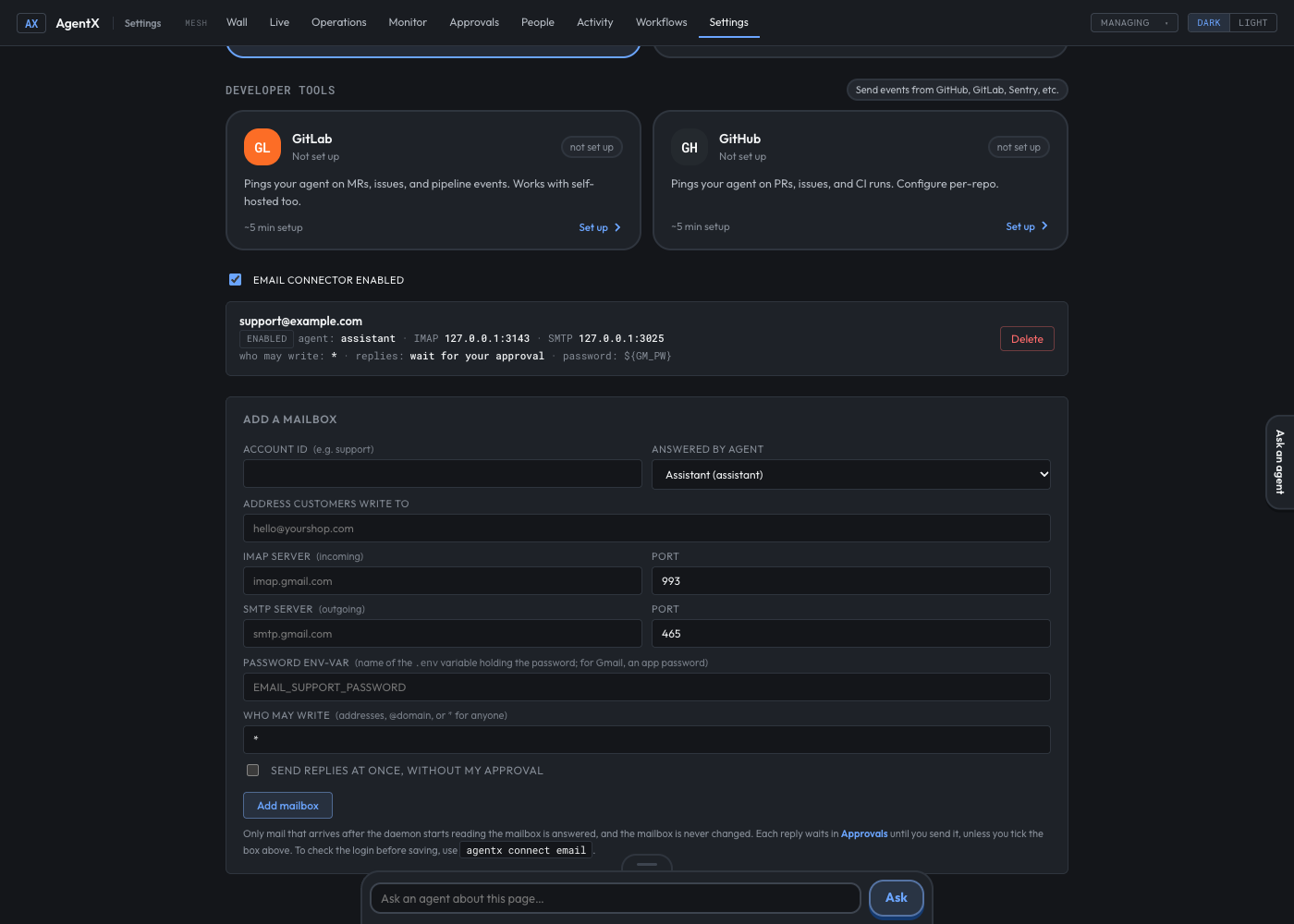 The dashboard never sees the password: add the line it names (for example
 EMAIL_SUPPORT_PASSWORD=…) to .env yourself, then restart the daemon. The browser form does not try the login first; agentx connect email does.
3. Send the replies
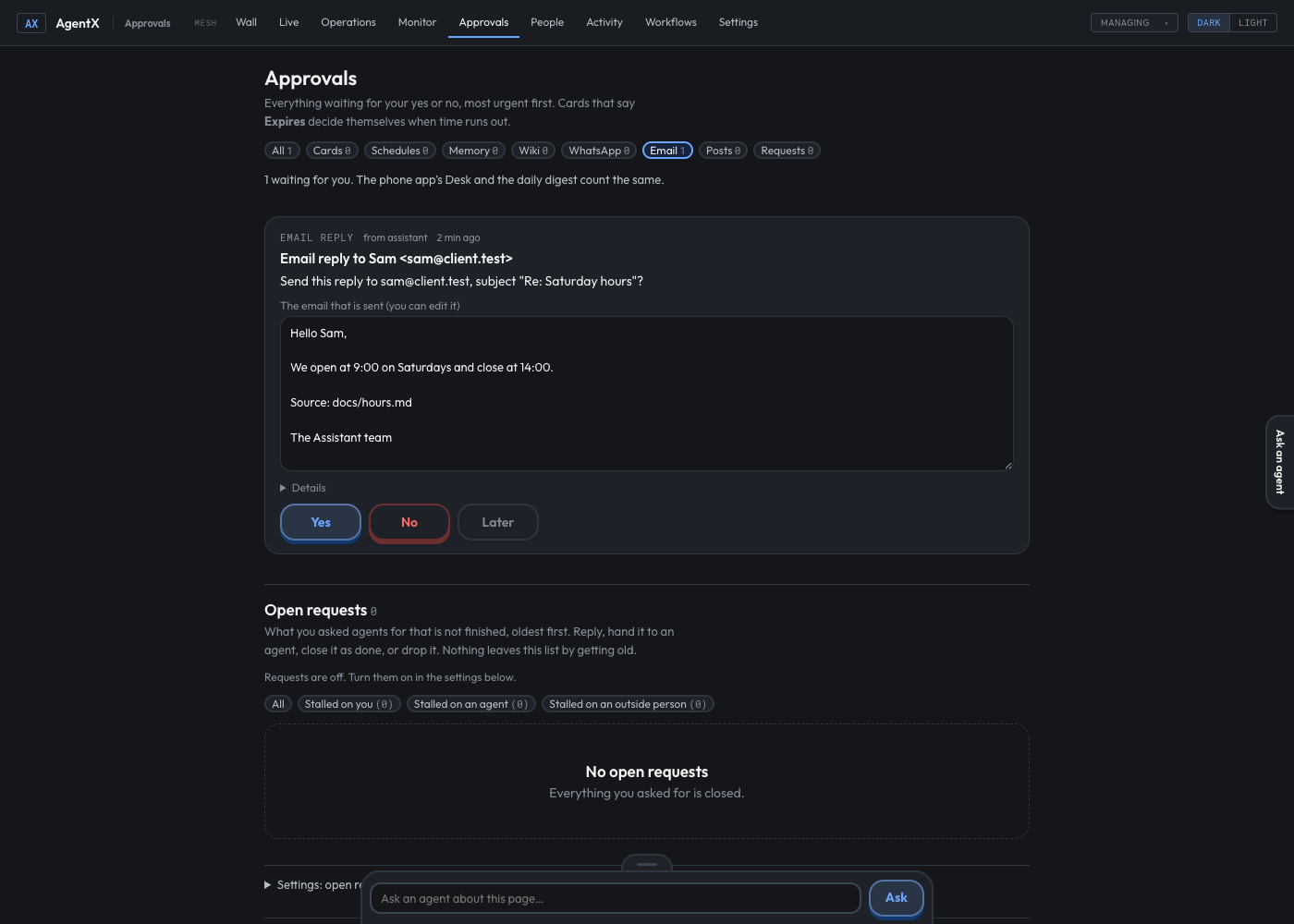
When the agent has written a reply, you get a notification: Email reply to … waits for you.
- Browser: open Approvals and select Email. Each reply shows who it goes to, the subject, and the reply text in a box you can edit.
- Change the text if you want, then select Yes to send it, or No to drop it.
From the terminal:
- Run
agentx approvals listto see the waiting replies. Each has a key such asemail:mbz2k1-4f2a9c1e. - Run
agentx approvals approve email:<id>to send it as written, or add--text "…"to send your own wording. - Run
agentx approvals reject email:<id>to drop it.
If the send fails, for example because the password changed, the reply stays in Approvals with the reason, and you can say yes again once it is fixed.
Answer from your documents
The ready-made support team answers from a folder of your own documents and names the document behind each answer. Questions the documents don't cover are handed to you instead of guessed. On email, every one of its replies waits for your approval, with its source line.
Terminal: add the team:
shagentx team add supportCopy your guides, FAQs and policies into
agents/support/docs/, as.mdor.txtfiles.Terminal: connect the support mailbox to it:
shagentx connect email --agent supportRestart the daemon with
agentx daemon restart.
Each reply ends with Source: docs/<file>, so you can check it before you send it. Each weekday at 18:00 the team sends you the questions it could not answer, and on Fridays the topics your documents should add. See Start from a ready-made team.
The client-inbox team can use email the same way, next to WhatsApp: run agentx connect email --agent inbox.
Send replies without approval
Only do this once you trust the agent's answers. Replies then go out as soon as the agent writes them.
Terminal: set the account's
sendtoauto.supportis the account ID:shagentx config set channels.email.accounts.support.send autoRestart the daemon with
agentx daemon restart.
To start that way, add --auto to agentx connect email. Set send back to approve to return to approving each reply.
Every setting is in Settings: channels › Email.
Check it worked
- Terminal: run
agentx channel list. Under Email it shows the address, the agent andreplies wait for approval. - Terminal: run
agentx daemon logs. A lineEmail: support <support@yourshop.com> → supportshows the mailbox is read. - From another address, send the mailbox a question the agent can answer. A minute or two later (the mailbox is read every 60 seconds), you get the Email reply to … waits for you notification.
- Browser: open Approvals and send the reply. It arrives in the other mailbox as an answer to the question, in the same thread.
If something is wrong
IMAP …: LOGIN failedorInvalid credentialswhile connecting: the password is wrong. For Gmail, use an app password, not your account password. If Google shows no app passwords page, turn on 2-step verification first.SMTP …fails while connecting but IMAP worked: check the SMTP server and port. With port587the connection is upgraded to TLS; with465it starts with TLS.- No reply comes, and the log says
WARNING: no allowFrom: the account has no list of who may write, so every mail is ignored. Runagentx config set channels.email.accounts.support.allowFrom '["*"]', thenagentx daemon restart. - The log says
… is not in allowFrom, dropped: the sender is not on the list. Add the address or@theirdomain.com, then restart the daemon. - A mail that was already in the inbox got no reply: that is by design. Only mail that arrives after AgentX first reads the mailbox is answered. Ask the customer to write again, or forward it from another address.
- Nothing arrives, and the log repeats
[email] support: …: the daemon cannot reach the server or log in. The line gives the server's reason. Fix it, then runagentx daemon restart. not sent: no SMTP password: the.envline is missing or has another name. Check thatagentx config get channels.email.accounts.support.imap.passwordnames the variable in.env.- The reply arrives as a new thread: the customer's mail app grouped it differently. The reply carries the customer's message as
In-Reply-To, so most mail apps keep it in the thread. - Still stuck: follow It's not answering.