
Draft posts in your voice
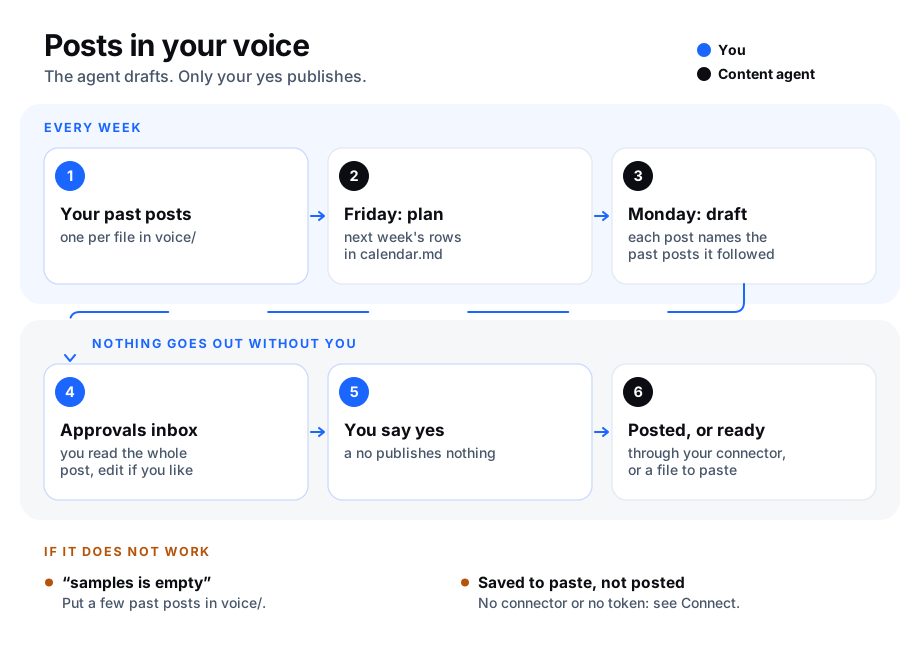
Let an agent write your LinkedIn and X posts the way you write them. It learns your voice from a folder of your past posts, plans the week in a content calendar, and drafts each post. Nothing is published until you say yes.
At a glance
| Question | Answer |
|---|---|
| The problem | Posts go out late or not at all, and when someone else writes them they do not sound like you. |
| What AgentX does | Plans next week's posts every Friday and drafts each one on Monday, in your voice, naming the past posts it followed. |
| What you approve | Every post. Nothing is published until you say yes in Approvals or with agentx approvals approve. |
| What it costs | Two runs a week on your model account, plus the drafts you ask for. See What this costs. |
| First result | agentx content drafts lists one draft per planned post. See Check it worked. |
Three words used on this page:
- Voice samples: your past posts, one per file, in a folder the agent reads. Every draft names the samples it followed, so you can see where its tone comes from.
- Content calendar: a file,
calendar.md, with one line per planned post: the date, where it goes (LinkedIn or X), the topic and how far it got. - Connector: the link between the agent and your LinkedIn or X account. Without one, an approved post is saved as a text file for you to paste.
You need:
- AgentX installed, with an
agentx.json. See Install. - A terminal in the folder with
agentx.json. - Telegram, to talk to the agent and get its weekly summary. See Connect Telegram.
- Three or more of your past posts, as plain text.
1. Add the content team
Terminal: add the team:
bashagentx team add contentThe output lists the agent
content, its folder (agents/content), and two schedules:Schedule When What it does content-weekly-calendarFriday, 10:00 Adds next week's posts to calendar.md.content-weekly-draftsMonday, 08:00 Drafts each post planned this week and puts it in your Approvals inbox. Terminal: connect Telegram to the agent and follow the steps:
bashagentx connect telegram --agent contentTerminal: start the daemon (the AgentX background service), or restart it if it was running:
bashagentx daemon restart
More on teams: Start from a ready-made team.
2. Give it your voice
Terminal: make the samples folder inside the agent's folder:
bashmkdir -p agents/content/voiceSave each past post as its own file in that folder, ending in
.mdor.txt. Name the files so you recognise them, for example2026-03-launch.mdor2026-05-hiring.txt.Use posts that sound like you today. Five to twenty posts is a good start. Leave out posts someone else wrote for you.
Terminal: check that the agent sees them:
bashagentx content voice --agent contentIt lists each file with its first words. Add
--topic "hiring"to see which samples it would follow for that topic.
The agent refuses to draft while the folder is empty, and a draft that names a file that is not in the folder is refused.
3. Plan the calendar
The agent fills the calendar every Friday. You can also write it yourself, or ask in Telegram ("plan two posts about our new service next week").
Open
agents/content/calendar.mdin a text editor. The agent creates it on its first Friday run; before that you can create it with these lines:markdown# Content calendar | Date | Platform | Topic | Status | |------|----------|-------|--------| | 2026-11-02 | linkedin | What we learned from our first 100 bookings | planned | | 2026-11-04 | x | A tip for first-time customers | planned |Write each date as year-month-day. Write the platform as
linkedinorx. Leave the status asplanned.Terminal: see what is coming:
bashagentx content calendar --agent content
The status moves on its own: drafted when the agent raises the draft, then posted, ready (saved to paste) or skipped (you said no).
4. Approve a draft
Every Monday the agent drafts the week's posts and Telegram tells you how many are waiting. Each draft waits for you; nothing is published on its own.
In the browser:
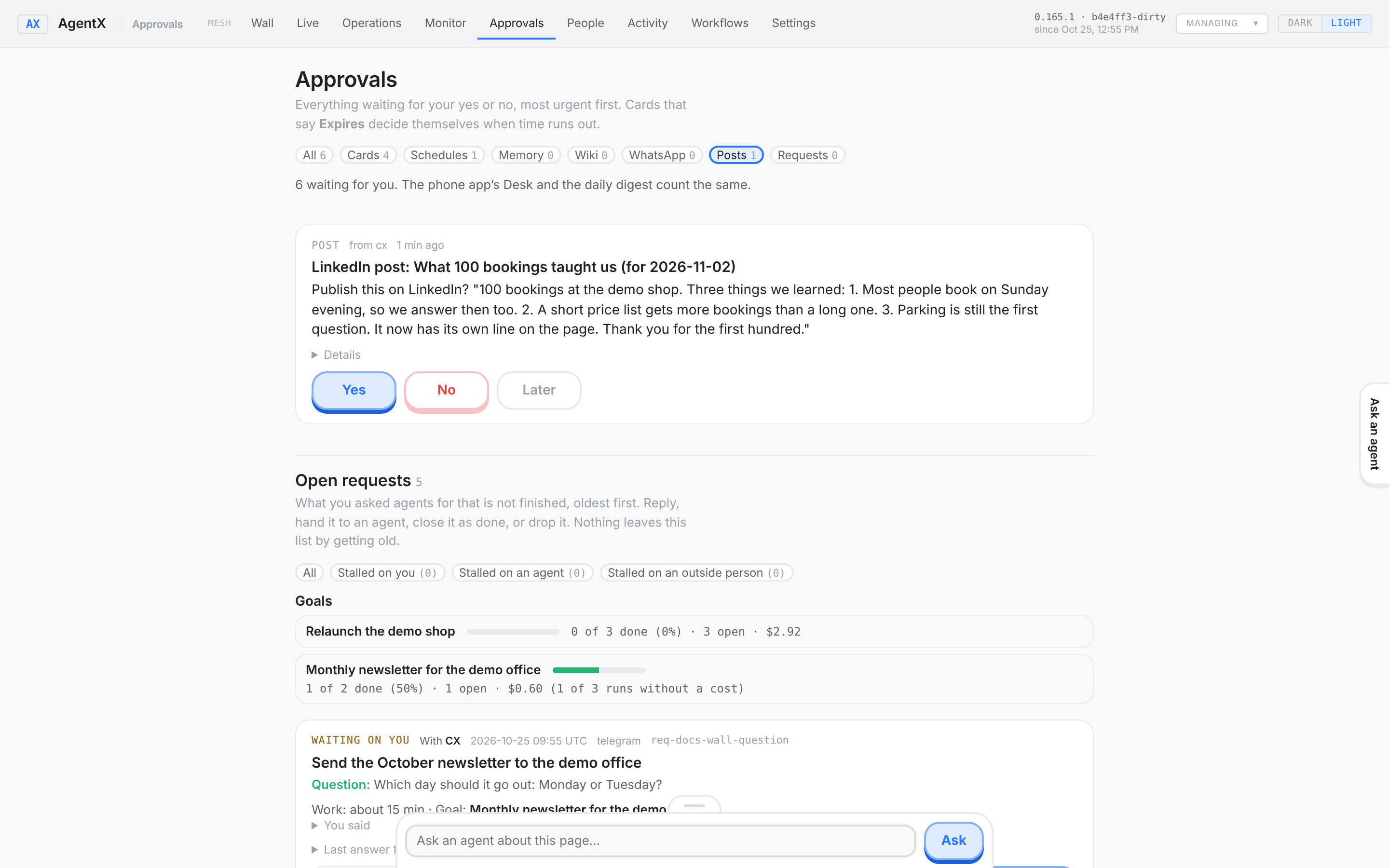
- Open the dashboard and go to Approvals. Click Posts to see only the drafts.
- Read the whole post. Open Details to see which of your past posts it followed.
- Click Yes to publish it, or No to drop it. Yes publishes exactly the post you read: if the draft changed after the page loaded, Yes is refused and asks you to reload.
Or in the terminal:
List the drafts:
bashagentx content draftsRead one in full, with the samples it followed. Use the id from the list:
bashagentx content show content:<id>Publish it as written:
bashagentx approvals approve content:<id>To change the wording first, give the whole post as you want it:
bashagentx approvals approve content:<id> --text "Your edited post"Or drop it:
bashagentx approvals reject content:<id>
When no connector is set, a yes saves the post in agents/content/ready/, one text file per post, holding only the post. Open it, copy everything, and paste it into LinkedIn or X.
Connect LinkedIn or X
With a connector, a yes posts straight away. Each one needs a token (a long password the platform gives your app) kept in .env, never in agentx.json.
Put the token in the .env file next to agentx.json, and nowhere else:
- Not in
agentx.json: that file is shown in the dashboard and often shared. - Not in the background service's own settings (for example an
Environment=line in a systemd unit, or a launchdEnvironmentVariablesentry). AgentX keeps the keys of.envaway from the agents it runs, but a value set in the service's settings is passed on to every agent, so an agent could read the token and post without you.
Both the dashboard and agentx approvals approve read the token from .env.
LinkedIn:
Browser: create an app on the LinkedIn developer site, add the "Share on LinkedIn" product, and get an access token with the
w_member_socialpermission. Note your member id as well.Terminal: add the token to
.env, next toagentx.json:bashecho 'CONTENT_LINKEDIN_TOKEN=paste-the-token-here' >> .envTerminal: tell the agent about the account. Replace
abc123with your member id (for a company page, useurn:li:organization:<id>):bashagentx agent integrations add content --kind linkedin --label "My LinkedIn" --token-env CONTENT_LINKEDIN_TOKEN --metadata "author=urn:li:person:abc123"
X:
Browser: create an app on the X developer site and get a user access token (OAuth 2.0) with the
tweet.writepermission.Terminal: add it to
.env:bashecho 'CONTENT_X_TOKEN=paste-the-token-here' >> .envTerminal: tell the agent about the account:
bashagentx agent integrations add content --kind x --label "My X account" --token-env CONTENT_X_TOKEN
Then, for either one:
Terminal: restart the daemon so it reads the token:
bashagentx daemon restartIn Approvals, a waiting post now says post it on LinkedIn (or X) instead of save it ready to paste.
LinkedIn tokens expire after about two months. When one has expired, a yes saves the post ready to paste and says why; put a new token in .env and restart.
Check it worked
- Terminal: run
agentx team list.contentshowsinstalled. - Terminal: run
agentx content voice --agent content. Your past posts are listed. - Telegram: to try it now instead of waiting for Monday, write to the agent:
Draft the posts planned in calendar.md for this week.When it answers, Terminal: runagentx content drafts. It lists one draft per planned post, each with afollows:line naming your samples. - Terminal: run
agentx content calendar --agent content. Those posts show[drafted]. - Approve one draft. Without a connector,
agents/content/ready/holds a new file with the post. With one, the post is on your profile andagentx content drafts --allshows its address.
If something is wrong
| What you see | What to do |
|---|---|
| The agent says there are no past posts | The folder is empty or in the wrong place. Put the files in agents/content/voice/, ending in .md or .txt, and check with agentx content voice --agent content. |
not in voice/: <file> | The agent named a sample that is not there. Ask it to draft again; it must name files from the folder. |
changed since it was shown: reload and read it again | The draft file changed after you opened the page. Reload Approvals, read the post again, then click Yes. |
the post is 312 characters; X takes 280 at most | Ask for a shorter post, or edit it when you approve with --text. |
| A yes saves the post to paste instead of posting | No connector is set, or its token is missing from .env. Do Connect LinkedIn or X, then restart the daemon. |
not posted on LinkedIn: LinkedIn said 401 | The token has expired or lacks w_member_social. Get a new one, put it in .env, restart. The post is saved in agents/content/ready/ so you can paste it. |
the linkedin connector needs metadata.author | Add --metadata "author=urn:li:person:<id>" to the integration. |
X said 403 | The X token lacks tweet.write, or your X plan does not allow posting through the API. The post is saved to paste. |
| No drafts on Monday | Check agentx schedule list: both schedules should show a filled dot. Check that calendar.md has rows with the status planned for this week. |
| The calendar status did not change | The draft's date or platform does not match a row. Each row needs the date as 2026-11-02 and the platform as linkedin or x. |