
Desk on your phone
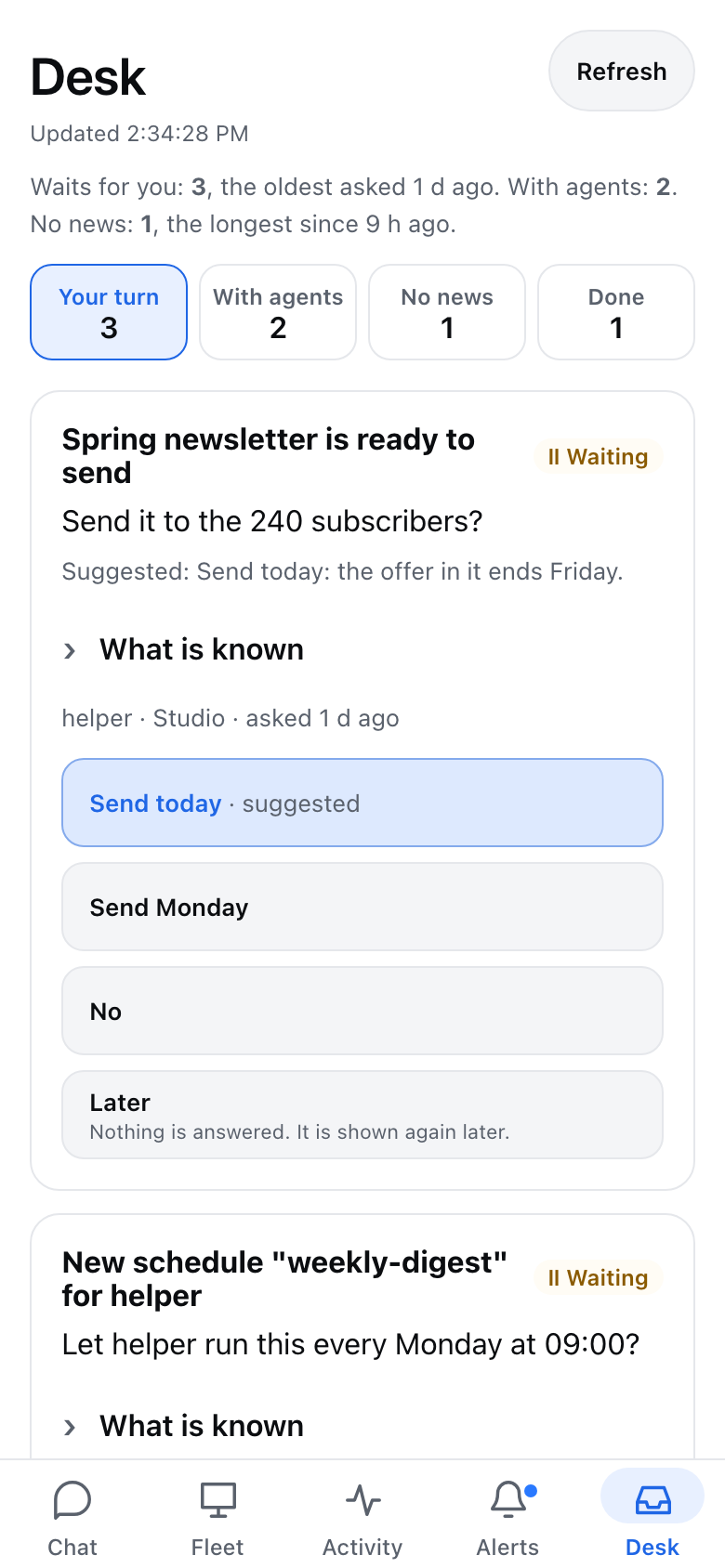
The Desk tab of the phone app is one board for everything you are involved in: what waits for your answer, what your agents are working on, what has gone quiet, and what ended. You answer from the board, with a tap or in your own words.
The board keeps no list of its own. Every time it is read, each card is placed from the state of the thing it stands for: a decision in Approvals, or a request you made to an agent (Open requests). A card therefore never says work is running after the work ended, and there is nothing for anyone to update by hand. The tab refreshes on its own every 15 seconds while it is open.
Before you start
- Install and pair the phone app.
- Requests appear on the board when open requests are turned on. See Open requests. Without them, the board still shows every decision waiting for you.
Read the board
The line under the title counts what waits for you and since when, what you put off for later, what is with agents, and what has no news. Below it are four columns. One is on screen at a time.
- Phone: open the app and tap Desk.
- Phone: tap a column to show its cards.
| Column | A card is here when |
|---|---|
| Your turn | The next step is yours: a decision is waiting, an agent asked you a question, or a request failed or stopped and needs your word. |
| With agents | A request is open and there is proof of work: a task for it is running right now (Working now), or something happened under it in the last 3 hours (Active). |
| No news | A request is open, no task for it is running, and nothing happened under it for 3 hours. |
| Done | A request or a decision ended in the last 7 days. The card says how: done with its proof, declined, dropped, answered, or closed because no answer came in time. |
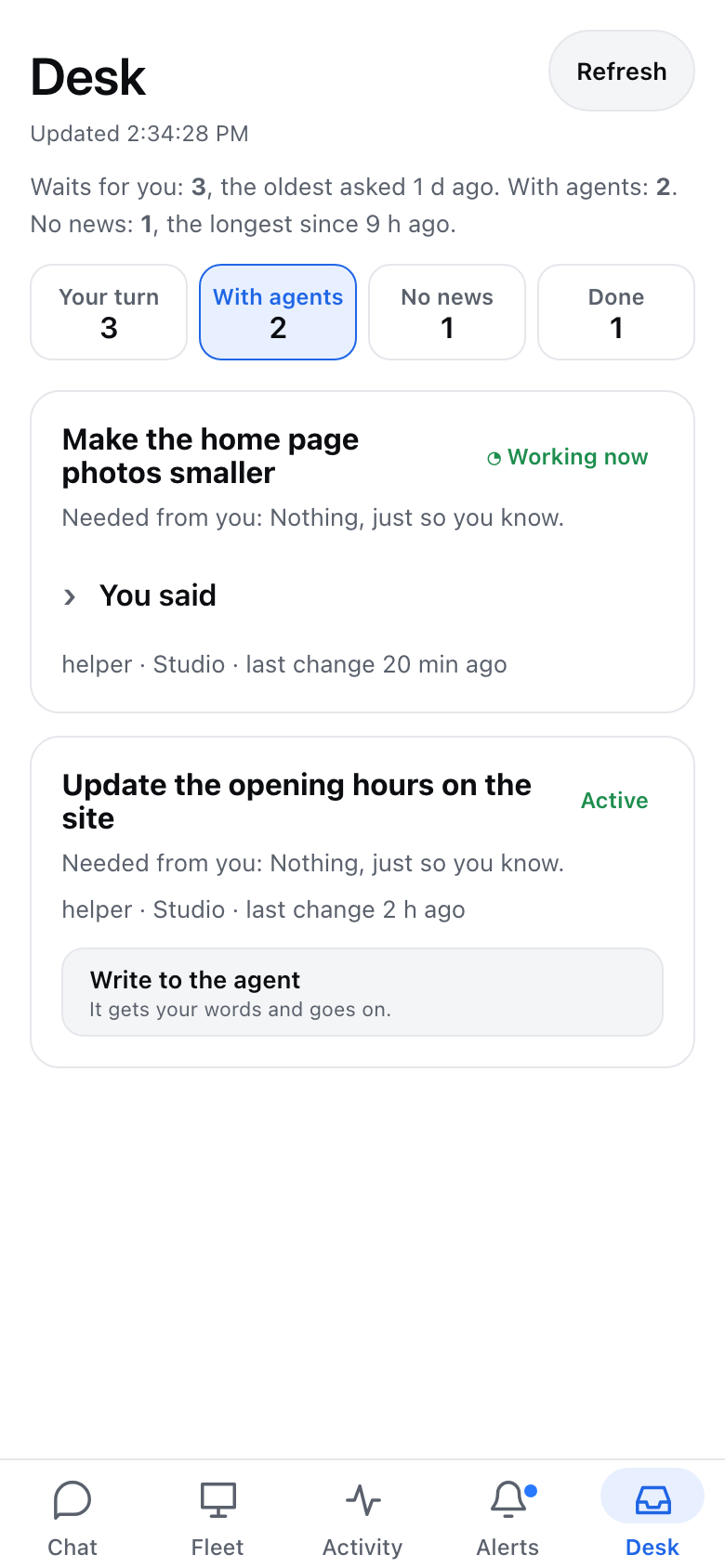
A request with no news for longer than the limit in your request settings (24 hours unless you changed it) is raised to you once and moves to Your turn.
Answer a card
Each answer is a button as wide as the card. Under Yes and No, the card says in words what the answer does.
- Phone: on Desk, under Your turn, tap What is known on a card to read what the agent checked.
- Phone: tap an answer: one of the choices the card offers, Yes or No.
- Phone: read what will happen. When the card comes with a suggested message, you can edit it.
- Phone: tap Choose, Yes or No to confirm. Tap Cancel to change nothing.
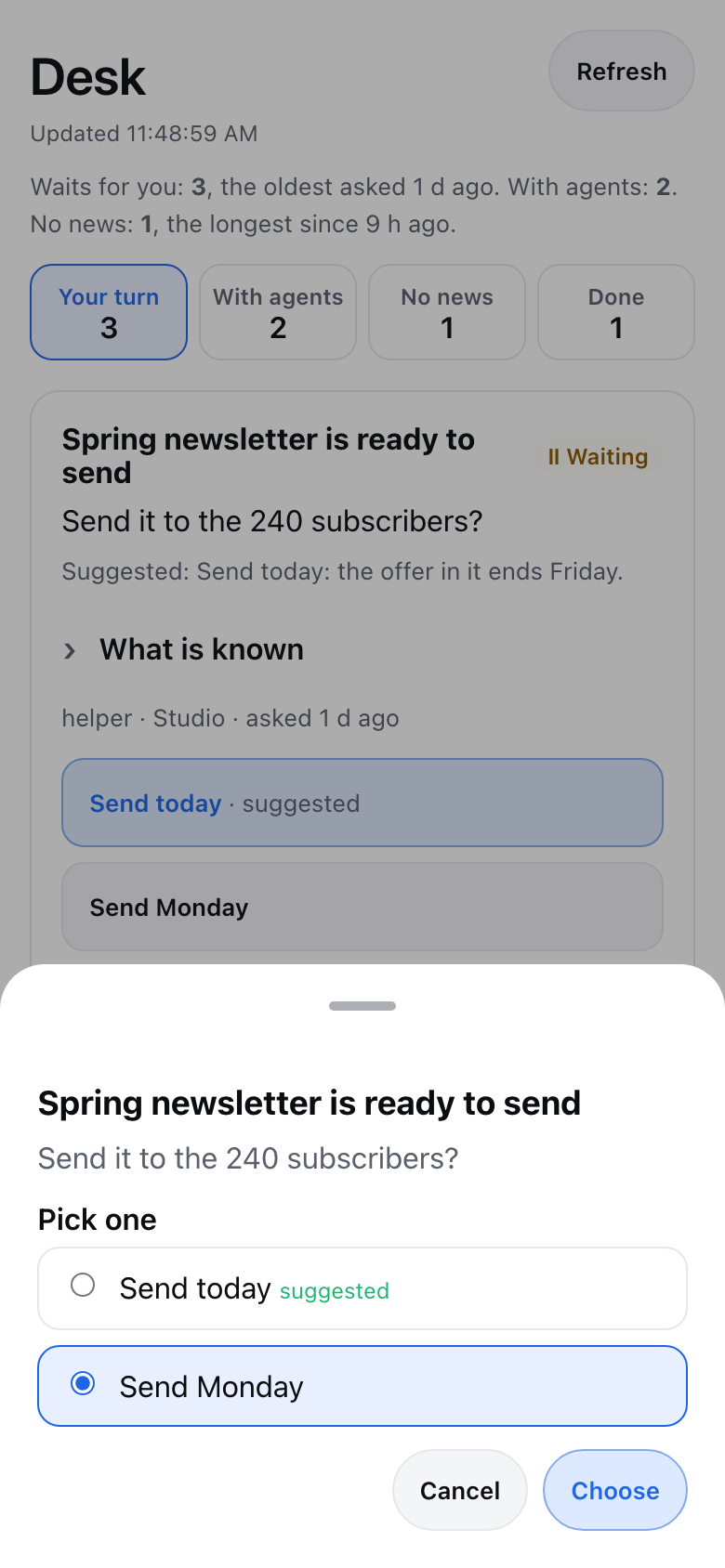
The answer is recorded where the decision lives, and the agent that asked is told. A card that someone already answered elsewhere is refused (for example "… is already decided"), and leaves the board at the next refresh.
Later answers nothing: the card is hidden for a day (or the time set in your approval settings) and then shown again. A card with a time limit still decides itself on time.
Write an answer
When an agent asked you a question in a request, or a request needs your word, you answer in your own words.
- Phone: on the card, tap Write an answer.
- Phone: type your answer.
- Phone: tap Send.
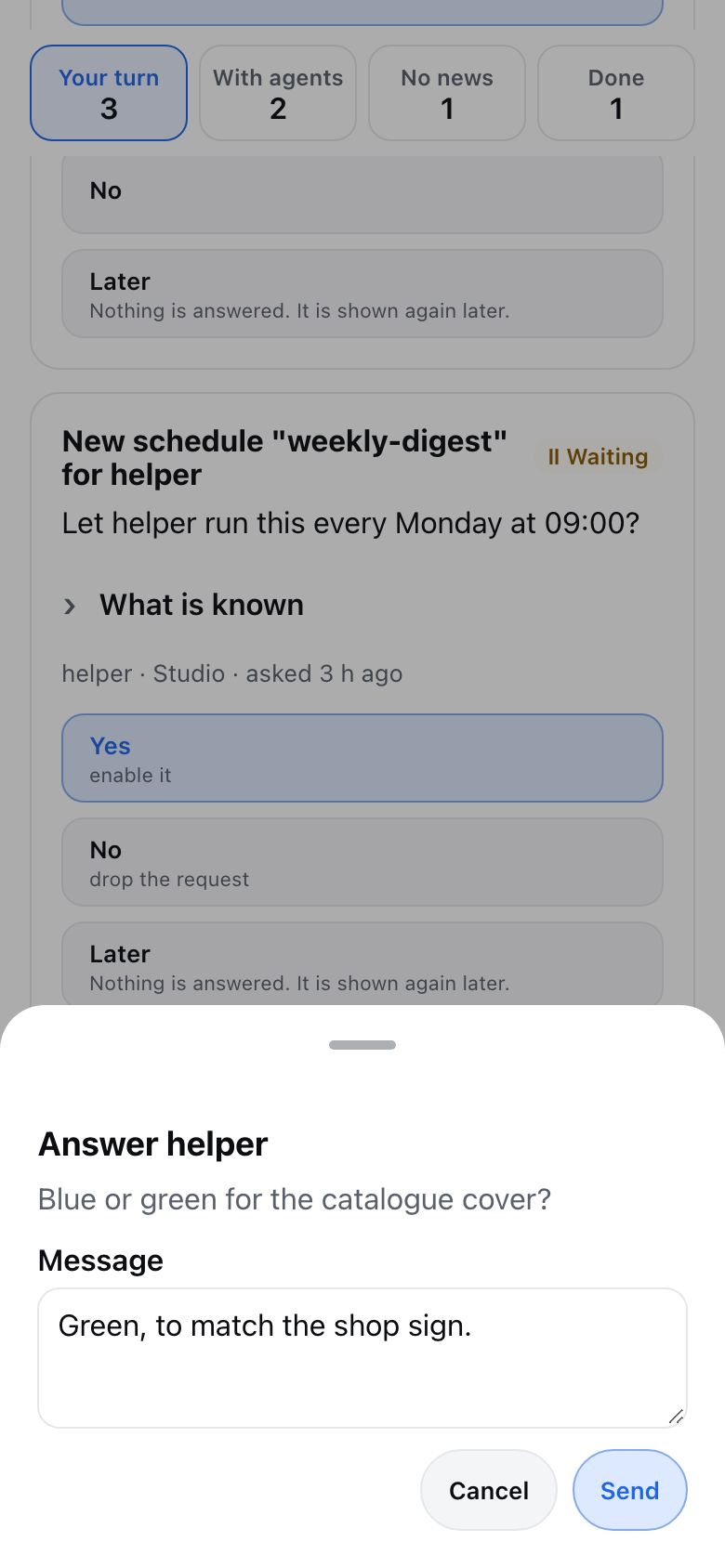
The agent that has the request gets your words within a minute and goes on with it. The card moves to With agents.
On a card under With agents or No news the same button is called Write to the agent. The agent starts a new turn on the request with your words, so use it to add something or to get quiet work moving again. A card marked Working now has no such button: a task is already running. To speak to that task, use Follow up under Activity.
What the board shows
- Decisions from every computer the dashboard can see, the same list as Needs you under Activity.
- Requests of the computer that runs the dashboard. Requests kept on another computer show only when they need your word.
- Cut text: a title of at most 120 characters, a question of at most 600 and at most 280 characters of what is known. A WhatsApp reply waiting for your yes is the exception inside that limit: its question carries the reply itself, because you approve exactly what is sent.
- Work an agent handed to another agent counts as proof only while it changes the request. A request waiting on another agent for more than 3 hours shows under No news even if that agent is still working.
- When the running tasks cannot be read, the board says so and shows no request as Working now.
- The time a request card says it changed is when its state last changed: started, waiting on you, waiting on another agent, needing your word, or ended. A task starting or ending under it is not a change, so the time does not move then. The column still counts that activity: a request with a task in the last 3 hours stays under With agents. A request from before this version shows the time anything last happened under it, until its state next changes.
The Desk is for the owner. It is served only to a paired phone, never to members, guests or agents.
One list, one count
What waits for you is one list. The Your turn column, the count at the top of the dashboard's Approvals page and the daily digest read the same list on the same computer, so they show the same items with the same number:
- every decision waiting in Approvals;
- every request where an agent asked you a question and has no decision card of its own waiting. The Approvals page lists it too, with a link to answer it in writing under Open requests.
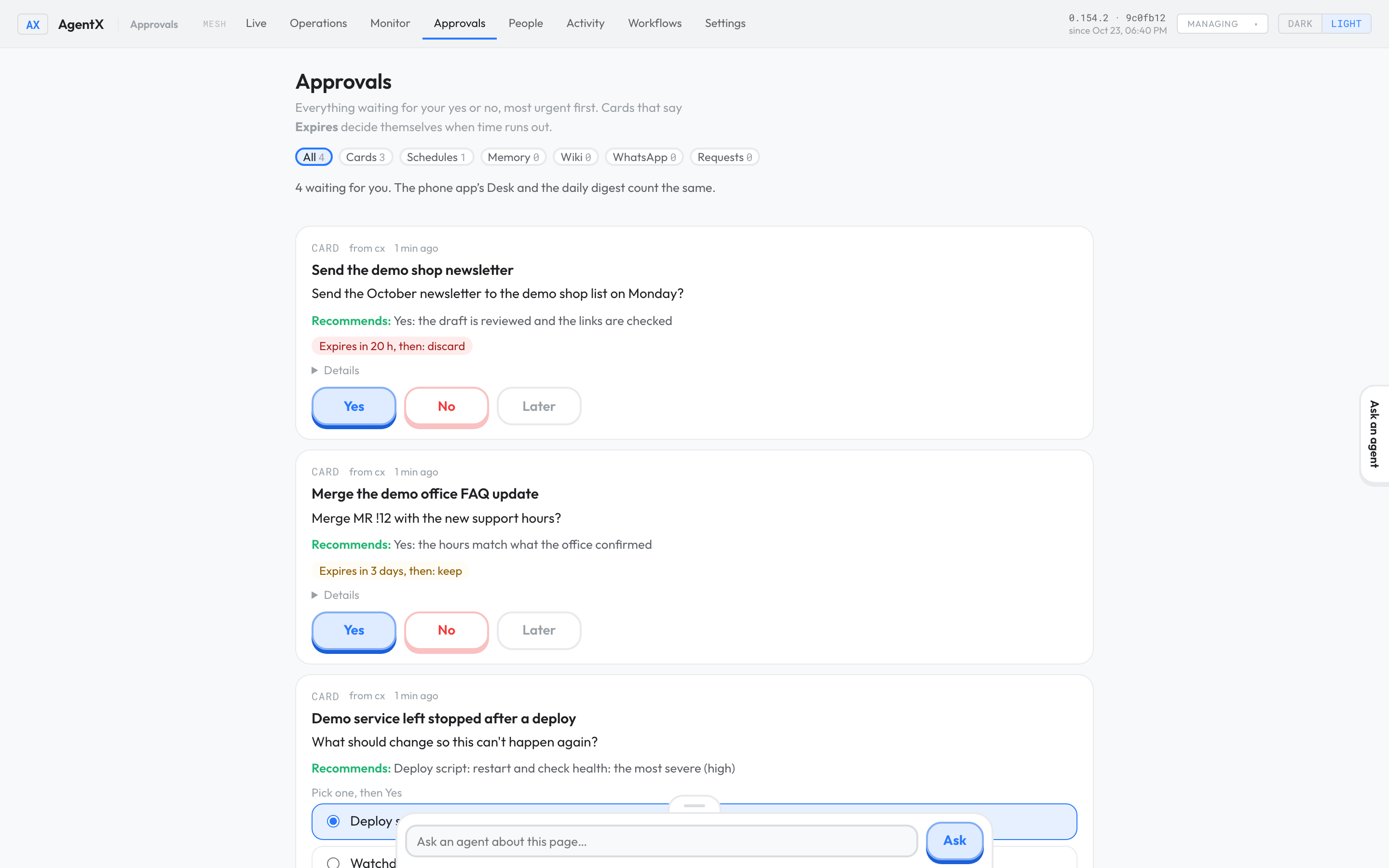
What you put off with Later is not counted as waiting. It is counted apart, everywhere in the same words: "1 put off for later". The digest says, for example, 3 waiting for you on the Desk (and 1 you put off for later).
Choose where new items go
Three settings decide where a new item reaches you. Everything else waits on the Desk and in the digest.
| Setting | What it decides | Default |
|---|---|---|
Sent to your phone at once (notifications.desk.phone) | A notification on the phone app, or ntfy, the moment a new item appears. | Nothing |
Shown on this computer at once (notifications.desk.computer) | The Mac card when the Mac popup is on, otherwise a banner on this computer. | Everything when the Mac popup is on, nothing when it is off |
Digest time (approvals.digest) | When the daily digest comes, or no digest. | 09:00 |
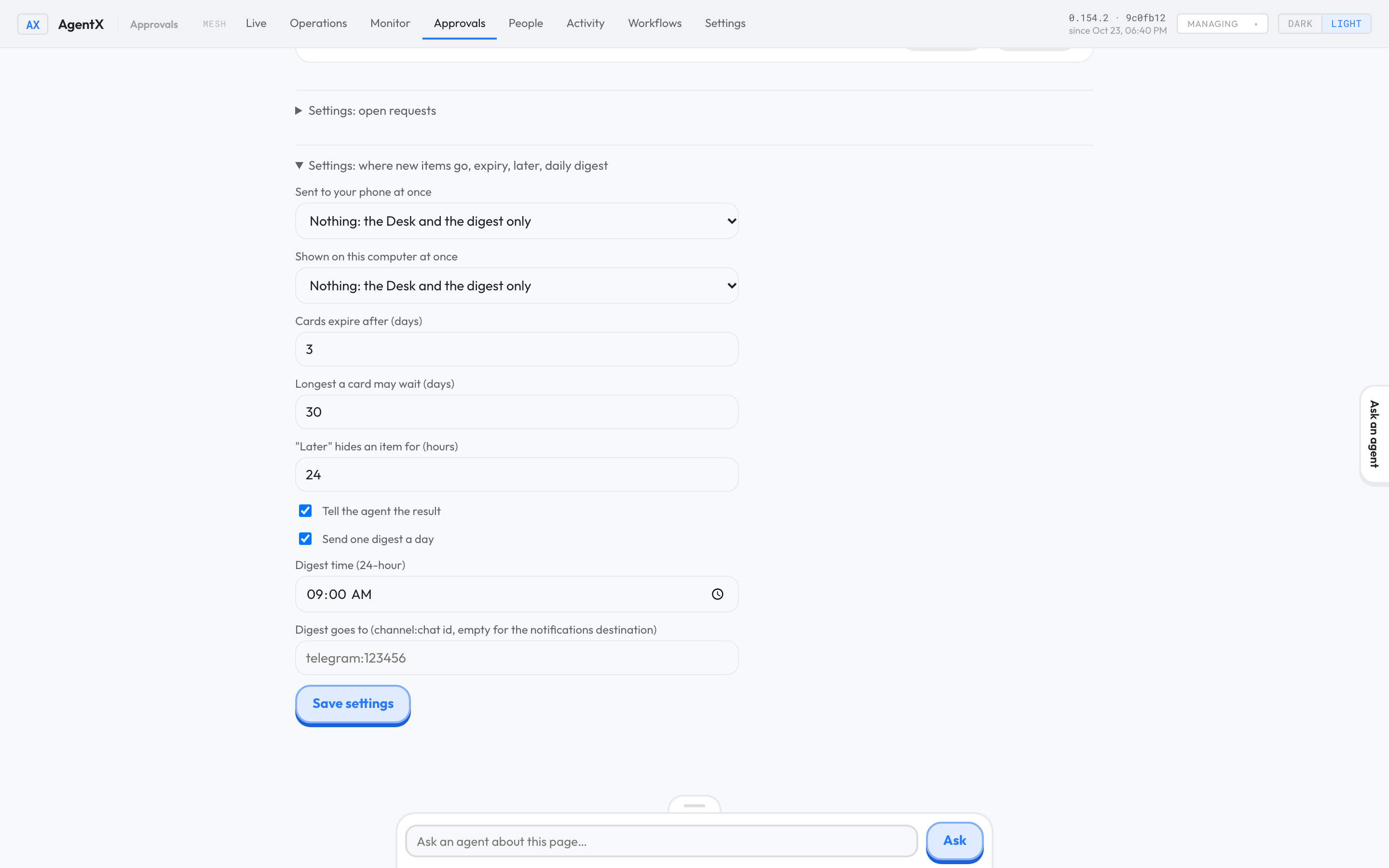
The first two take Everything new, Only what expires within a day or Nothing: the Desk and the digest only. The defaults are what AgentX did before these settings existed, so nothing changes until you choose.
- Browser: open the dashboard and click Approvals.
- Browser: open Settings: where new items go, expiry, later, daily digest at the bottom.
- Browser: pick what is sent to your phone and what is shown on this computer, set the digest time, and click Save settings.
The next new item goes where the settings now say. Items that were already waiting are not sent again. Each item is sent to the phone once: the told-once record also stops it on any other of your channels. An item shown on this computer during Focus or a call is shown when the hold ends.
Check it worked
- Phone: tap Desk. The number under Your turn is the number at the top of the dashboard's Approvals page, and the number the next digest opens with.
- Terminal: on that computer, list the open requests:shEach one is on the board, under Your turn, With agents or No news, except one you put off with Later.
agentx requests list - Phone: answer a decision card an agent raised on this computer. It leaves Your turn at once and shows under Done with your answer. Other kinds of decision (a schedule, a fact, a wiki article, a WhatsApp reply) leave the board once answered.
- Browser: set Sent to your phone at once to Everything new. Terminal: raise a test card:shWithin a minute the phone gets a notification titled Desk routing test. Set it back to Nothing, raise another card, and no notification comes; the card is still under Your turn. Answer No to both.
curl -s -X POST http://127.0.0.1:18800/approvals -H 'Content-Type: application/json' \
  -d '{"title":"Desk routing test","ask":"Is this on your phone?","recommend":"Yes","if_silent":"discard","raised_by":"<an agent id>"}'
If something is wrong
- "With agents" and "No news" stay empty, or hold only old cards — open requests are off, so nothing new is tracked and nothing old moves. Turn them on as described in Open requests.
- "Requests are off, so nothing would tell the agent…" when you send an answer — the same cause. The settings it mentions are on the dashboard's Approvals page, not on the phone. Turn open requests on there, then send it again.
- "What waits on … could not be read" — the dashboard cannot reach that computer, so its decisions are missing from Your turn. The rest of the board is still right. Start AgentX there, or check the mesh with
agentx mesh list. - "… failed: nothing waiting for …" — the card was answered somewhere else, or its time ran out. Tap Refresh.
- A card has no "Write an answer" button — it belongs to another computer. Answer it with Yes or No, or open that computer's dashboard.
- A new item did not reach the phone — check Sent to your phone at once on the Approvals page, and that the item is new: what was already waiting when the setting changed is not sent. The same item told in the last 24 hours on another of your channels is not told again (
agentx notify --toldlists it as not repeated). - The tab stays on "Loading what waits for you…" — the phone lost its connection. The yellow bar says so; the tab fills in when the phone reconnects.