
Org: who reports to whom, and what each agent is doing
Your org chart lists who reports to whom: you and other people, and your agents. The Hub's Org page draws it from the top down, with what each agent is doing now. Select Org in the Hub's nav to open it; See the org chart explains each part.
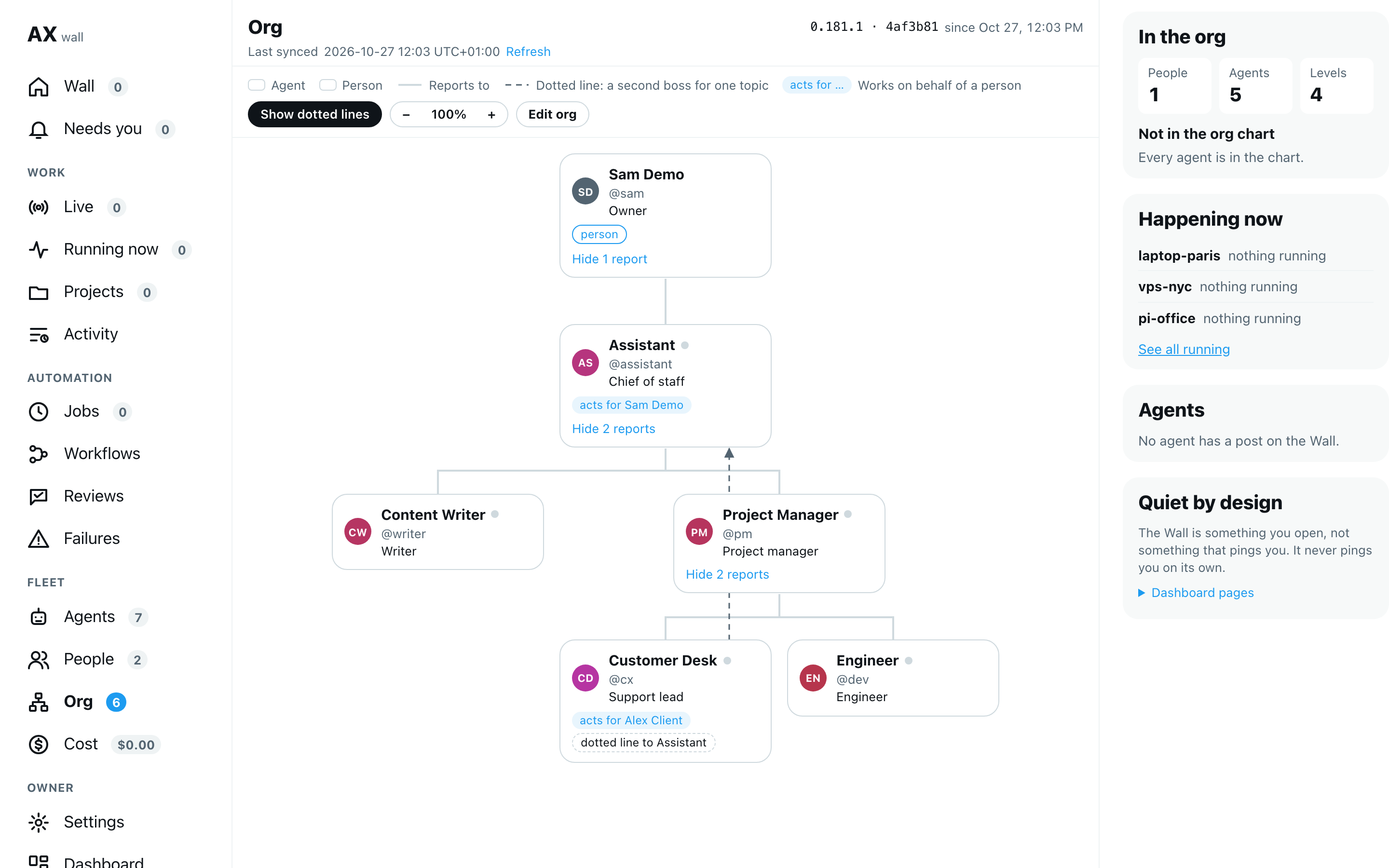
Changing the chart, pausing an agent, and approving an agent that another agent created are done on the classic Org page at /org. The Hub only shows the chart. Open /org from the Hub's Open the org chart link, or under Dashboard pages. When an agent creates another agent, the new one does not start on its own. It waits in Approvals until you say yes.
Edit the org chart
On /org, you, the owner, decide who is in the chart, the role each one holds, and who reports to whom, people included. Each change is checked, saved to agentx.json (with a backup copy of the old file next to it), and used at once, with no restart. Anyone else sees the chart only: there is no Edit org button for them, and the dashboard refuses their changes.
- Browser: open
/org, or select Open the org chart on the Hub's Agents or Org page. - Select Edit org above the chart. The edit panel opens. To open
/orgwith the panel already open, go to/org#edit. - To add someone, under Add a member, pick an agent or a person from the list. People come from the People page.
- Type a role, for example
Engineer, or pick one from the suggestions. A role you type for the first time is created. Agents need a role; for people it is optional. - Select Add. The line at the top of the panel says what changed, ending with Saved. The new member gets a card in the chart at once, with their role. A person with no line yet sits at the top until you link them.
- To link two members, under Relations, pick the member, the kind of relation, and the target.
- Select Add relation. A box at the top of the panel says, in one line, what will change. Nothing is saved yet.
- Read the line, then select Save the move to save it, or Cancel to leave the chart as it is. The Escape key also cancels.
- To change a role, type the new one next to the member and select Save role. A role is saved at once, without the confirm box.
- To take out a member or a line, select Remove next to it, then Save the move in the box. Removing a member removes their lines too, and the box names anyone who then reports to no one.
- Select Done editing to close the panel. A change still waiting for Save the move is dropped.
To give a member a new boss, add a Reports to line to the new one. You don't need to remove the old line first. The box says what changes, for example: "Helper will report to Planner, not Reviewer. When Helper is stuck, it asks Planner first." If the new line is refused, the old line is put back and the message ends with Nothing was changed.
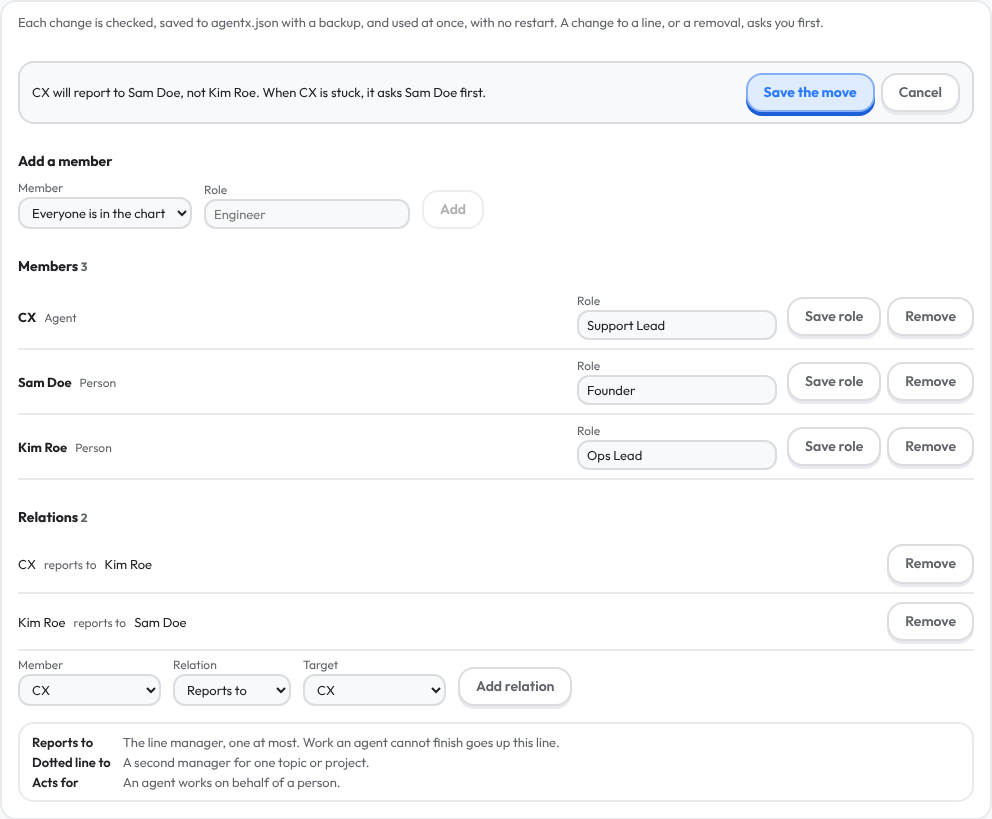
Scripted demo data; your team's names will differ.
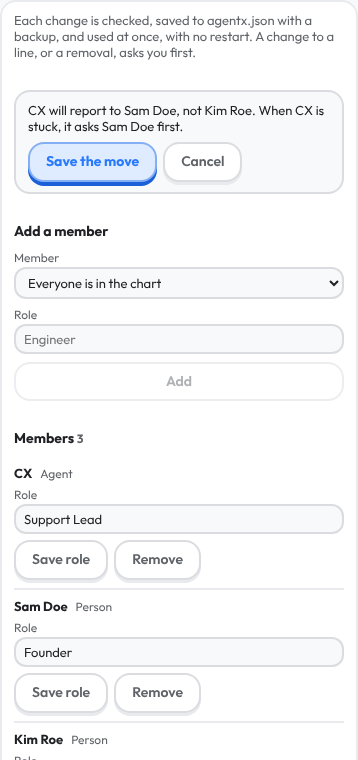
On a phone, each field takes the full width, and the confirm box sits at the top of the panel with its buttons under the sentence.
A change that would break the chart is refused before anything is saved, with a sentence saying why, for example: "Helper cannot report to Planner: Planner already reports up to Helper." The kinds of relation and their rules are in People and kinds of relation. What you set is kept under business in agentx.json; see the configuration reference.
Draw your org chart
The chart comes from business.orgChart in agentx.json. Until you fill it in, every agent is listed under Not in the org chart. The easiest way to fill it in is Edit org on /org. The steps below do the same for agents from the terminal.
Terminal: in the folder with
agentx.json, give each agent a role, and a boss for every agent but the top one.assistant,pmanddevare examples; use your agents' IDs:shagentx business orgchart add assistant --role "Chief of staff" agentx business orgchart add pm --role "Project manager" --reports-to assistant agentx business orgchart add dev --role Engineer --reports-to pmBrowser: open the dashboard and click the Org tab (or go to
/org).
The role shows under the agent's name. On the classic page, the line under it is the first sentence of the role's first responsibility in business.roles, or else of the agent's instructions. An org chart needs nothing else: business.enabled can stay off.
People and kinds of relation
A link between two members of the chart is a relation. A member is written agent:<id> for an agent in the org chart, or person:<id> for a person in people. There are three kinds:
| Kind | What it means | Rule |
|---|---|---|
reports-to | The line manager. | One per member, and no loops. When an agent is stuck, the problem goes up this line between agents, and stops before a person. |
dotted-line | A second manager for one topic or project. | As many as you like. Never used to pass a problem up. |
acts-for | The agent works on behalf of this person. | From an agent to a person only. |
The --reports-to of agentx business orgchart add is a reports-to relation, so charts you already have keep working.
Terminal: check the person is in
peoplewithagentx people list.samandkimare examples; use your own IDs.Terminal: make a person the boss of your top agent:
shagentx business relation add agent:assistant reports-to person:samTerminal: add a second manager, or say whom an agent works for:
shagentx business relation add agent:dev dotted-line person:kim agentx business relation add agent:assistant acts-for person:samA relation that names someone unknown, or breaks a rule above, is refused and nothing is saved.
Terminal: list every relation with
agentx business relation list, and remove one withagentx business relation remove <from> <type> <to>.Terminal: run
agentx daemon restartif the business layer is on, so it reads the new chart.Browser: on the Hub, select Org, then Refresh. A person sits in the chart with the agents that report to them under them. A dotted-line shows as dotted line to name on the card, and as a dashed arrow with Show dotted lines. An acts-for shows as acts for name on the agent's card.
Browser: on the classic page at
/org, a person's card says Person and has no Pause button; the agents that report to that person sit under it. Under an agent's job, its card lists Dotted line to … and Acts for ….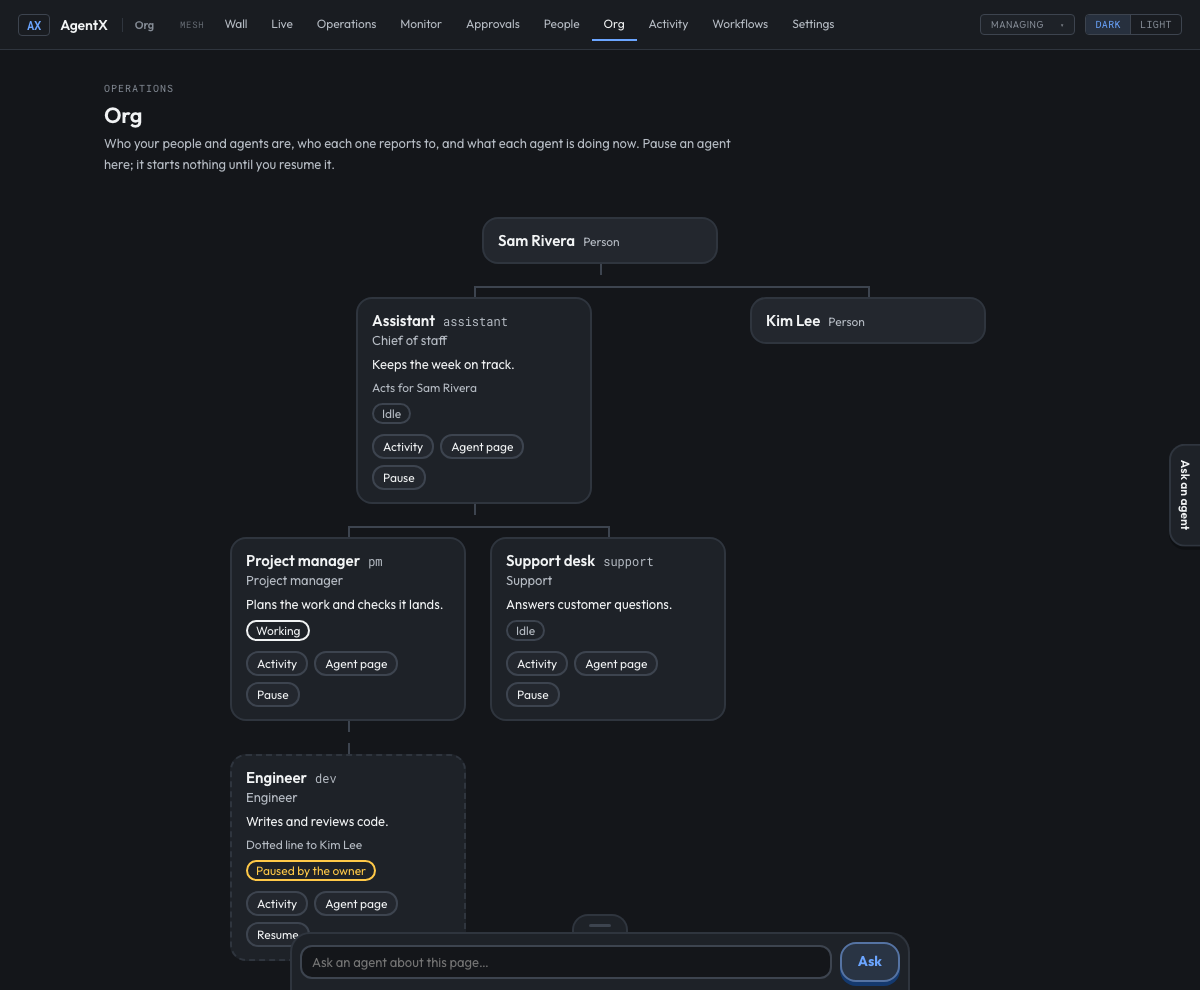
The relations are saved under business.relations in agentx.json; see the configuration reference.
What each card shows on the classic page
| Status | What it means |
|---|---|
| Idle | The agent is loaded and runs nothing now. |
| Working | It is running a task (Working on 2 when it runs more than one). |
| Paused by the owner | You paused it. It starts nothing until you resume it. |
| Waits for your approval (created by …) | Another agent created it. It starts nothing until you say yes in Approvals. |
| Status unknown | The daemon did not answer, so the page cannot tell working from idle. |
Each card has Activity (the agent's history), Agent page, and Pause or Resume. The page refreshes every 15 seconds.
Pause or resume an agent
- Browser: on the agent's card, click Pause. The card says Paused by the owner.
- To start it again, click Resume.
From the terminal: agentx agent pause <id> and agentx agent resume <id>.
A paused agent refuses every new message, schedule and task, with a line saying it is paused. A run that had already started finishes. Pausing and resuming apply at once, with no restart.
Approve an agent that another agent created
An agent that runs agentx agent add, agentx team add or agentx team import from its own terminal creates agents that wait for you:
- You get an item in Approvals: New agent "…", created by …, with its workspace and its instructions.
- Click Yes to let it run, or No to remove it, and the schedules that came with it, from
agentx.json. Its folder is kept. - If it was added while the daemon was running, run
agentx daemon restartafter your yes, so the daemon loads it.
From the terminal: agentx approvals approve agent:<id> or agentx approvals reject agent:<id>. Only you can decide: an agent that runs these commands, or agentx agent pause and resume, is refused.
This is a guard, not a lock. An agent that edits agentx.json by hand is not caught by it. To keep agents from changing the configuration at all, limit what their tools may write; see SECURITY.md.
Check it worked
- Browser: on the Hub, select Org. Each member of
business.orgChartorbusiness.orgPeople, and each person a relation names, is a card one row under its boss, joined to it by a solid line. On the classic page at/org, each agent is a card under its boss. - Click Pause on a card. It says Paused by the owner, and a message to that agent is answered with "is paused by the owner".
- Click Resume. The card says Idle again.
- As the owner, select Edit org, then add a Reports to line from an agent to a new boss. The box says it will report to the new boss, not the old one. Select Cancel: the line at the top says Cancelled. Nothing changed. and the chart is as it was. Do it again and select Save the move: the line ends with Saved. and the card moves under its new boss.
If something is wrong
- The Hub's Org page says "Something in the org chart does not hold": a link names someone who is not in
peopleorbusiness.orgChart, a member has two bosses, or the bosses loop. The message names the member. Fix it inagentx.json. - Every agent is under "Not in the org chart":
business.orgChartis empty. Runagentx business orgchart addfor each agent (see above). - An agent sits at the top although it has a boss: its boss is not an agent or person here, or the two report to each other. Check with
agentx business relation list. - A yellow box above the chart says "Problem in the org relations": a relation names someone who is not in
peopleorbusiness.orgChart, or breaks a rule.agentx business relation listshows the same problem; fix it withremove. With the business layer on, the daemon starts without it until it is fixed, and its log says[business] initialization failed:with the same problem. - A person's agents do not escalate to them: that is by design. A problem goes up
reports-toonly between agents, and stops before a person. - Every card says "Status unknown": the daemon is not running, or the dashboard cannot reach it. Run
agentx daemon status. agentx business orgchart addran, but saving any setting now fails withbusiness.mainChannel: Required: you turnedbusiness.enabledon. The business layer needs a chat to post to; setbusiness.mainChannel, or turn it off again.- A new agent still does nothing after your yes: it was added while the daemon was running. Run
agentx daemon restart. - No Edit org button on
/org: you opened the dashboard without the owner's key. On the dashboard's own computer, open it at127.0.0.1; from another machine, sign in with the dashboard key (dashboard.token). - A line or a removal is not saved: select Save the move in the box at the top of the edit panel. Cancel, the Escape key, or Done editing drops the change.
- A person is missing from the Member list in Edit org: add them on the People page first, then reload
/org. - "Only the owner can pause an agent": the command ran inside an agent's terminal. Run it from your own terminal, or use the Org page.