
Operations — work across machines
Operations shows how agents and connected nodes fit together. Start here when a task should move to another machine, or when you want to see which node owns an agent. A second machine is optional; one-machine teams can start with the other tabs.
If a remote node is missing, check both hosts' daemon status and their mesh connection before changing agent instructions. See Add a second machine.
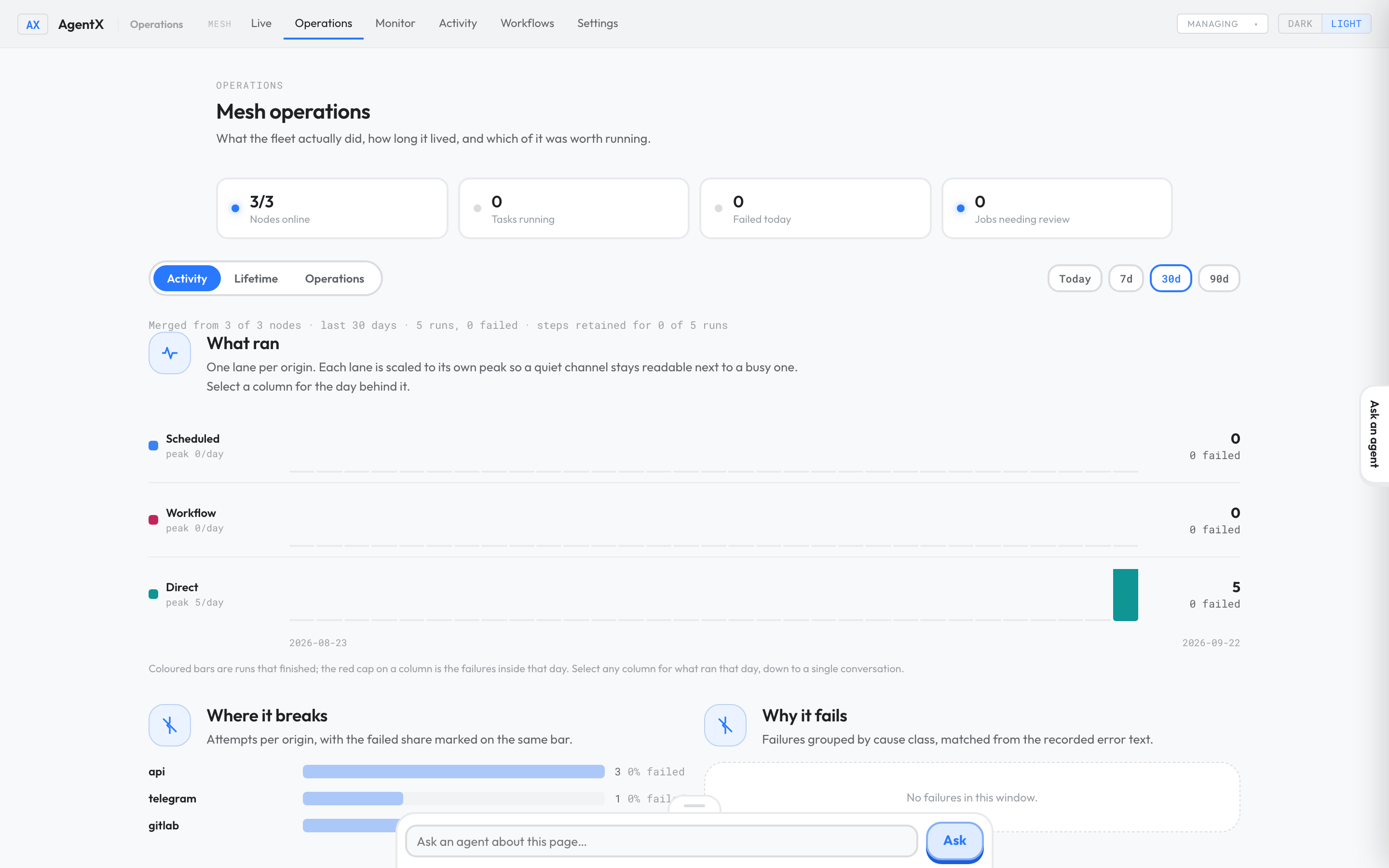
The demo has three completed runs across two active agents.
Routines
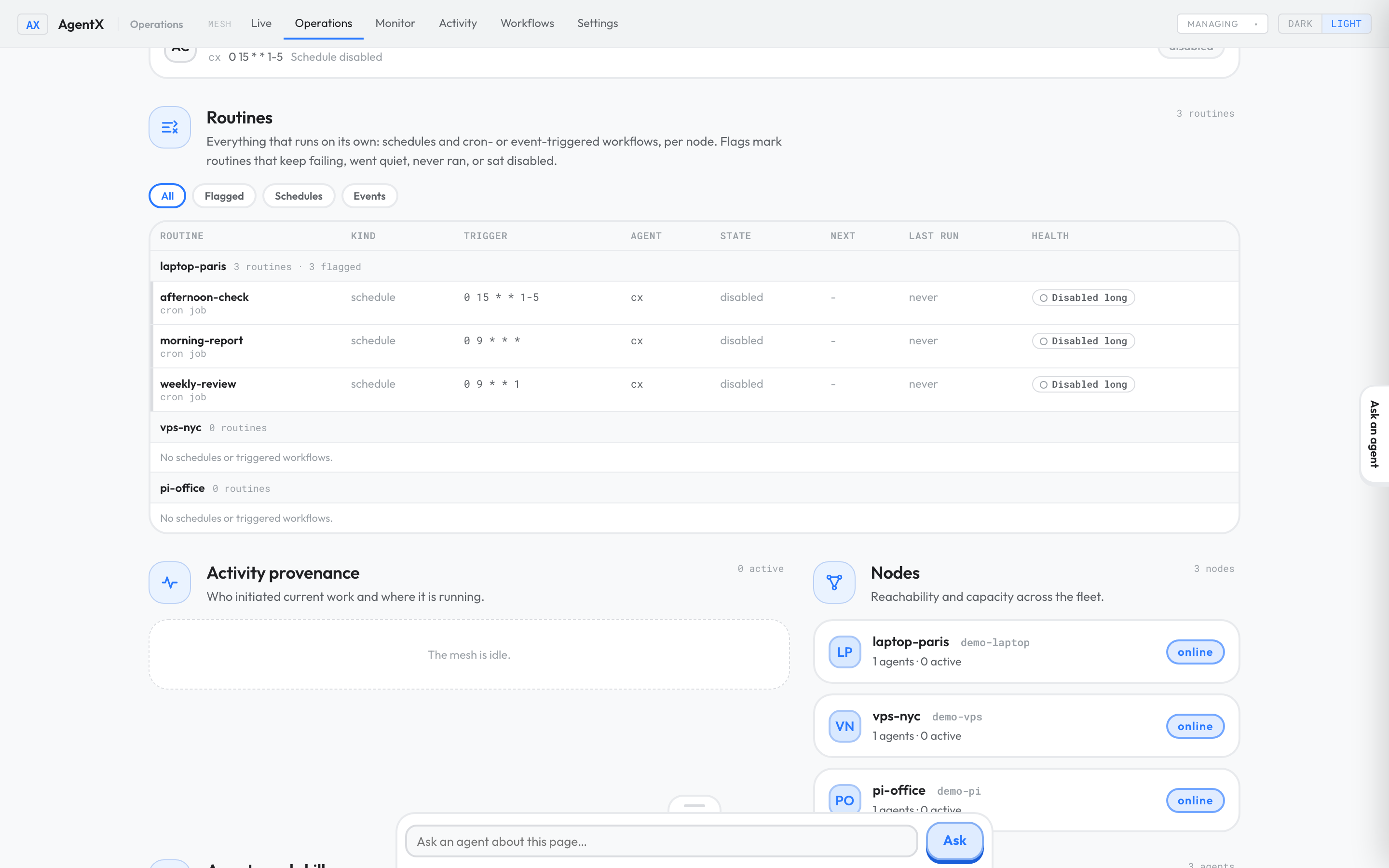
Routines lists everything AgentX runs on its own, on every machine: schedules (jobs that run at set times) and workflows that start on a timer or an event. Use it to find automations that are broken or forgotten.
- Browser: open the dashboard and select the Operations tab.
- Below the summary cards, switch the view from Activity to Operations.
- Scroll to Routines. Each machine has its own group.
- To see only the ones that need attention, select Flagged. Schedules and Events filter by kind. The dashboard remembers your choice.
- Select a routine's name to open its details: when it runs, which agent runs it, its last result and error, and why it's flagged.
A flag tells you what's wrong:
| Flag | What it means |
|---|---|
| Failing | The last 3 runs or more failed |
| Overdue | It missed at least 2 of its scheduled times |
| Dormant | An event workflow that hasn't fired in a long time |
| Never ran | It's switched on but has never run |
| Disabled long | It's been switched off for more than 30 days |
A machine that can't be reached shows Routines unknown while this node is unreachable. A machine running an older AgentX shows This node does not report routines yet.
Mesh feed
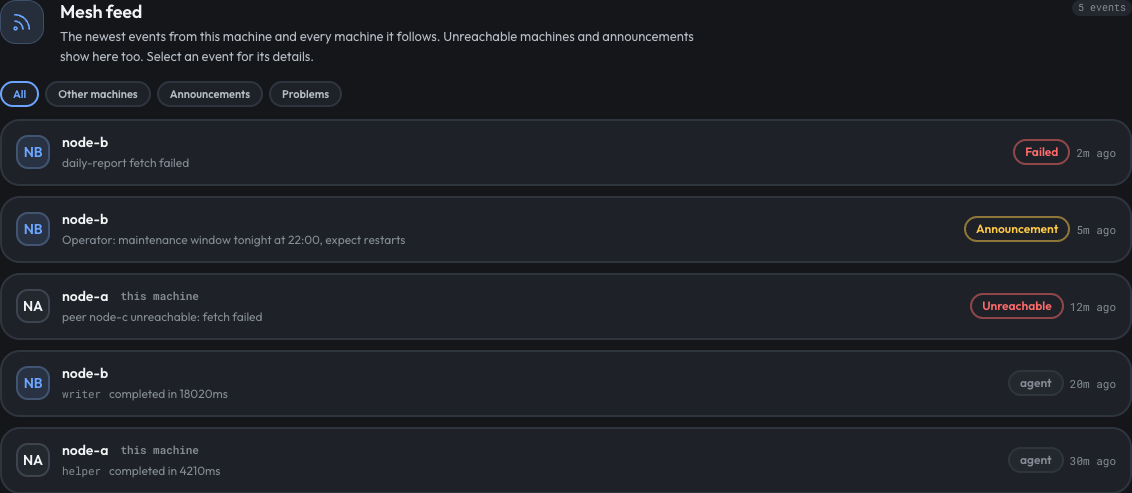
Mesh feed lists the newest events from this machine and from every machine it follows: finished tasks, workflow runs, announcements, and machines that can't be reached. Use it to see what the rest of the fleet is doing without opening each machine.
- Browser: open the dashboard and select the Operations tab.
- Switch the view from Activity to Operations.
- Scroll to Mesh feed. The newest event is at the top, and the list refreshes every 5 seconds.
- To narrow it, select Other machines, Announcements or Problems. The dashboard remembers your choice.
- Select an event to open its details: the machine, the agent, the time, and the record ID to look up on that machine.
A badge marks what needs attention:
| Badge | What it means |
|---|---|
| Unreachable | This machine can't reach that peer's event feed. The summary says why. |
| Back | The peer is reachable again. |
| Gap | The peer was away longer than its event buffer covers; some events may be missing. |
| Failed | A task or run failed. |
| Announcement | A note to the whole mesh, sent with agentx mesh announce. |
To send an announcement, see Announcements.
Open, watch and continue a scheduled run
- Browser: in the Operations view, find the schedule under Today's automations.
- Select its row. Its drawer opens.
- While it's running, select Watch live run to follow it.
- To look at a finished run, select Open next to it under Runs today.
- To continue that run's conversation, type a message on its Task page and select Send.
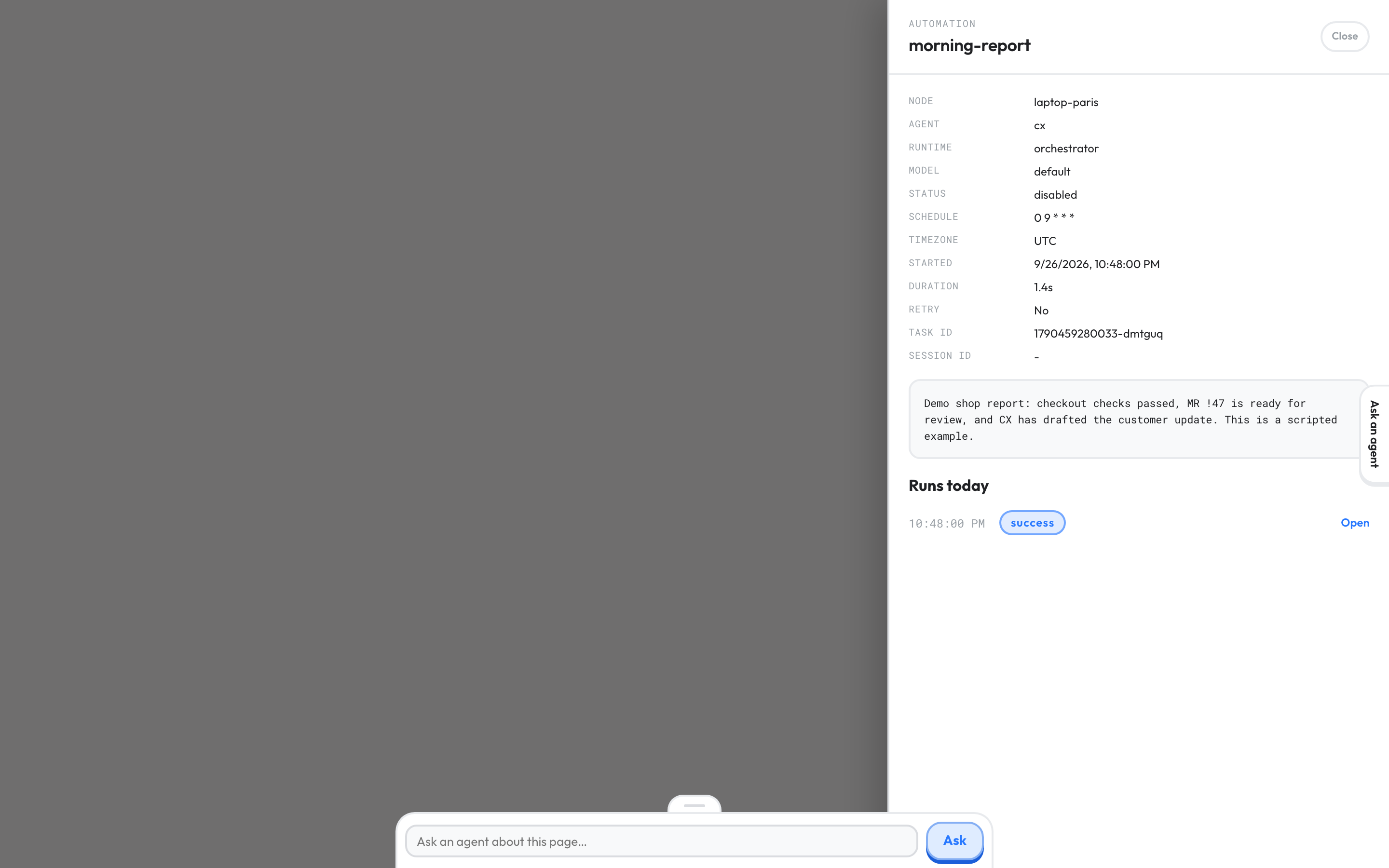
Details: while the job is running, the row shows running and the drawer has a Watch live run link to the run's Task page, on the node that runs it. Runs today lists the latest 10 runs, each with an Open link to its archived Task page. Command jobs run a shell command, not an agent, so they have no links. Runs recorded before the node was upgraded have no link either.
On the archived Task page of a scheduled run, Send continues the conversation. The message becomes a new turn in the job's cron:<jobId> chat, so the agent picks up the run's context, and the page moves to the new run. If the agent is busy, the message waits as the next turn. If an attached Claude Code session answers it, the page says so, and there is no new run to open. Finished runs from other channels, such as Telegram or GitLab, stay read-only: a reply sent from here would never reach the person in that chat.
Task follow-up API
The Task page calls the daemon's follow-up endpoint:
POST /api/tasks/<taskId>/followup
{ "message": "and tomorrow?", "sender": "operator", "replace": false, "agent": "support" }
Without agent, it only reaches a running task. With agent, a finished scheduled run of that agent is continued too.
| Status | Meaning |
|---|---|
| 200 | Queued for the running task: { ok, taskId, agentId, channel, chatId, replaced, pending } |
| 200 | Finished scheduled run continued: { ok, resumed: true, fromTaskId, taskId, queued, answeredBy }. taskId is the new run; it's absent when the turn was queued (queued: true) or answered without a new run (answeredBy: "attached" or "other") |
| 400 | message is missing |
| 404 | No running task with that ID, and no stored run for agent |
| 409 | The task is finished but wasn't a scheduled run |
Check it worked
- Browser: in the Operations tab's Operations view, each reachable machine lists its routines under Routines.
- Select Flagged. Only routines with a flag stay in the list.
- Select a schedule's row under Today's automations. Its drawer lists Runs today, each with an Open link.
- Terminal: run
agentx mesh announce "Hello from the terminal". Within 5 seconds it appears under Mesh feed with an Announcement badge.
If something is wrong
- A machine is missing: check that its daemon is running and that the machines can reach each other. See Add a second machine.
- This node does not report routines yet: that machine runs an older AgentX. Update it, then restart its daemon.
- Routines unknown while this node is unreachable: the dashboard can't reach that machine's daemon. Check its status and its mesh connection.
- A run has no Open link: command jobs never have one, and runs from before the machine was updated don't either.
- Mesh feed unavailable: the dashboard can't read its own machine's daemon. Check that the daemon is running.
- Mesh feed shows only this machine: the mesh is off,
mesh.feed.enabledisfalse, or the other machines run an older AgentX. Look for Unreachable rows, which say why a peer is missing. - Mesh feed says
daemon answered 401: the dashboard reads a daemon on another machine. SetMESH_TOKENin the dashboard's environment to the mesh token, then restart the dashboard. - The page looks out of date after an update: the dashboard is a separate service. Restart it on each machine.