
Workflows — saved automations
A workflow is a saved automation: something starts it (a message, a GitLab event, a time of day, or you), and then one or more steps run, such as asking an agent to do a job. The Workflows tab lists them, shows their recent runs, and opens the editor, where the steps appear as boxes joined by arrows (the canvas).
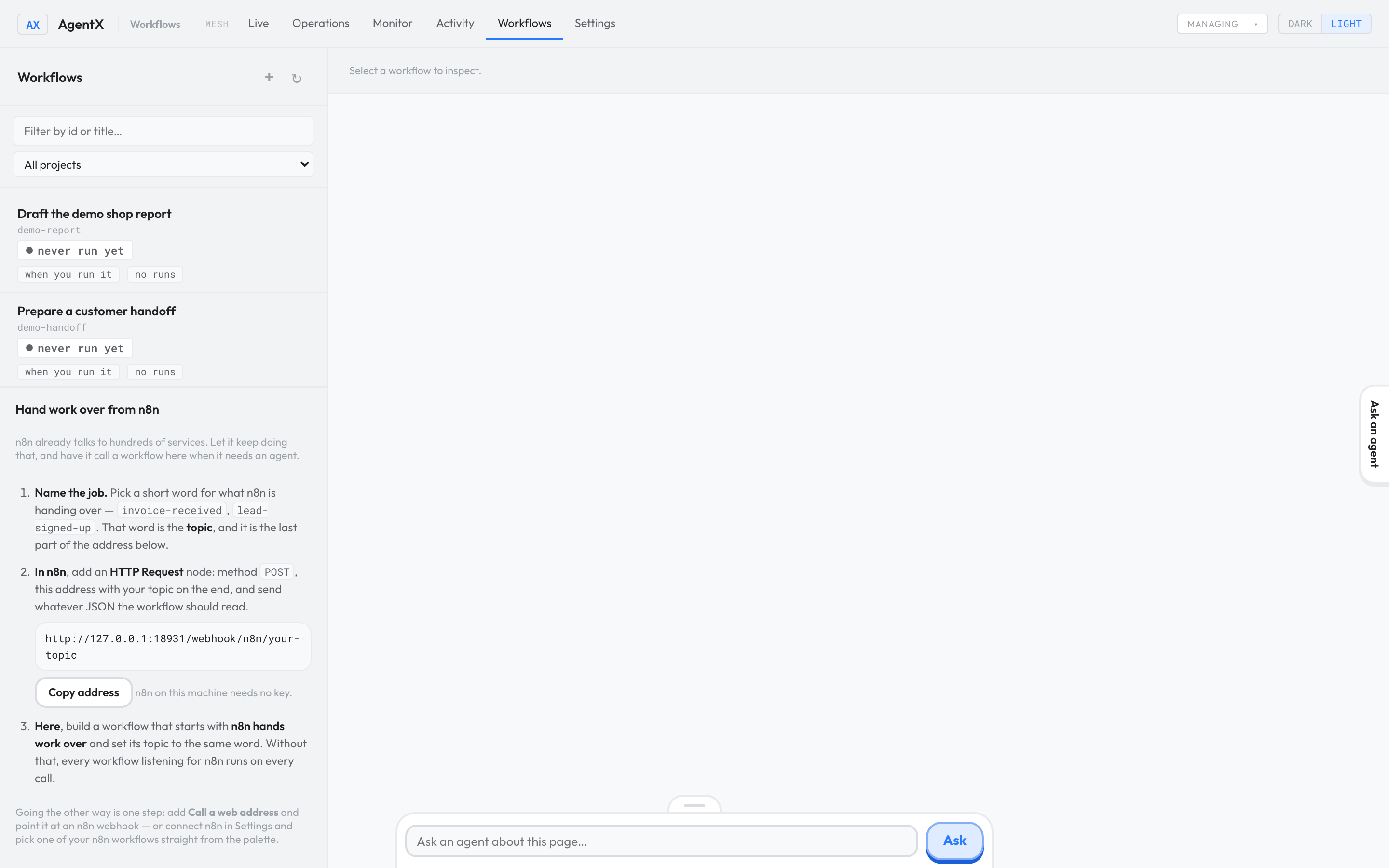
Both demo examples only start when someone runs them.
Open and run a workflow
- Browser: open the dashboard and select the Workflows tab.
- Select a workflow in the list. Its steps and recent runs appear on the right.
- To start it by hand, select ▶ Run.
- Fill in the fields the workflow asks for (or open Or edit the raw JSON payload).
- Select Run now. A message shows run started, and a panel opens with the run's steps as they happen.
- To stop a run that is still going, select Pause or Cancel in that panel.
Edit a workflow
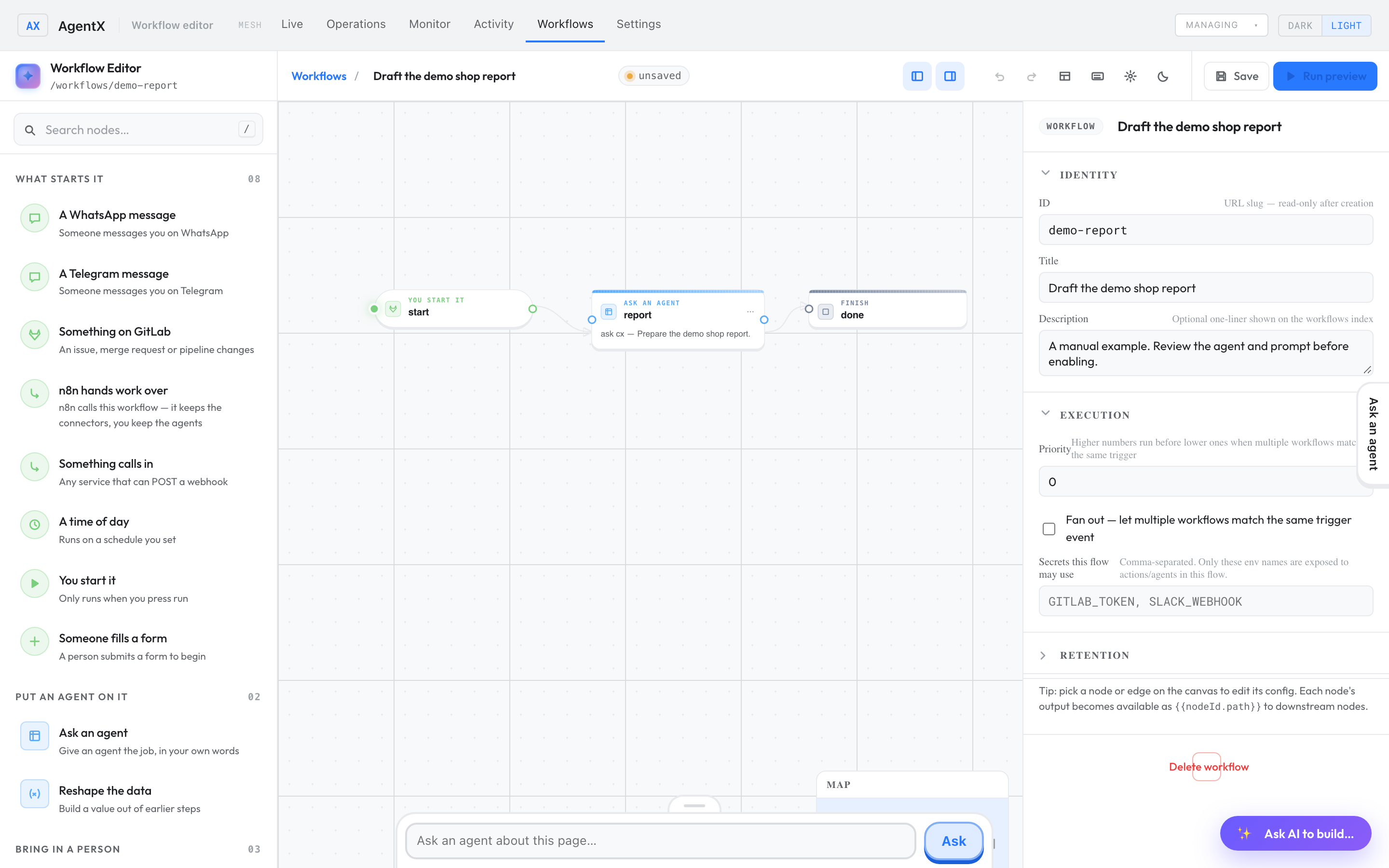
- Browser: in the Workflows tab, select the workflow, then select Edit on canvas. To start a new one, select + at the top of the list.
- Drag a starting point or a step from the left-hand list onto the canvas.
- Select a box to change its settings in the right-hand panel.
- Select Save.
To describe the automation in plain English instead, select Ask AI to build…. See Describe what you want. Read a proposed workflow before you select Apply to canvas: it replaces everything on the canvas. Save only when the steps and destinations match what you intend.
Check it worked
- Browser: after Save, the editor shows Saved and the workflow appears in the Workflows list.
- Select ▶ Run, then Run now. The run panel lists each step as it finishes.
- Follow Check that it worked to confirm the result reached its destination.
If something is wrong
- Save fails with a message: the workflow has a mistake, such as a step with no agent. Fix the step the message names and save again.
- Run needs Force: a workflow that normally starts on an event (not by hand) needs Force ticked in the run form to start it now. The form ticks it for you.
- Ask AI to build… answers with an error: the assistant needs an agent with a working model. See Describe what you want.
- A run stops at a step: open the run panel and read the error on that step. See Check that it worked.