
1. Your first agent on Telegram
Time: 10 minutes · Ends at: a Telegram bot that answers your customers using Claude, configured entirely from the browser.
Scenario
You run a small business. Customers DM your team on Telegram with the same five questions — opening hours, pricing, how to book. You want an AI assistant to take the first pass so your team only handles the interesting ones. No code, no config files.
What you'll do
- Install AgentX — the dashboard opens automatically.
- Add one agent using the Settings → Agents form.
- Give it a personality in one sentence.
- Connect your Telegram bot via Settings → Channels.
- DM the bot and watch it reply on the Live screen.
Every step is a button in the browser. The CLI equivalents are at the bottom in case you prefer the terminal.
Step 1 — Install
curl -fsSL https://raw.githubusercontent.com/anis-marrouchi/agentx/master/install.sh | bashThe installer checks Node 20+, installs the CLI globally, starts the daemon, and opens your browser at http://127.0.0.1:4202/setup. You land on the setup wizard.
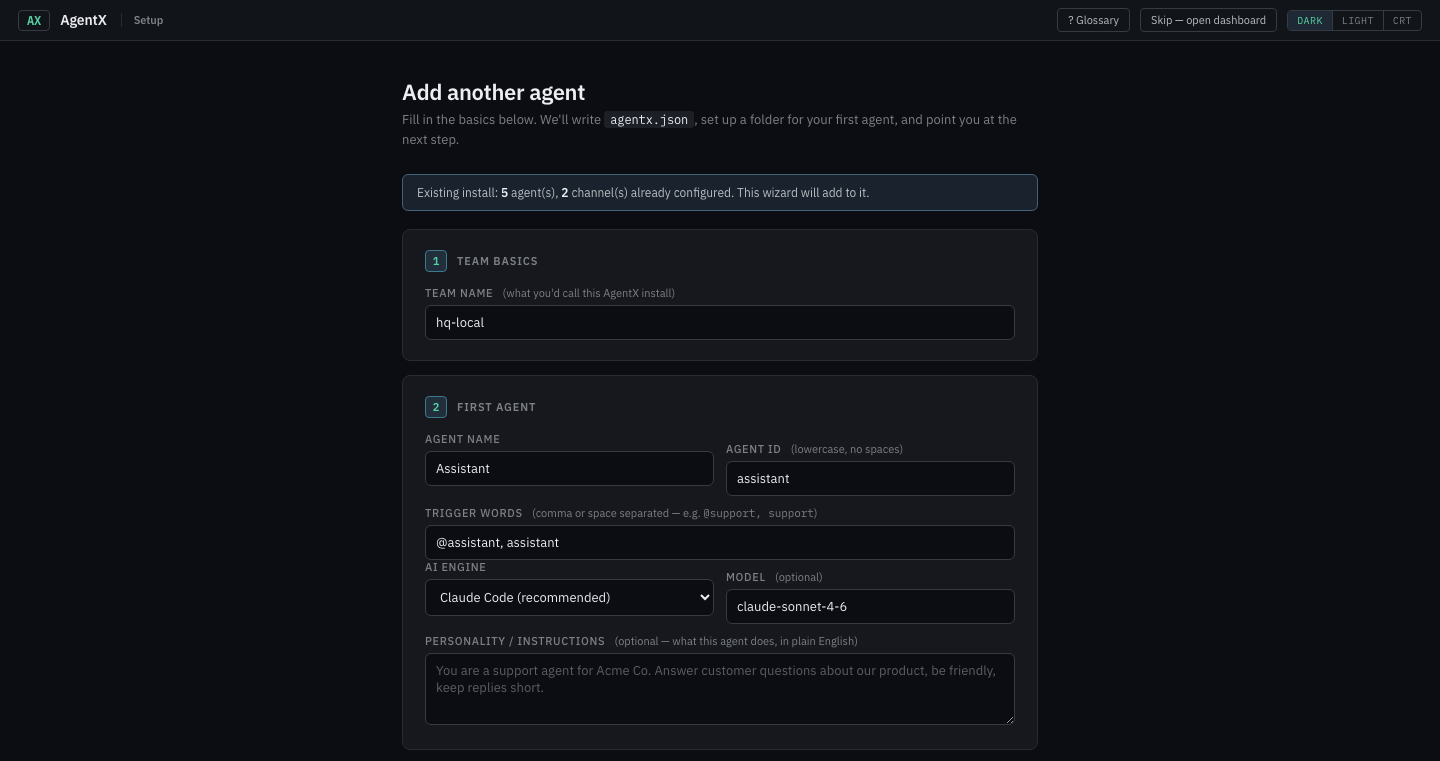
The wizard already has reasonable defaults. Name the team (it's only a label), accept the sample agent, click through. You're on the dashboard.
Skip the wizard
If the wizard already ran once, the topbar will offer "Skip — open dashboard" at the top right. Pick that; you can add agents from the dashboard any time.
Step 2 — Add an agent
Click Settings → Agents in the top bar. You'll see any agents that already exist, plus an Add a new agent form at the bottom.
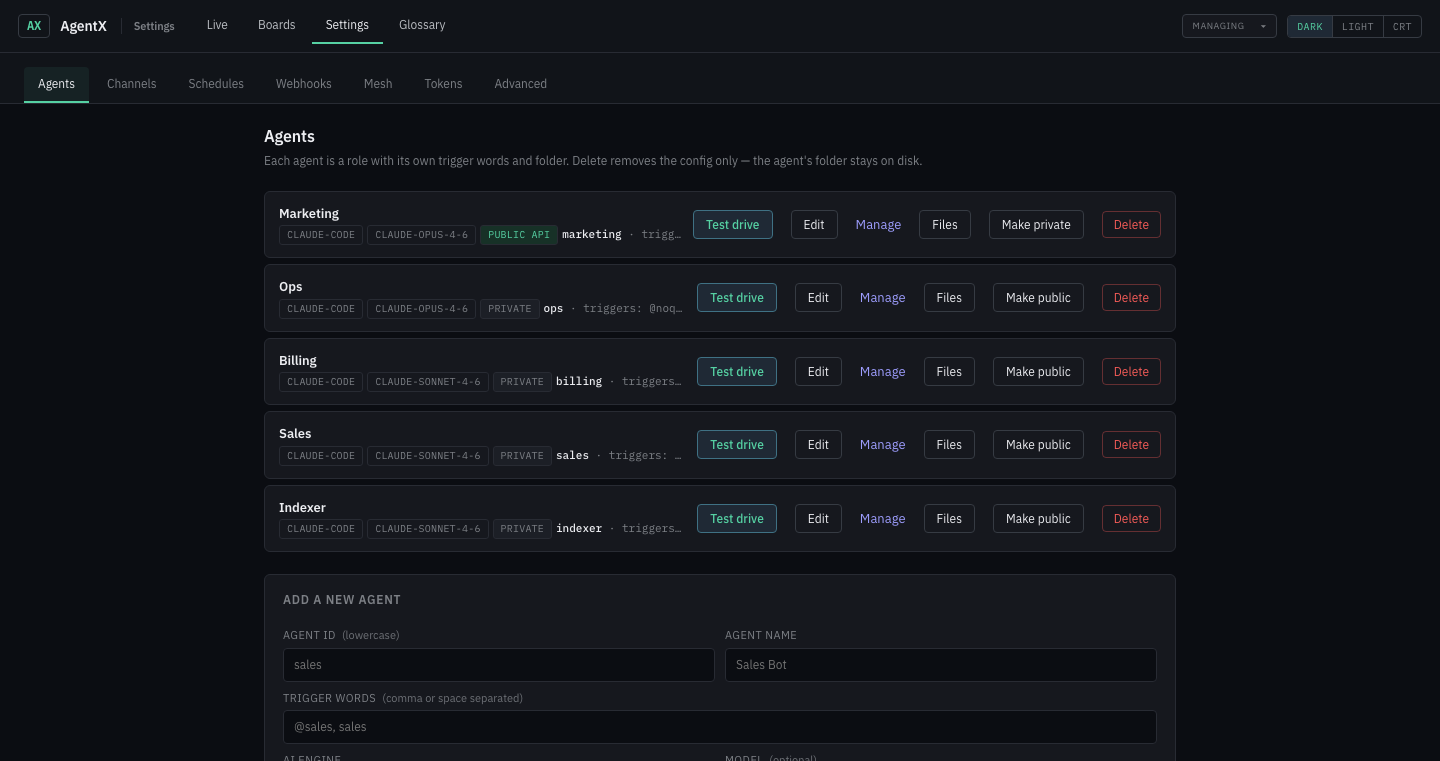
Fill in three things:
| Field | What it means | Example |
|---|---|---|
| Agent ID | A short lowercase label. Can't be changed later. | support |
| Agent name | The display name (shown on cards). | Support Bot |
| Trigger words | How people mention this agent in group chats. | @support_bot, support |
Leave the rest on defaults (Claude Code engine, Sonnet model). Click Add agent. The card for your new agent appears above the form.
CLI equivalent
agentx agent add # interactive prompts — same fields as the formStep 3 — Give it a personality
Click Manage on your new agent's card. This opens CLAUDE.md — a plain-English file that tells the agent who it is. Write 2–4 lines:
# Support Bot

You answer questions for customers of Sundial Café.
You know our menu, hours (8am–6pm daily), and booking policy (at least 2 hours ahead, minimum 4 people for group reservations).
Keep replies under 3 sentences. If you don't know, say so and offer to pass the message to the team.
Save. The agent is ready.
How agents "know" things
The personality file is the system prompt — whatever you put here, the agent treats as rules. For anything longer (menu items, a price list, FAQs), drop a .md file alongside CLAUDE.md in the agent's folder. The agent reads it on demand.
Step 4 — Connect Telegram
Click Settings → Channels. Pick Telegram in the left rail.
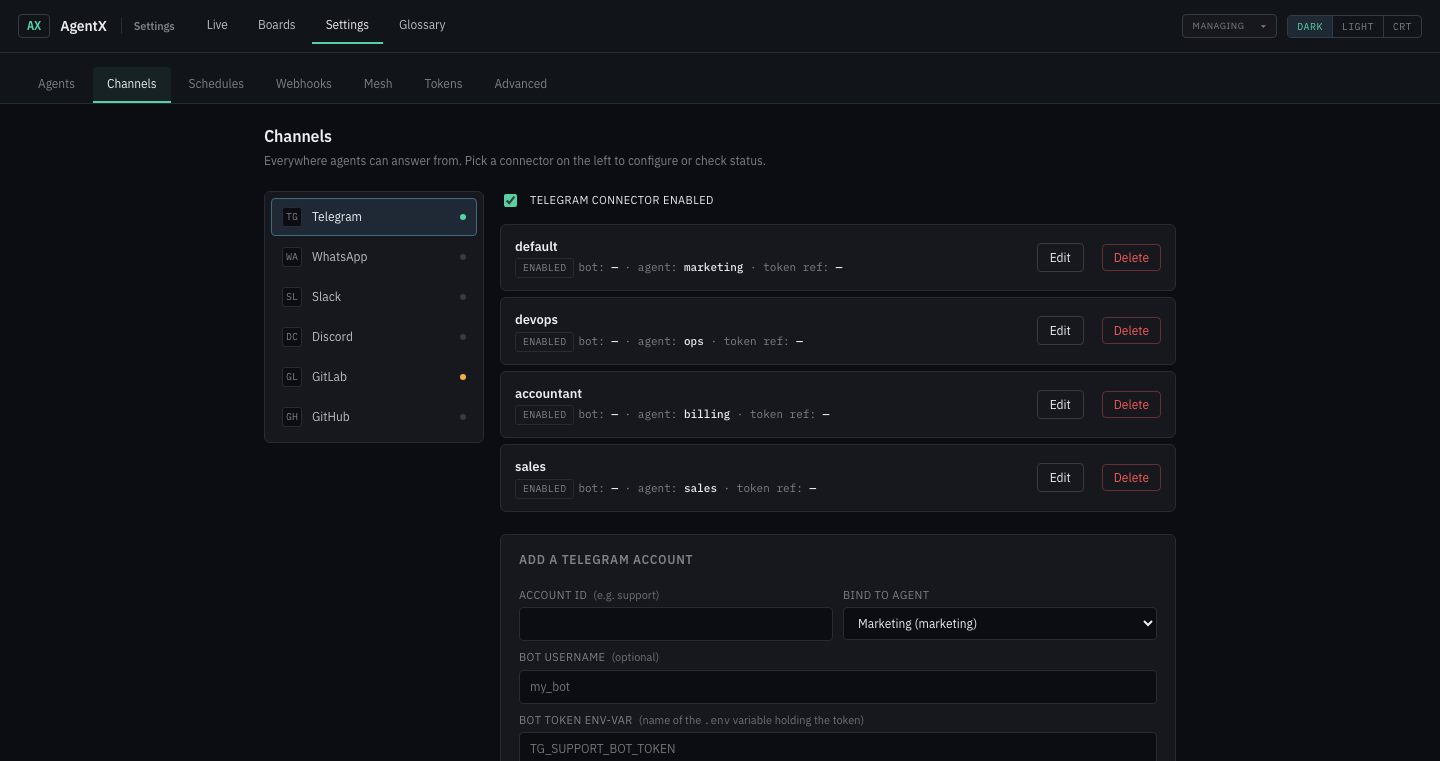
You'll need a bot token — a 50-character string that Telegram gives you when you create a bot. If you've never done this, it takes 30 seconds and is walkthrough-level easy:
Never set up a Telegram bot before?
Telegram bots without the jargon → — a pictured 30-second walkthrough of @BotFather.
Fill in the Add a Telegram account form:
| Field | Value |
|---|---|
| Account ID | Free label, e.g. support |
| Bind to agent | Pick the agent you just created |
| Bot username | Your bot's handle (e.g. @support_bot) — optional, used for mention matching |
| Bot token env-var | A name like TG_SUPPORT_BOT_TOKEN. AgentX stores the actual token in .env, not in the config file |
Click Add account. Paste the token when prompted. Done.
CLI equivalent
agentx channel add # pick Telegram, paste token, choose agentStep 5 — Watch it work
Click Live in the top bar.
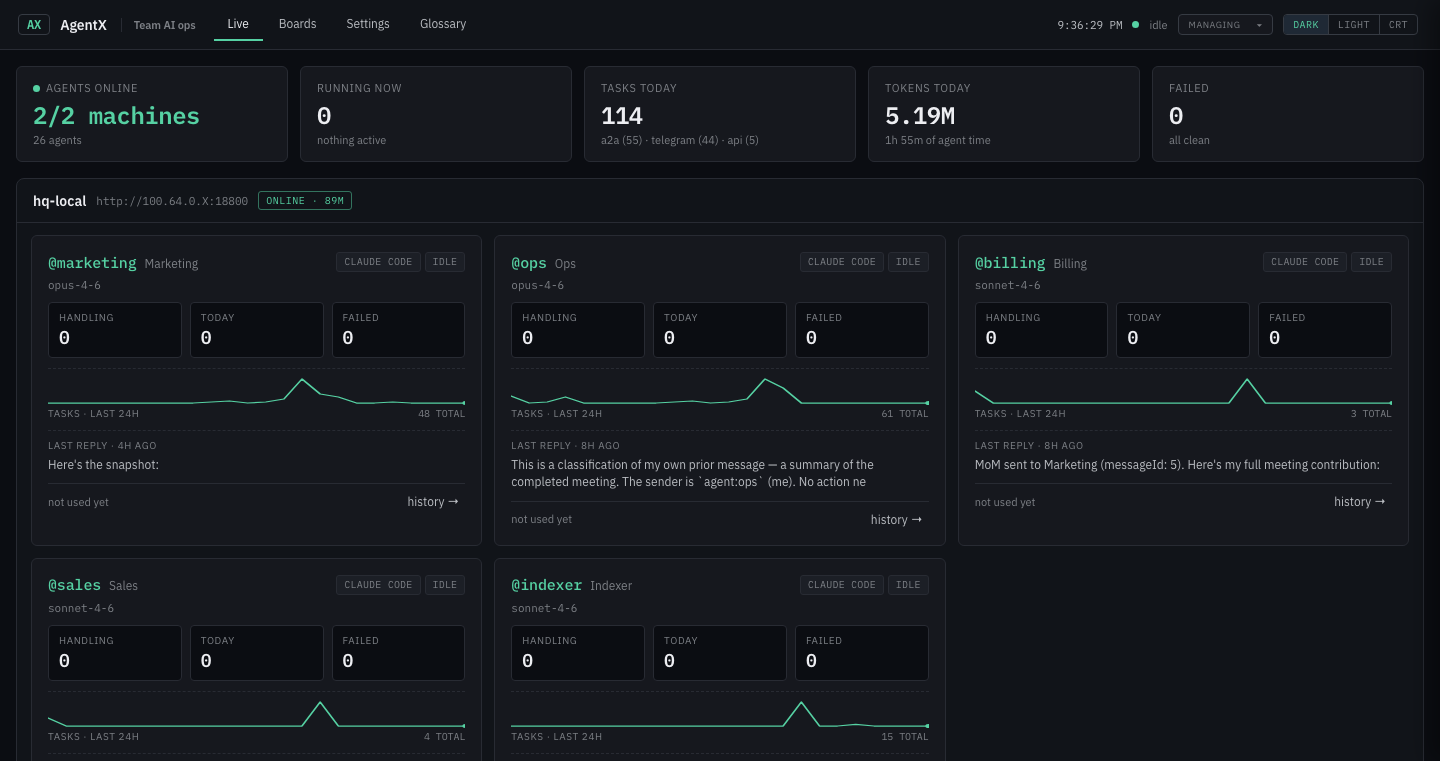
You see one card per agent. Each shows:
- Status (idle / handling / offline)
- Today's counts — tasks handled, failed, currently running
- 24h sparkline — tasks over time
- Last reply preview — what the agent just said
Now DM your bot on Telegram: "What are your hours?"
Watch the card: status flips to handling, the counter ticks up, and within seconds your Telegram chat shows the reply. That's the whole loop.
Step 6 — Try the Boards view
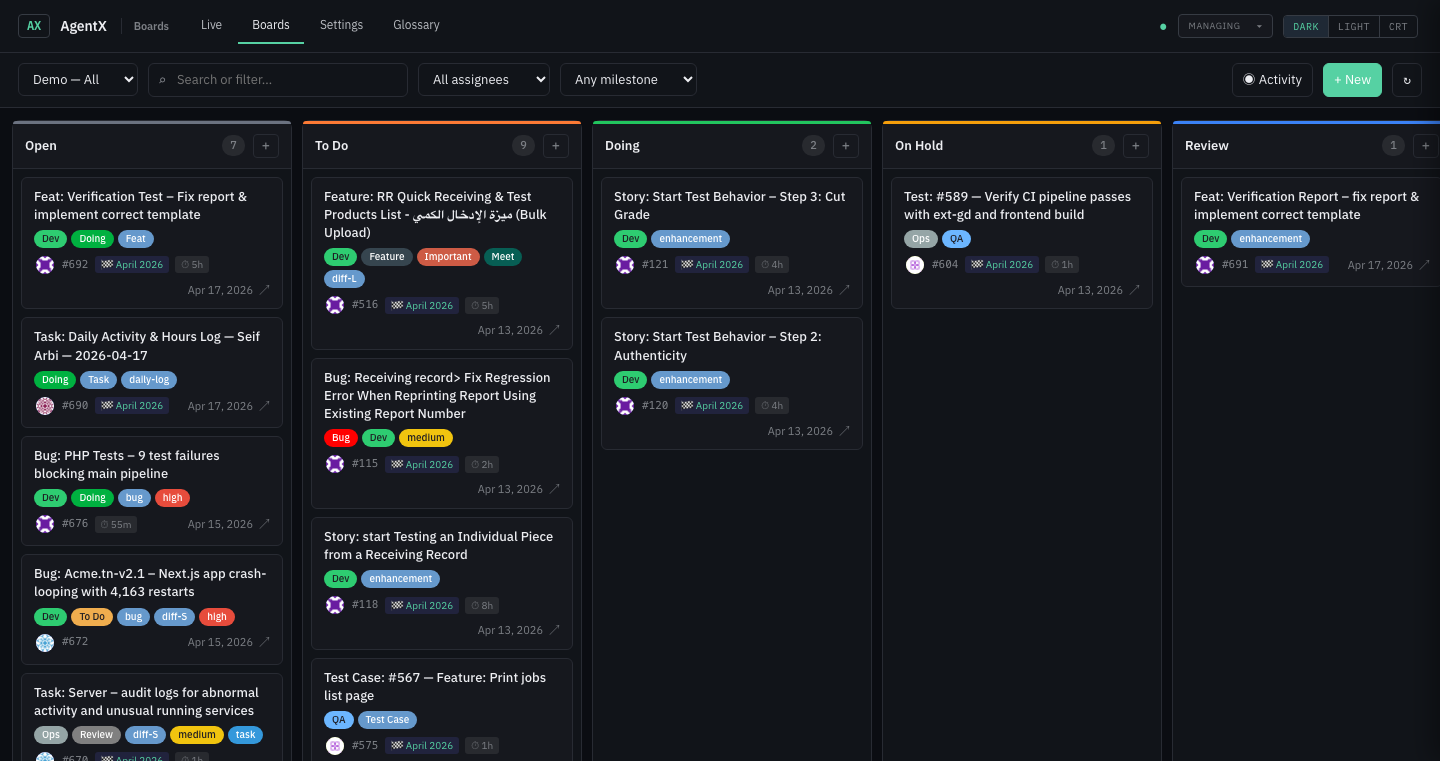
Click Boards. This is the Kanban over your work pool (GitLab issues, GitHub issues, or a local backlog.md). It's empty until you connect a source — covered in Journey 7 — but worth knowing it's here.
What you just set up
The dashboard isn't a frontend onto the CLI — it is the control plane. Agents, channels, crons, webhooks, mesh peers, tokens are all managed the same way: browser form → save → daemon hot-reloads.
If something goes wrong
| Symptom | Where to look |
|---|---|
| No reply in Telegram | Live screen — is the card status "handling" or stuck "idle"? If stuck idle, the bot token may be wrong. |
Card says errored | Click the agent card → see the last summary line + click history for full trace. |
Conflict: terminated by other getUpdates request | Another process is polling the same bot token. Stop the other instance or revoke+reissue the token in @BotFather. |
| Dashboard won't load | agentx daemon status in a terminal. If nothing, agentx daemon start. |
Full self-diagnosis:
agentx doctorWhat's next
- Make it speak WhatsApp too → Journey 4 — Cross-channel
- Have it send you a daily summary → Journey 2 — Scheduled reports
- Add a second agent for sales → Journey 3 — Multi-agent group
- Understand the seven primitives → Concepts
All-CLI version
For operators who prefer the terminal, the same Journey in six commands:
agentx init                                         # scaffold agentx.json + .env + .agentx/
agentx agent add                                    # interactive: ID, name, trigger words, model
agentx channel add                                  # pick Telegram, paste token, bind agent
echo "TG_SUPPORT_BOT_TOKEN=<token>" >> .env         # or let `channel add` store it
agentx daemon start
agentx daemon watch                                 # color-coded live activity in the terminal
The personality in agents/support/CLAUDE.md:
# Support Bot
You answer questions for customers of Sundial Café.
You know our menu, hours (8am–6pm daily), and booking policy.
Keep replies under 3 sentences. If you don't know, say so and offer to pass the message to the team.
The agent add and channel add wizards produce the same agentx.json the dashboard does:
{
  "agents": {
    "support": {
      "name": "Support Bot",
      "workspace": "./agents/support",
      "tier": "claude-code",
      "model": "claude-sonnet-4-6",
      "mentions": ["@support_bot", "support"]
    }
  },
  "channels": {
    "telegram": {
      "enabled": true,
      "accounts": {
        "support": {
          "token": "${TG_SUPPORT_BOT_TOKEN}",
          "agentBinding": "support"
        }
      },
      "policy": { "dm": "pair", "group": "mention-required" }
    }
  }
}
Any config change you make in the dashboard you can also make with agentx config set …. All three hot-reload the daemon — no restart needed.